
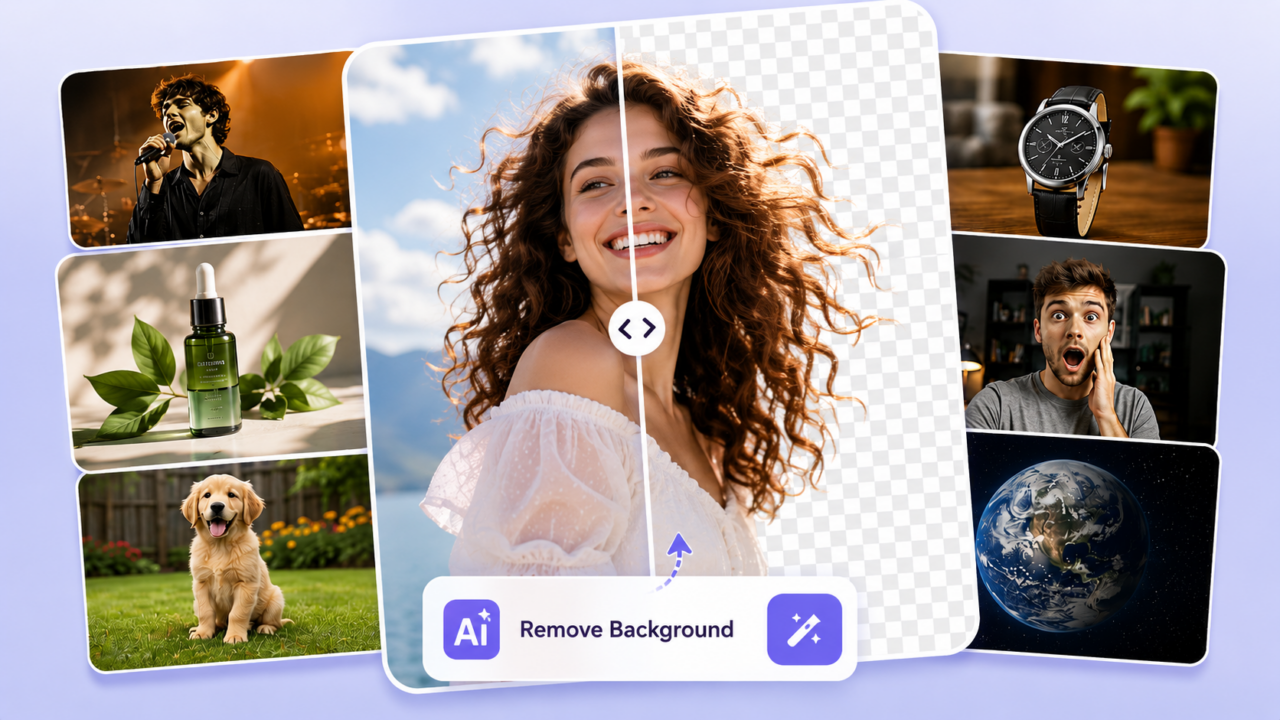
Finding a good free AI background remover can save hours of editing work. Whether you're designing a poster, preparing product photos for an online store, making social media graphics, or creating a professional headshot, removing the background is often the first step.
In the past, this meant spending time in Photoshop using selection tools, masks, and brushes. Even experienced designers sometimes struggle with complex edges like curly hair, fur, or transparent objects. Today, AI can do the same job in seconds.
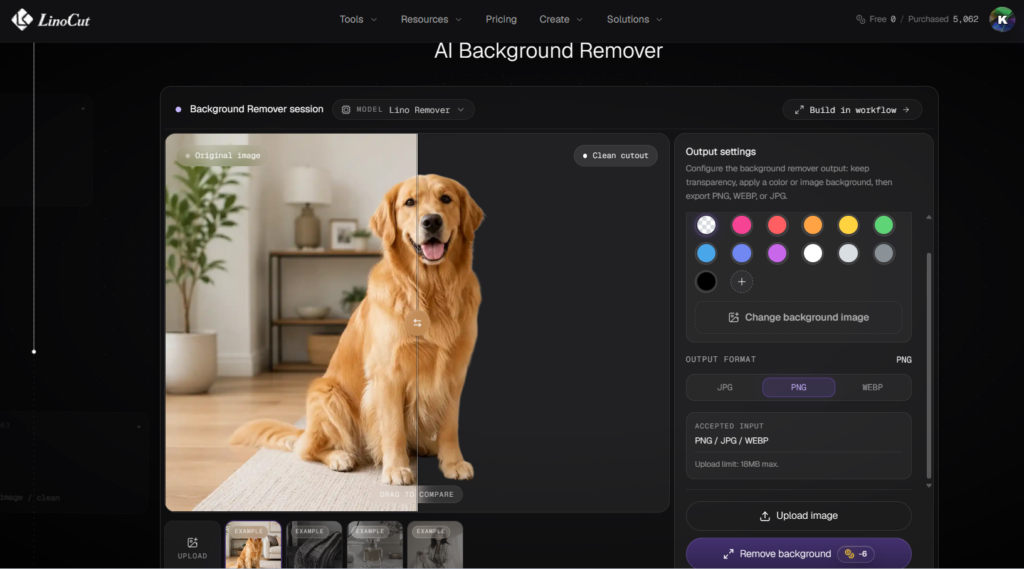
LinoCut AI Background Remover lets you upload an image and remove the background with one click. The AI automatically detects the subject and creates a clean cutout, even preserving tiny hair strands and delicate edges. In this guide, we'll look at seven real examples that show how a free AI background remover can make everyday photo editing easier.
What Is a Free AI Background Remover?
A free AI background remover is an online tool that automatically separates the main subject of a photo from its background. Instead of manually tracing edges, AI analyzes the image and identifies people, products, animals, and objects.
Most modern AI background removers can:
- Remove backgrounds automatically
- Create transparent PNG images
- Replace backgrounds with colors or new scenes
- Prepare images for marketing materials
- Improve product photography
- Help users edit photos online without software installation
How AI Background Removal Works
- The AI detects the primary subject in the image.
- It separates the foreground from the background.
- It refines the edges around hair and detailed areas.
- It generates a transparent PNG that can be used anywhere.
Why AI Is Better Than Manual Background Removal
- No design skills required.
- Works in seconds.
- Handles fine details like hair and fur.
- Can be used from any browser.
- Much easier than Photoshop for beginners.
Who Needs an AI Background Remover?
Background removal isn't just for designers. Many people use it every day.
- Content creators making YouTube thumbnails and social posts.
- Online sellers creating professional product photos.
- Students preparing presentations and posters.
- Small business owners designing advertisements.
- Job seekers creating LinkedIn profile pictures.
- Teachers making educational materials.
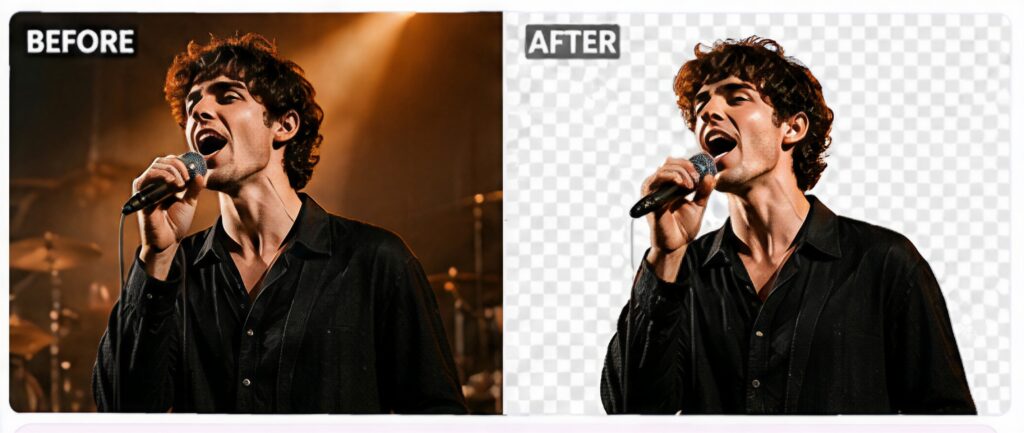
Real Example #1: Remove Backgrounds for Poster Design
User Scenario
A designer is creating a music festival poster and needs a clean cutout of the singer.
The Photo Problem
The original photo was taken indoors and the background contains furniture, people, and distracting objects.
Step-by-Step Workflow
- Upload the portrait to LinoCut AI Background Remover.
- Click the Remove Background button.
- Download the transparent PNG.
- Add the image to the poster layout.
- Place text and graphics around the subject.
Suggested Editing Instruction
Remove the background of the singer on stage,preserve all hair details, high quality cutout.
Expected Result
The singer becomes the visual focus of the poster, making the design more professional and eye-catching.
Practical Tip
Leave some empty space around the person so text and event information can be added later.
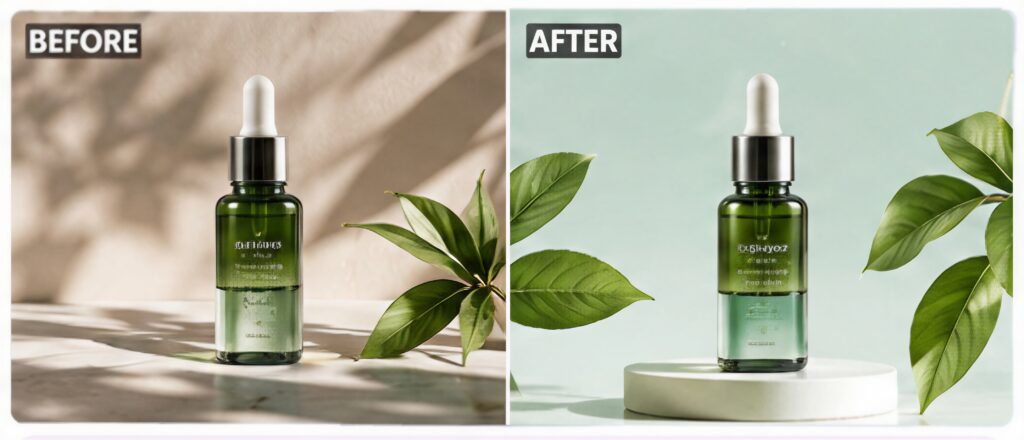
Real Example #2: Create Professional Ecommerce Product Photos
User Scenario
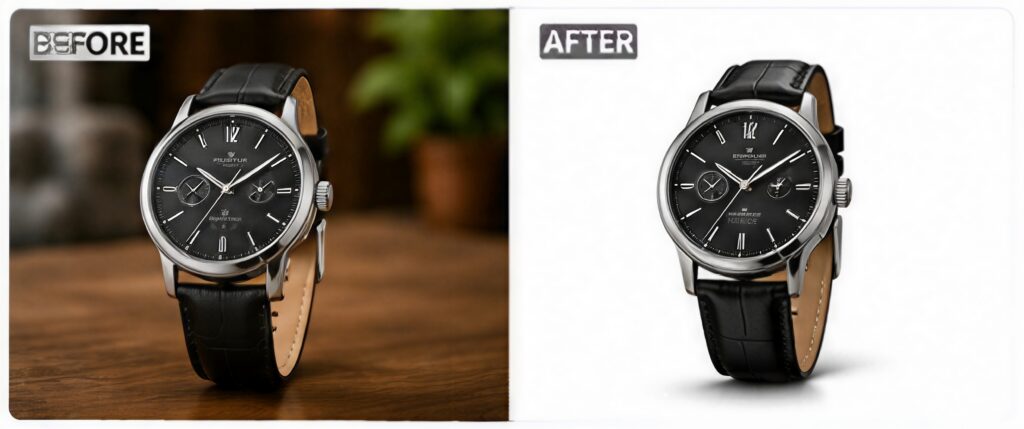
An Etsy seller wants to upload new product listings.
The Photo Problem
The products were photographed on a kitchen table with a messy background.
Step-by-Step Workflow
- Upload the product image.
- Remove the background automatically.
- Replace it with a pure white background.
- Adjust brightness if necessary.
- Export the final image.
Suggested Editing Instruction
Remove the background and replace it with pure white.
Expected Result
A professional product photo suitable for Amazon, Etsy, Shopify, and other ecommerce platforms.
Practical Tip
Use natural lighting when taking product photos. The cleaner the original image, the better the AI result.
Real Example #3: Make Eye-Catching YouTube Thumbnails
User Scenario
A YouTuber wants to create a thumbnail with a colorful background.
The Photo Problem
The original selfie includes furniture and shadows that distract viewers.
Step-by-Step Workflow
- Upload the portrait.
- Remove the background.
- Add a bright gradient background.
- Insert text and icons.
- Export the thumbnail.
Suggested Editing Instruction
Remove the room background and preserve the hair edges, for a YouTube thumbnail.
Expected Result
A more clickable YouTube thumbnail with a cleaner design.
Practical Tip
Use contrasting colors between the subject and background to improve visibility on mobile screens.

Real Example #4: Design Better Social Media Posts
User Scenario
A small business owner wants to create an Instagram promotion.
The Photo Problem
The original image doesn't match the brand colors.
Step-by-Step Workflow
- Upload the image.
- Remove the background.
- Add a branded background.
- Insert promotional text.
- Export for social media.
Suggested Editing Instruction
Remove the background and add a soft blue gradient.
Expected Result
A visually consistent social media post that matches the company's branding.
Practical Tip
Don't overcrowd the design. White space helps improve readability.
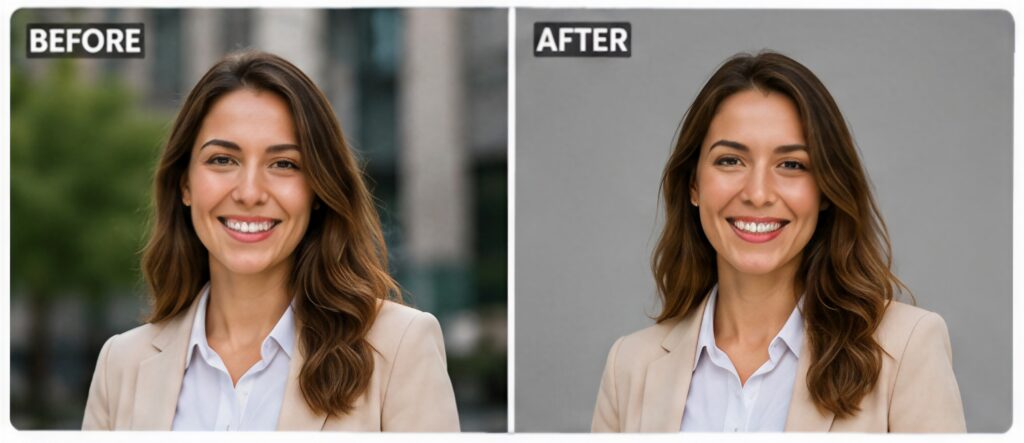
Real Example #5: Create Professional LinkedIn Headshots
User Scenario
A job seeker needs a professional profile picture.
The Photo Problem
The portrait was taken outdoors and contains distracting buildings in the background.
Step-by-Step Workflow
- Upload the portrait.
- Remove the background.
- Replace it with a neutral gray backdrop.
- Adjust brightness and contrast.
- Download the image.
Suggested Editing Instruction
Replace the background with a professional gray color.
Expected Result
A polished portrait suitable for resumes, LinkedIn, and company websites.
Practical Tip
Gray and light blue backgrounds are popular choices for business headshots.
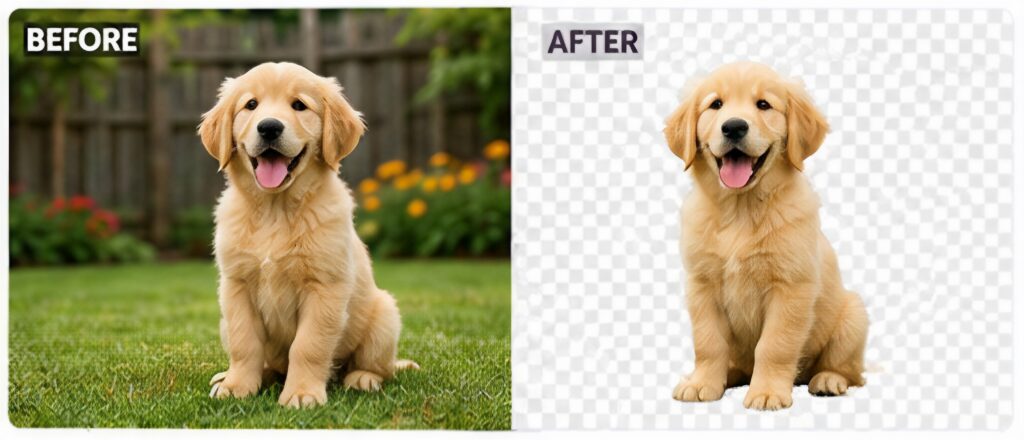
Real Example #6: Make Transparent PNG Stickers
User Scenario
A creator wants to make custom stickers for WhatsApp and Telegram.
The Photo Problem
The images contain complex backgrounds that don't work well as stickers.
Step-by-Step Workflow
- Upload the photo.
- Remove the background.
- Download as PNG.
- Add outlines or text.
- Export the stickers.
Suggested Editing Instruction
Create a transparent background and preserve all details.
Expected Result
Clean, professional stickers with smooth edges.
Practical Tip
High-resolution photos usually produce better cutouts.
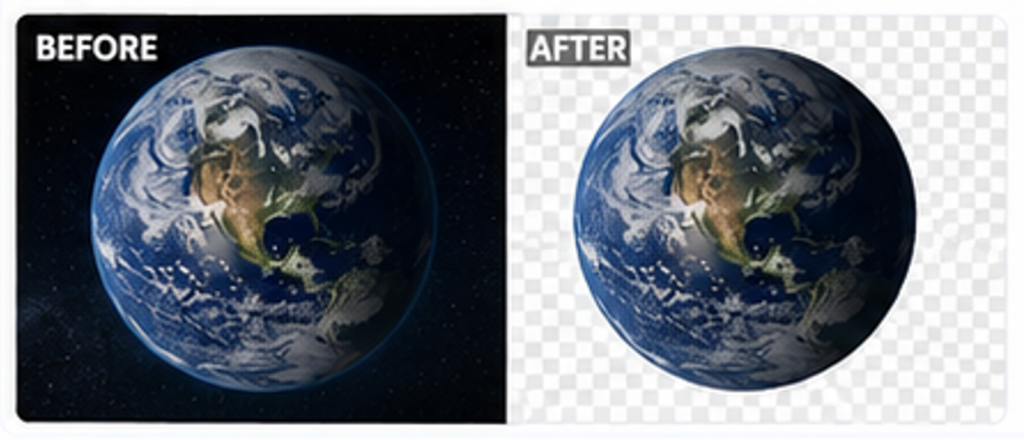
Real Example #7: Remove Backgrounds for School Presentations
User Scenario
A student is creating a science presentation and needs isolated images of planets and animals.
The Photo Problem
The downloaded images have distracting backgrounds.
Step-by-Step Workflow
- Upload the images.
- Remove the backgrounds.
- Download transparent PNG files.
- Insert them into PowerPoint or Google Slides.
Suggested Editing Instruction
Keep only the object and make the background transparent.
Expected Result
Cleaner and more engaging presentation slides.
Practical Tip
Transparent images look much more professional than screenshots with rectangular backgrounds.
Why LinoCut Is Great for Removing Backgrounds Around Hair
One of the biggest challenges in photo editing is dealing with hair. Manual selection tools often remove fine strands or create unnatural edges.
LinoCut uses AI segmentation technology that can:
- Preserve individual hair strands
- Handle curly and messy hair
- Recognize fur and soft textures
- Work with transparent objects like glass
- Create smooth, natural edges
This level of detail is particularly useful for portrait photo editing, fashion photography, and social media graphics.
AI Background Remover vs Photoshop: Which Should You Use?
| Feature | LinoCut AI | Photoshop |
|---|---|---|
| One-click background removal | Yes | No |
| Hair detail detection | Excellent | Manual work required |
| Learning curve | Easy | Difficult |
| Software installation | No | Yes |
| Editing speed | Seconds | Minutes or longer |
| Suitable for beginners | Yes | Not always |
If you only need to remove backgrounds or create transparent PNG files, AI tools are usually the faster option.
Common Background Removal Mistakes to Avoid
Using Very Low-Resolution Photos
Blurry images make it harder for AI to detect details.
Saving the Final Image as JPG
JPG doesn't support transparency. Use PNG instead.
Ignoring Lighting
The replacement background should match the lighting of the subject.
Choosing Overly Busy Backgrounds
Simple backgrounds often look more professional.
Overediting Product Images
Customers expect products to look realistic.
How to Remove Backgrounds Online with LinoCut
- Visit LinoCut AI Background Remover.
- Upload your image.
- Wait a few seconds while AI removes the background.
- Preview the result.
- Download the transparent PNG.
No software installation is required, and the entire process usually takes less than a minute.
Try LinoCut's Free AI Background Remover
Whether you're creating posters, product photos, YouTube thumbnails, social media graphics, or professional headshots, removing backgrounds shouldn't take hours.
LinoCut AI Background Remover helps you:
- Remove backgrounds with one click
- Create transparent PNG images
- Preserve hair details automatically
- Edit photos online without Photoshop
- Prepare images for work, school, and social media
Try LinoCut's free AI background remover and see how quickly AI can transform your photos.
Frequently Asked Questions
Is LinoCut AI Background Remover free?
Yes. You can remove image backgrounds online without installing software.
Can it preserve hair details?
Yes. The AI can detect fine hair strands and create natural-looking cutouts.
Can I create transparent PNG images?
Yes. You can download the final image as a transparent PNG.
Does it work for product photography?
Absolutely. Many ecommerce sellers use AI background removers to create professional product photos.
Can I replace the background with another color?
Yes. After removing the background, you can add a new color or image.
Is it easier than Photoshop?
For simple background removal tasks, AI tools are usually much faster and easier for beginners.
Can I use it on mobile devices?
Yes. Since it works online, you can use it on phones, tablets, and computers.
What image formats are supported?
Most common formats such as JPG and PNG are supported.