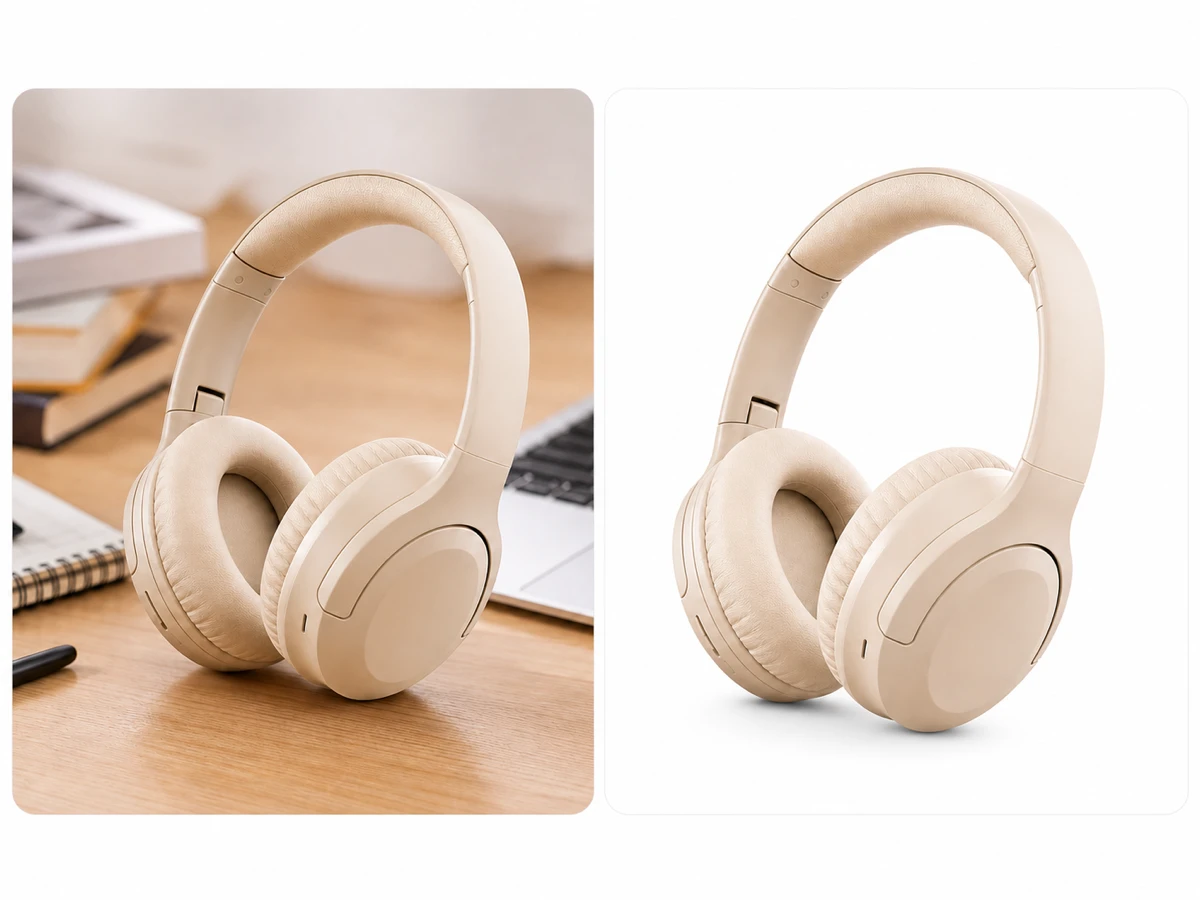
case.01
Listing photos
Prepare marketplace images by isolating products from busy rooms or studio backdrops, then export white, branded, or transparent backgrounds.
Upload a product, portrait, or campaign image, remove the background, then choose transparency, color, or an image backdrop before export.


Separate subjects from their backgrounds, inspect the clean edge result, and use the cutout in your next image or campaign task.
Use the AI background remover to remove background distractions from products, people, objects, and creator assets while keeping the main subject usable.
The background remover keeps hair, glass, fabric, labels, and soft shadows readable so the product cutout still feels natural in a new layout.
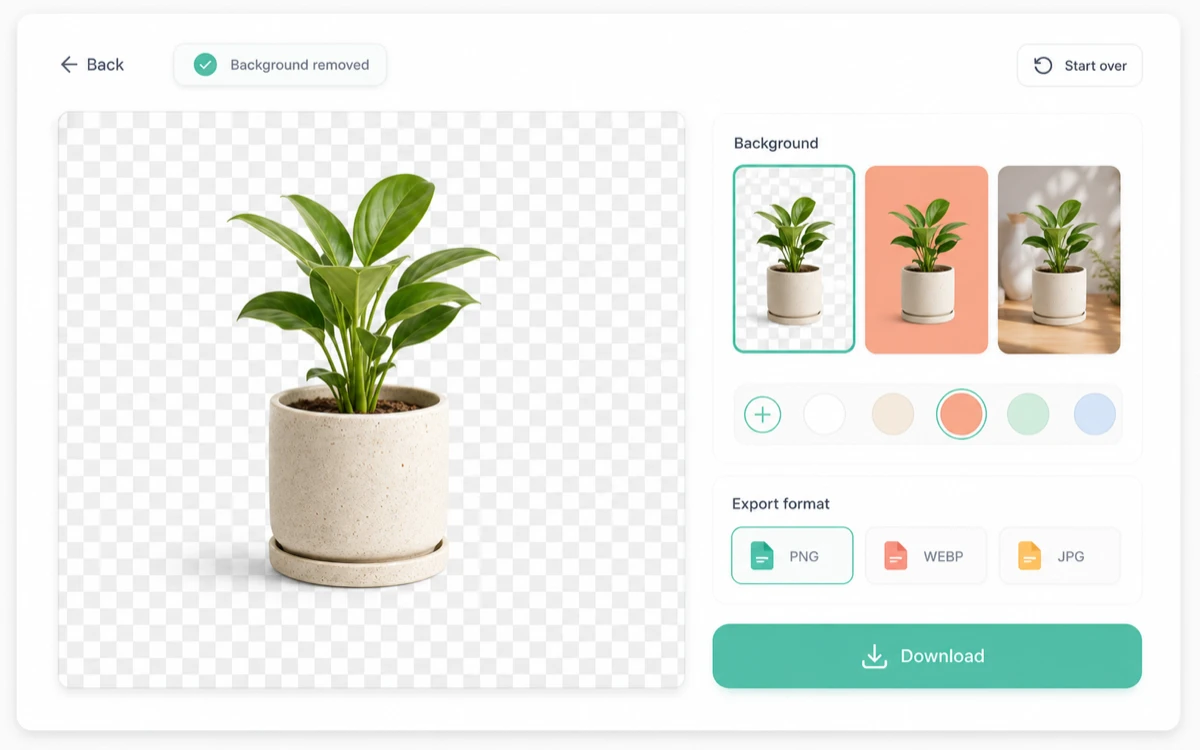
Set the background remover output to transparency, solid color, or an uploaded image background, then download PNG, WEBP, or JPG.
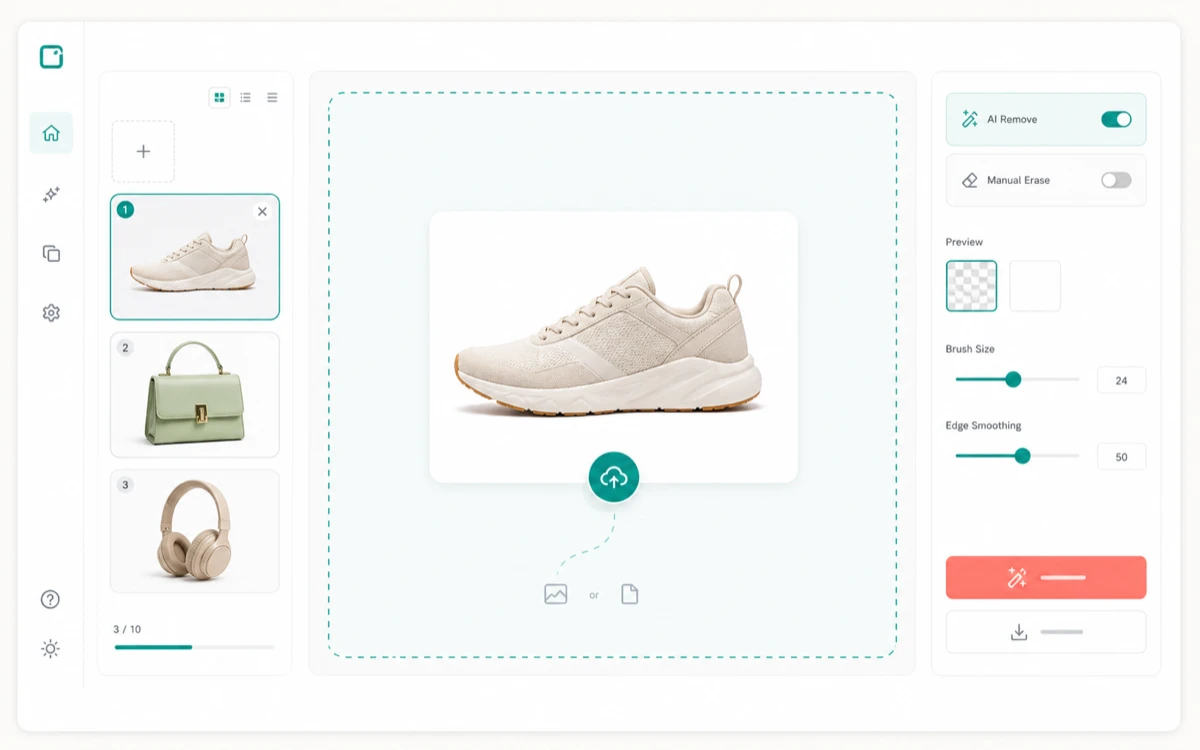 01
01Add a product, portrait, or campaign image to the background remover workspace.
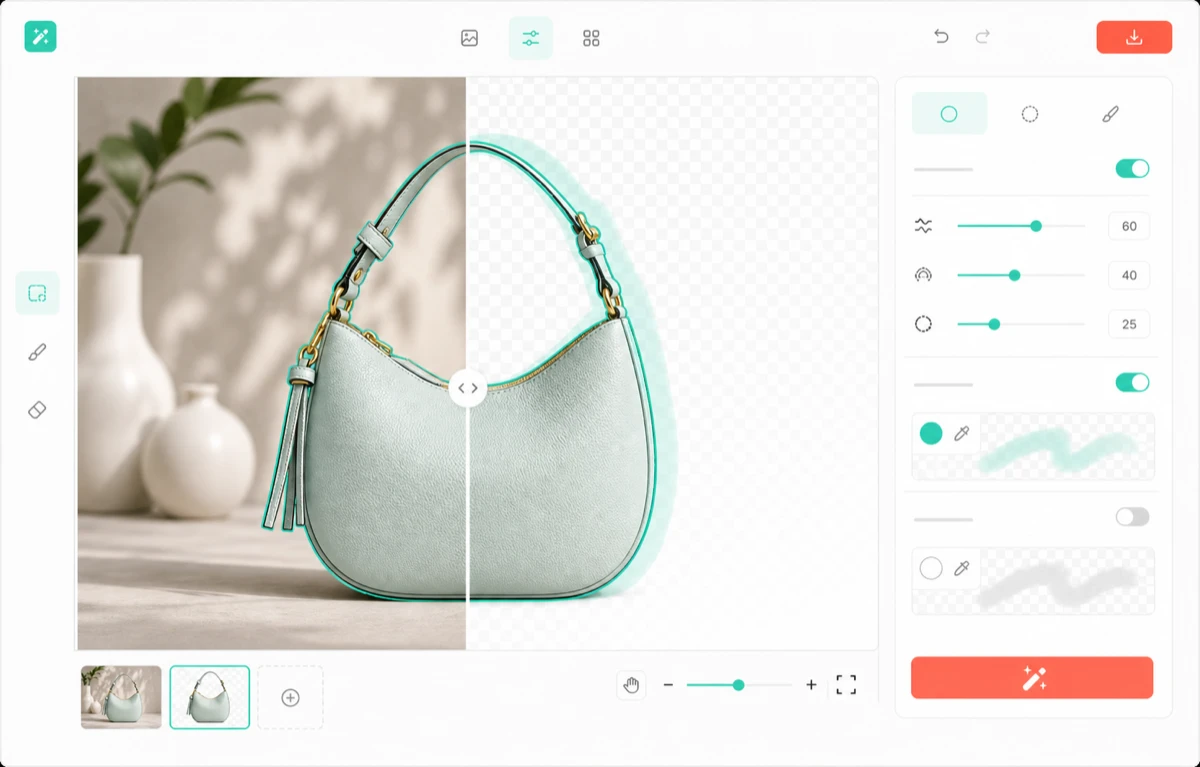 02
02Review the subject edge while the tool removes background areas and preserves fine detail.
 03
03Choose transparency, a brand color, or a custom image background, then export the finished cutout.

Produce cleaner cutouts, more reliable edges, and export-ready transparency without manual masking.
Remove background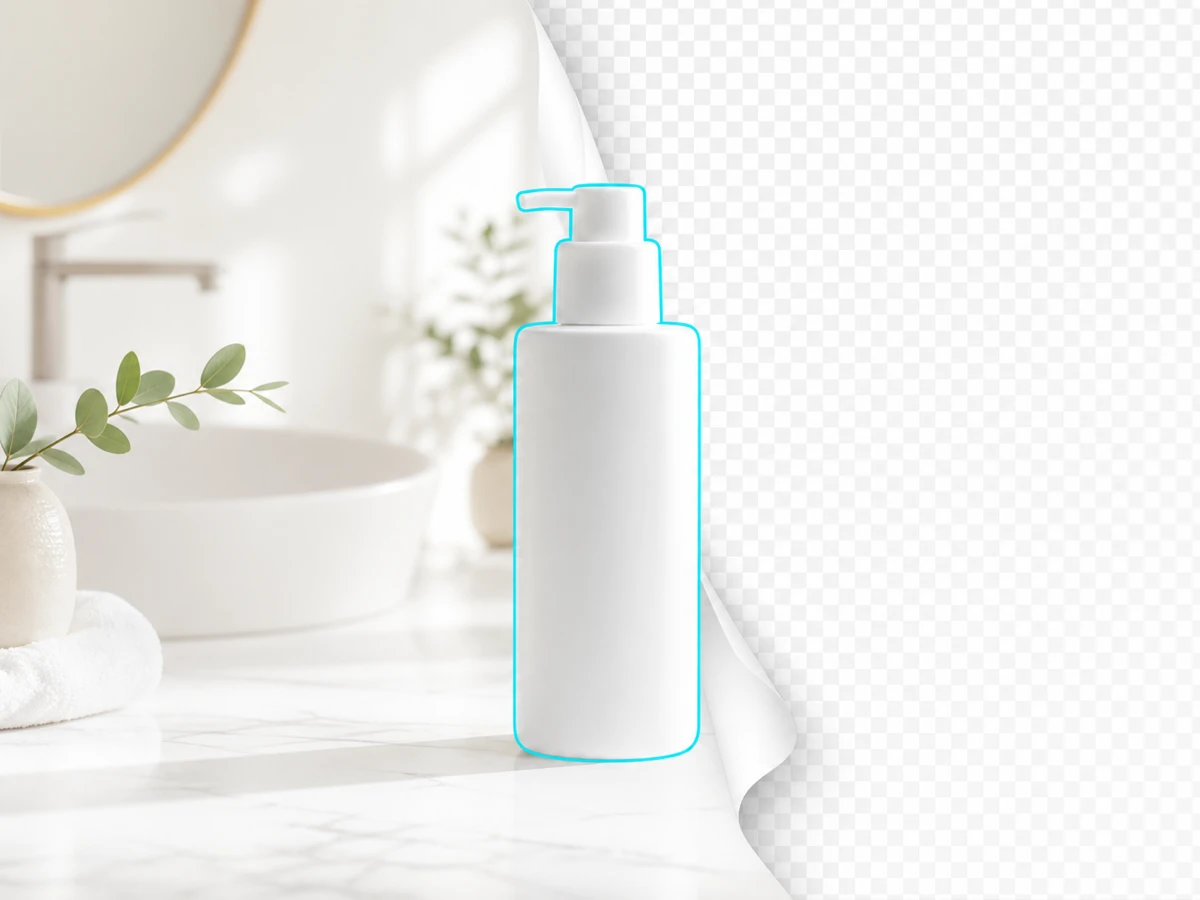
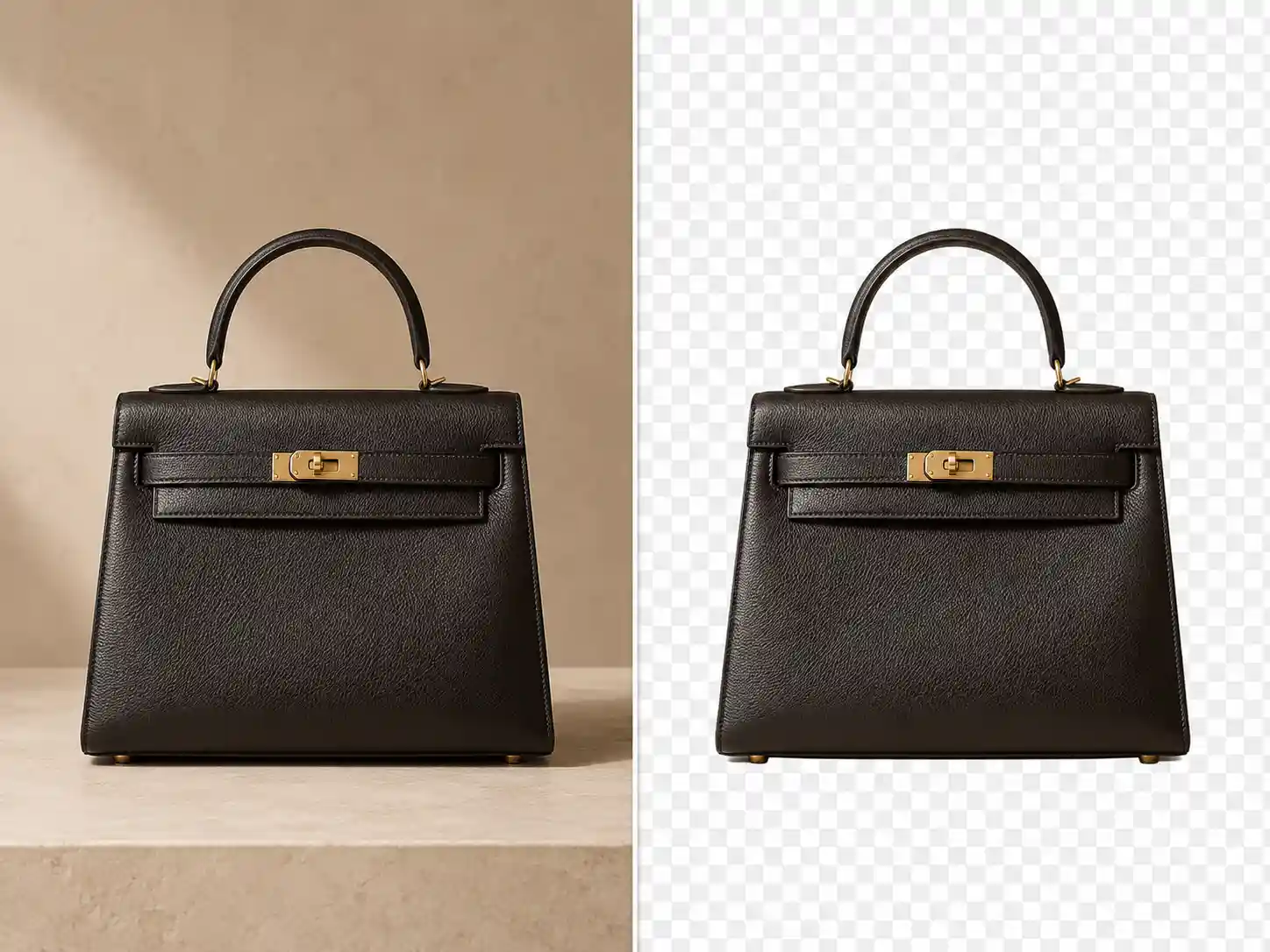
The background remover detects the main product, person, or object and separates it from busy studio, lifestyle, or outdoor scenes.
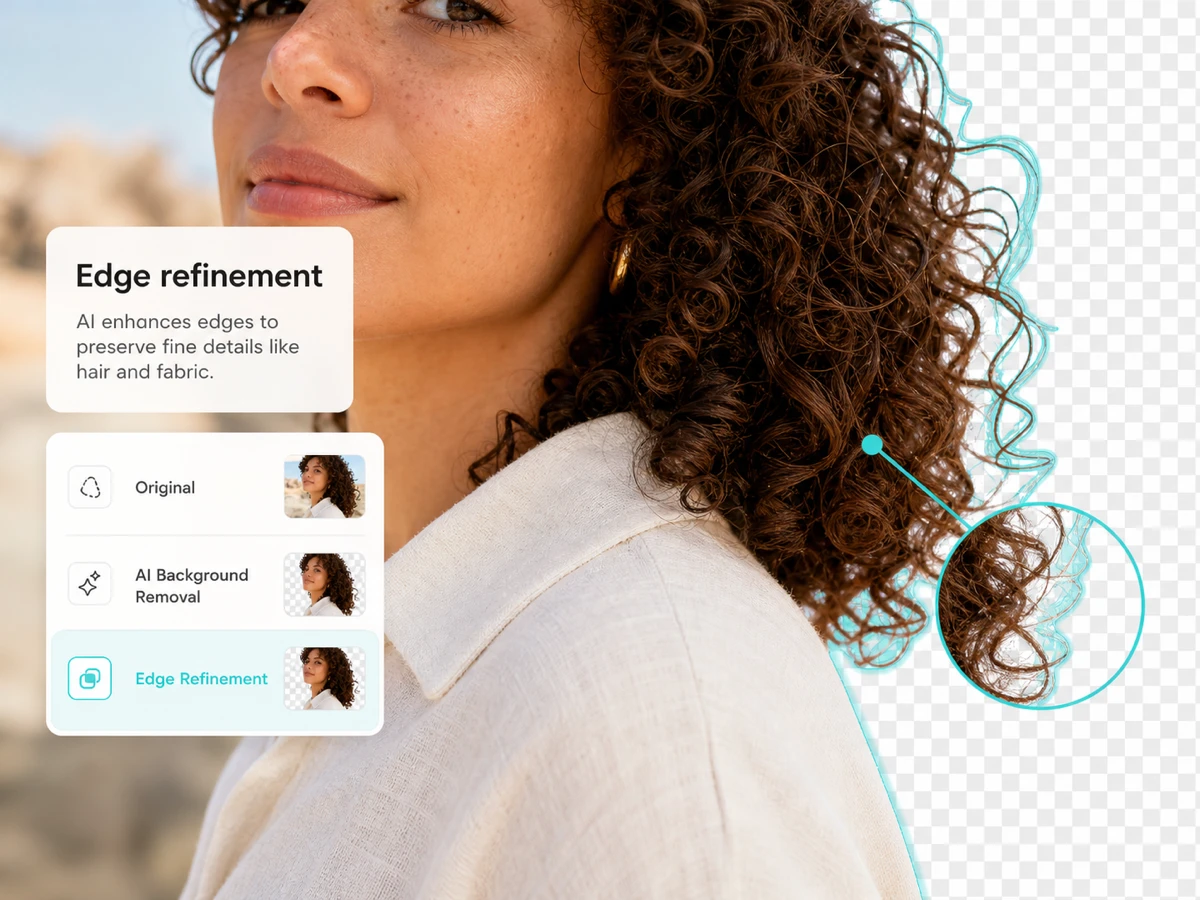
Keep hair, glass, fabric, soft product edges, and labels clean so the cutout is ready for real layouts.
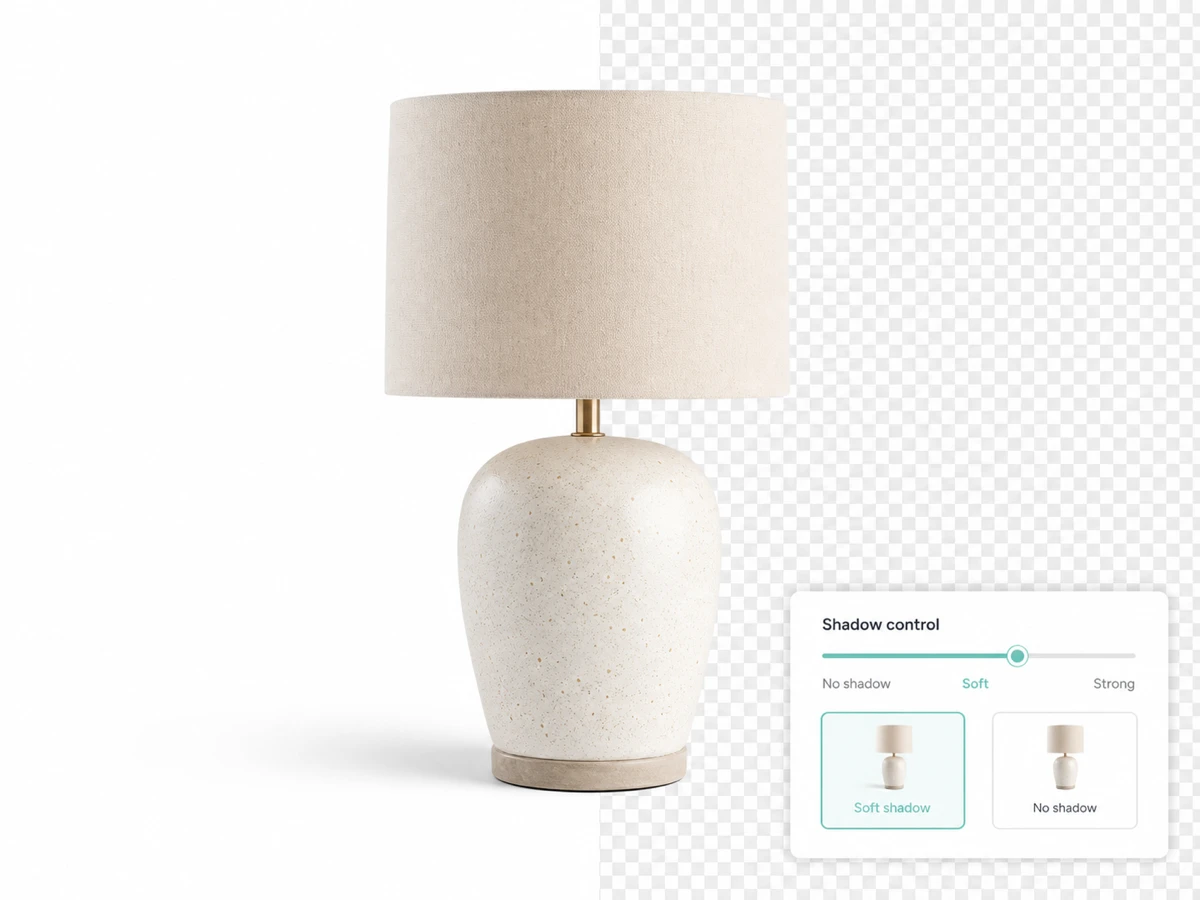
Preserve or soften contact shadows so isolated products can sit naturally on white, transparent, or custom canvases.
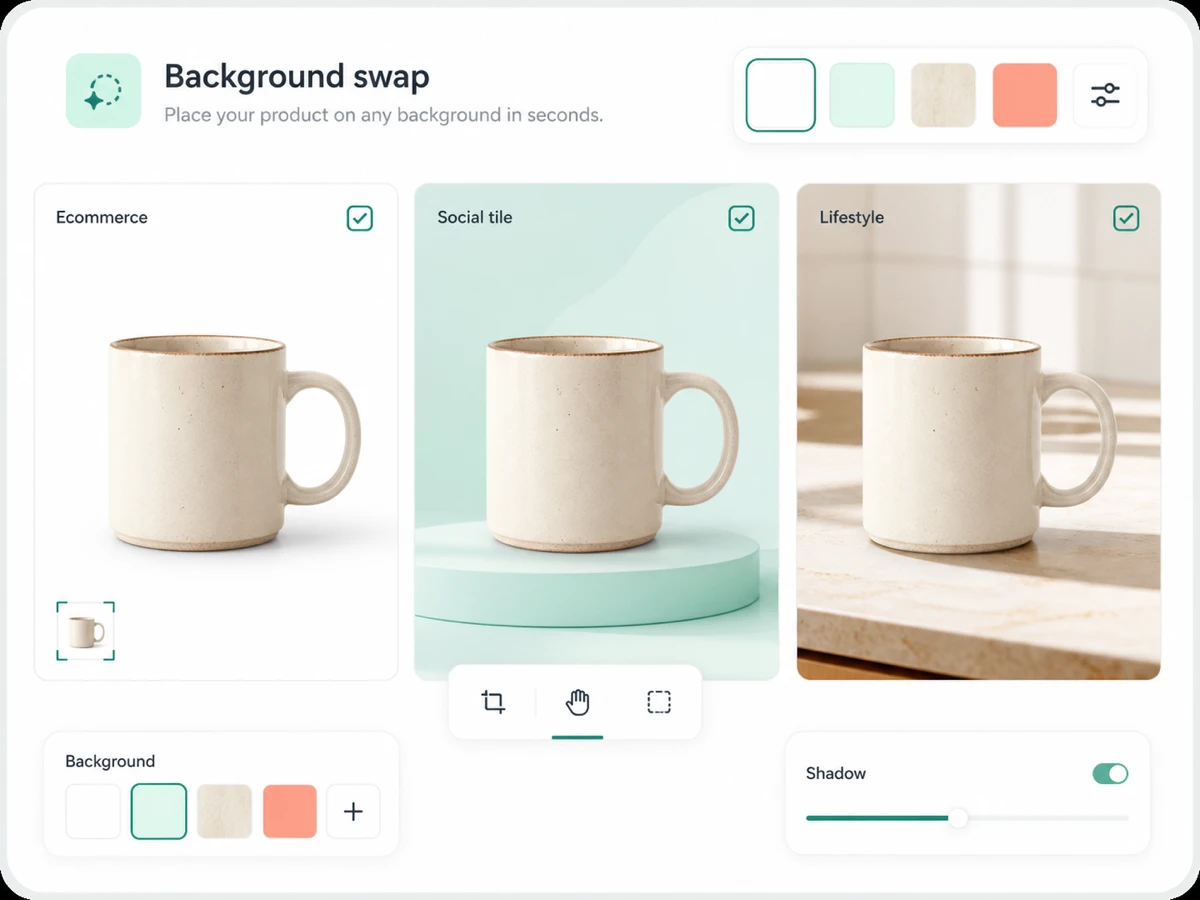
Use the background editor to move the background remover cutout into product cards, ad scenes, thumbnails, or branded campaign compositions.
Use an AI background remover to remove background clutter, choose transparent backgrounds, and export a ready-to-use image.
Prepare marketplace images by isolating products from busy rooms or studio backdrops, then export white, branded, or transparent backgrounds.

Turn source photography into reusable subjects for paid social, hero layouts, launch compositions, and seasonal background editor variants.
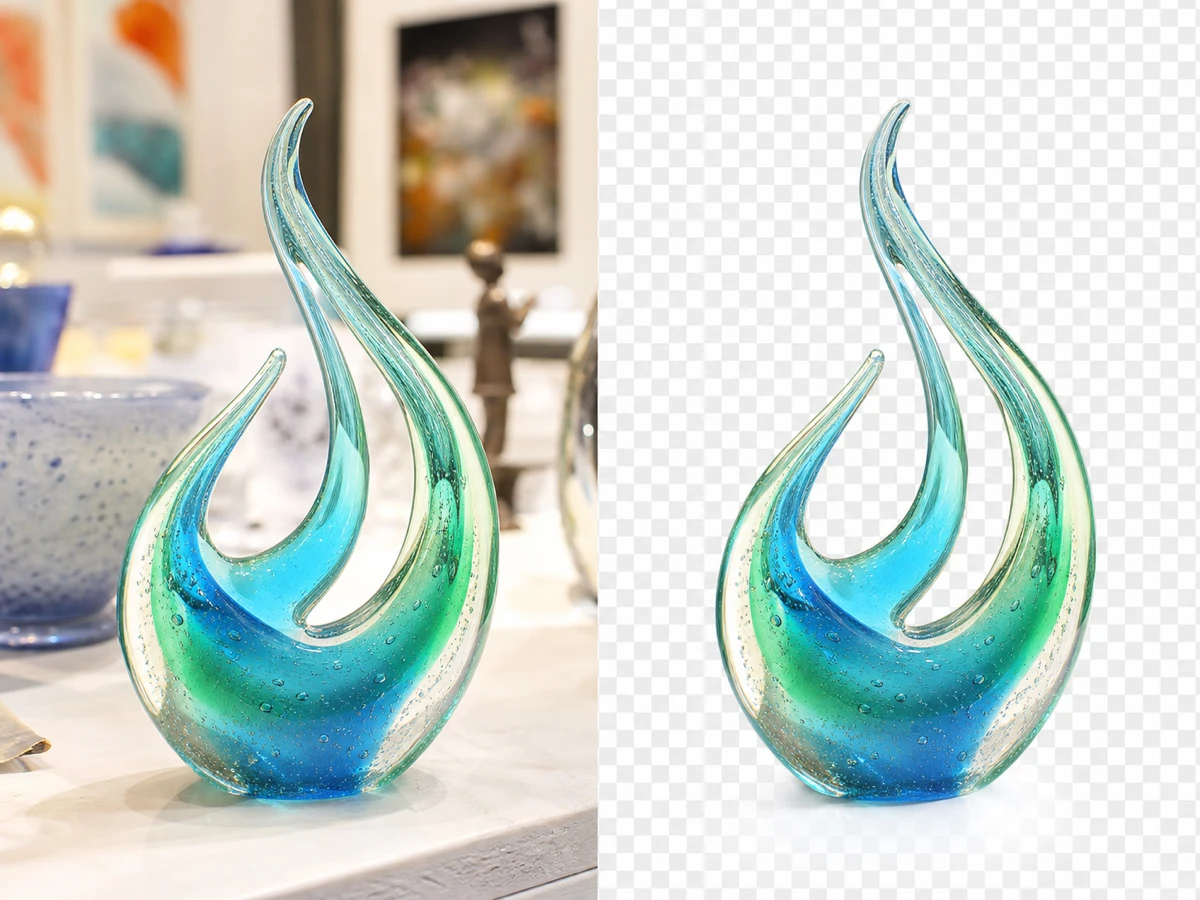
Use background removal on objects or portraits so presentations, portfolios, and pitch visuals have cleaner silhouettes and spacing.

Separate people from busy scenes while preserving hair, fabric, and natural shoulder contours for profile, thumbnail, and social crops.
Background removal is rarely the final decision. The useful result is a clean subject that can move into brand backgrounds, transparent assets, and export-ready compositions.
Preserve hair, glass, labels, fabric, and soft shadow detail so the cutout can survive real layouts.
Use the background editor to review transparent backgrounds, solid colors, and custom images before choosing the next placement.
Keep ecommerce, creator, and campaign product cutout sets organized for upscaling, enhancement, and repeated export variants.

Yes. The AI background remover works in the browser: upload a source image, remove background areas, preview the cutout, and download the result.
Product photos, portraits, apparel shots, creator thumbnails, and marketing visuals are the strongest fit for background removal when the subject is clear.
Yes. Choose transparent backgrounds and export PNG when you need a cutout for ecommerce listings, design tools, or layered layouts.
Yes. The background editor settings let you keep transparent backgrounds, select a solid color, or upload an image background before downloading.
The background remover supports PNG, WEBP, and JPG exports. Use PNG for transparent assets, WEBP for compact web files, and JPG for flattened images.
The AI cutout is tuned for edge detail, including hair, fabric, product labels, glass, and soft shadows. Very low contrast images may still need extra review.
No. Ecommerce is a common use case, but the same workflow fits profile images, social thumbnails, campaign concepts, presentation visuals, and design mockups.
Yes. Choose a preset color, pick a custom color, or upload a branded image background to create a finished asset from the background remover cutout.
The public tool page is designed for quick, unauthenticated exploration, so visitors can understand the background remover workflow before deeper editing.
Yes. Send the cutout into image enhancement, upscaling, object cleanup, layout generation, or other Linocut AI workflow steps.
Start with one direct task, then keep editing, generating, writing, and shipping from the same Linocut AI canvas.