Need a new passport photo? Updating your LinkedIn profile? Applying for a visa or a job and suddenly realize you don't have a professional headshot?
Traditionally, getting a professional ID photo meant visiting a photo studio, waiting in line, paying a fee, and sometimes taking dozens of pictures before finding one you actually liked.
Today, AI has completely changed the process.
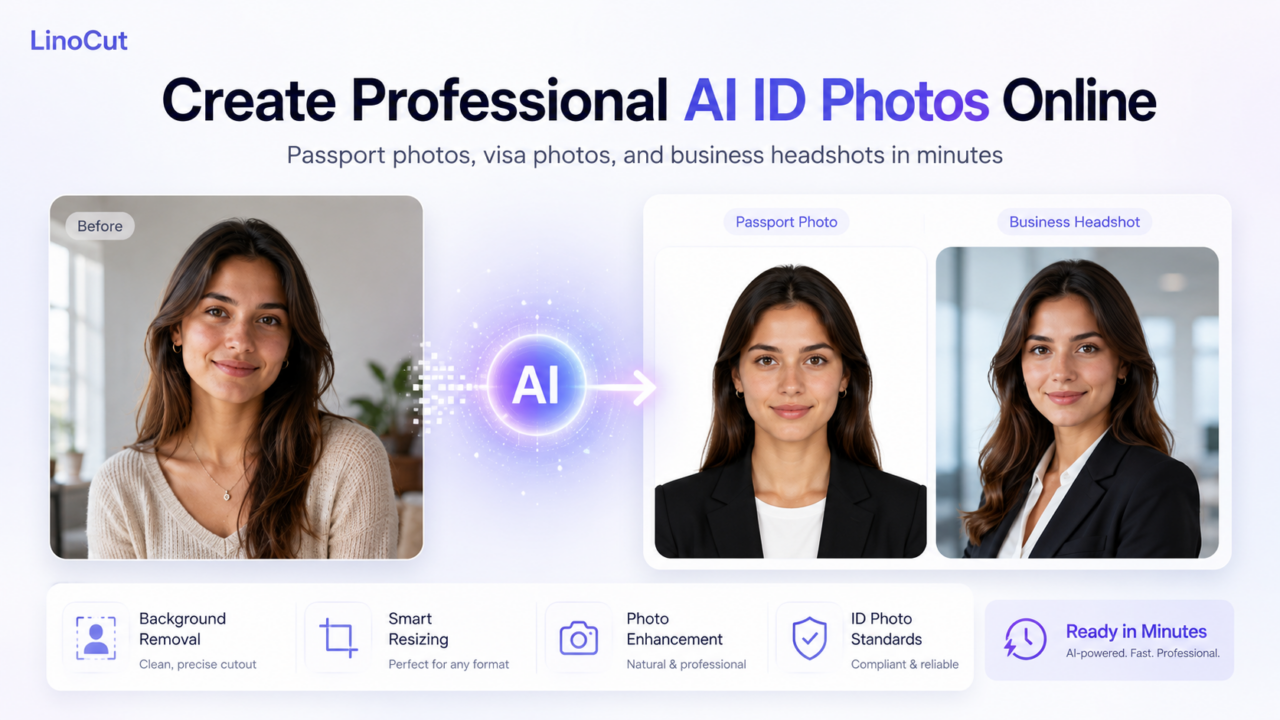
With modern AI tools like LinoCut, you can create professional-looking ID photos, passport photos, visa photos, and business headshots directly from your phone or computer. All you need is a clear photo and a few minutes.
This guide will show you exactly how to use AI to create high-quality ID photos, avoid common mistakes, and generate photos that look professional and natural.
Why More People Are Using AI to Create ID Photos
People need ID photos for many reasons:
- Passports
- Visas
- Driver's licenses
- Student IDs
- Job applications
- LinkedIn profiles
- Company badges
- Professional portfolios
However, traditional photo studios can be:
- Expensive
- Time-consuming
- Inconvenient
- Limited by opening hours
An AI ID photo generator solves these problems by allowing you to create professional photos from home.
Some AI tools can even:
✅ Remove messy backgrounds
✅ Change background colors
✅ Improve lighting
✅ Adjust photo size automatically
✅ Generate professional business portraits
✅ Export photos in multiple formats
What Is an AI ID Photo Generator?
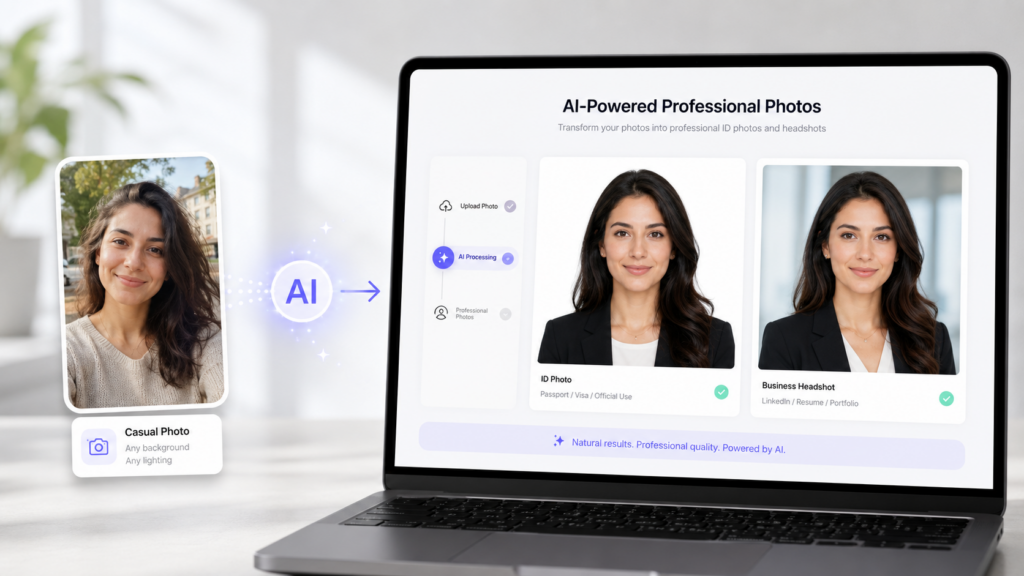
An AI ID photo generator uses artificial intelligence to transform an ordinary photo into a professional ID picture that meets official requirements.
Depending on the tool, AI can:
- Detect faces automatically
- Center your head correctly
- Remove backgrounds
- Replace clothing
- Improve image quality
- Generate professional headshots
- Resize photos for different countries and applications
Instead of retaking dozens of photos, AI helps you create a usable photo in just a few clicks.
What Types of Photos Can You Create with AI?
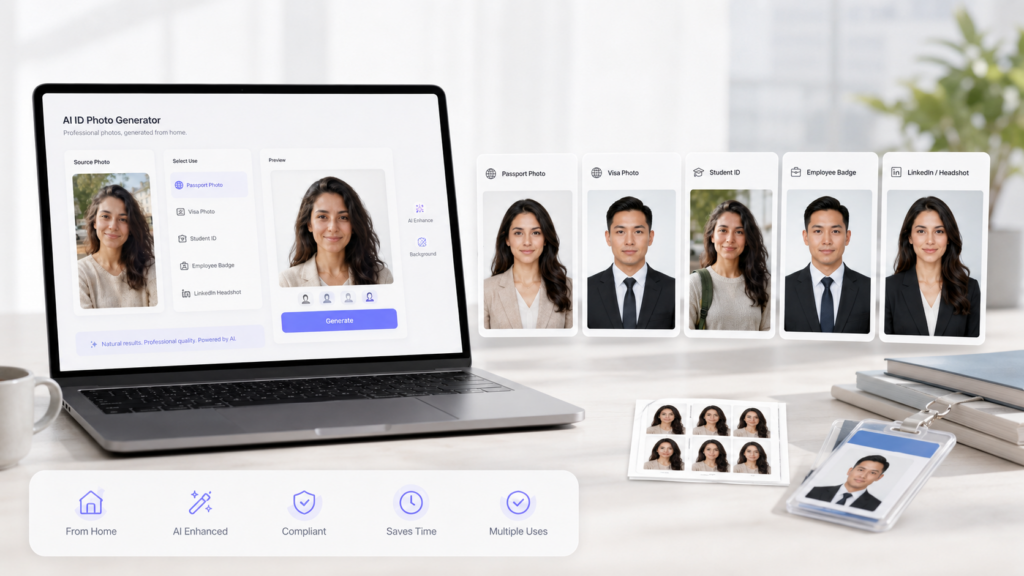
Passport Photos
One of the most popular uses of an AI ID photo generator is creating passport photos.
Most passport photos require:
- Neutral facial expression
- Plain background
- Specific dimensions
- Good lighting
AI can help you prepare photos that meet these requirements quickly.
Visa Photos
Different countries have different photo requirements.
For example:
- US Visa Photo
- UK Visa Photo
- Canadian Visa Photo
- Schengen Visa Photo
- Japan Visa Photo
AI can automatically resize and adjust photos according to the required specifications.
LinkedIn Headshots
Professional headshots are essential for:
- Job seekers
- Entrepreneurs
- Freelancers
- Company websites
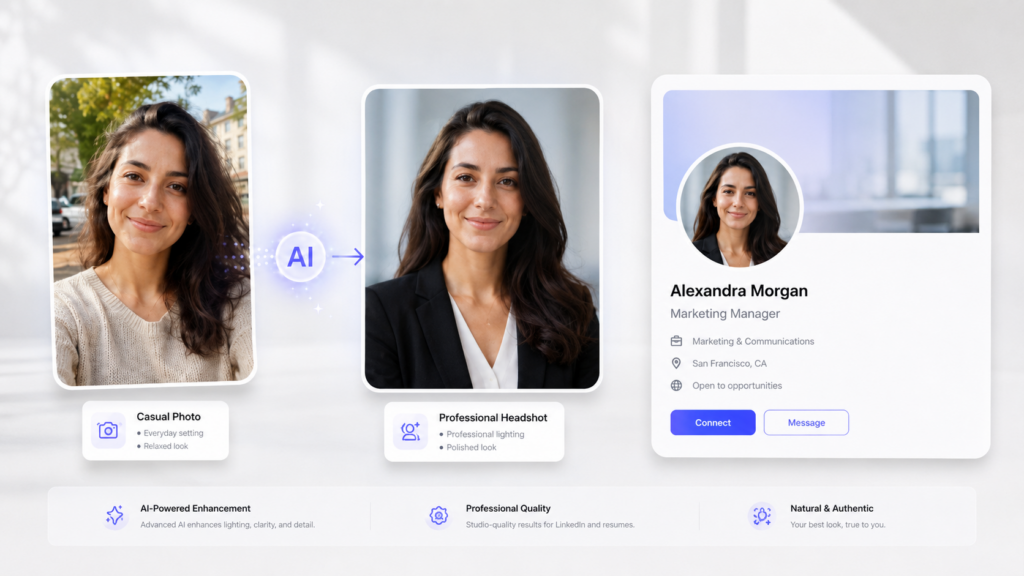
AI can turn a casual photo into a polished business portrait.
Employee Badge Photos
Companies often need consistent ID photos for employees.
AI can:
- Standardize backgrounds
- Adjust lighting
- Maintain consistent image quality
What Makes a Good AI ID Photo?
Not every selfie can become a professional ID photo.
The quality of your original image matters.
Use Good Lighting
Natural light is usually the best choice.
Avoid:
❌ Strong shadows
❌ Overexposed images
❌ Dark rooms
Look Straight at the Camera
The face should be:
✅ Centered
✅ Fully visible
✅ Looking directly at the camera
Avoid side angles whenever possible.
Choose a Simple Background
The ideal background is:
- White
- Light gray
- Light blue
A simple background makes it easier for AI to isolate the subject.
Wear Appropriate Clothing
For official ID photos, choose:
- Solid colors
- Business attire
- Simple clothing
Avoid:
❌ Busy patterns
❌ Large logos
❌ Extremely bright colors
How to Create an AI ID Photo with LinoCut
The process is surprisingly simple.
Step 1: Upload Your Photo
Choose a clear image with:
- Good lighting
- Visible face
- High resolution
Even a smartphone photo often works perfectly.
Step 2: Remove the Background
LinoCut AI Bckground Remover can automatically:
- Detect the person
- Remove the original background
- Generate a clean backdrop
You can choose:
- White
- Blue
- Gray
depending on your requirements.
Step 3: Improve Photo Quality
AI can enhance:
- Sharpness
- Lighting
- Facial details
- Skin tone
The goal is to make the image look professional without making it look fake.
Step 4: Resize the Photo
Different applications require different dimensions.
Examples:
| Application | Size |
|---|---|
| US Passport | 2 x 2 inches |
| Chinese Passport | 33 × 48 mm |
| Visa Photo | Varies by country |
| 400 × 400 px or larger |
LinoCut can export multiple sizes in minutes.
How to Change an ID Photo Background and Resize Photos with LinoCut
Creating an ID photo isn't only about taking a good portrait. In many cases, the biggest challenge is meeting the official requirements for background color and photo dimensions.
Different countries, schools, and organizations often require:
- White backgrounds
- Light blue backgrounds
- Specific photo sizes
- Exact aspect ratios
- High-resolution exports
This is where LinoCut can save a lot of time.
Instead of retaking photos or using complicated editing software, you can instantly change the background and resize your photo with AI.
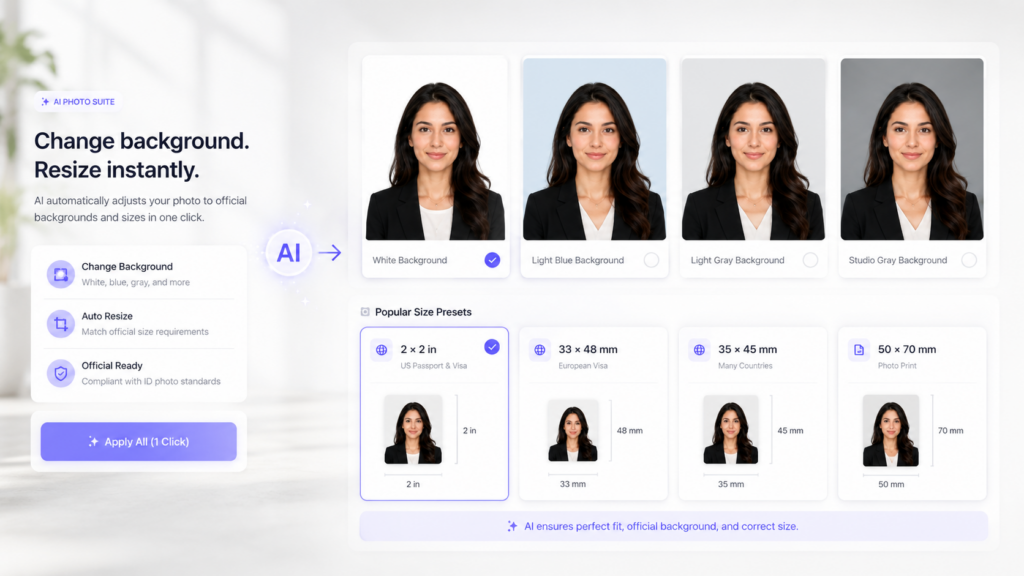
Change Your ID Photo Background in One Click
A common reason for passport or visa photo rejection is an incorrect background.
For example:
| Application | Recommended Background |
|---|---|
| US Passport | White |
| Visa Applications | White |
| Student ID | White or Blue |
| Corporate Badge | White or Gray |
| LinkedIn Headshot | Gray, White, or Professional Studio Background |
With LinoCut, simply upload your photo and let AI automatically detect the person and remove the original background.
You can then replace it with:
✅ Pure white background
✅ Light blue background
✅ Light gray background
✅ Gradient studio background
✅ Custom solid colors
The AI accurately preserves hair details, glasses, and facial edges, making the final image look natural and professional.
Resize Passport and Visa Photos Automatically
Another common problem is using the wrong photo size.
Every country has different requirements.
Some examples include:
| Country | Photo Size |
|---|---|
| United States | 2 × 2 inches |
| China | 33 × 48 mm |
| Japan | 35 × 45 mm |
| Canada | 50 × 70 mm |
| India | 2 × 2 inches |
| Schengen Visa | 35 × 45 mm |
Manually cropping these dimensions can be frustrating, especially if you're unfamiliar with photo editing software.
LinoCut automatically adjusts:
- Canvas size
- Head positioning
- Aspect ratio
- Resolution
- Export dimensions
This makes it easy to create photos that meet official requirements without complicated editing.
Generate Multiple Sizes at the Same Time
Sometimes you need the same photo for several purposes:
- Passport application
- Visa application
- Resume
- Company badge
- Social media profile
Instead of creating each version separately, LinoCut can generate multiple sizes from one photo, allowing you to download different formats in just a few clicks.
Improve Photo Quality Before Exporting
If your original photo was taken with an older phone or in poor lighting conditions, LinoCut can also enhance the image before exporting.
AI can help:
✅ Sharpen facial details
✅ Improve brightness
✅ Reduce noise
✅ Enhance image resolution
✅ Produce cleaner and more professional-looking ID photos
This is especially useful when preparing:
- Passport photos
- Visa photos
- LinkedIn headshots
- Employee ID cards
- Resume photos
Recommended Workflow
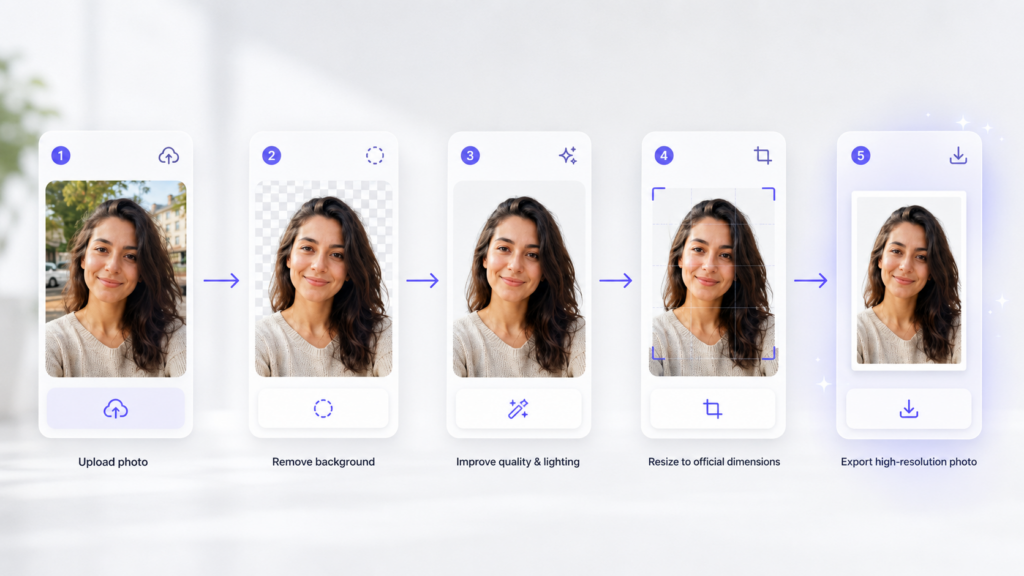
For the best results, follow this order:
- Upload a clear portrait photo.
- Remove the original background.
- Change the background color if necessary.
- Resize the image to the required dimensions.
- Enhance image quality.
- Export the final high-resolution photo.
With LinoCut, what used to require several different editing tools can now be completed in a single workflow, making it much easier to create professional ID photos at home.
How to Create Professional AI Headshots for LinkedIn
LinkedIn profiles with professional photos often receive significantly more attention than profiles without one.
A great AI headshot should look:
- Friendly
- Professional
- Trustworthy
Recommended Prompt
Professional business headshot,
soft studio lighting,
neutral gray background,
formal business attire,
natural skin texture,
high-resolution portrait photography.
Creative Prompt for Entrepreneurs
Modern executive portrait,
soft natural lighting,
dark blue background,
confident expression,
professional business photography.
How to Create Corporate Team Photos with AI
Companies can use AI to generate consistent employee photos.
Benefits include:
- Uniform backgrounds
- Consistent lighting
- Professional appearance
- Faster onboarding
This is especially useful for:
- Remote teams
- Startups
- International companies
Common Mistakes When Creating AI ID Photos
Using Blurry Images
AI can improve image quality, but it cannot fully recover heavily blurred photos.
Taking Photos in Poor Lighting
Bad lighting often leads to:
- Noise
- Color issues
- Unnatural shadows
Wearing Inappropriate Clothing
Avoid:
- Hoodies
- Sunglasses
- Hats
- Distracting patterns
Overediting the Photo
An ID photo should still look like you.
Avoid:
- Excessive beauty filters
- Unrealistic skin smoothing
- Extreme face reshaping
AI ID Photo Ideas Beyond Passports
AI-generated headshots are also useful for:
- Resume photos
- Company profiles
- Speaking engagements
- Social media profiles
- Online courses
- Portfolio websites
- Press kits
- Business cards
Why Use LinoCut for AI ID Photos?
LinoCut combines several AI capabilities into one workflow:
✅ Background removal
✅ Image enhancement
✅ Portrait optimization
✅ Professional headshot generation
✅ Multiple export sizes
✅ High-resolution output
Instead of visiting a photo studio, you can create professional-looking photos anytime and anywhere.
Final Thoughts
Creating professional ID photos no longer requires expensive photography equipment or a trip to the studio.
With AI tools like LinoCut, you can turn an ordinary photo into:
- Passport photos
- Visa photos
- Professional headshots
- Employee ID photos
- LinkedIn portraits
All in just a few minutes.
If you need a professional photo quickly, AI may be the easiest and most convenient solution available today.
Frequently Asked Questions About Creating AI ID Photos Online
Can AI create a passport photo from a selfie?
Yes. A clear selfie can often be turned into a passport photo using an AI ID photo generator. For the best results, use a front-facing photo with good lighting and a neutral expression. AI tools like LinoCut can automatically remove the background, improve image quality, and resize the photo to passport dimensions.
Are AI-generated passport photos accepted?
In many cases, yes. An AI-generated passport photo is acceptable as long as it meets your country's official requirements, including:
- Correct dimensions
- Plain background
- Neutral expression
- Proper head positioning
- Sufficient image quality
Always check your country's latest passport photo guidelines before submitting your application.
Can I change the background color of my ID photo?
Yes. LinoCut can automatically remove your original background and replace it with:
- White background
- Light blue background
- Light gray background
- Custom solid colors
This is particularly useful for passport photos, visa photos, student IDs, and company badges.
Can I resize my passport or visa photo online?
Absolutely. LinoCut allows you to resize photos for various official requirements, including:
- US Passport (2 × 2 inches)
- China Passport (33 × 48 mm)
- Japan Visa (35 × 45 mm)
- Canada Visa (50 × 70 mm)
- Schengen Visa (35 × 45 mm)
The AI automatically adjusts the aspect ratio and export dimensions.
What is the best background color for an ID photo?
The most common background color is white. However, some applications may require:
- Light blue
- Light gray
- Off-white
Always verify the requirements of your specific passport, visa, school, or employer before generating the final photo.
Can I wear glasses in an AI passport photo?
It depends on the country and the purpose of the photo. Many passport authorities discourage glasses because reflections can obscure the eyes. If possible, remove your glasses before taking the photo to avoid rejection.
Can AI improve a blurry ID photo?
AI can improve slightly blurry photos by enhancing sharpness and reducing noise. However, if the original image is heavily blurred or extremely low resolution, taking a new photo will usually produce better results.
Can I use AI-generated headshots for LinkedIn and resumes?
Yes. Professional AI headshots are becoming increasingly popular for:
- LinkedIn profiles
- Resumes
- Company websites
- Business cards
- Online portfolios
LinoCut can transform an ordinary photo into a professional business portrait with studio-style lighting and clean backgrounds.
Can I generate multiple photo sizes from one image?
Yes. One of the biggest advantages of using AI is that you can create several versions of the same photo for different purposes, including:
- Passport applications
- Visa applications
- Employee badges
- Student IDs
- Social media profiles
LinoCut can generate multiple sizes and export formats from a single upload.
What is the easiest way to create an ID photo online?
The easiest workflow is:
- Upload a clear portrait photo.
- Remove the background.
- Change the background color if necessary.
- Resize the image to the required dimensions.
- Enhance image quality.
- Download the final high-resolution photo.
With LinoCut, the entire process usually takes only a few minutes.