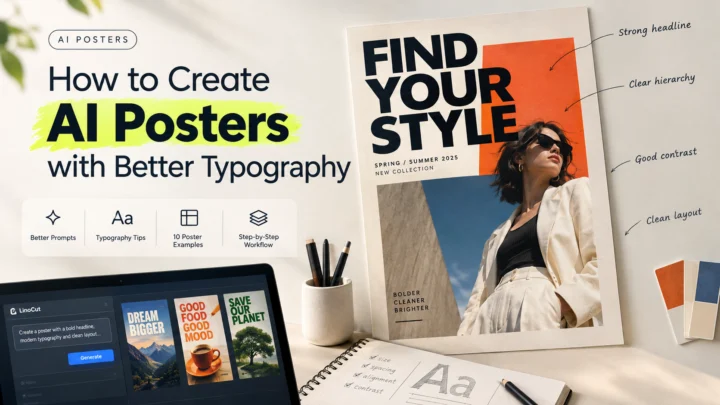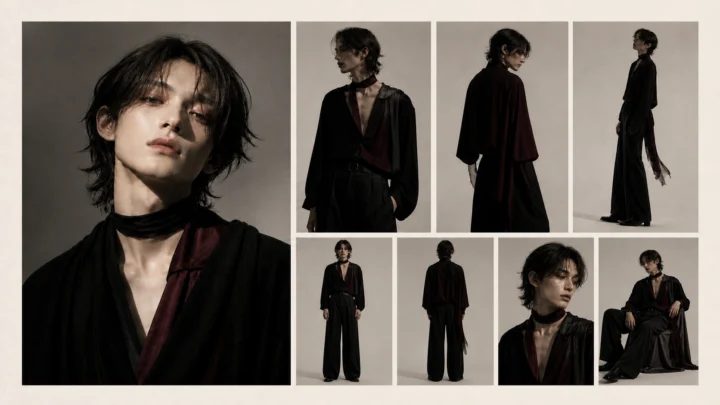
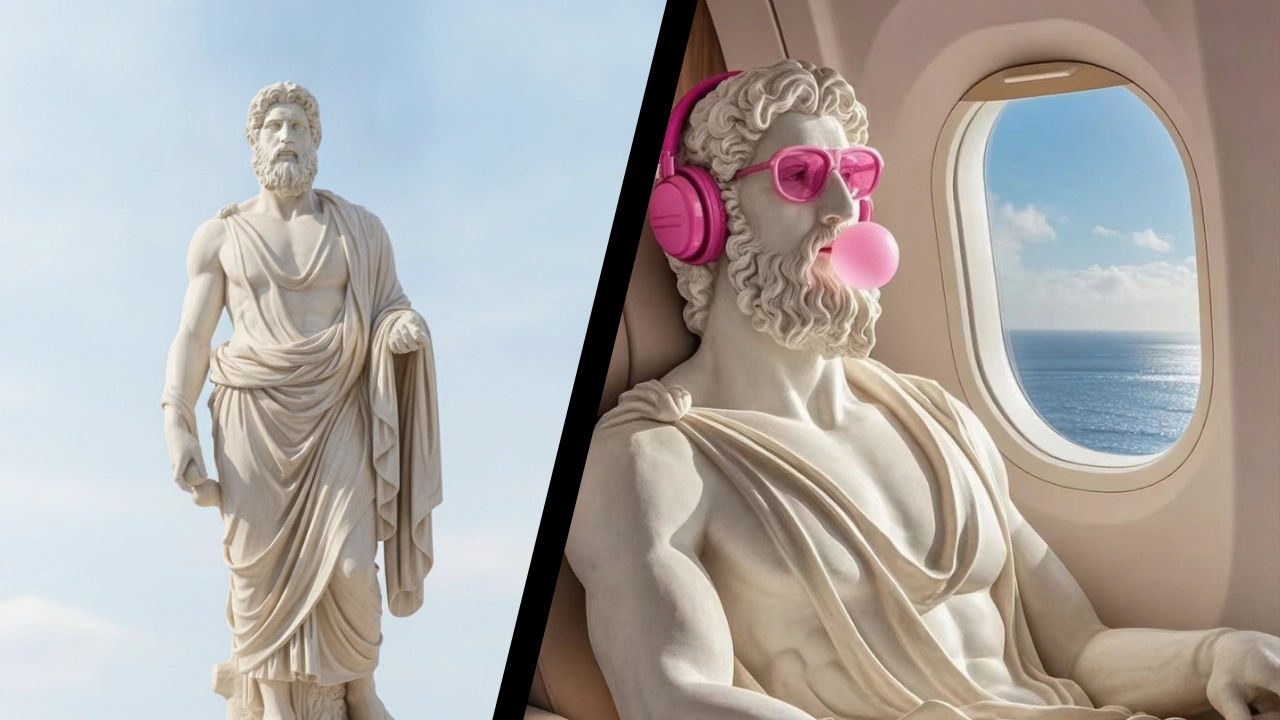
An AI photo editor lets you edit photos with text prompts instead of manually working with layers, masks, brushes, and complex selections. With Linocut AI Photo Editor, you can upload an image, describe the change you want, and create edits such as object removal, background replacement, lighting correction, text replacement, product cleanup, portrait mood changes, and social media-ready image variations.
| Editing goal | Example prompt direction |
| Remove distractions | Remove clutter, extra objects, or messy background elements |
| Improve lighting | Brighten underexposed photos and correct color balance |
| Replace background | Turn a casual shot into a clean studio, lifestyle, or campaign scene |
| Edit product photos | Clean surfaces, improve detail, and prepare ecommerce visuals |
| Change mood | Create cinematic, editorial, soft daylight, or premium campaign looks |
| Reframe for platforms | Create square, vertical, and wide versions from one image |
Why Prompt-Based Photo Editing Feels Different
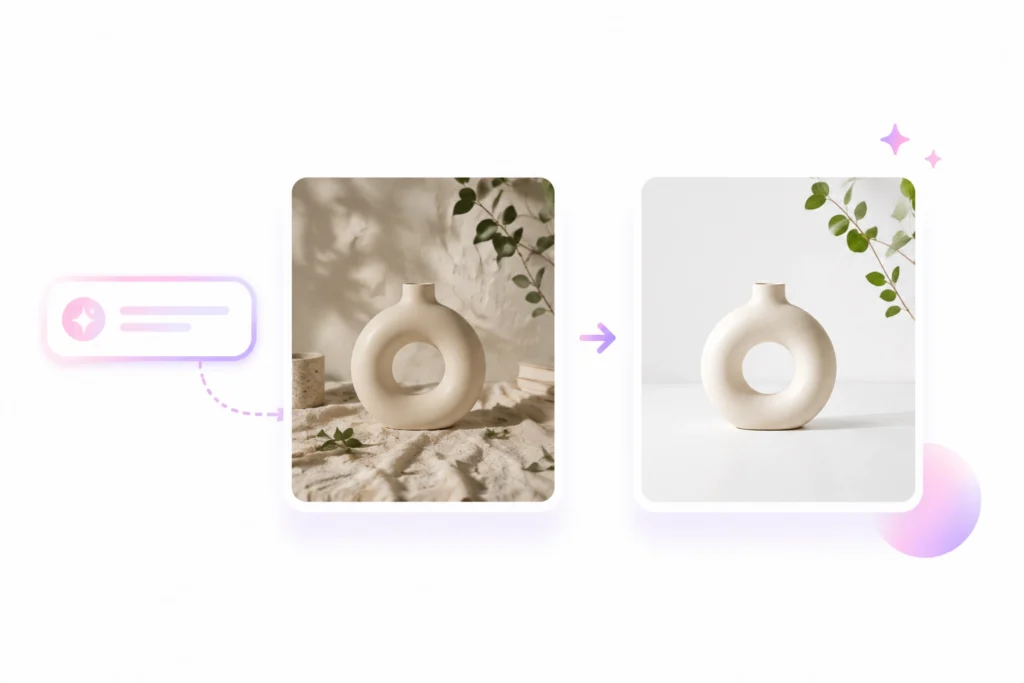
Traditional photo editing often requires a long chain of manual actions: selecting an object, masking edges, adjusting layers, cloning pixels, fixing color, and exporting the result in the right format. That workflow is powerful, but it can feel slow when you only want to fix one image or create a few visual ideas quickly. If you are looking for a photo editor online that lets you edit photo with text, prompt-based editing is one of the fastest ways to test creative photo editing ideas without rebuilding the image by hand.
Prompt-based photo editing changes the starting point. Instead of asking, "Which tool should I use?", you ask, "What do I want this image to become?" You can write a simple instruction such as "remove the background clutter and make the lighting brighter" or "turn this product photo into a clean studio shot with soft shadows."
That makes an AI photo editor useful for creators, ecommerce sellers, marketers, designers, bloggers, and everyday users who need fast image improvements without becoming professional retouchers.
What Can Linocut AI Photo Editor Do?
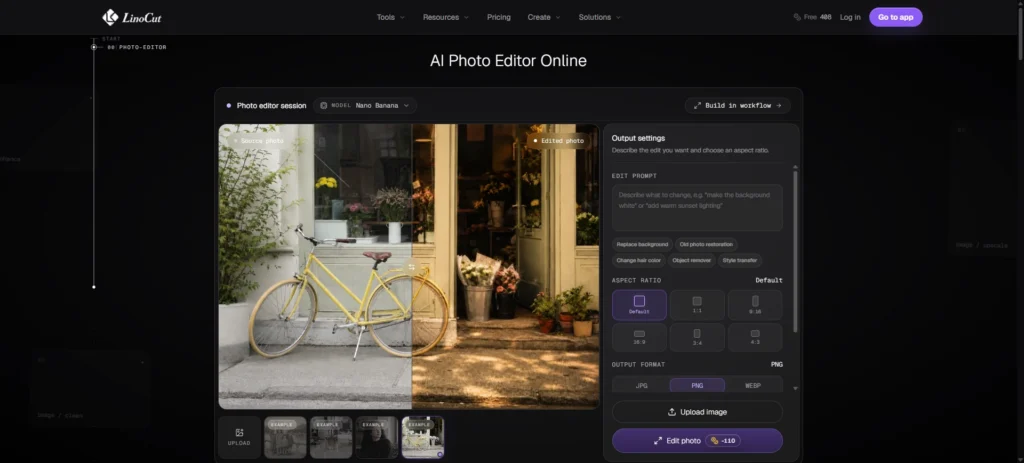
Linocut AI Photo Editor is built for text-based image editing. You upload a photo, type what you want to change, then generate an edited result. It is useful when you want to edit photo details directly from a prompt rather than rebuilding the image from scratch.
Common use cases include:
| Feature | What it helps with |
| Object removal | Remove clutter, unwanted items, background distractions, or visual noise |
| Background editing | Replace boring, messy, or off-brand backgrounds |
| Photo enhancement | Improve clarity, detail, brightness, and overall quality |
| Lighting correction | Fix dark, flat, or unevenly lit photos |
| Text replacement | Update text on posters, signs, mockups, or design previews |
| Aspect ratio control | Prepare images for social posts, stories, banners, and thumbnails |
| Before-and-after review | Compare the original and edited version before using the final image |
The value is not only the edit itself. It is the workflow. A product image can be cleaned, enhanced, upscaled, and reused for ads. A portrait can be polished, restyled, and resized for social media. A messy room photo can become a cleaner listing image. One prompt can become the first step in a complete creative workflow.
10 Creative AI Photo Editing Descriptions
Use these AI photo editing prompts as starting points. Replace bracketed details such as [product type], [background style], [platform], and [mood] with your own needs.
Remove Clutter from a Product Photo
Best for: ecommerce sellers, marketplace listings, product marketers

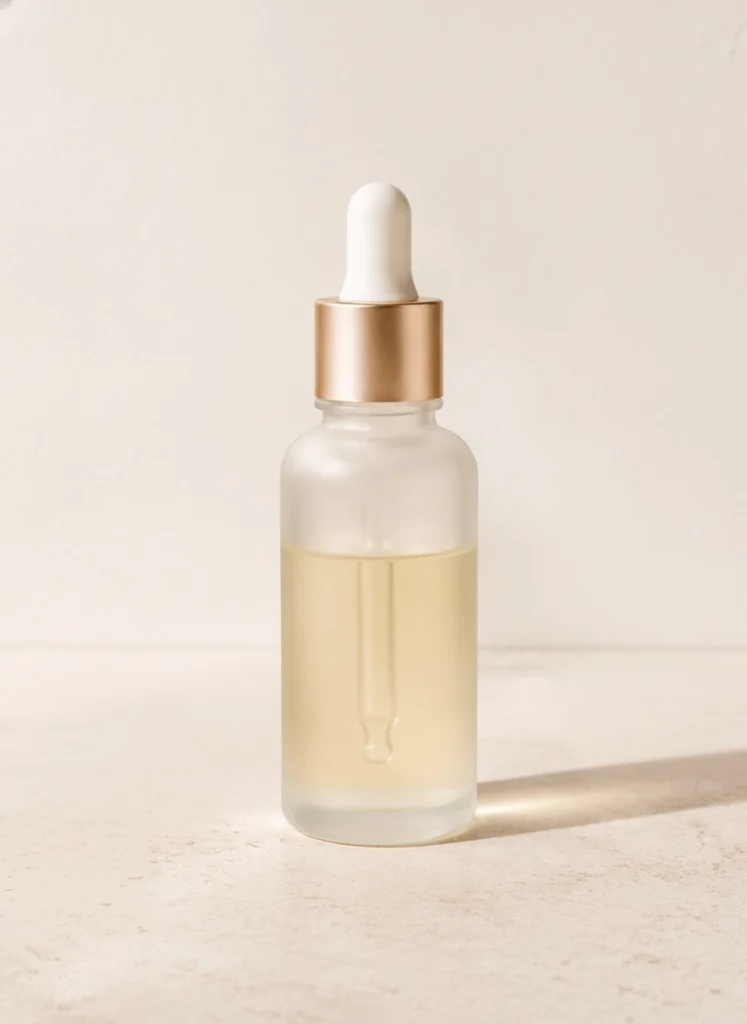
Remove all distracting objects around the [product type] while keeping the product shape, color, material, and texture unchanged. Clean the surface, reduce visual clutter, improve lighting, and make the image look like a polished ecommerce product photo on a simple neutral background.Why it works: product photos often fail because of messy tables, background clutter, harsh shadows, or random objects near the product. This prompt tells the AI image editor what to remove and what to preserve.
Replace a Boring Background with a Clean Studio Scene
Best for: product brands, creators, portfolio images
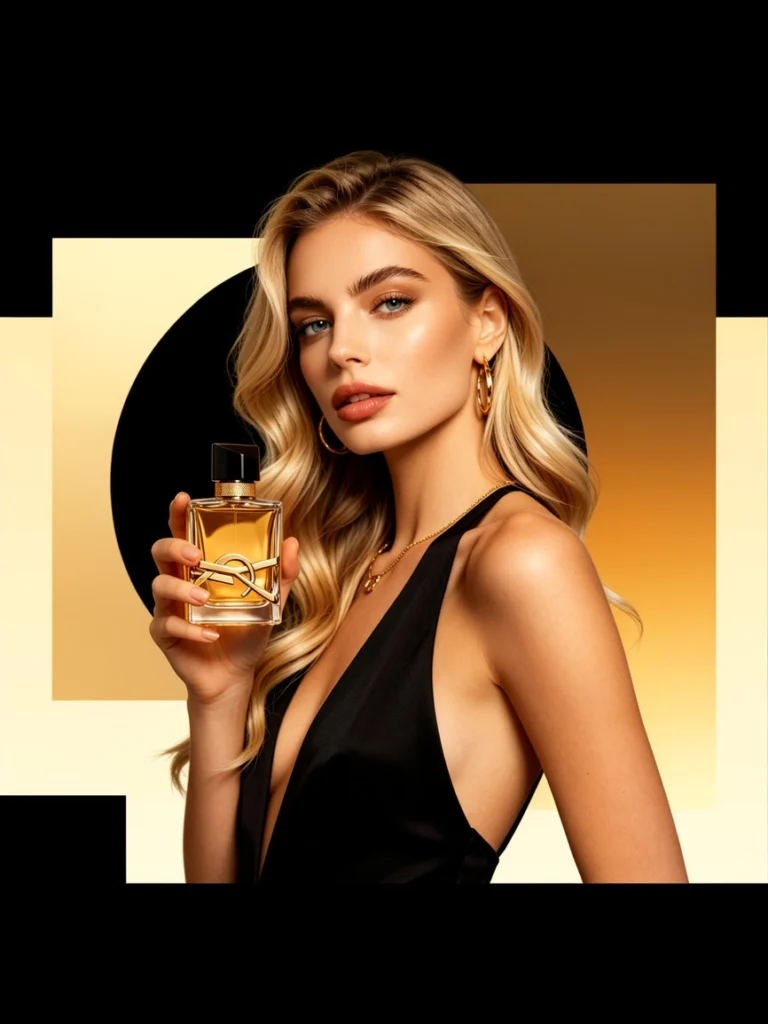
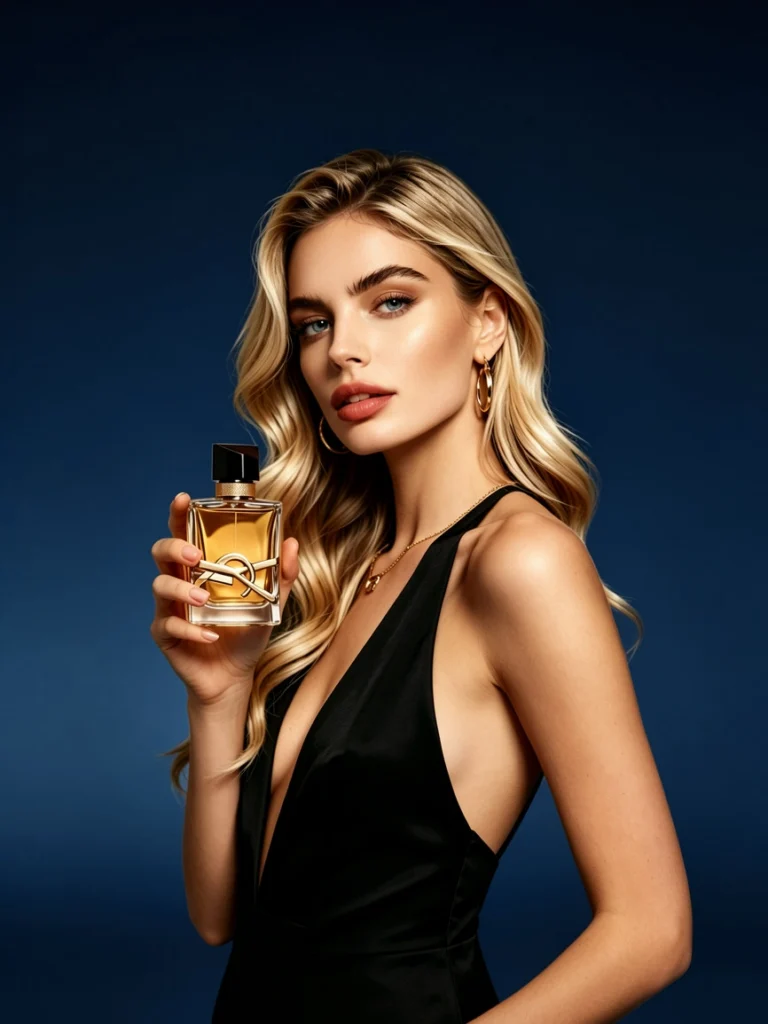
Replace the background with a clean professional studio setup. Keep the main subject exactly the same, preserve the edges naturally, add soft shadows under the subject, and use a minimal [white / light gray / soft pastel] backdrop with premium product photography lighting.Why it works: this prompt turns a casual image into a more professional visual without changing the main subject. It is useful for product pages, ad tests, and landing page visuals.
Fix a Dark or Underexposed Photo
Best for: travel photos, indoor portraits, restaurant images, event photos
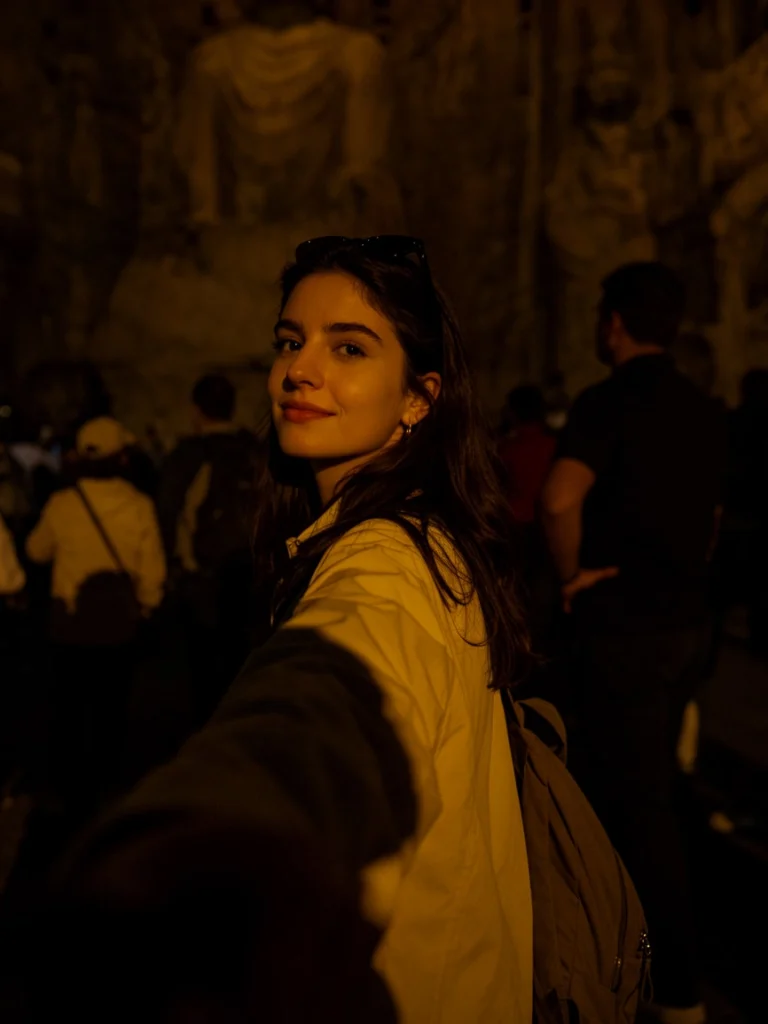
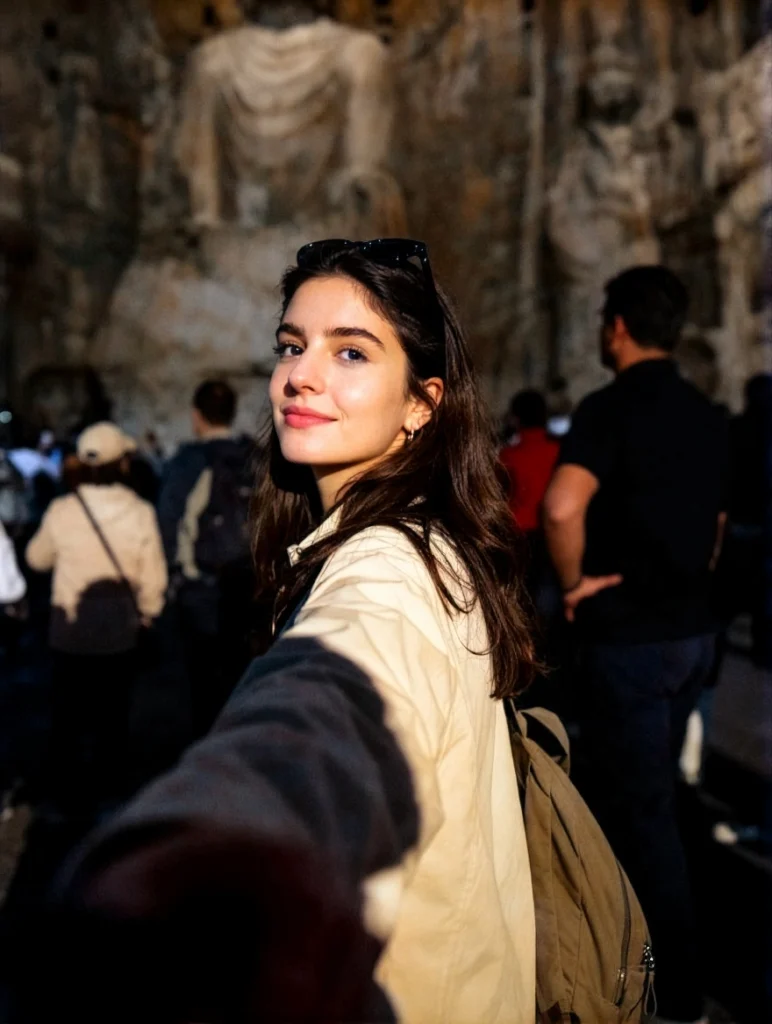
Brighten this underexposed photo while keeping it natural. Improve the overall lighting, recover visible details in the shadows, reduce noise, balance the colors, and keep skin tones and background textures realistic. Do not over-sharpen or make the image look artificial.Why it works: many photos are not unusable. They are simply too dark, too flat, or too noisy. A good AI photo editor prompt should ask for natural correction, not extreme enhancement.
Turn a Casual Portrait into an Editorial Profile Photo
Best for: LinkedIn photos, creator profiles, author bios, personal branding
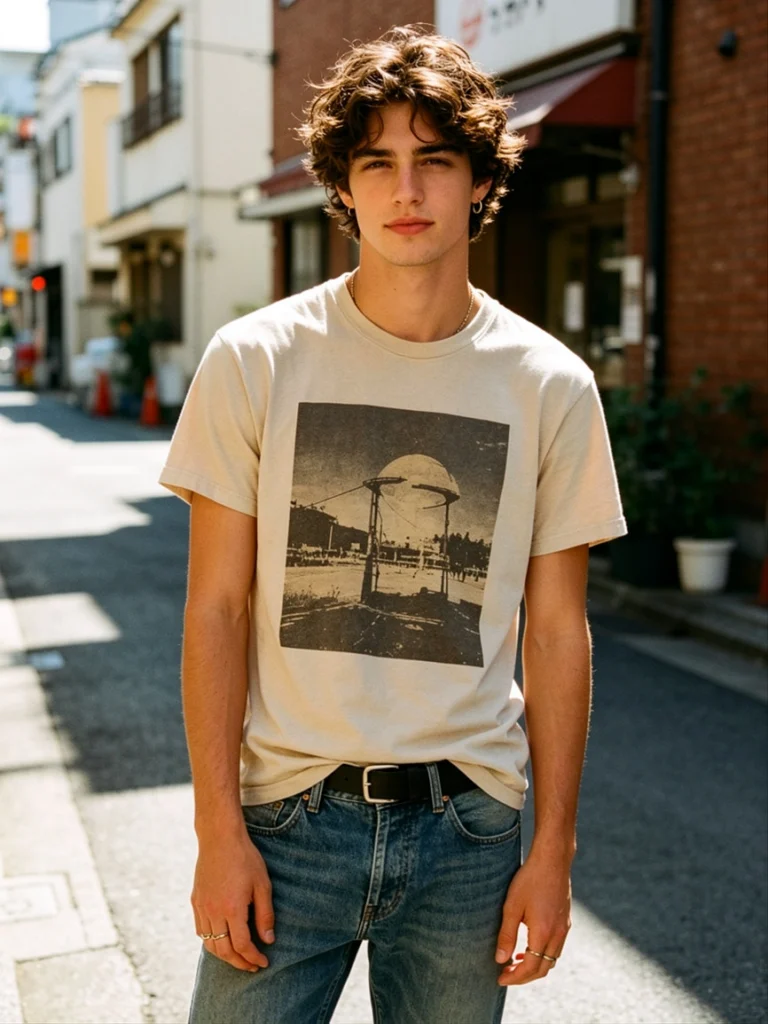
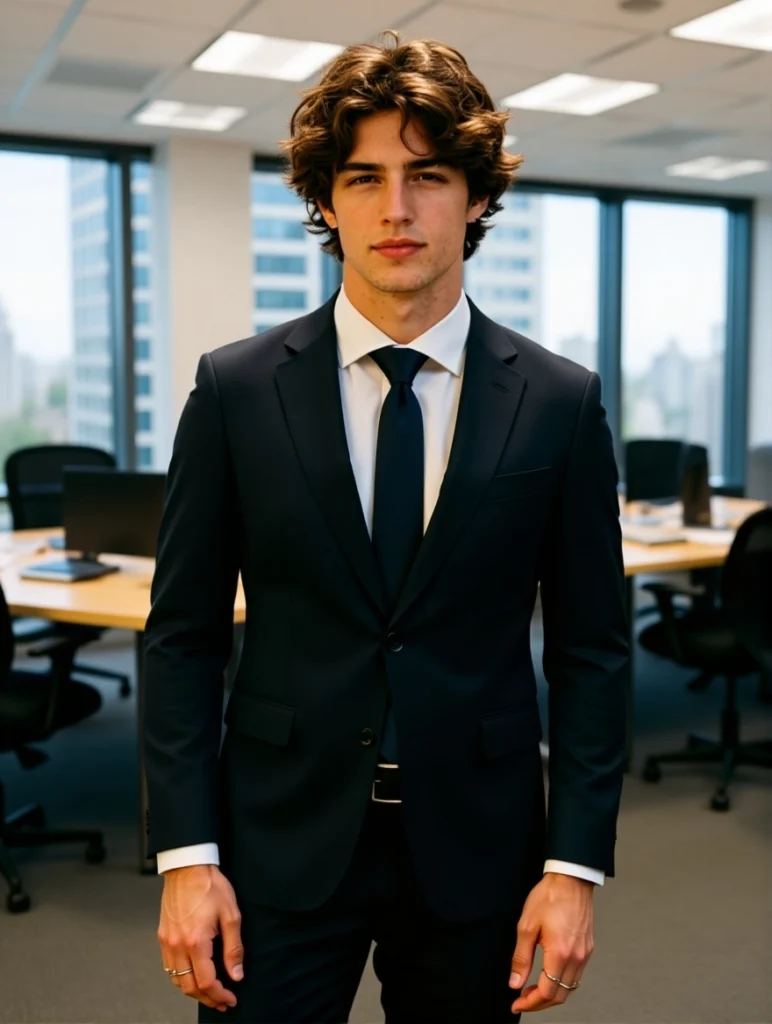
Transform this casual portrait into a clean editorial profile photo. Keep the person recognizable, preserve natural skin texture, improve lighting around the face, soften the background, and create a confident professional mood with subtle depth of field.Why it works: people often want a better profile image, but they do not want to look fake. This prompt focuses on recognition, natural texture, and mood rather than heavy retouching.
Replace Text in a Poster or Product Mockup
Best for: designers, marketers, campaign drafts, product mockups


Replace the existing text on the image with "[new text]". Match the new text to the original layout, perspective, lighting, and surface texture. Keep the surrounding design, background, and objects unchanged. Make the replacement look naturally integrated.Why it works: text replacement is one of the most practical AI photo editing use cases. It helps when a poster, mockup, packaging preview, or sign needs quick copy changes.
Turn One Photo into a Social Media Ad
Best for: social media managers, small businesses, creators
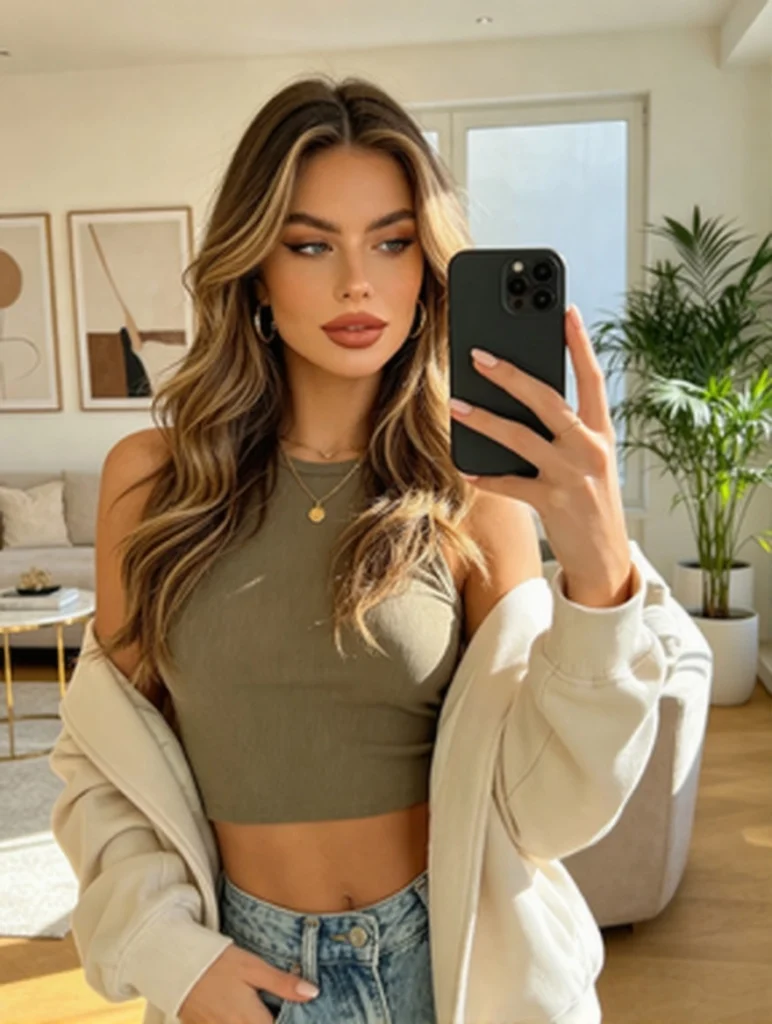
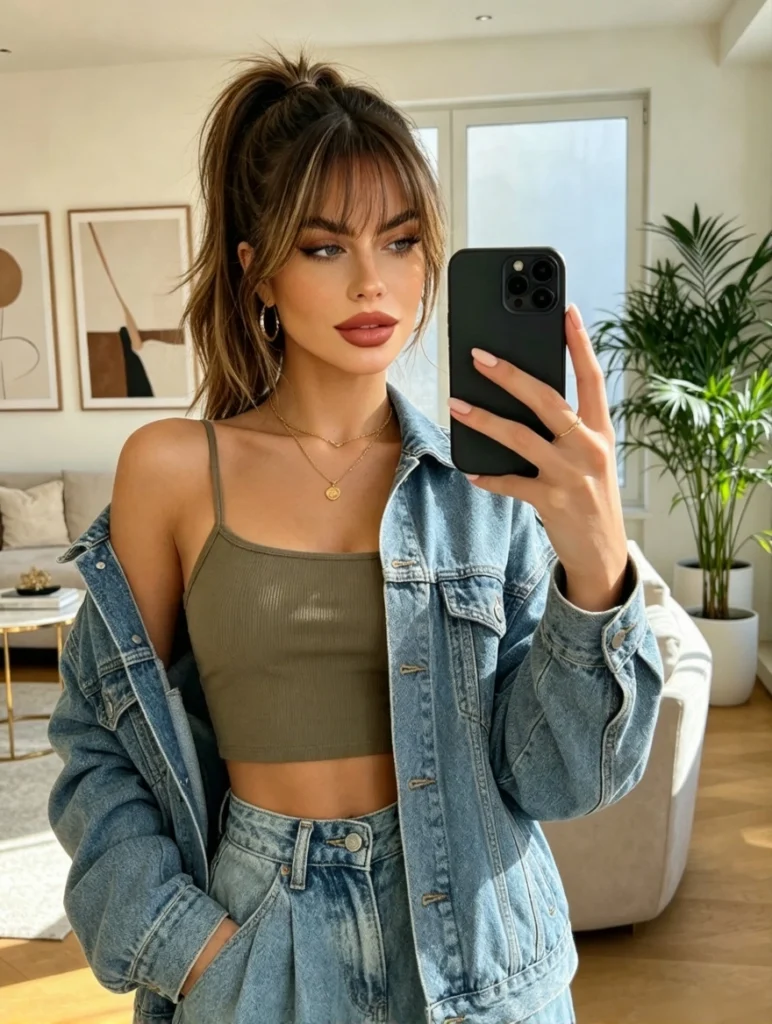
Edit this image into a clean social media ad visual for [platform]. Keep the main subject clear, simplify the background, improve contrast, add a modern commercial look, and leave clean empty space for headline and call-to-action text. Use a [bright / premium / playful / minimalist] brand mood.Why it works: social media images need clarity, spacing, and visual hierarchy. This prompt prepares the image for later design work without asking the AI to create too much text.
Clean a Room Photo for a Listing
Best for: real estate, rental listings, interior designers, hospitality hosts
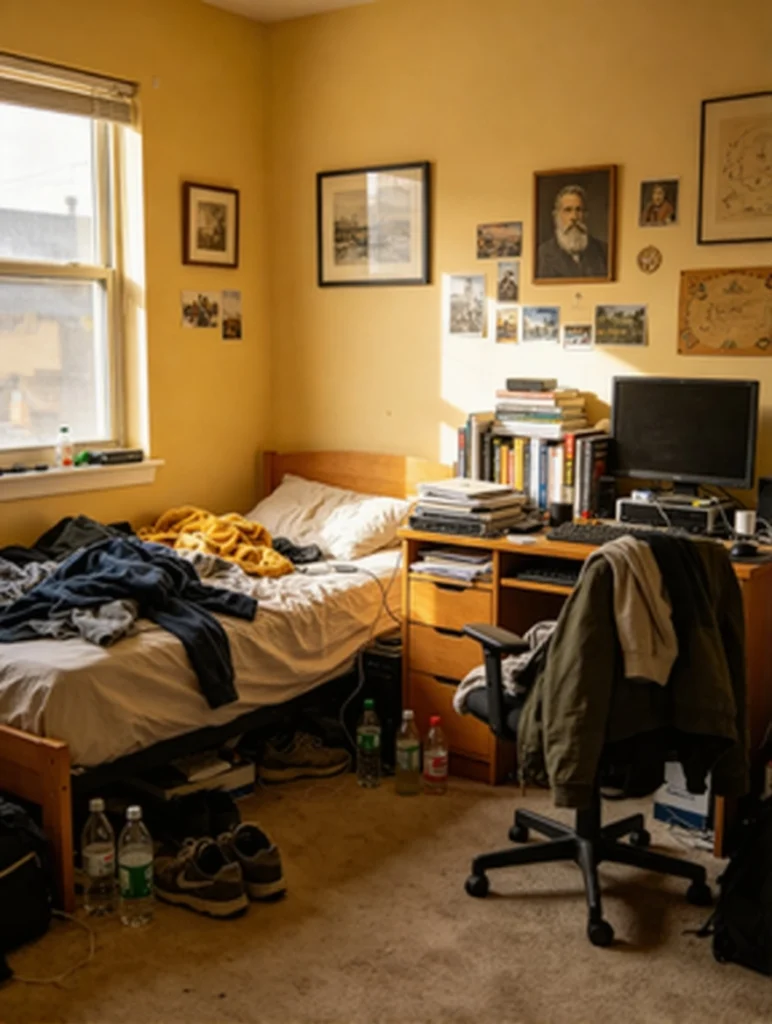
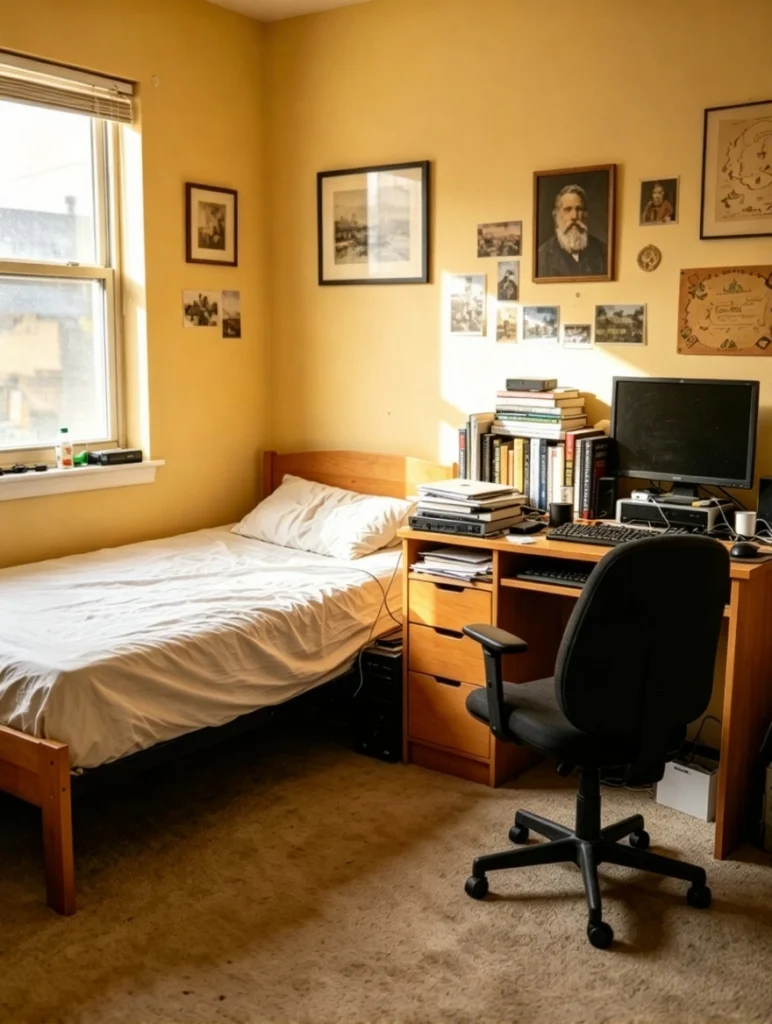
Clean up this room photo for a property listing. Remove small clutter, cables, trash, and distracting personal items. Improve brightness, straighten the visual feel, keep furniture and room layout realistic, and make the space look clean, warm, and welcoming without changing the actual structure.Why it works: room photos need trust. This prompt improves presentation while asking the editor not to change the real structure of the space.
Create Seasonal Campaign Variants
Best for: ecommerce campaigns, holiday promos, brand marketing
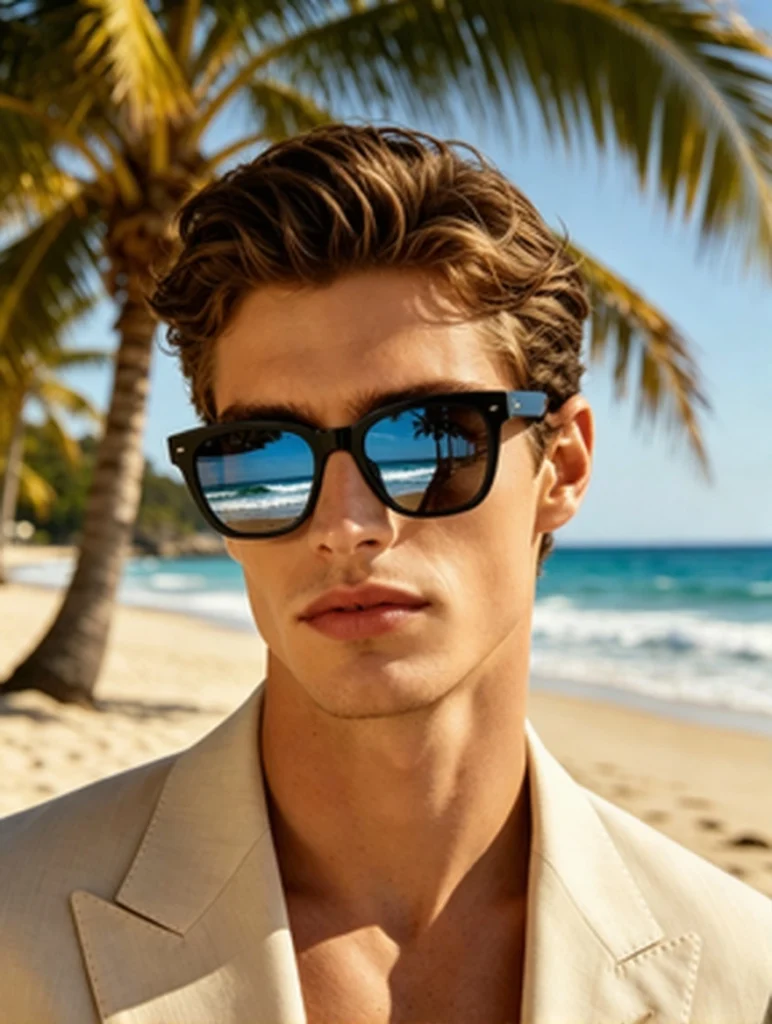
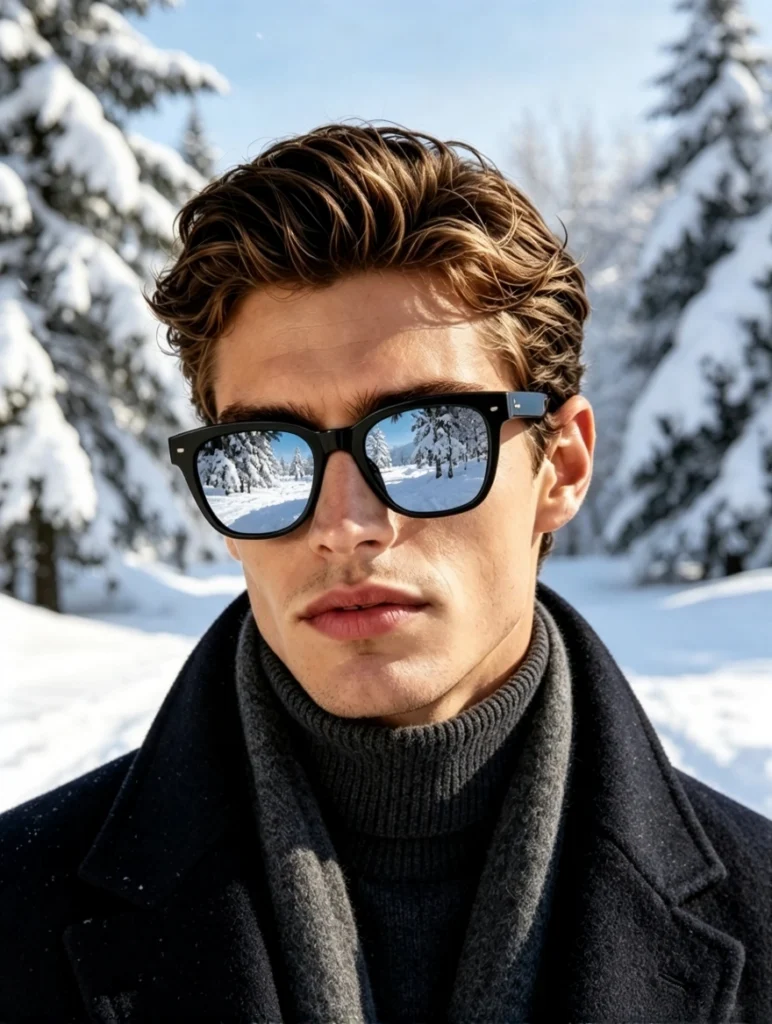
Create a [season or event] campaign version of this image. Keep the main product unchanged, update the surrounding scene with subtle [summer / holiday / back-to-school / sports / festival] elements, adjust the color palette to match the campaign, and leave space for promotional text.Why it works: this is a high-value prompt for marketers. One product image can become multiple seasonal campaign assets without reshooting the product.
Reframe One Image for Different Platforms
Best for: content teams, YouTube creators, bloggers, social media managers
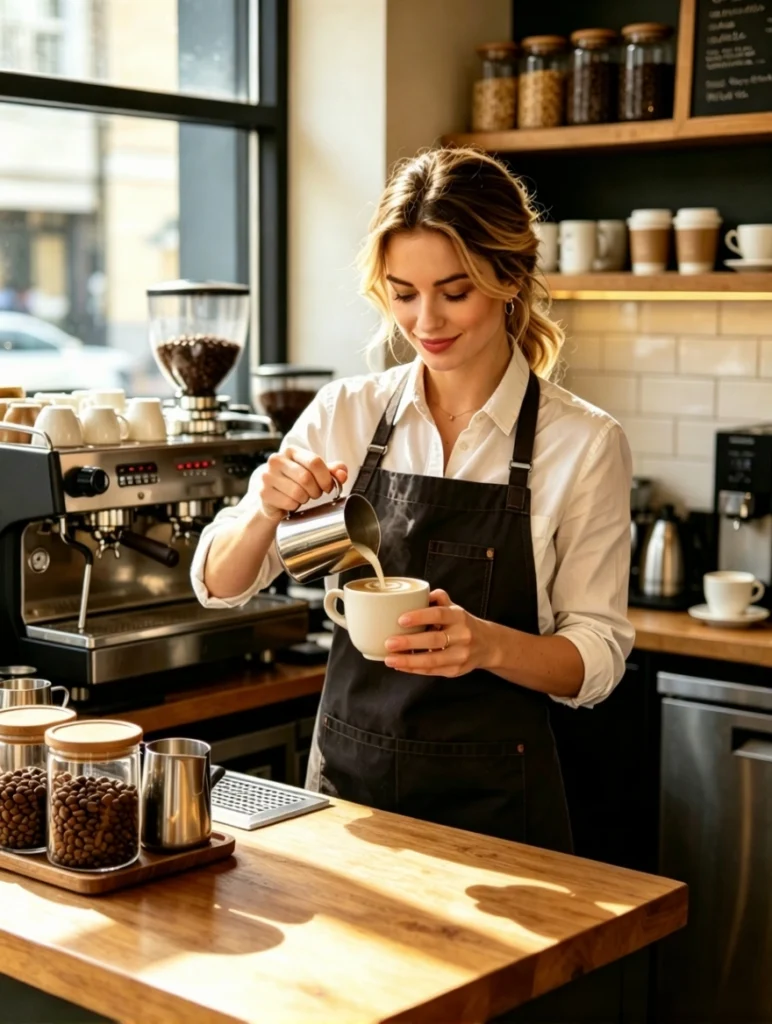
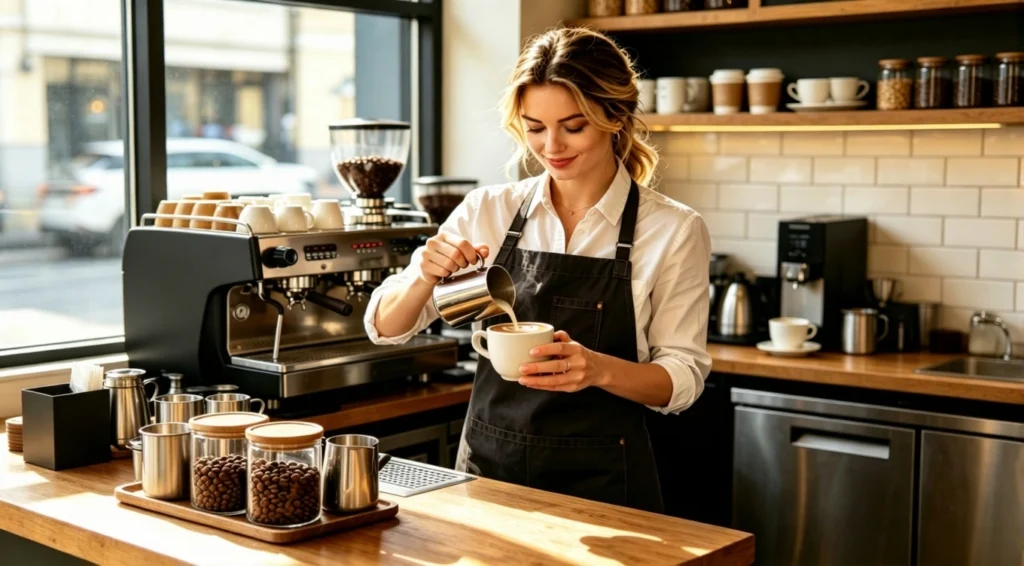
Reframe this image for a [1:1 square / 4:5 vertical / 9:16 story / 16:9 banner] layout. Keep the main subject centered and visually balanced, extend or clean the background naturally if needed, and preserve the original style, lighting, and subject details.Why it works: one image often needs to work across many channels. This prompt is useful for creating platform-specific versions without manually rebuilding the canvas.
Polish a Photo Before Upscaling or Style Transfer
Best for: designers, AI artists, creators preparing high-resolution assets
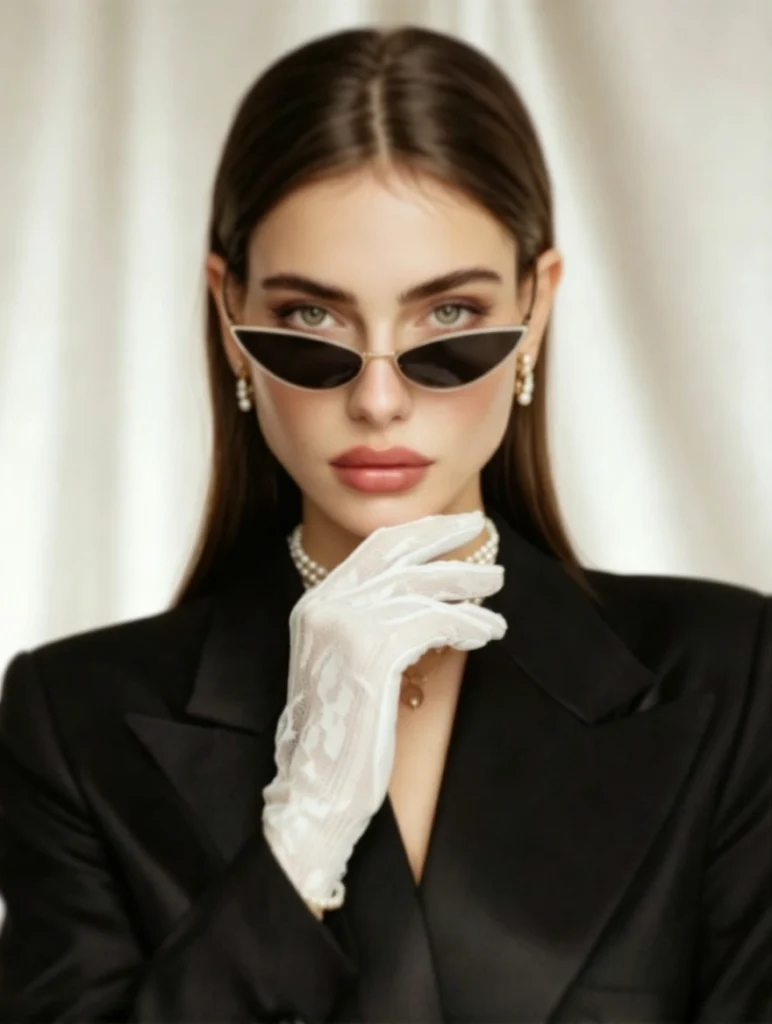
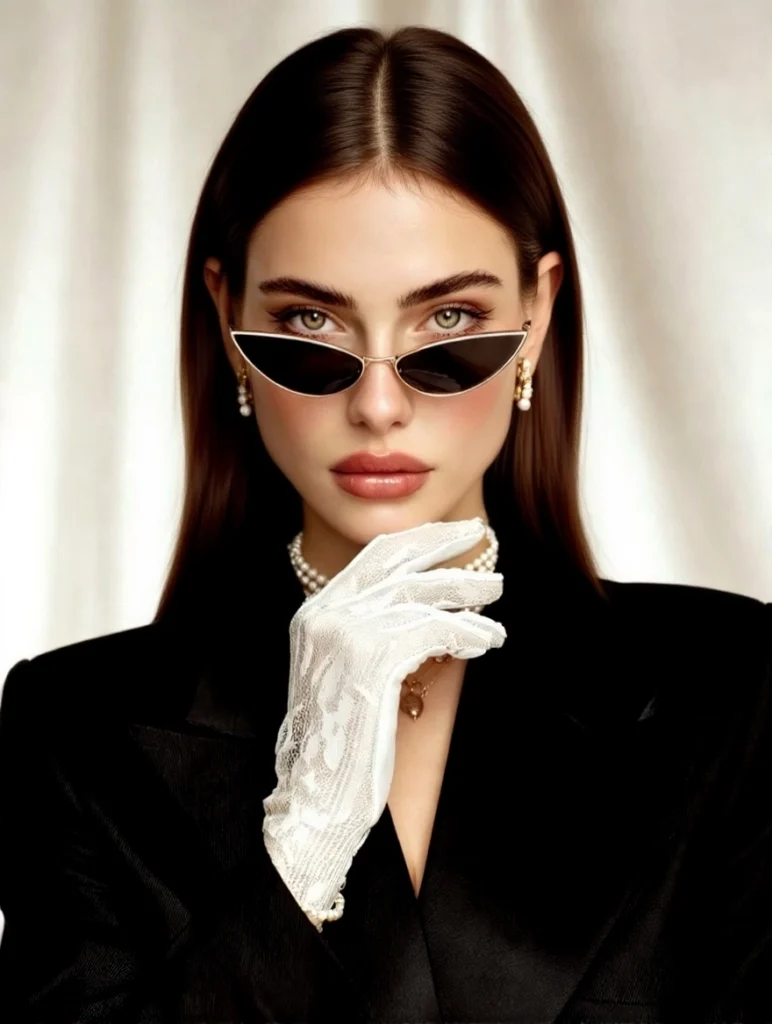
Prepare this image for further creative editing. Remove small distractions, improve clarity, balance lighting, clean the background, preserve important details, and keep the image natural. Do not apply a strong style yet. Make the photo clean and ready for upscaling or style transfer.Why it works: many creative workflows need cleanup before transformation. A clean image usually upscales better and responds better to style transfer.
Prompt Templates for Different Users
Different users need different photo editing prompts. A seller, designer, creator, and real estate host are not trying to create the same result.
| User type | Useful prompt direction |
| Ecommerce sellers | Product cleanup, background replacement, listing images |
| Social media creators | Ad visuals, profile images, story crops, thumbnails |
| Designers | Mockup edits, text replacement, campaign variations |
| Marketers | Seasonal promos, product banners, social ads |
| Real estate hosts | Room cleanup, lighting correction, listing photos |
| Bloggers | Cover images, tutorial visuals, before-and-after examples |
| Everyday users | Fix dark photos, remove distractions, improve portraits |
Tips for Better AI Photo Editing Results
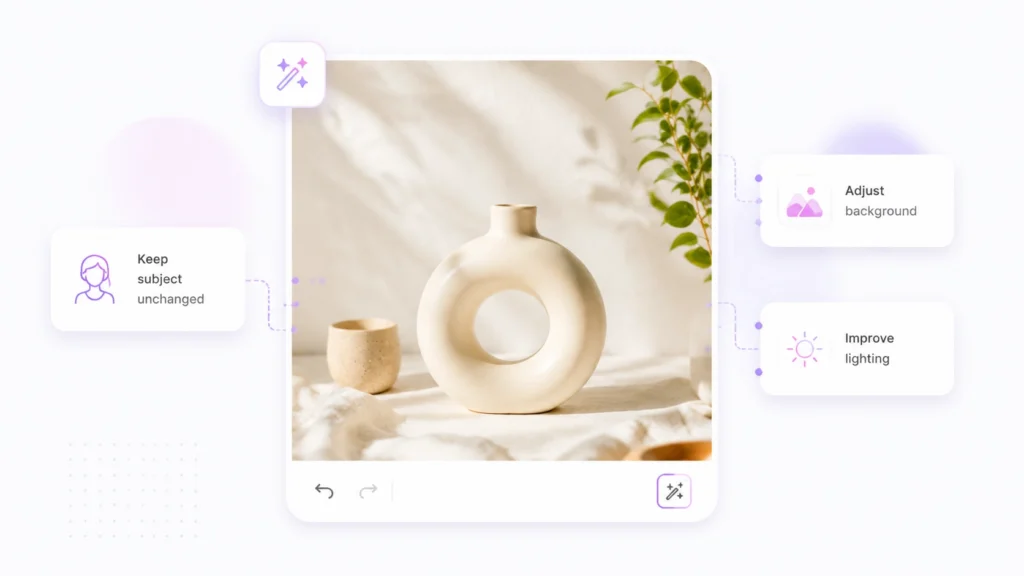
Prompt-based photo editing works best when your instruction is clear. The AI needs to know what to change, what to preserve, and what kind of final image you want.
Say What Should Stay the Same
If the subject matters, say so:
Keep the product shape, color, label, and material unchanged.Keep the person recognizable and preserve natural skin texture.Describe the Background Clearly
Instead of saying "make it better," describe the scene:
Replace the background with a clean white studio setting and soft natural shadows.Mention the Final Use
The same photo may need different edits depending on where it will appear:
| Final use | Prompt detail to add |
| Ecommerce listing | clean background, product clarity, accurate detail |
| Social ad | empty space for copy, strong contrast, campaign mood |
| Profile photo | natural face, soft background, professional lighting |
| Real estate listing | clean room, realistic layout, bright natural light |
| Blog cover | wide composition, clean title space, editorial mood |
Avoid Over-Editing Faces and Products
For portraits and product images, realistic results are usually better than dramatic changes. Ask the AI photo editor to preserve identity, texture, labels, and material details.
Use Before-and-After Review
Always compare the edited result with the original. Check product labels, facial details, room structure, text, and important edges before publishing or using the image.
From One Edit to a Full Creative Workflow
An online photo editor is most useful when it connects to a broader creative process. After a first edit, you may want to:
| Next step | Why it helps |
| Enhance the image | Improve clarity, light, and detail |
| Upscale the image | Prepare a larger version for banners or product pages |
| Remove the background | Create product cutouts or design-ready assets |
| Apply style transfer | Turn a cleaned photo into a campaign visual |
| Generate platform crops | Reuse one image across social and web formats |
This is where Linocut's AI creative workflow becomes useful. You can edit a photo with a prompt, then continue into enhancement, upscaling, background removal, or style transfer depending on the final use.
FAQ
What is an AI photo editor?
An AI photo editor is a tool that uses artificial intelligence to edit images from instructions. Instead of manually adjusting every layer or selection, you can describe the change you want, such as removing an object, replacing a background, fixing lighting, or updating text.
Can I edit a photo with text?
Yes. With a prompt-based photo editor, you can edit photo details by typing what you want to change. For example, you can ask the editor to remove clutter, improve lighting, replace text, or turn a product photo into a clean studio image.
What are AI photo editing descriptions?
AI photo editing prompts are written instructions that tell an AI image editor how to modify a photo. A good prompt explains what to change, what to keep, the desired style, and how the final image will be used.
Can an AI photo editor remove objects?
Yes. AI photo editors can often remove unwanted objects, background clutter, cables, trash, signs, or visual distractions. The final quality depends on the image complexity and the area being edited.
Can I use an AI photo editor for product photos?
Yes. An AI photo editor can help clean product photos, replace backgrounds, improve lighting, remove distractions, and prepare product visuals for ecommerce listings, ads, and social media.
Start Editing Photos with Linocut
Creative photo editing does not have to start with a blank canvas or a complex editing app. With Linocut AI Photo Editor, you can upload an image, describe the change you want, and create a cleaner, more useful version for products, portraits, social posts, campaigns, listings, and creative projects.
Try one of the prompts above, adjust it for your own image, and start editing photos with text.