case.01
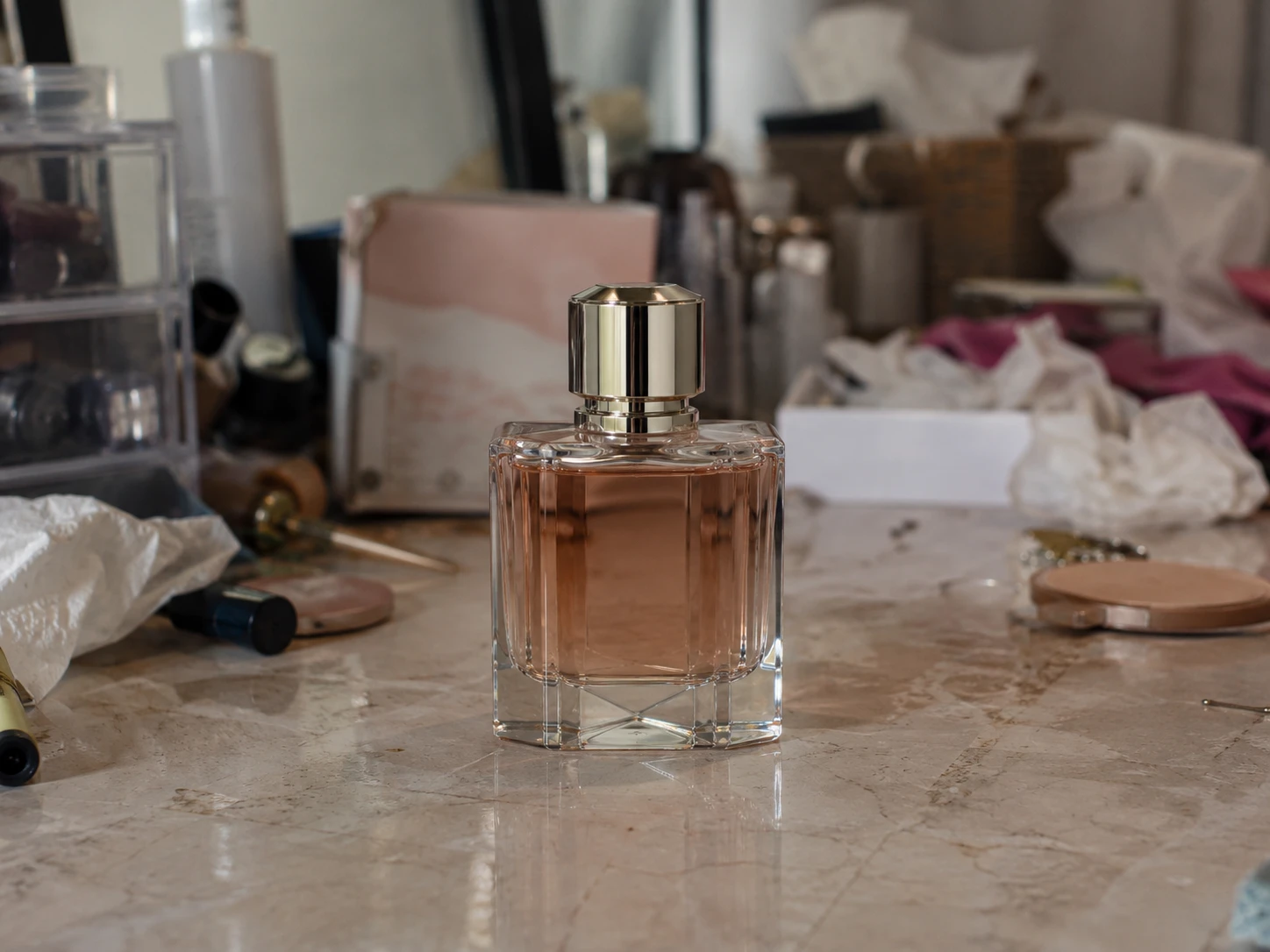
AI Photo Editor for Object Removal
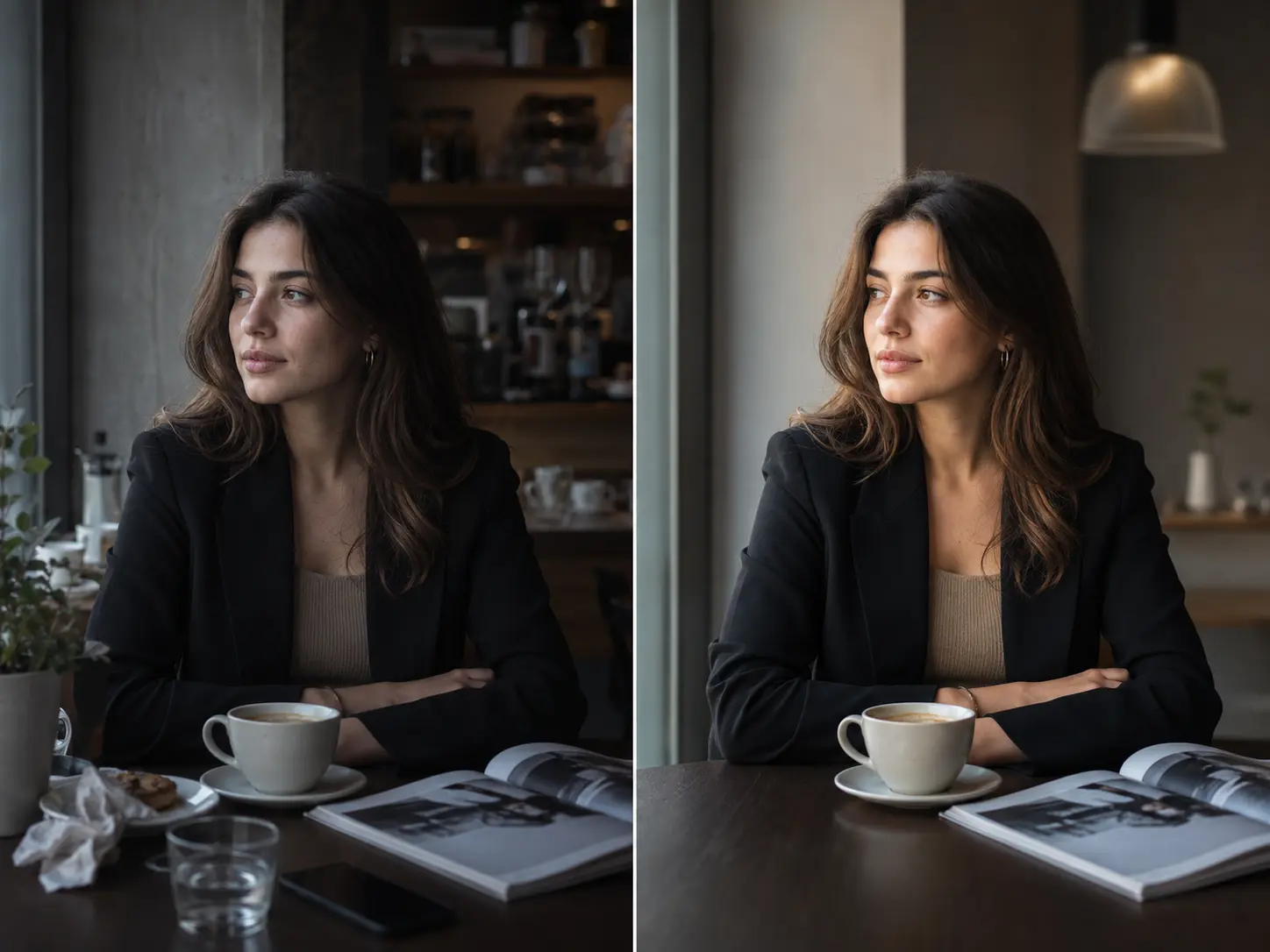
Use the AI photo editor to remove unwanted objects, people, clutter, and visual distractions from product photos with seamless, natural-looking results.

LinoCut AI turns a single photo edit into part of a complete creative workspace. Make a direct change, inspect the result, then keep the output connected to image, video, audio, text, and workflow nodes.
Write a clear prompt describing what the photo editor should change, add, replace, enhance, or remove.
Pick an aspect ratio for the final image, or keep the original dimensions.
Compare the edited image with the original, then download it or continue refining it in your workflow.

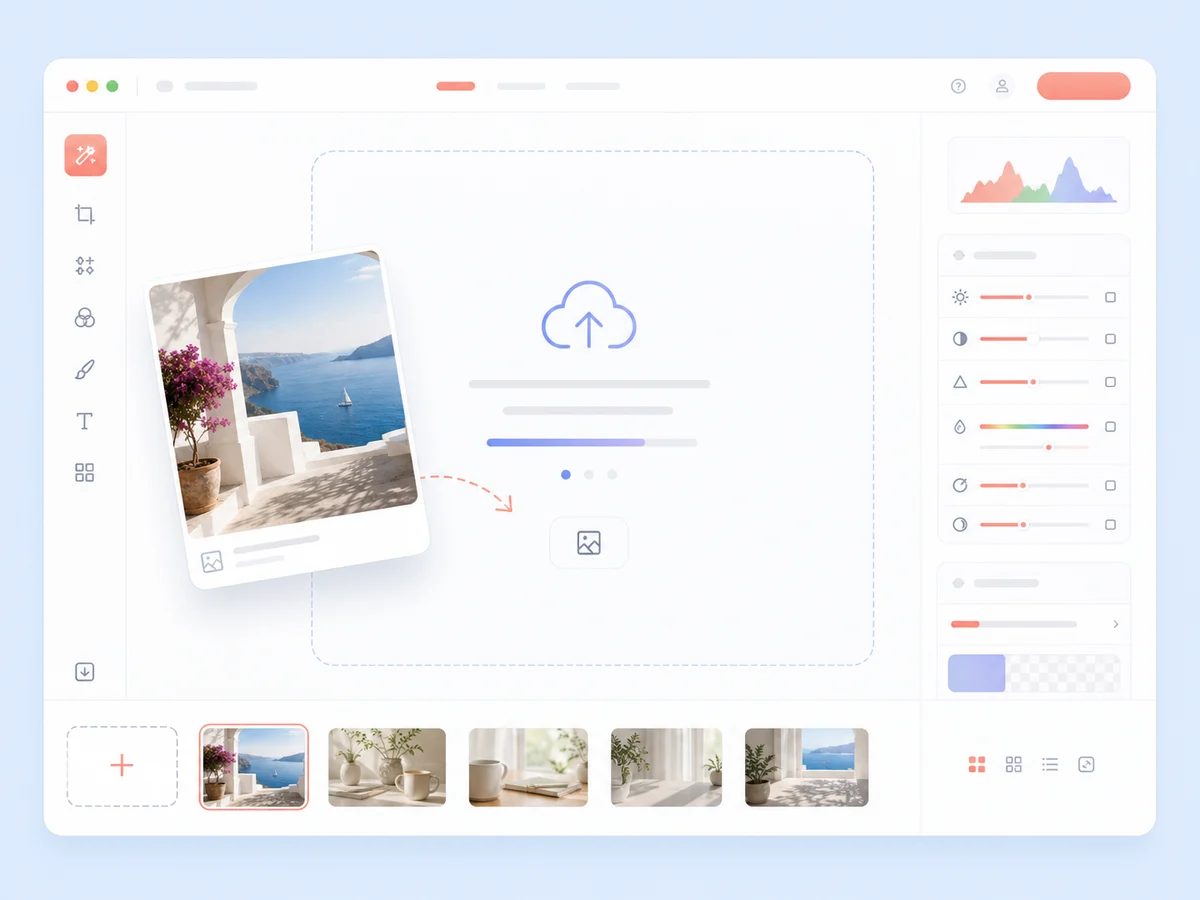 01
01Add a JPG, PNG, or WEBP image to the photo editor, then describe the change you want to make.
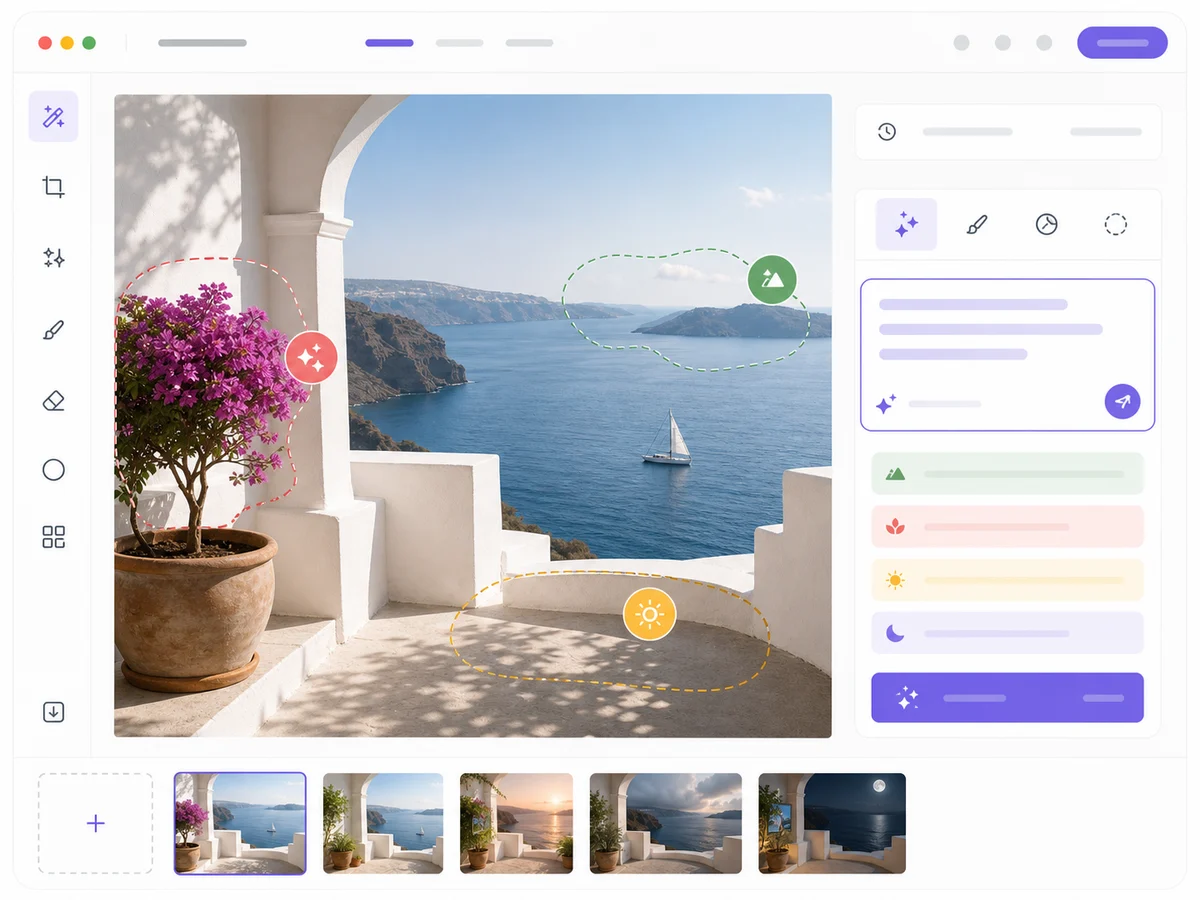 02
02Write a clear prompt so the AI image editor knows exactly what to change.
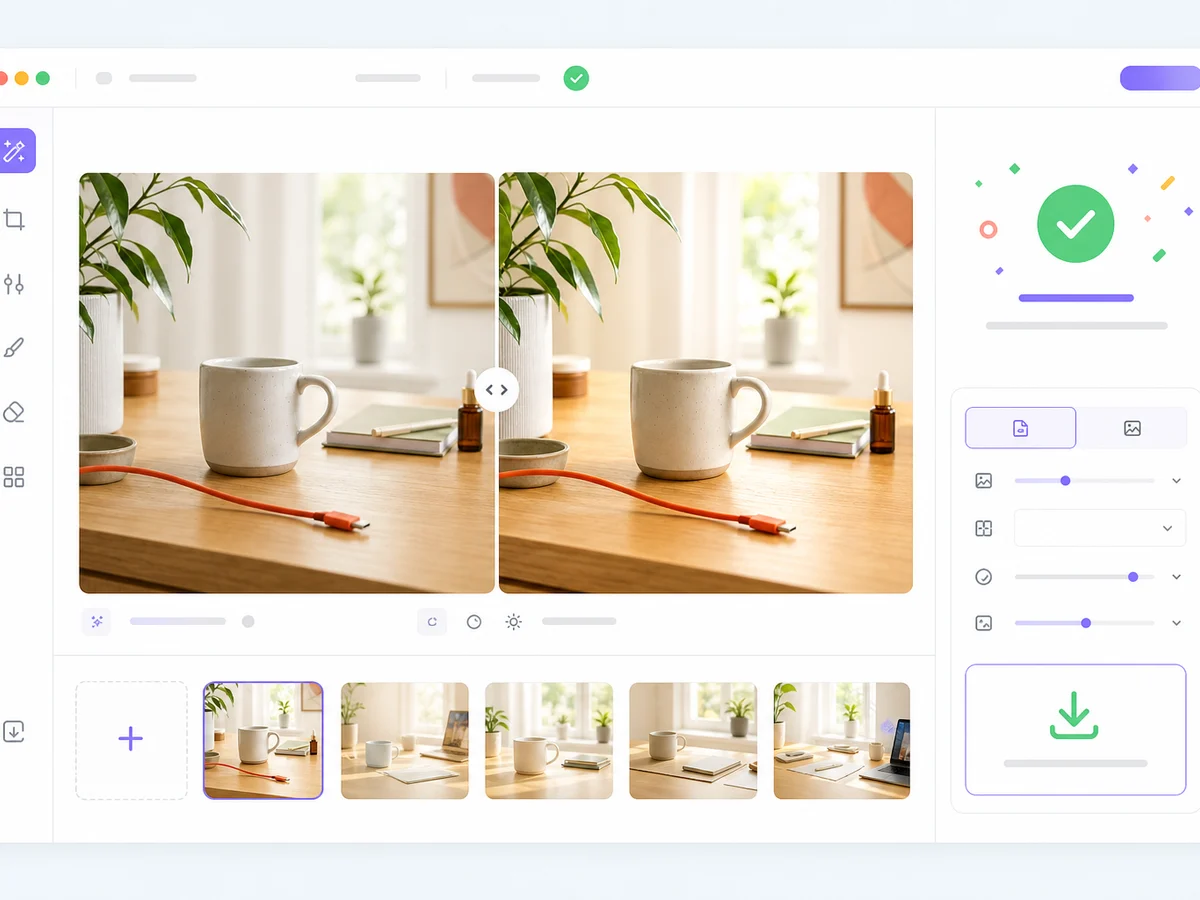 03
03Run the edit, compare the before-and-after result, then download it or continue in your image workflow.

Make targeted prompt-guided edits to objects, text, lighting, and composition without rebuilding the image.
Start editing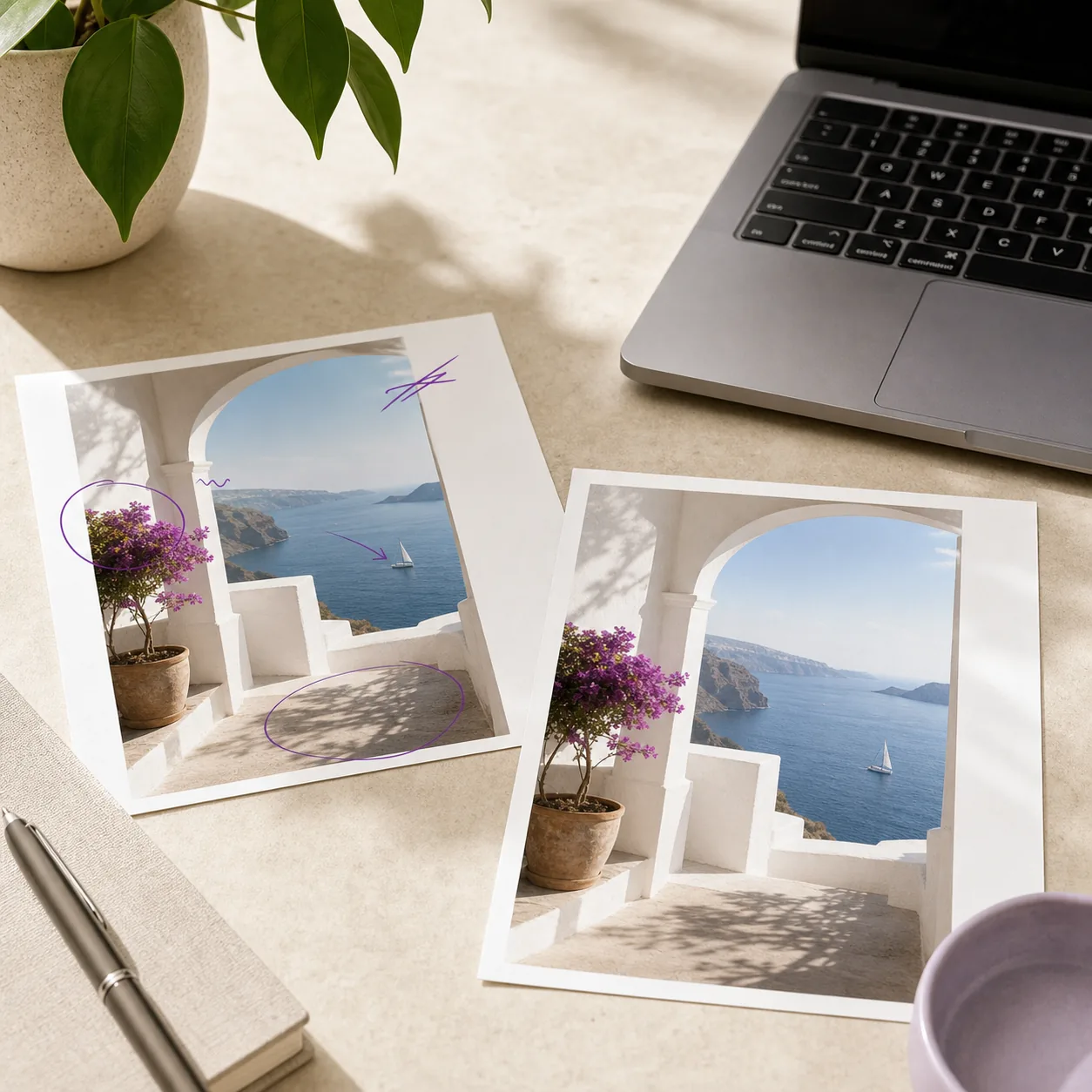
Describe any change in plain text and the AI photo editor applies it without manual selection tools.

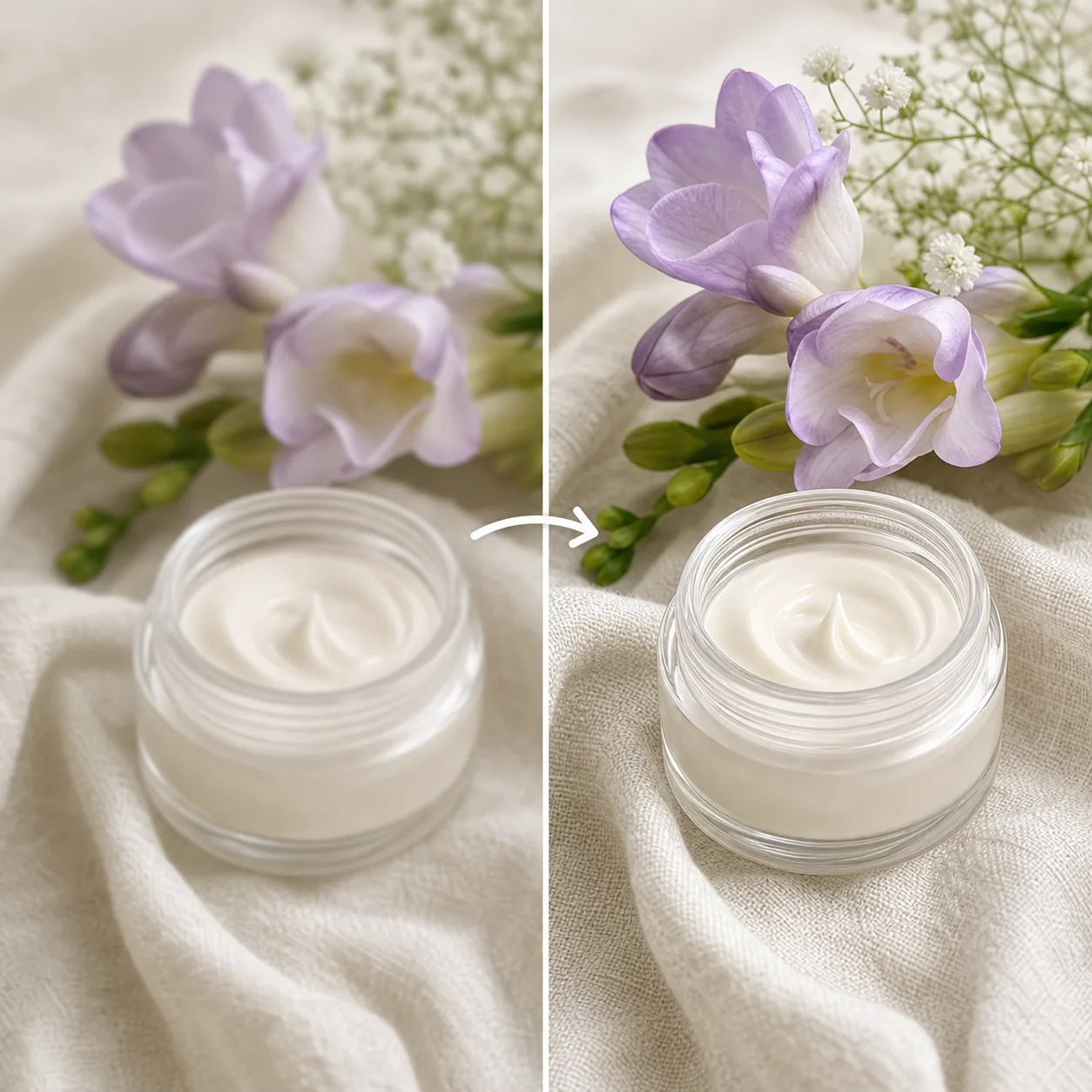
Remove small distractions, rough edges, clutter, and product photo mess without rebuilding the whole scene by hand.
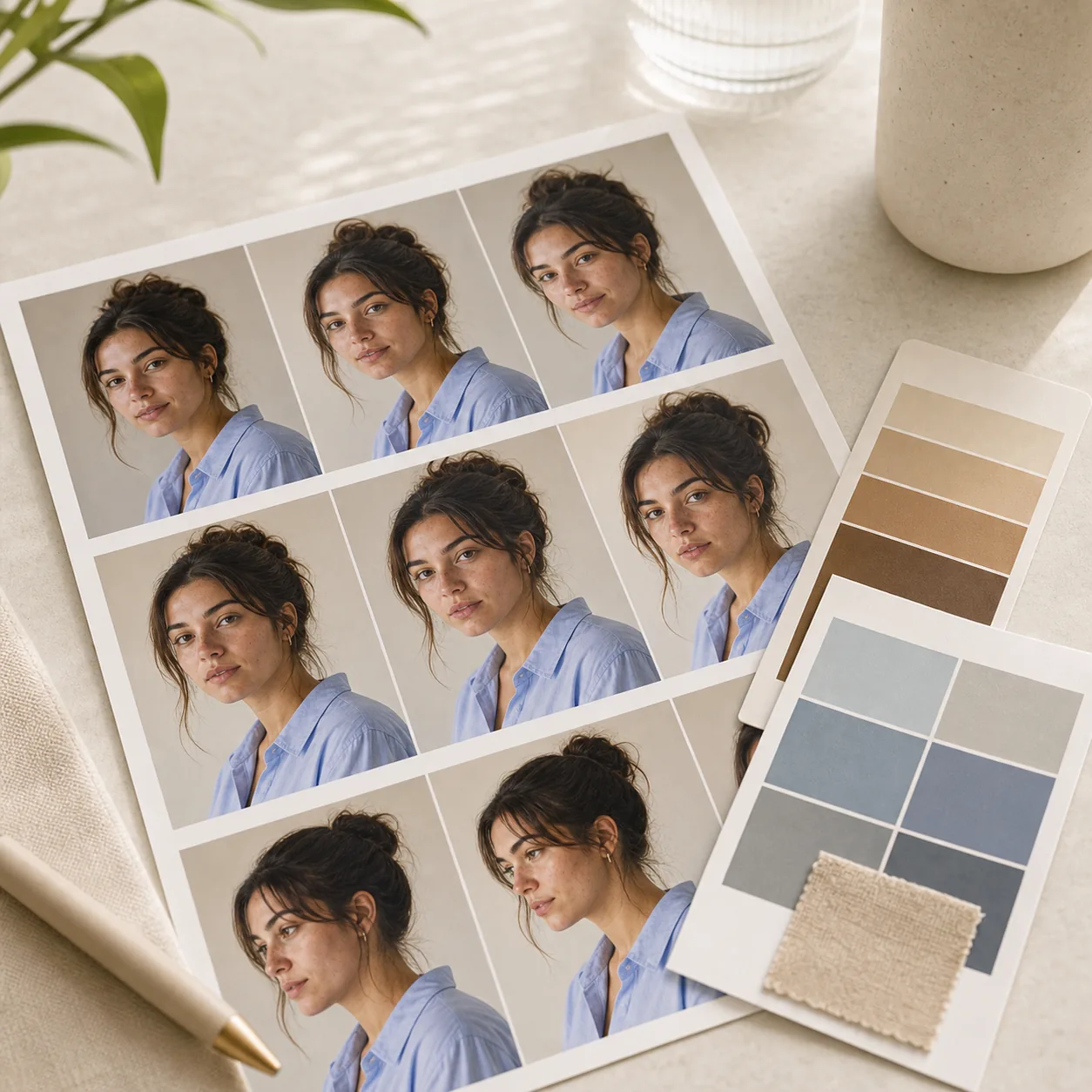
Use the AI image editor to refine exposure, color, and natural texture for profile images, campaign assets, and social posts.

Correct underexposed or uneven images while keeping the original scene believable and ready to publish.
Use this photo editor for text-guided image edits, including object removal, text replacement, photo enhancement, and lighting fixes.
Use the AI photo editor to remove unwanted objects, people, clutter, and visual distractions from product photos with seamless, natural-looking results.
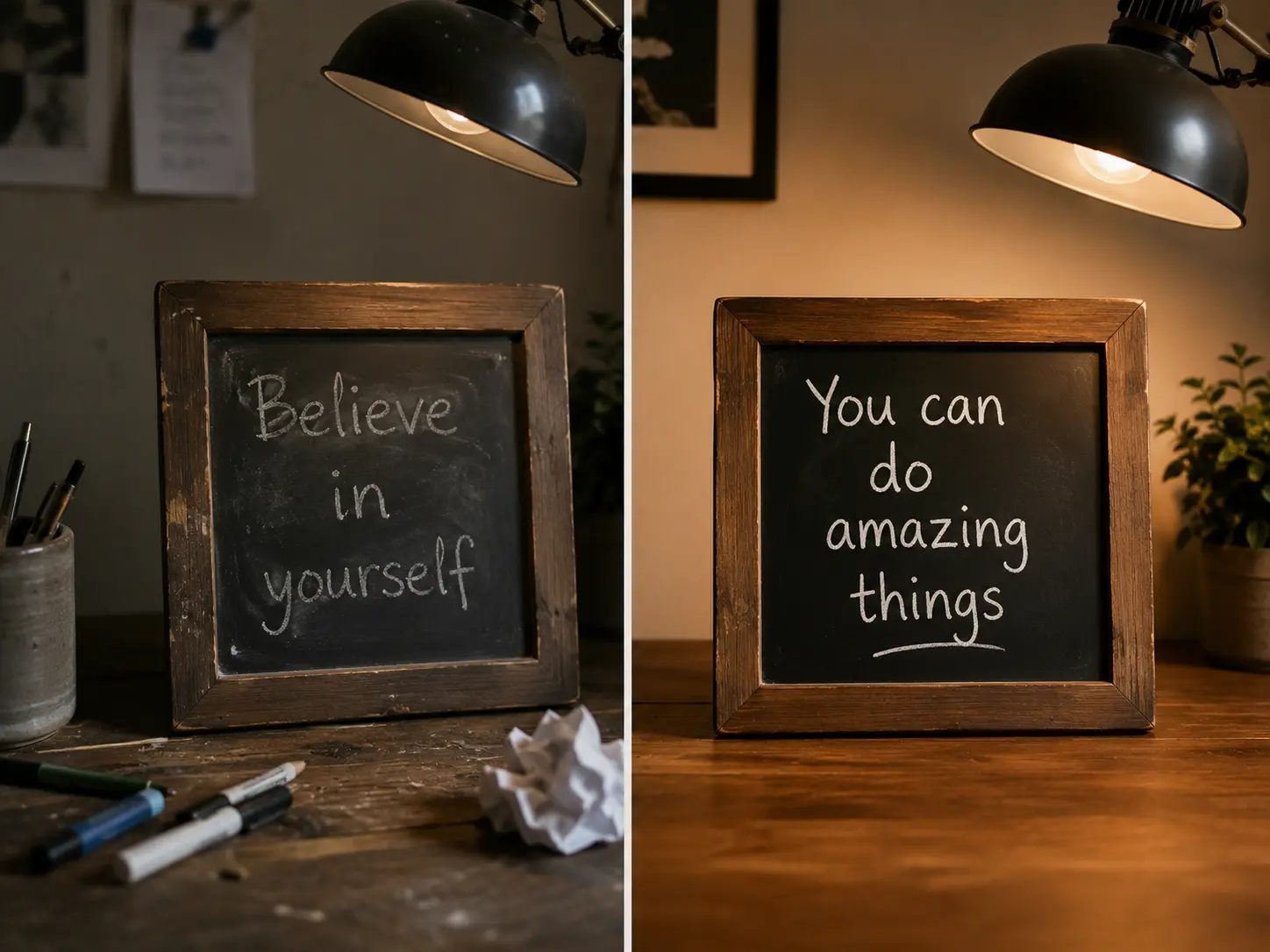
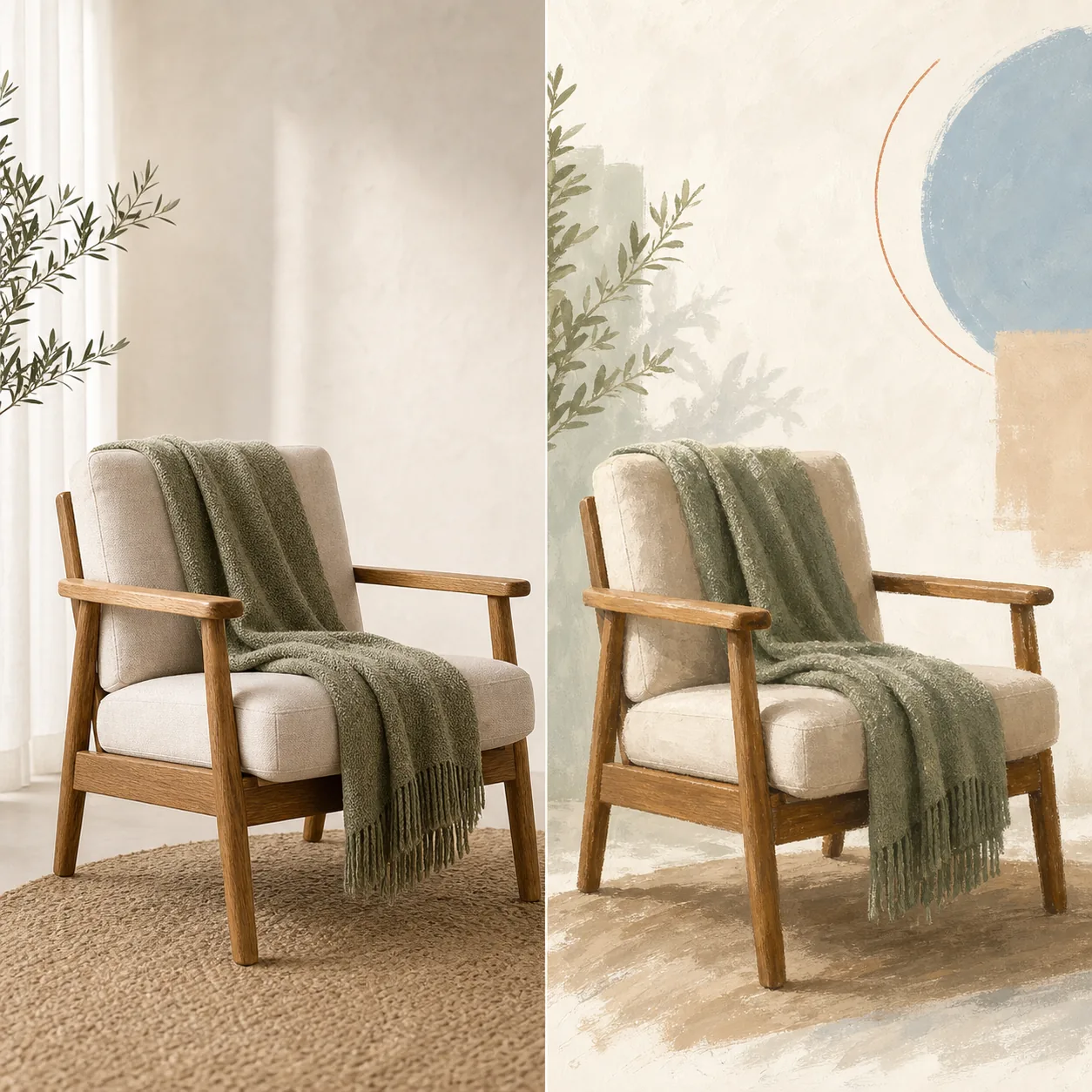
Describe the replacement in text while the photo editor preserves the original layout, perspective, and visual style.

Use photo editing AI to enhance image quality, sharpen details, improve colors, and polish portraits or product shots with one prompt.
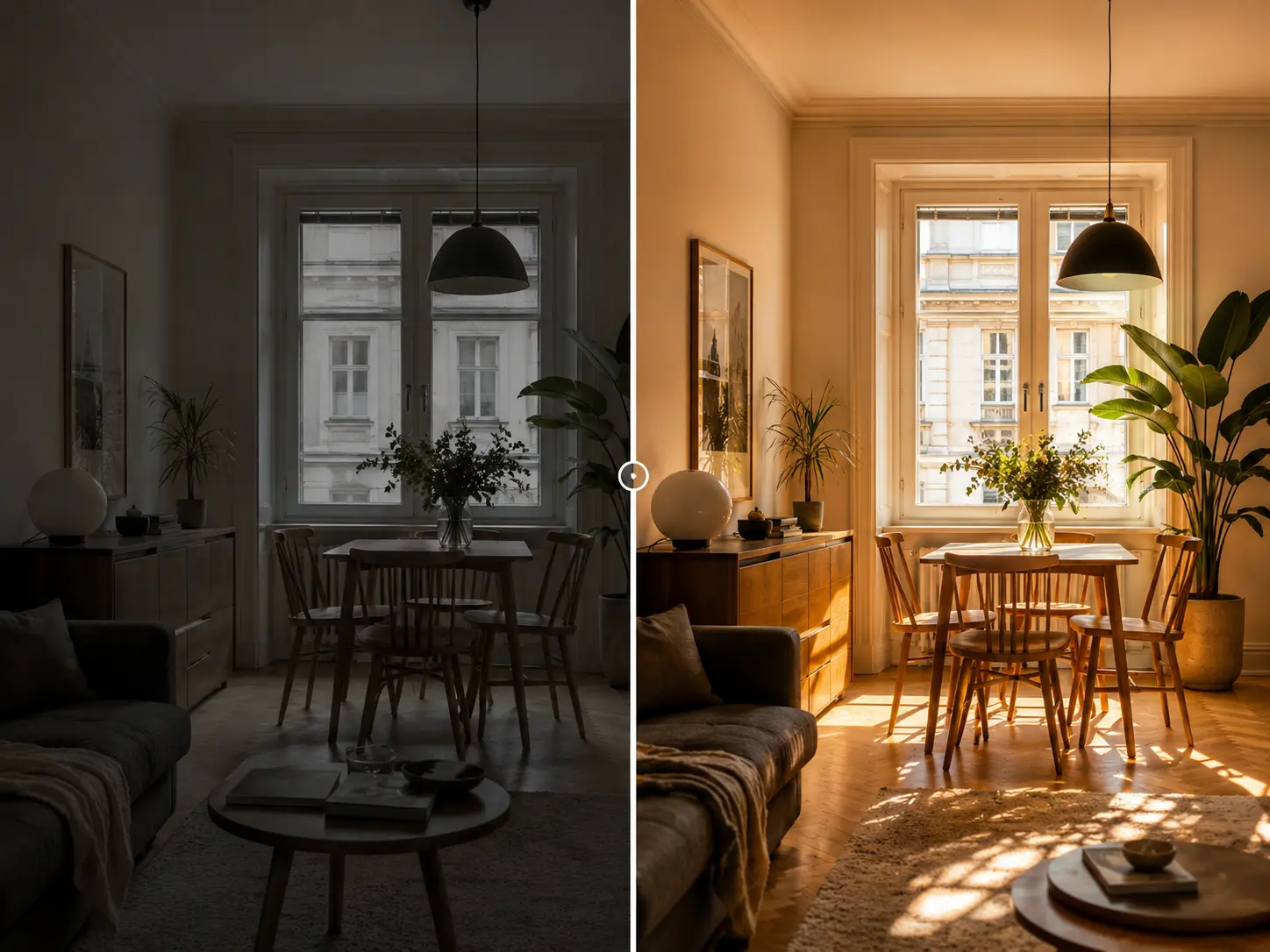
Fix dark or underexposed photos with an AI image editor and create bright, balanced, professional-looking images.
AI photo editing streamlines common edits and makes it easier to apply a consistent direction across a batch of images.
Describe the change you want, and the AI photo editor can handle object removal, text replacement, color adjustments, and lighting fixes without manual masking.
Reframe photos for square, portrait, landscape, or widescreen outputs while keeping the subject in view.
Choose an AI image editor model based on the balance you need between speed, fidelity, prompt complexity, and target resolution.

A photo editor helps you change, clean up, enhance, or reframe an image. An AI photo editor lets you describe those edits in plain text and applies them automatically.
Yes. Linocut works as an AI image editor for prompt-based photo changes, including object cleanup, text replacement, enhancement, and lighting correction.
You can edit backgrounds, colors, lighting, objects, text, and composition. The result depends on the prompt, source image, and selected model.
Yes. The photo editor online is built for quick prompt-based edits, from object removal and text replacement to enhancement and lighting correction.
Choose the photo editor model that fits your goal: faster models work well for simple edits, while higher-fidelity models suit complex prompts and larger outputs.
Yes. Choose from Default (match input), 1:1, 2:3, 3:2, 9:16, 16:9, 3:4, or 4:3 to reframe the photo for any platform.
Upload PNG, JPG, or WEBP files up to 18MB.
Yes, as long as you have rights to the source image and the final use follows your license or ownership terms.
Yes. The photo editor requires a text prompt so the model knows exactly what to remove, replace, enhance, or correct.
AI photo editing reads your prompt, analyzes the source photo, and generates a targeted edit that matches the surrounding layout, lighting, and style.
Yes. Use the AI photo editor to remove unwanted objects, clutter, marks, people, or visual distractions while keeping the result natural.
Yes. The online photo editor can update text in many images while preserving the surrounding layout, perspective, and visual style.
Yes. You can ask the photo editor to enhance image quality, sharpen details, improve color, polish contrast, or make a photo look cleaner.
Yes. The photo editor can correct lighting, brighten underexposed areas, and create a more balanced professional-looking image.
No. Describe the edit in the photo editor prompt, and the model handles the targeted change without manual masking tools.
Start with one direct task, then keep editing, generating, writing, and shipping from the same Linocut AI canvas.