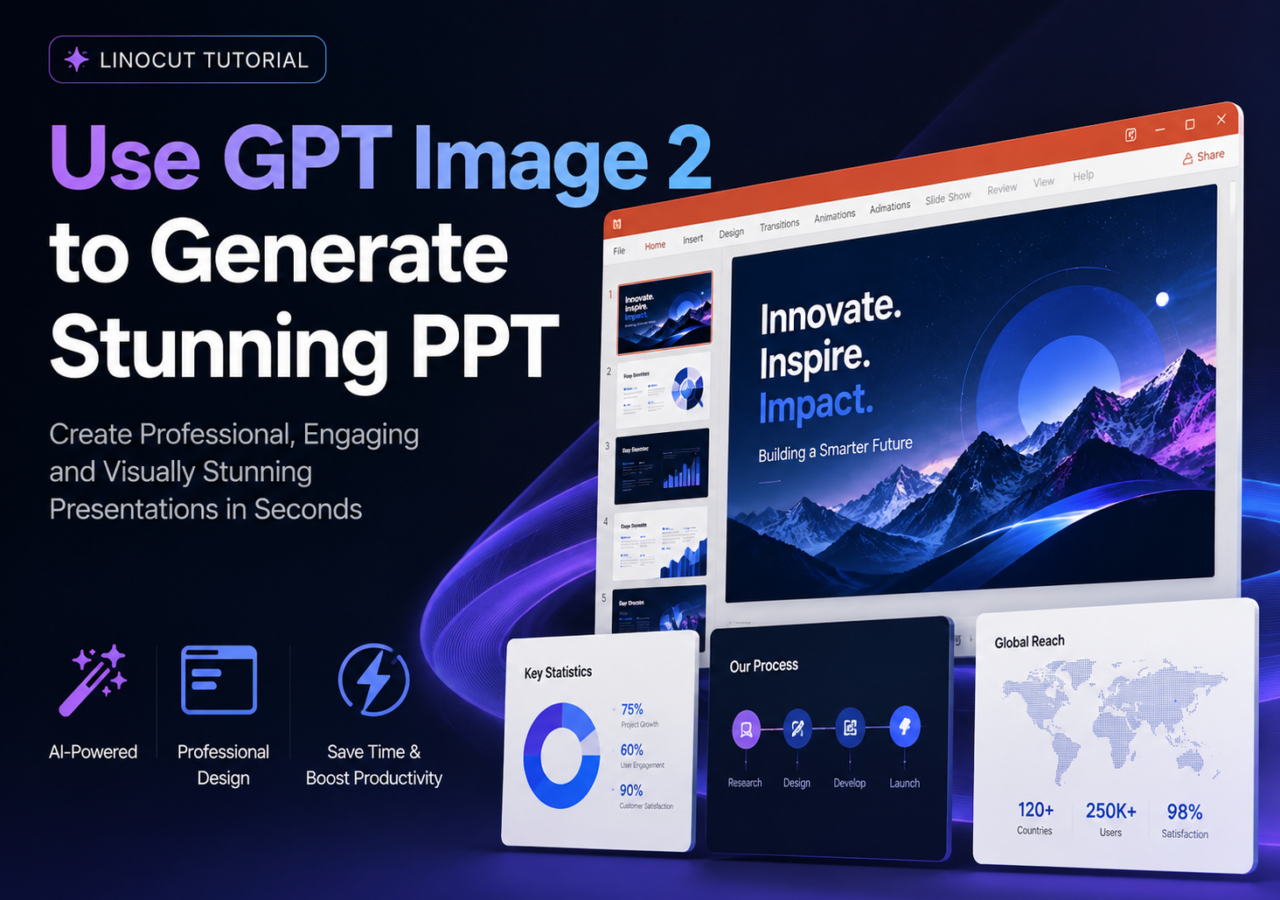
Creating a professional PowerPoint presentation used to require hours of design work, slide formatting, icon searching, and endless alignment adjustments. But with the rise of multimodal AI models like OpenAI GPT Image, presentation creation is changing dramatically.
GPT Image 2 is not just another image generator. Unlike traditional AI art models that struggle with typography, layout hierarchy, and structured business visuals, GPT Image 2 can generate presentation-ready slides with clear text, coherent layouts, strong information hierarchy, and polished visual consistency.
Whether you're creating:
- Business presentations
- Startup pitch decks
- Educational slides
- Marketing reports
- Product launch decks
- Infographics
- Social media carousel presentations
- Conference keynote slides
GPT Image 2 can dramatically accelerate the workflow.
In this guide, you'll learn:
- What GPT Image 2 is
- Why does it work so well for PPT generation
- The complete PPT generation workflow
- How to write effective prompts
- Real prompt examples
- Design strategies for professional slides
- How GPT Image 2 compares with other image models
- Common mistakes to avoid
- How to generate presentation slides you’ll actually love
What Is GPT Image 2?
GPT Image by OpenAI is a multimodal image generation model capable of creating highly structured visual content from natural language prompts.
Unlike older image generation systems that focused mainly on artistic imagery, GPT Image 2 performs exceptionally well at:
- Text rendering
- Structured compositions
- UI-style layouts
- Information hierarchy
- Infographics
- Tables and charts
- Presentation slides
- Marketing visuals
- Typography-heavy content
This makes it uniquely suited for PowerPoint generation.
Traditional image models often produce:
- Garbled text
- Broken layouts
- Inconsistent spacing
- Poor alignment
- Unreadable charts
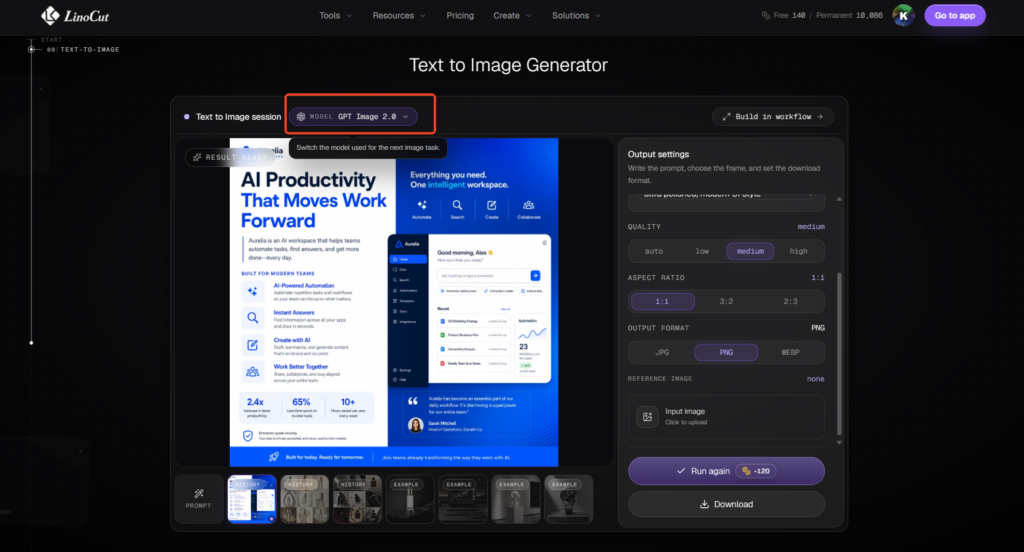
GPT Image 2 significantly improves these areas.LinoCut AI offers the latest GPT Image 2 model, which users can use freely.
Why GPT Image 2 Is Excellent for PPT Generation
Clear and Readable Text
One of the biggest breakthroughs of GPT Image 2 is text clarity.
Older AI image models typically fail when generating:
- Titles
- Bullet points
- Data labels
- Tables
- Charts
- Small captions
GPT Image 2 handles typography much better, making slides look closer to real presentation software outputs.
Strong Layout Logic
Professional presentations depend heavily on:
- Visual hierarchy
- Grid systems
- Alignment
- Information flow
- Spacing balance
GPT Image 2 understands these design principles surprisingly well.
It can generate:
- Two-column business layouts
- Executive summary slides
- Comparison slides
- Timeline slides
- Process diagrams
- KPI dashboards
- Product feature slides
- Investor pitch layouts
without collapsing the structure.
Better Business-Oriented Visual Design
Many AI image models are optimized for:
- Fantasy art
- Concept art
- Stylized illustrations
GPT Image 2 performs better for:
- Corporate presentations
- Startup branding
- SaaS product visuals
- Consulting-style decks
- Minimal modern aesthetics
- Clean infographic systems
This makes it much more practical for real-world PPT workflows.
Consistent Design Language
A presentation should feel cohesive.
GPT Image 2 can maintain:
- Color consistency
- Typography style
- Icon language
- Slide spacing
- Design tone
- Branding direction
across multiple slides more reliably than many competing models.
Fast Iteration
Instead of manually redesigning slides, you can rapidly iterate:
- Different color schemes
- Different layouts
- Different presentation styles
- Different visual tones
- Different audiences
within minutes.
The Complete Workflow for Generating PPTs with GPT Image 2
Step 1: Define the Presentation Goal
Before generating anything, define:
- Who is the audience?
- What is the presentation's purpose?
- What tone should the deck have?
- What design style fits the topic?
For example:
Startup Pitch Deck
- Minimal
- High contrast
- Investor-focused
- Data-driven
- Modern SaaS aesthetic
Educational Presentation
- Friendly
- Clear
- Informative
- Diagram-heavy
- Easy-to-read typography
Corporate Report
- Professional
- Clean
- Conservative
- Structured
- Executive-level formatting
The better your strategic direction, the better GPT Image 2 performs.
Step 2: Create a Slide Structure First
Do NOT immediately start generating images.
First, outline the presentation.
Example structure:
- Cover Slide
- Problem Statement
- Market Opportunity
- Product Solution
- Features
- Business Model
- Competitor Comparison
- Growth Metrics
- Roadmap
- Team Introduction
- Financial Projection
- Closing Slide
This dramatically improves consistency.
Step 3: Decide the Visual Style
Choose a visual identity before prompting.
Popular PPT Styles
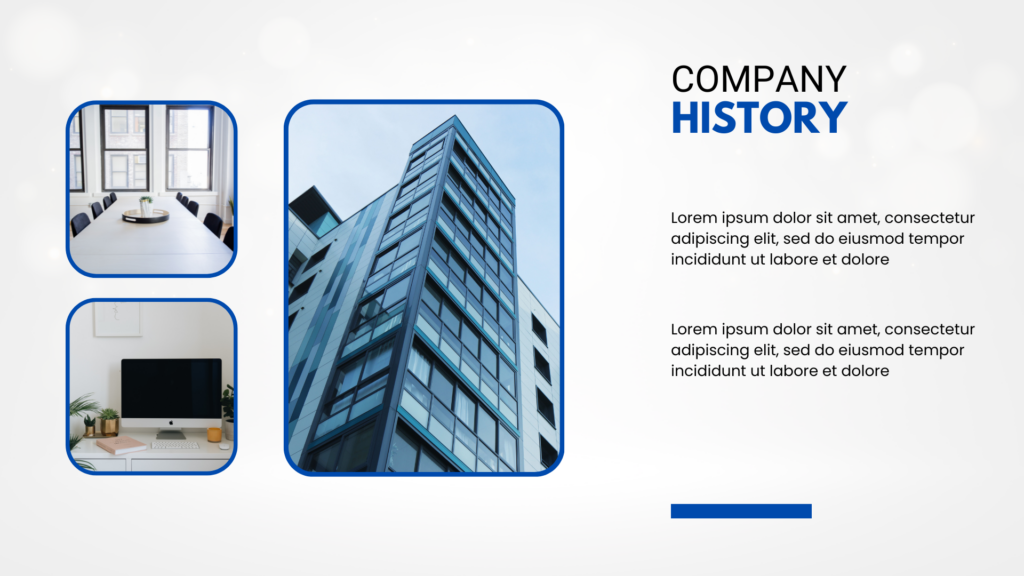
Minimal SaaS Style
- White background
- Blue accents
- Soft shadows
- Rounded cards
- Clean icons
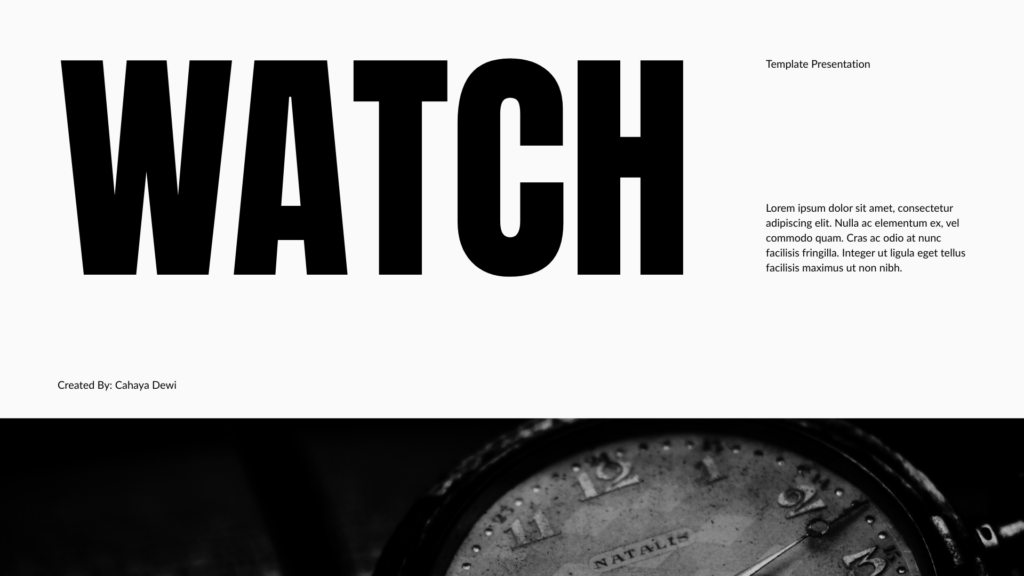
Apple-Inspired Style
- Large typography
- Lots of whitespace
- Minimal text
- Elegant product focus
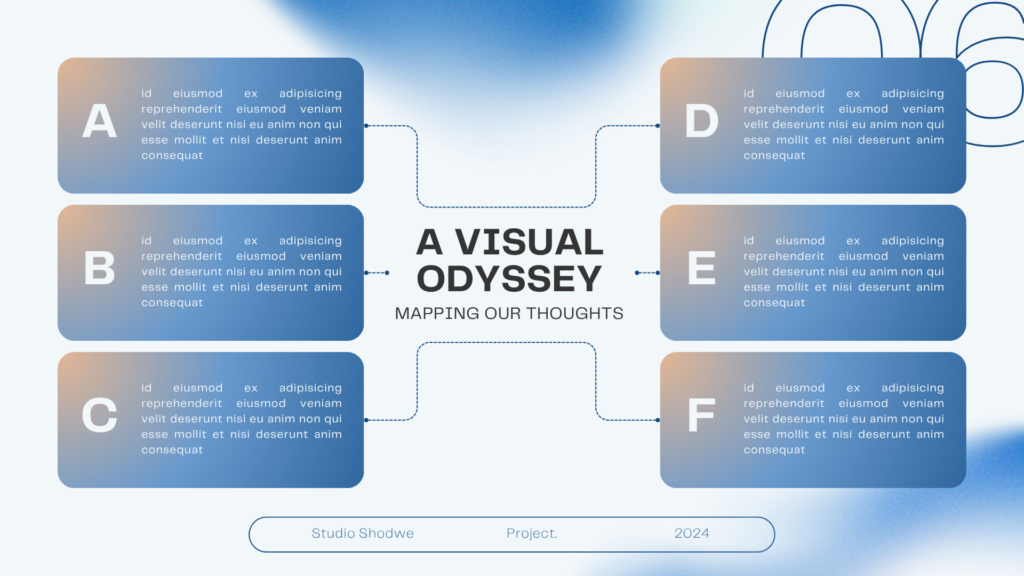
McKinsey/Consulting Style
- Grid-based layout
- Dense information hierarchy
- Business charts
- Executive readability
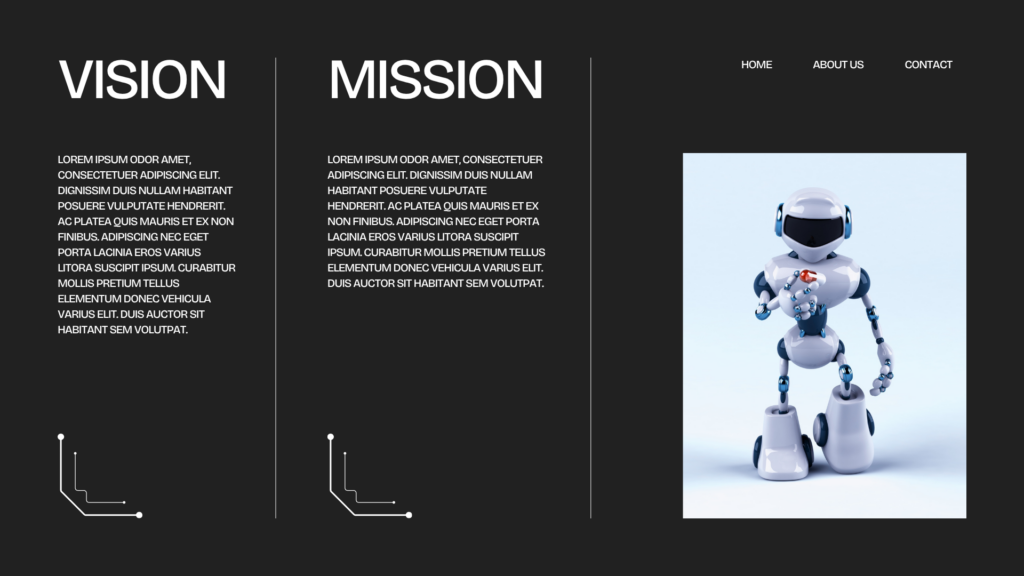
Startup Pitch Style
- Dark mode
- Neon gradients
- Futuristic UI
- Strong contrast
Step 4: Write High-Quality Prompts
Prompt engineering is the most important skill.
A weak prompt creates generic slides.
A strong prompt creates presentation-ready visuals.
Core Prompt Formula for PPT Generation
Use this structure:
[slide type] + [topic] + [layout] + [visual style] + [text structure] + [color palette] + [design quality]
Example:
Modern SaaS startup pitch deck slide about AI productivity tools, two-column layout, large bold title, professional infographic design, blue and white color palette, clean typography, presentation-ready PowerPoint slide, ultra polished, modern UI style
Key Prompt Elements Explained
1. Slide Type
Specify:
- Cover slide
- Timeline slide
- Dashboard slide
- Feature comparison slide
- KPI slide
- Process slide
- Infographic slide
The model performs better when the structure is explicit.
2. Layout Instructions
Always describe the layout.
Examples:
- Two-column layout
- Grid layout
- Left text right image
- Centered hero title
- Three-card feature section
- Timeline structure
- Vertical infographic flow
3. Typography Instructions
Very important.
Examples:
- Clear readable typography
- Sharp presentation text
- Business presentation font
- Large heading hierarchy
- Clean infographic labels
4. Design Style
Examples:
- Apple keynote style
- Modern SaaS UI
- McKinsey consulting style
- Futuristic startup branding
- Minimal Scandinavian design
- Corporate annual report style
5. Quality Keywords
Useful keywords:
- Presentation-ready
- Ultra polished
- Professional layout
- Clean spacing
- Consistent alignment
- High-end business design
- Sharp details
- Premium slide design
PPT Prompt Examples
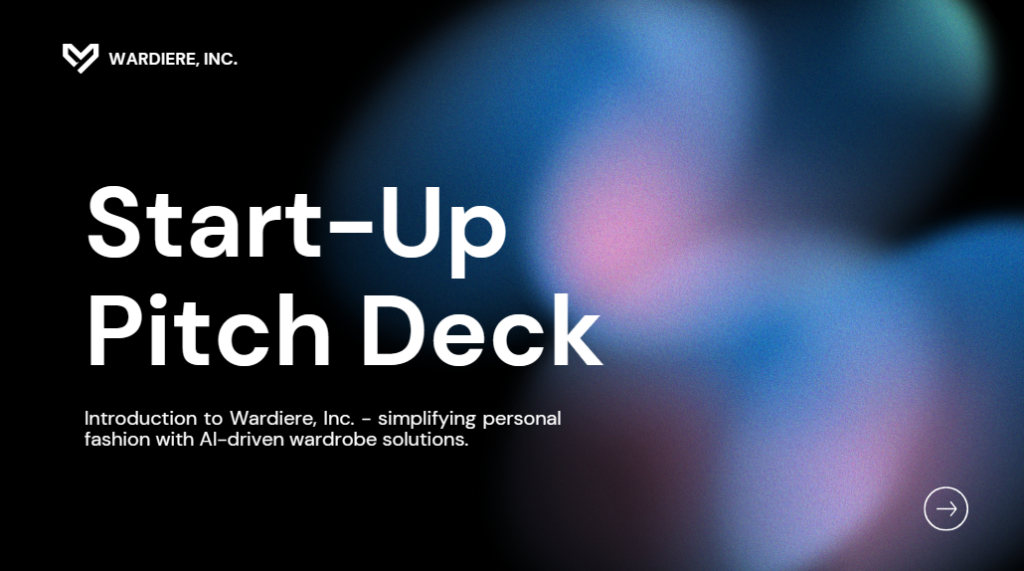
Example 1: Startup Pitch Deck Cover
Modern AI startup pitch deck cover slide, futuristic SaaS branding, dark background with blue gradients, centered bold title "AI Workflow Automation", clean typography, minimalist layout, glowing UI elements, presentation-ready PowerPoint design, premium investor pitch aesthetic
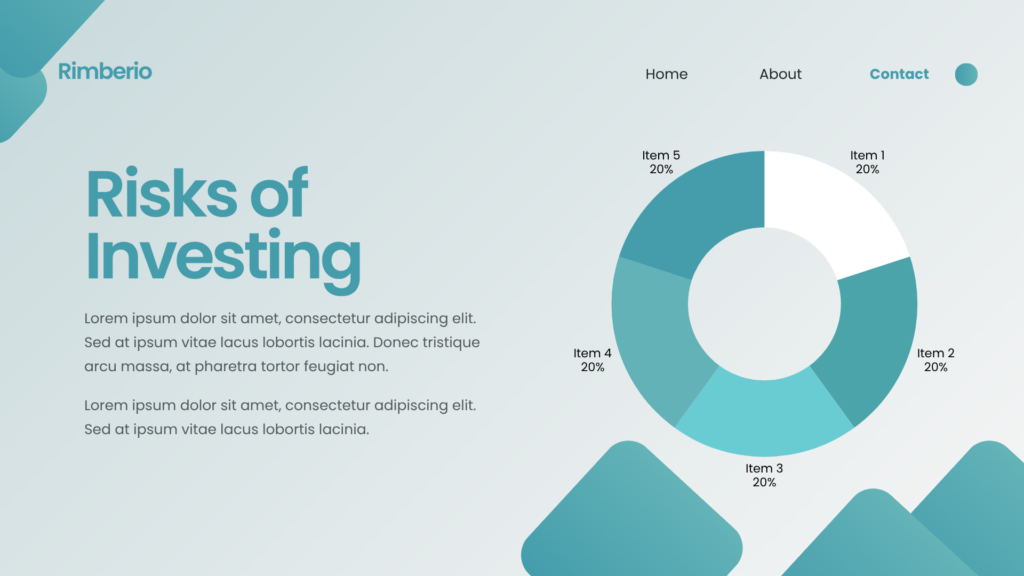
Example 2: Market Analysis Slide
Business presentation slide showing AI software market growth, clean infographic layout, bar charts and statistics, modern consulting-style design, white background, blue and black color palette, readable business typography, structured information hierarchy, McKinsey-style presentation slide
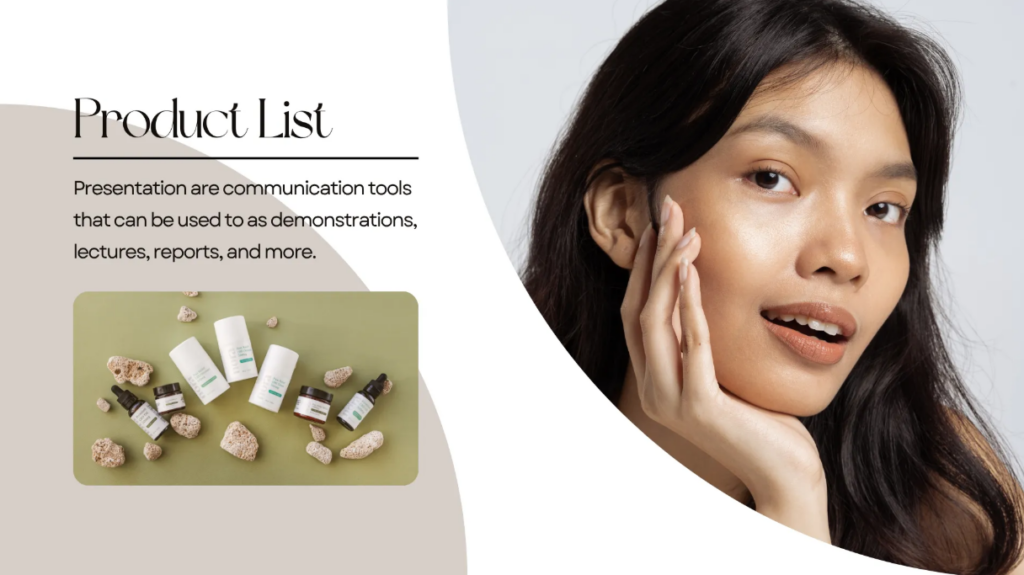
Example 3: Product Feature Slide
Modern SaaS product feature presentation slide, three-column feature cards, clean UI icons, white minimalist background, blue accent colors, large section title, professional spacing, Apple keynote style, highly readable typography, premium PowerPoint layout
How to Generate Better Text Inside Slides
Even though GPT Image 2 is much better at text rendering, prompting still matters.
Keep Text Short
Avoid giant paragraphs.
Instead use:
- Headlines
- Bullet points
- Short descriptions
Use Explicit Text Instructions
Examples:
- readable text
- sharp typography
- accurate presentation labels
- clean headline hierarchy
Avoid Tiny Text
AI still struggles with:
- Dense tables
- Small legal text
- Complex spreadsheets
Use larger content blocks.
How to Generate Consistent Multi-Slide Decks
One of the biggest challenges in AI-generated presentations is consistency.
Use Repeated Design Instructions
Repeat:
- Color palette
- Typography style
- Layout style
- Visual tone
across all prompts.
Build a Design System
Define:
- Main colors
- Accent colors
- Font style
- Card style
- Icon style
- Background system
before generation.
Example:
- White background
- Blue gradient accents
- Rounded UI cards
- Thin outline icons
- Soft shadows
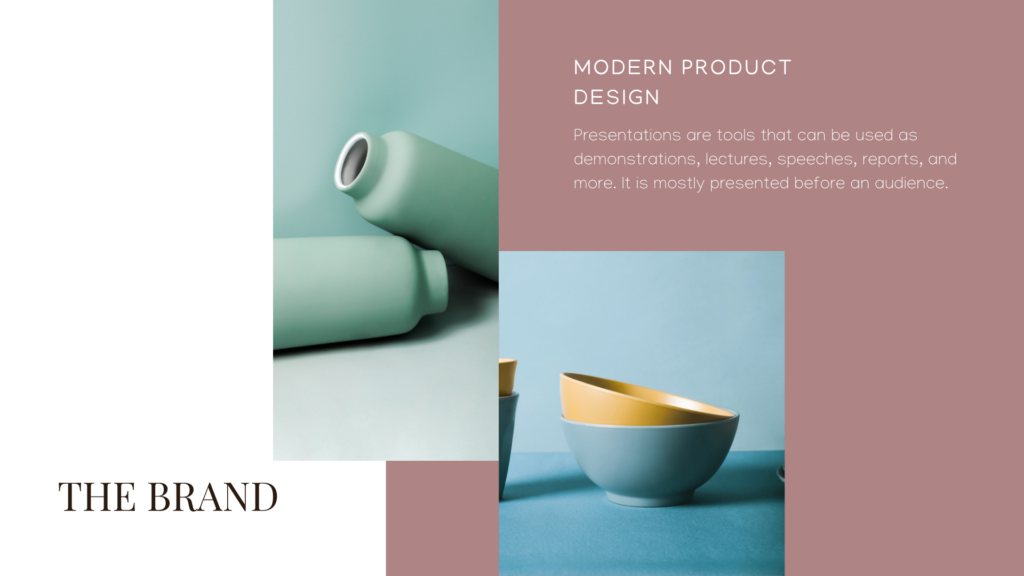
Generate Slides in Batches
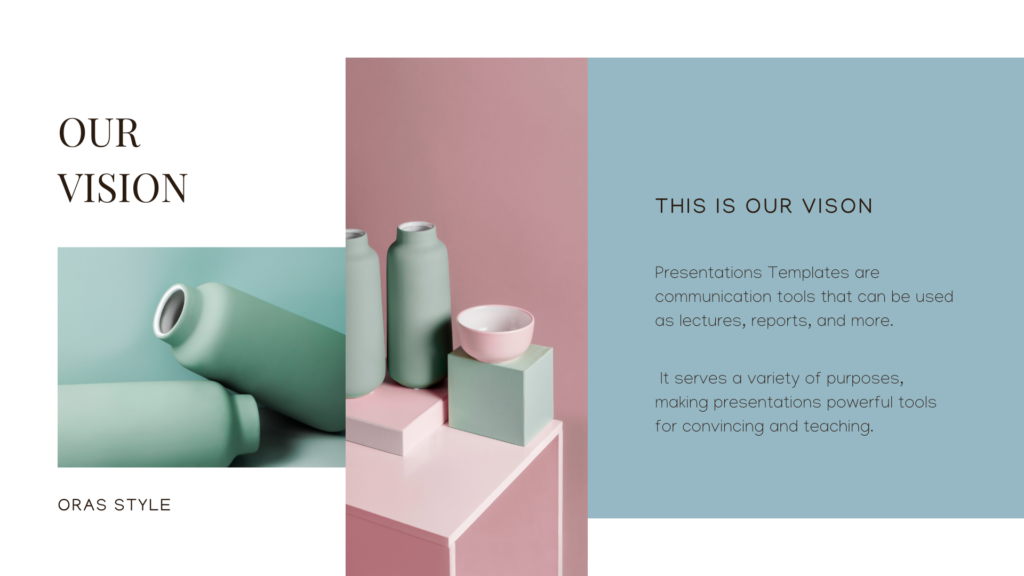
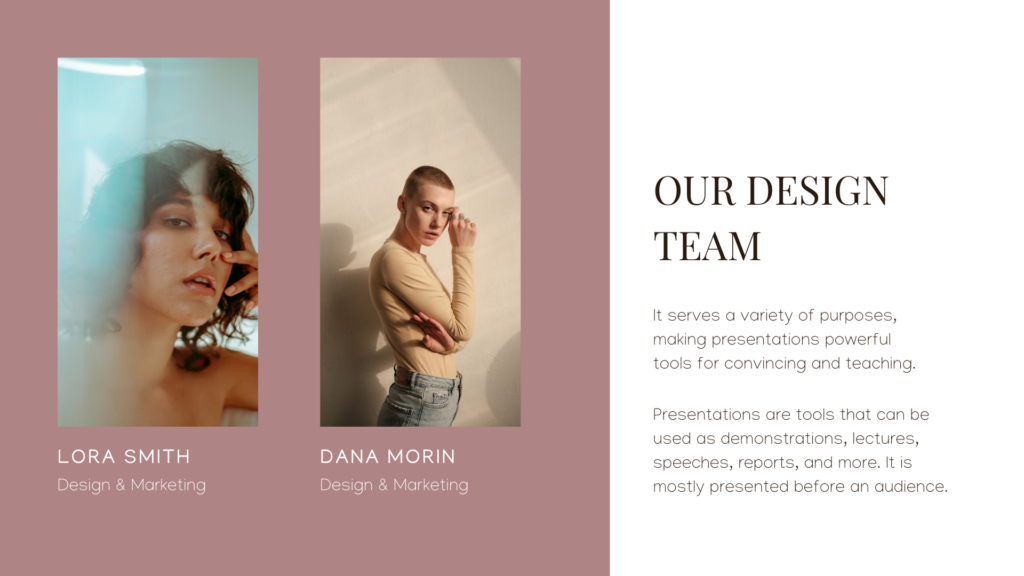
Instead of generating 1 slide at a time:
- Generate 3–5 slides with similar prompts
- Maintain visual continuity

How GPT Image 2 Compares with Other Image Models for PPT Generation
| Feature | GPT Image by OpenAI | Midjourney | Stable Diffusion | Adobe Firefly | Canva Magic Media |
| Best Use Case | PPTs, infographics, structured business visuals | Artistic and cinematic images | Custom AI workflows and open-source generation | Commercial creative assets | Beginner-friendly design generation |
| Text Rendering Quality | Excellent — clear readable typography | Weak — often distorted text | Moderate — depends on tuning | Good | Moderate |
| PPT Layout Capability | Excellent structured slide layouts | Weak layout logic | Moderate | Good template-style layouts | Good for simple slides |
| Business Presentation Design | Very strong | Limited | Moderate | Strong | Moderate |
| Typography Control | High | Low | Medium | Medium-High | Medium |
| Information Hierarchy Understanding | Excellent | Weak | Moderate | Good | Moderate |
| Consistency Across Slides | Strong | Inconsistent | Depends on workflow | Good | Good |
| Ease of Use | Very easy | Easy | Technical learning curve | Easy | Extremely beginner-friendly |
| Customization Flexibility | High | Medium | Extremely high | Medium | Low-Medium |
| Realistic Infographic Generation | Excellent | Weak | Moderate | Good | Moderate |
| Corporate Style PPTs | Excellent | Weak | Moderate | Strong | Good |
| Creative Artistic Output | Good | Excellent | Excellent | Good | Moderate |
| Template-Like Presentation Output | Natural and flexible | Weak | Depends on model | Strong template behavior | Strong template behavior |
| Editable Workflow Integration | Works well with PowerPoint rebuilding workflows | Mostly image-focused | Requires external tools | Deep Adobe integration | Deep Canva integration |
| Speed of Iteration | Fast | Fast | Depends on hardware | Fast | Very fast |
| Technical Requirements | Low | Low | High for local deployment | Low | Very low |
| Best For Beginners | Yes | Yes | No | Yes | Yes |
| Best For Designers | Yes | Yes | Yes | Yes | Moderate |
| Best For Startup Pitch Decks | Excellent | Moderate | Moderate | Good | Good |
| Best For Professional Business Slides | Excellent | Weak | Moderate | Strong | Moderate |
| Major Weakness | Still not fully editable like native PPT | Poor text generation | Complex setup and inconsistency | Less flexible creativity | Generic-looking outputs |
| Overall PPT Generation Capability | ⭐⭐⭐⭐⭐ | ⭐⭐ | ⭐⭐⭐ | ⭐⭐⭐⭐ | ⭐⭐⭐ |
GPT Image 2 vs Midjourney
Midjourney
Strengths:
- Cinematic visuals
- Artistic quality
- Creative aesthetics
Weaknesses for PPT:
- Poor text rendering
- Weakly structured layouts
- Less presentation-oriented
- Harder to create readable business slides
GPT Image 2 is significantly better for actual PowerPoint usability.
GPT Image 2 vs Stable Diffusion
Stable Diffusion
Strengths:
- Open-source flexibility
- Custom fine-tuning
- Large ecosystem
Weaknesses:
- Requires heavy setup
- Less reliable typography
- More inconsistent layouts
GPT Image 2 is much easier for non-technical users.
GPT Image 2 vs Adobe Firefly
Adobe Firefly
Strengths:
- Adobe ecosystem integration
- Commercial-safe assets
- Strong creative tools
Weaknesses:
- Sometimes overly template-like
- Less advanced layout intelligence
GPT Image 2 often feels more natural and structurally intelligent.
GPT Image 2 vs Canva Magic Media
Canva Magic Media
Strengths:
- Easy drag-and-drop editing
- Beginner-friendly workflow
- Fast template generation
Weaknesses:
- More limited creative flexibility
- Generic visual outputs
GPT Image 2 offers more sophisticated custom visual generation.
Common Mistakes When Generating PPT Slides
Overloading the Prompt
Too much information causes chaos.
Bad:
- giant paragraphs
- 20 requirements
- conflicting styles
Keep prompts focused.
Ignoring Layout Instructions
If you don’t specify layout:
- Spacing becomes random
- hierarchy weakens
- Slides feel messy
Always define structure.
Using Vague Design Terms
Avoid:
- “Make it cool.”
- “Make it pretty.”
Use precise descriptions instead.
Generating Entire Decks in One Prompt
Large deck prompts reduce quality.
Better workflow:
- Generate slide-by-slide
- Maintain shared design language
Advanced PPT Prompting Techniques
Reference Real Presentation Styles
Examples:
- Apple keynote style
- TED Talk presentation
- Startup accelerator pitch deck
- Silicon Valley SaaS design
- Modern fintech dashboard
These references help guide visual direction.
Specify Visual Hierarchy
Example:
- large bold title
- medium subtitle
- three supporting cards
- small data visualization section
This improves composition dramatically.
Use Camera and Rendering Language Carefully
For PPTs, avoid overly cinematic language.
Bad:
- dramatic cinematic realism
- hyper fantasy
- surreal concept art
Better:
- flat modern design
- presentation infographic style
- UI-focused layout
- corporate visual system
How to Turn AI-Generated Slides into Real PowerPoints
After generating slides:
Option 1: Use Them as Final Slides
Useful for:
- Quick pitches
- Visual storytelling
- Social slides
- Internal presentations
Option 2: Rebuild in PowerPoint or Keynote
Many professionals:
- Generate slide concepts with GPT Image 2
- Rebuild them manually in:
- Microsoft PowerPoint
- Apple Keynote
- Google Slides
This combines AI creativity with editable precision.
Tips for Creating PPTs You’ll Actually Be Satisfied With
Focus on Communication First
A beautiful slide that communicates poorly is useless.
Always prioritize:
- clarity
- readability
- storytelling
- audience understanding
Iterate Aggressively
The first generation is rarely perfect.
Try:
- different layouts
- different hierarchy systems
- different visual tones
- different spacing approaches
Study Great Presentation Design
Look at:
- startup pitch decks
- TED presentations
- Apple keynote slides
- consulting decks
- modern SaaS landing pages
The better your design taste, the better your prompts become.
Keep Slides Simpler Than You Think
Most bad presentations are overloaded.
Great slides usually have:
- one core idea
- strong hierarchy
- Lots of whitespace
- clear visual flow
The Future of AI-Generated Presentations
AI-generated presentations are evolving rapidly.
Future systems will likely support:
- Fully editable AI slides
- Dynamic charts
- Live data integration
- Automatic storytelling
- Brand-consistent deck generation
- Voice-to-presentation workflows
- Real-time slide collaboration
GPT Image 2 represents a major step toward that future.
Instead of spending hours aligning elements manually, creators can focus more on:
- ideas
- storytelling
- strategy
- communication
while AI handles much of the visual production.
Boost Creativity and Presentation Impact with GPT Image 2
GPT Image 2 is transforming how presentations are created. Instead of spending hours adjusting layouts, searching for assets, or designing slides manually, users can quickly turn ideas into professional PPT visuals with simple prompts.
One of its biggest advantages is creative freedom. You can rapidly explore different styles, layouts, branding directions, and storytelling approaches without starting from scratch. This makes brainstorming and iteration much faster and more flexible.
GPT Image 2 also greatly improves efficiency. Tasks that once required designers, infographic tools, and heavy formatting can now be completed in minutes, helping teams create high-quality presentations faster.
More importantly, better presentations often lead to better business results. Clear, visually polished slides can improve audience engagement, strengthen brand credibility, increase investor confidence, and make business communication more persuasive during pitches, meetings, and client collaborations.
By combining strong ideas with effective prompts, GPT Image 2 helps creators build presentations that are not only visually impressive but also more impactful and commercially successful.