case.01
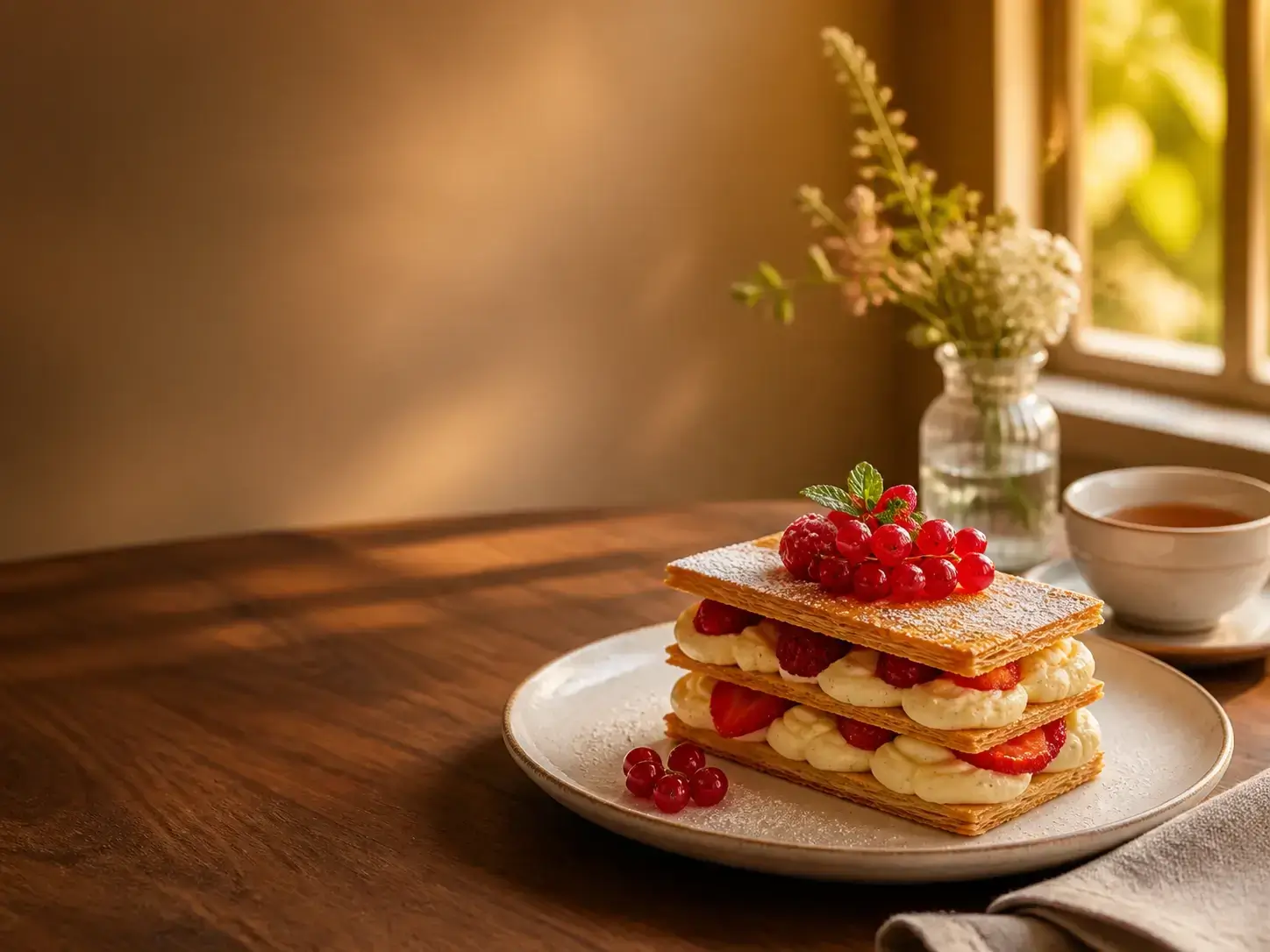
Restaurant dessert campaign visual
Use text to image to create an early campaign visual of a plated dessert with glossy fruit, delicate pastry layers, warm window light, and room for a headline before planning a restaurant campaign shoot.
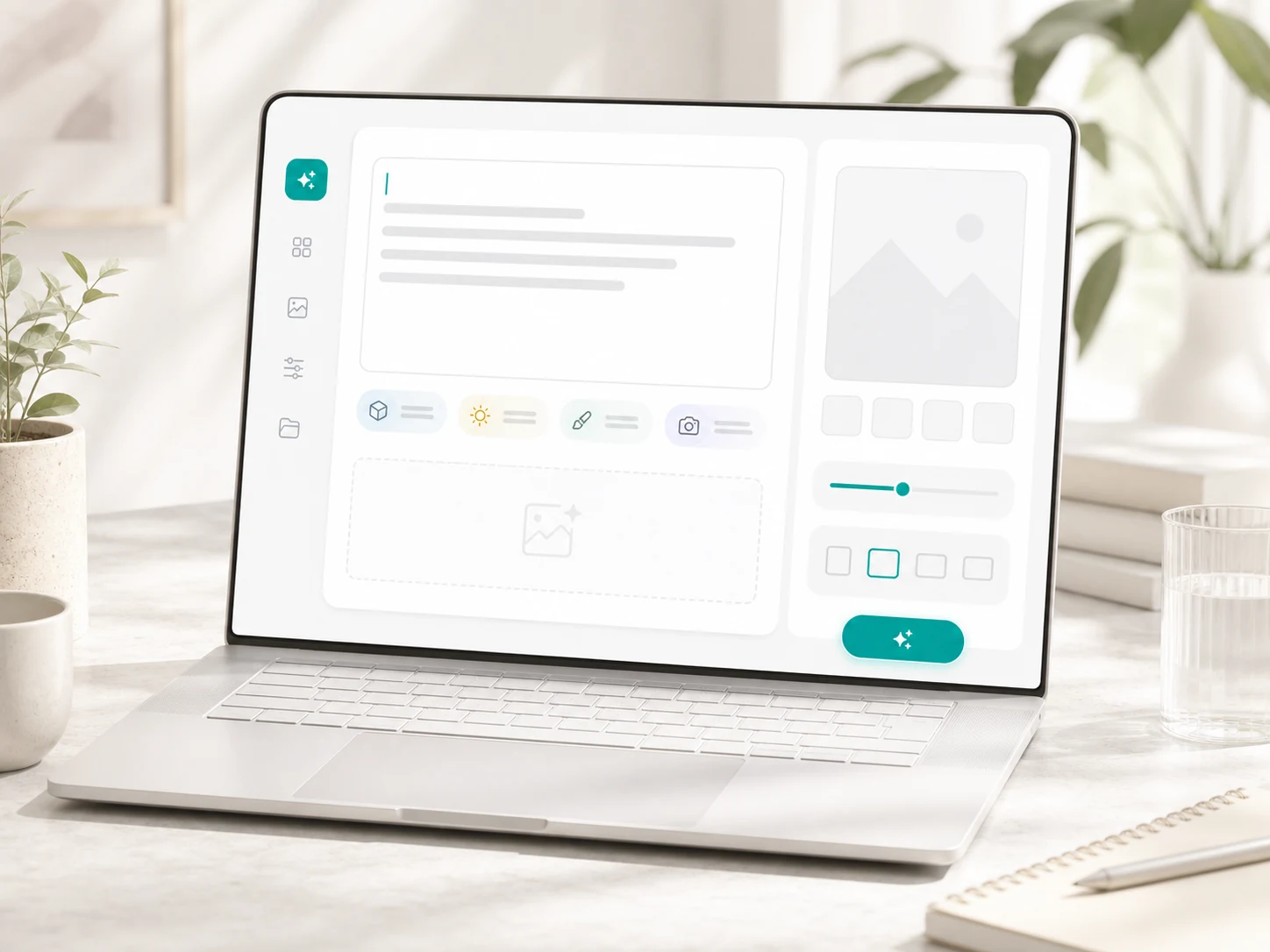
Use text to image to turn a product concept or campaign still into a visual. Fine-tune the prompt and output settings in one panel, then continue with enhancement, upscaling, or background editing when needed.
Enter a prompt and choose settings, then generate an image.
Generated images are kept for 1 day.
Turn early product thinking into visual options your team can discuss before a shoot, design handoff, or campaign build.
Use a product visual maker to explore the setting, materials, audience, and brand tone that best support the product before final production begins.
An AI image generator helps teams review different approaches to framing, lighting, visual hierarchy, and product emphasis before choosing one to develop.
Use the selected text to image result as a shared reference for a shoot, a design handoff, or a later edit. The AI image maker gives everyone a clearer starting point for what to preserve and refine.

 01
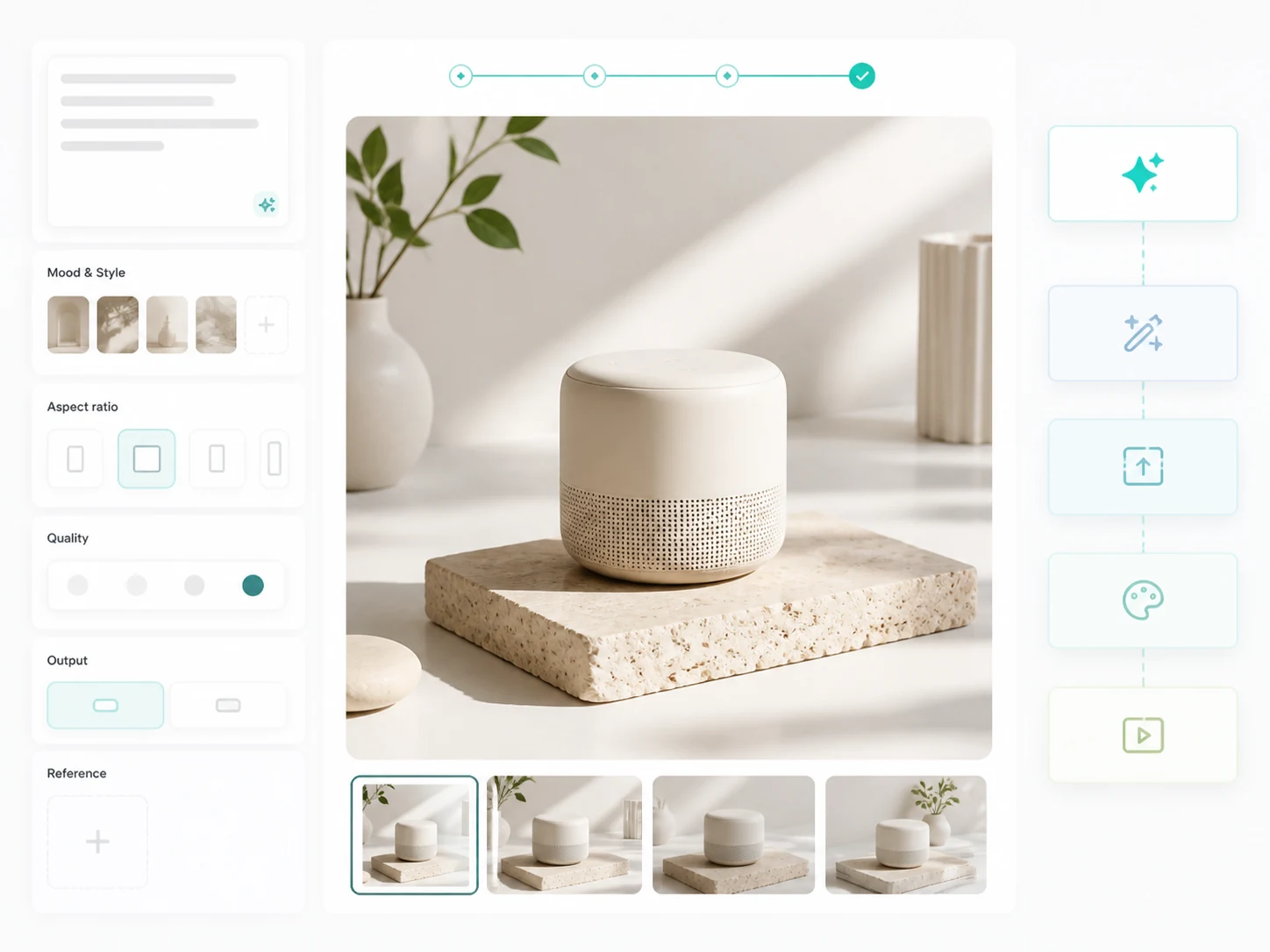
01Write a concise visual brief with the subject, setting, light, style, and intended use.
 02
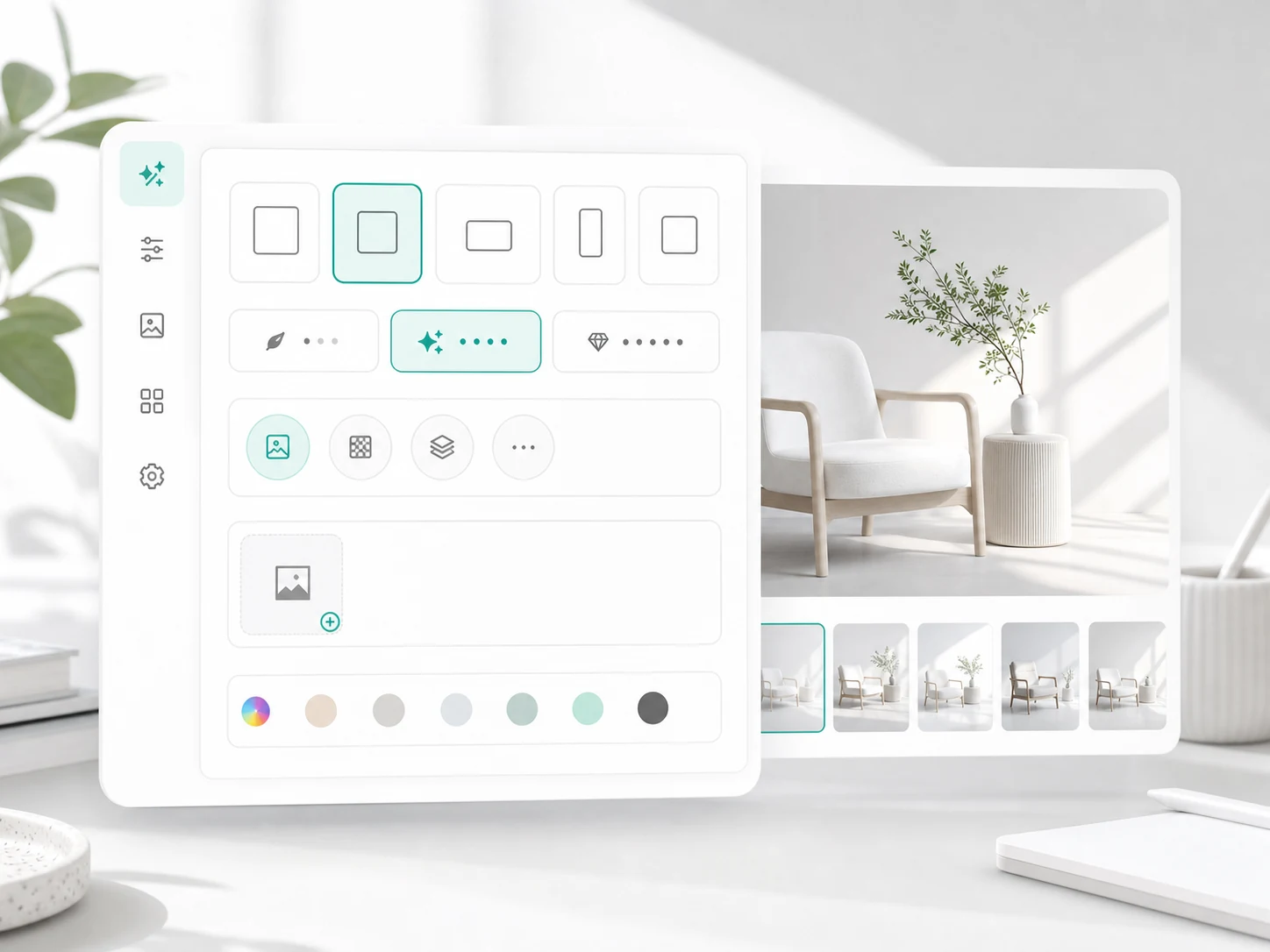
02Choose aspect ratio, quality, and output format before generation.
 03
03Review the image, download it, or continue with enhancement, upscaling, and style work.

The text to image generator turns a product idea, campaign concept, or imagined scene into a visual you can review and refine. It is a simple way to test a direction before photography, design work, or final production begins.
Generate image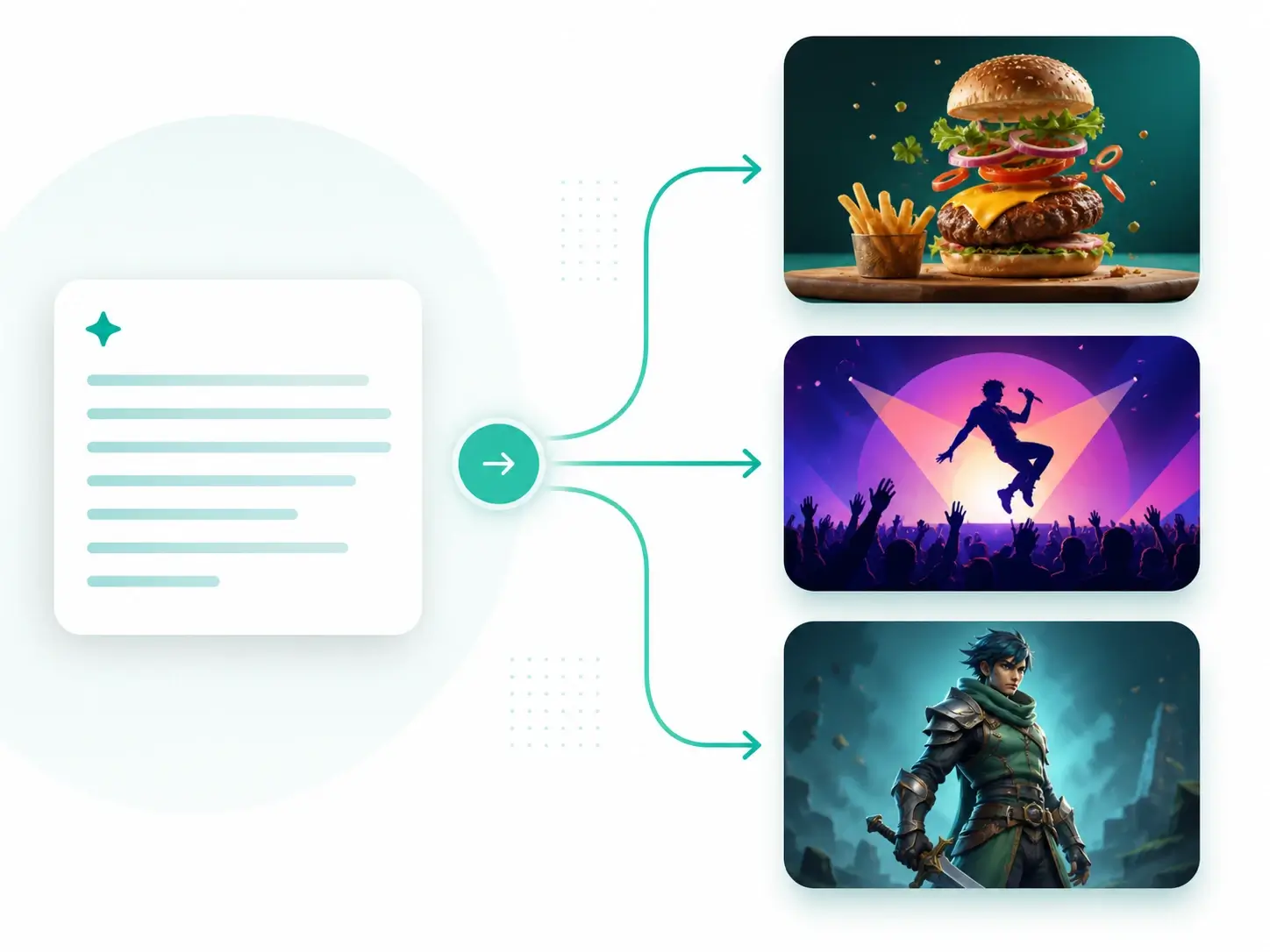
With text to image, a product idea, campaign concept, story, or imagined scene can become the first image, even when there is nothing to upload or edit.
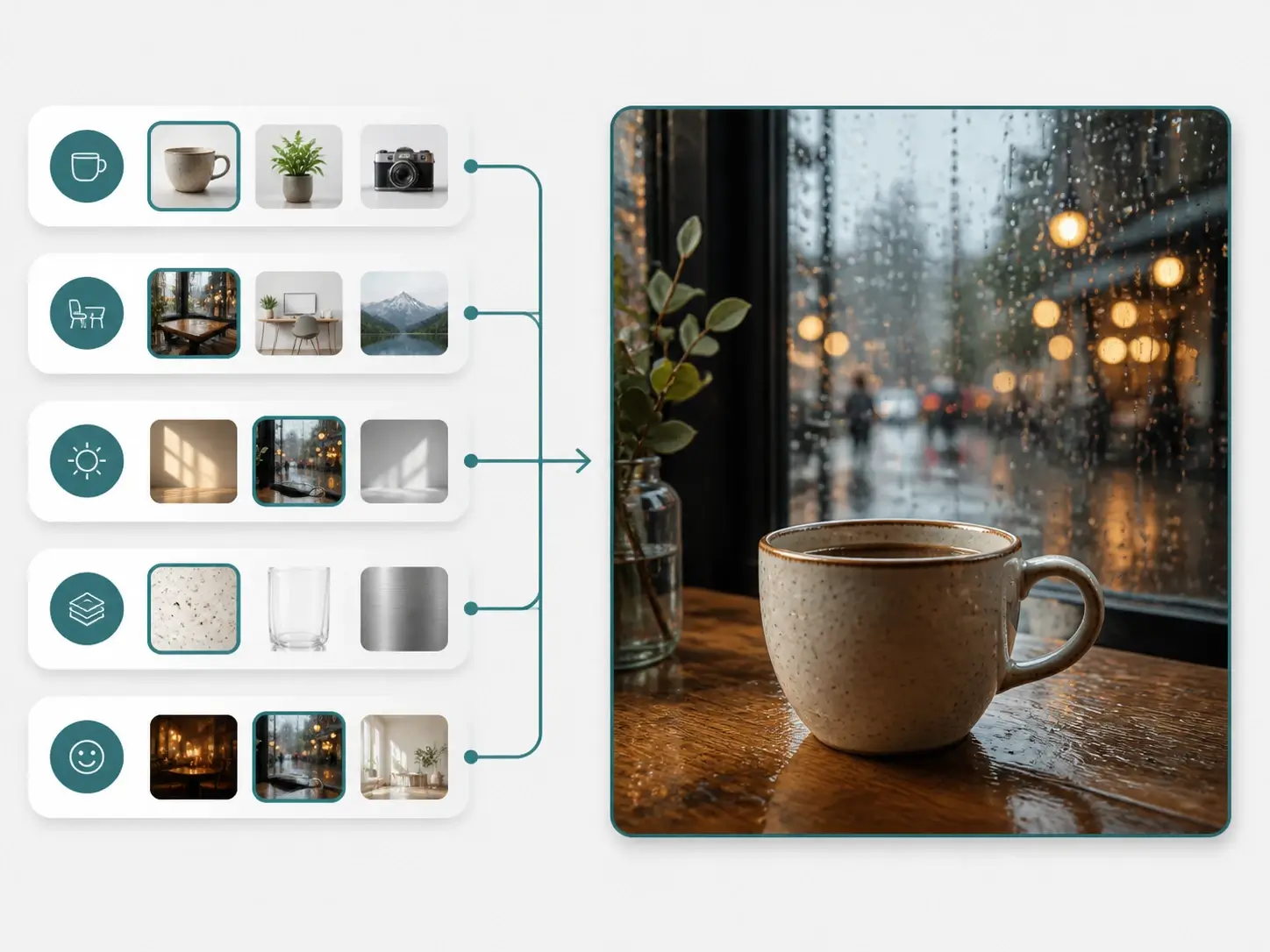
Subject, setting, lighting, materials, and mood give the image specific context, so it begins closer to the look you have in mind.
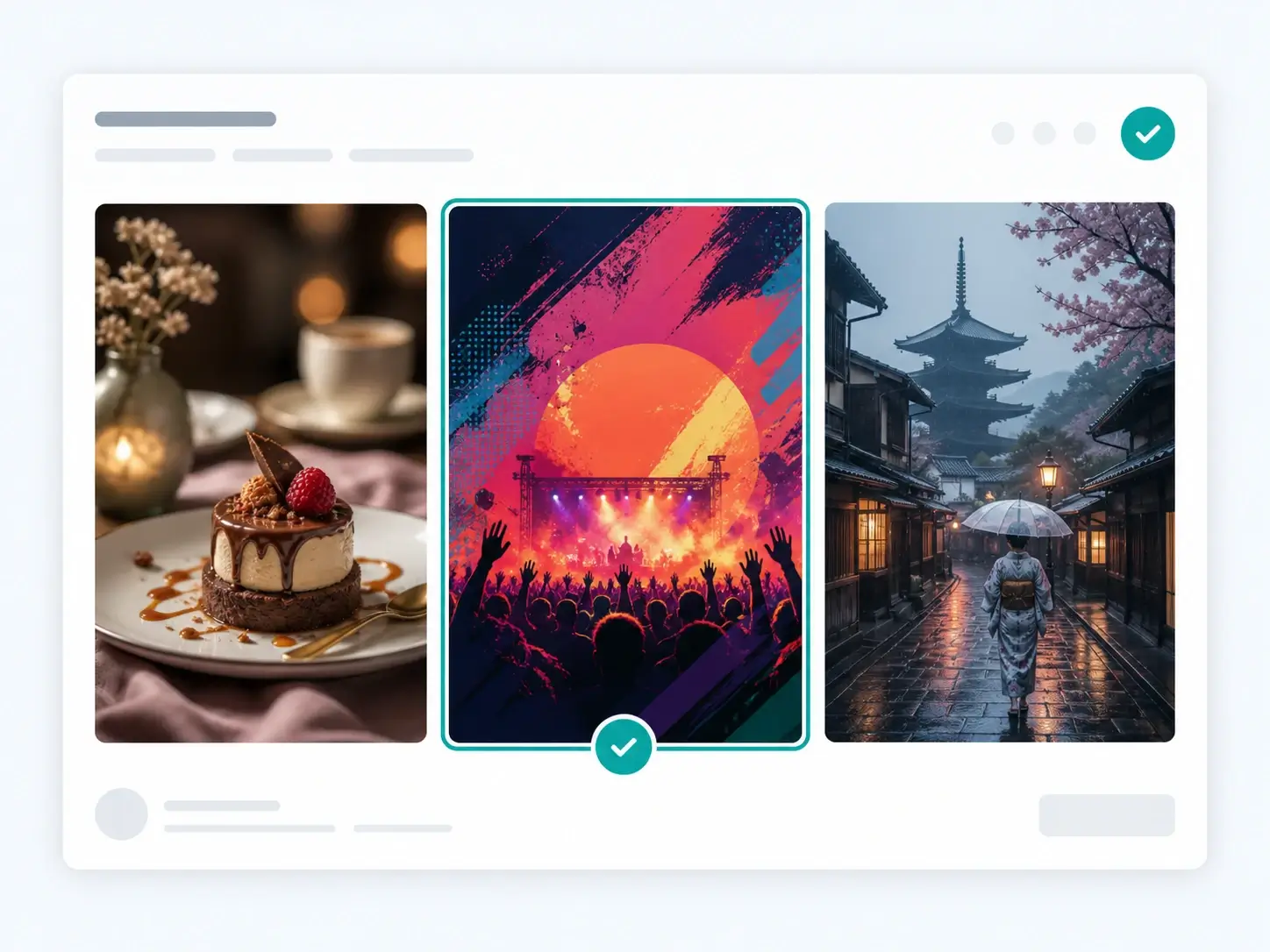
Use early visuals to compare product scenes, poster concepts, social content, or character directions before planning a shoot or commissioning final artwork.
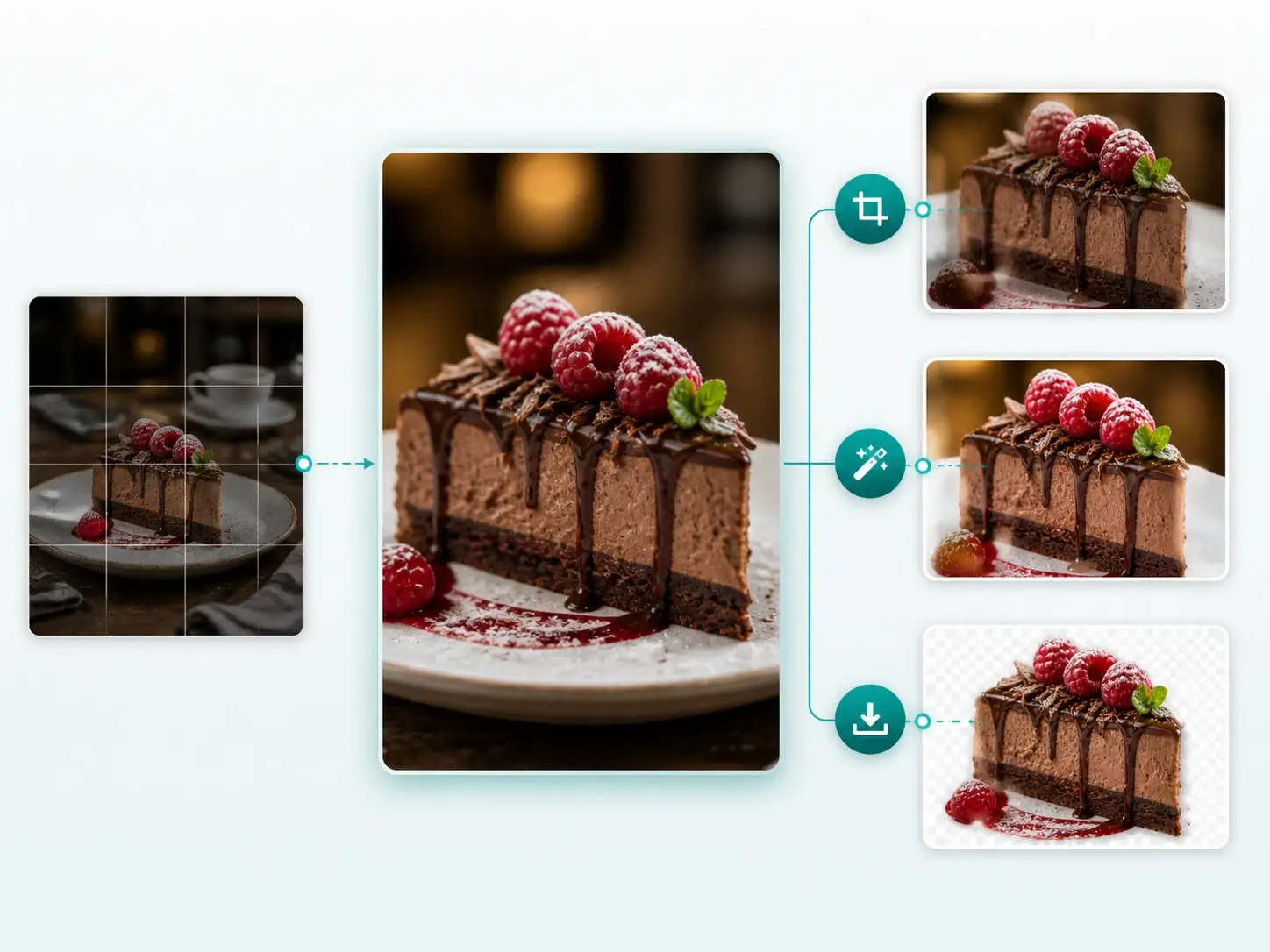
The first result turns an abstract direction into something to review, share, and refine. If the idea needs another pass, use image editing to adjust the details; once approved, Image Upscaler can prepare it for print or larger formats.
Text to image generator can turn a clear production brief into a visual reference for an ad layout, event poster, illustration direction, or social cover before final creative work begins.
Use text to image to create an early campaign visual of a plated dessert with glossy fruit, delicate pastry layers, warm window light, and room for a headline before planning a restaurant campaign shoot.
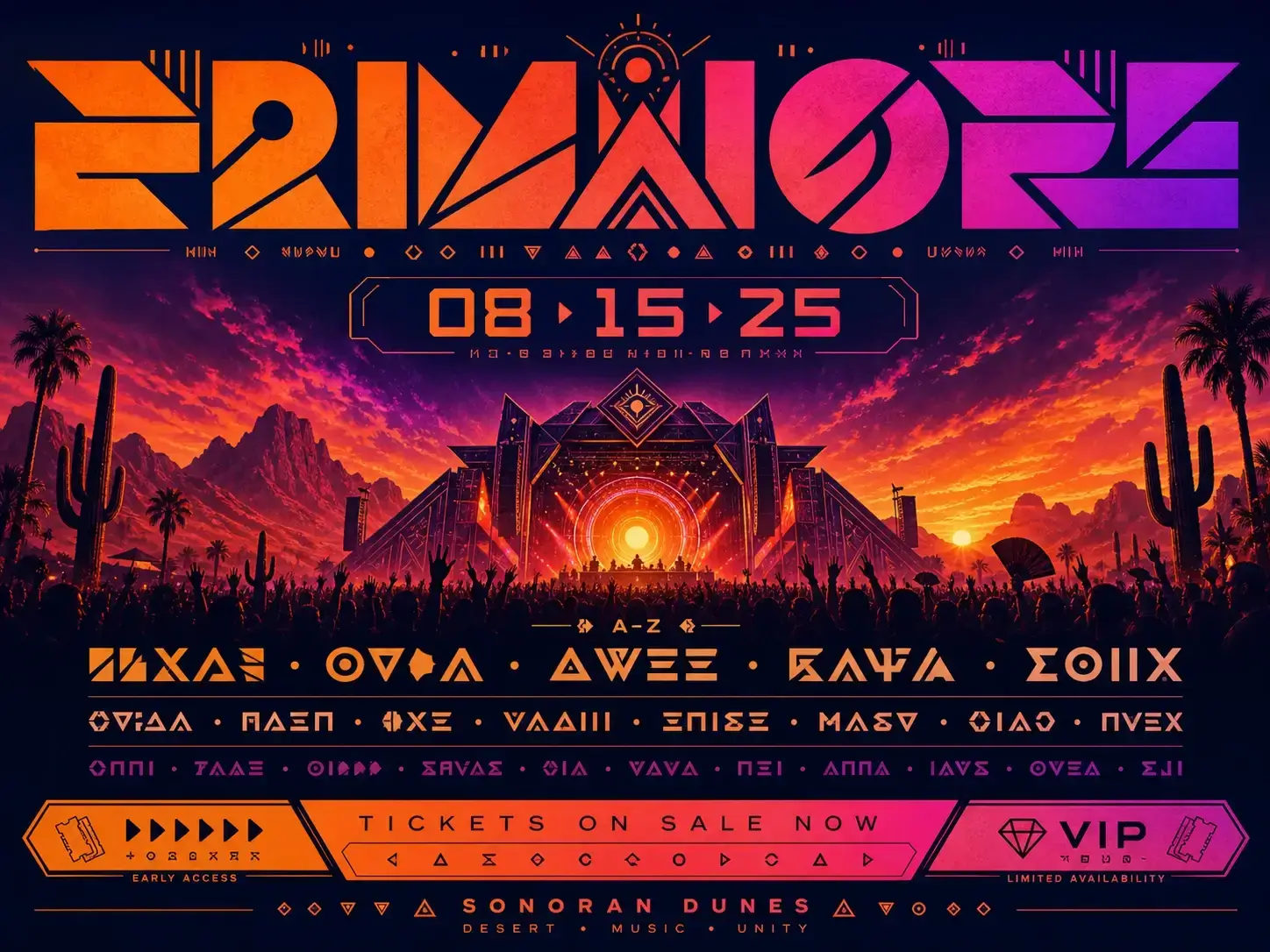
Create a desert-sunset stage scene with concert lighting and crowd silhouettes, then use the chosen direction as the visual foundation for an event poster.
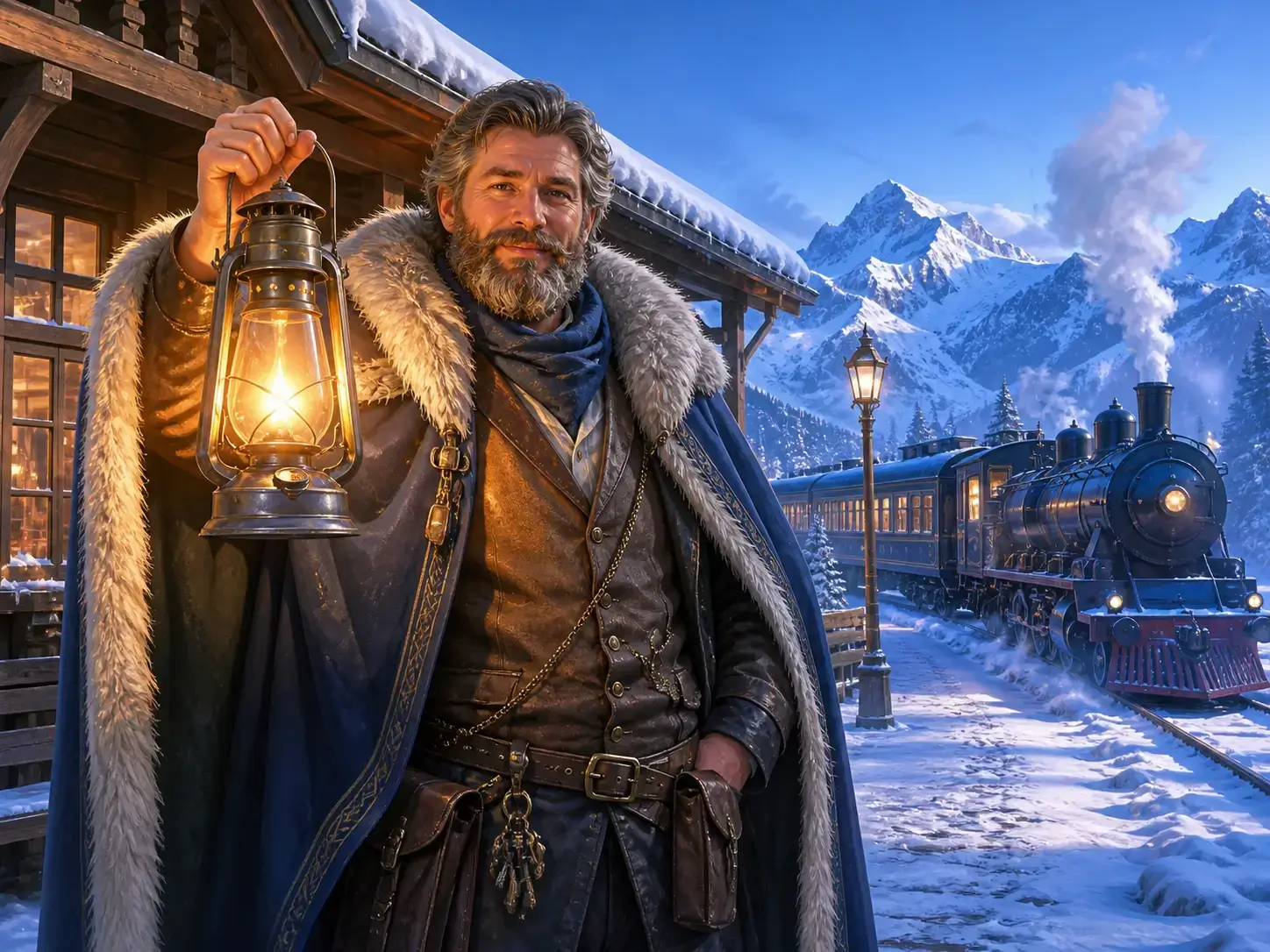
Create an innkeeper at a snowbound station, wearing a fur cloak beside a kerosene lamp, to give game artists a clear starting point for the NPC’s costume, props, and mood.
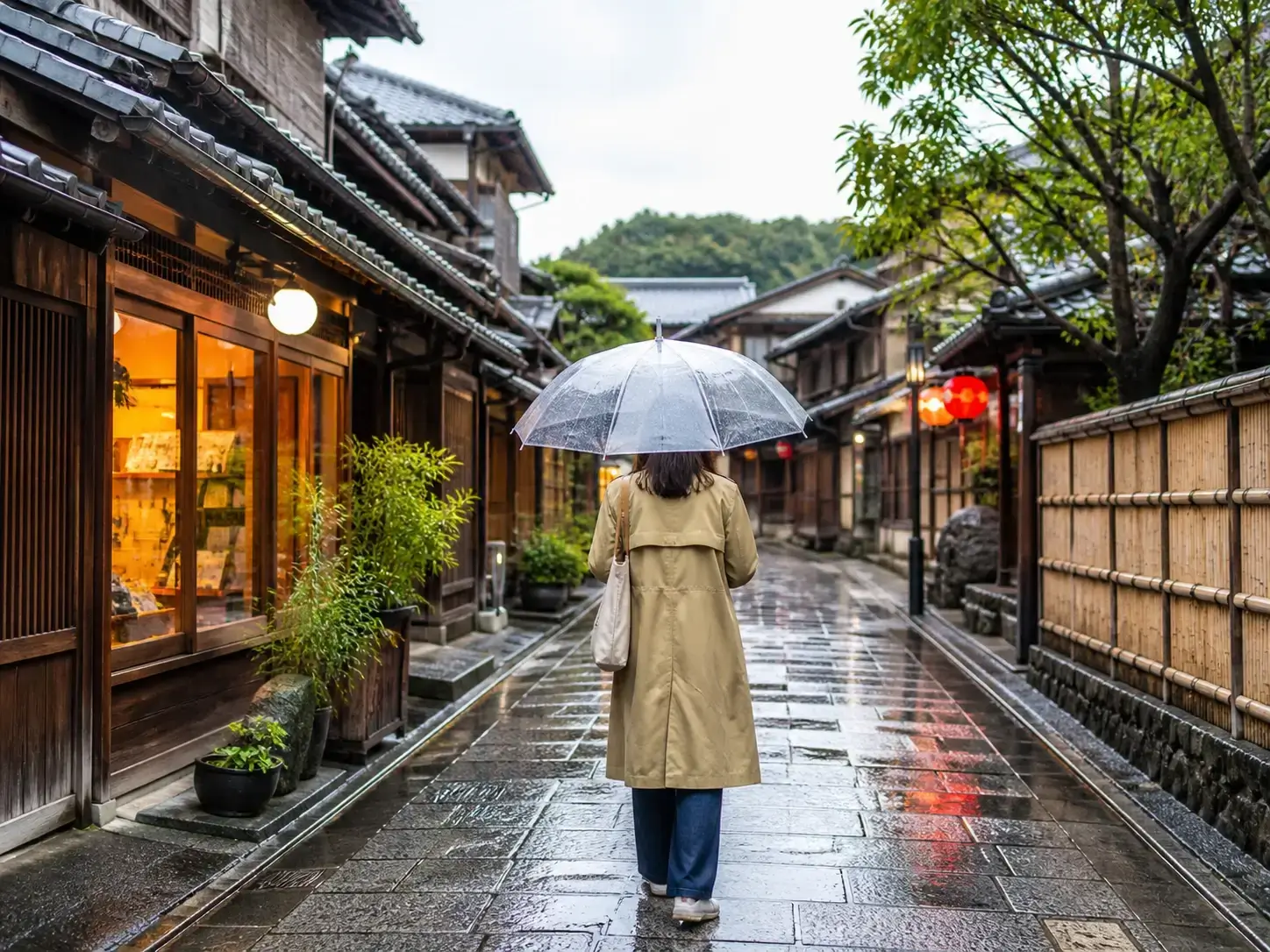
Create a rainy Kyoto alley with a transparent umbrella and warm shop signs, then use it to set the framing and color direction for a travel video cover.
A first image is more useful when its prompt, settings, and next creative steps stay together. LinoCut keeps each result connected to the direction that shaped it.
Keep the subject, setting, lighting, mood, and intended use alongside each result for later edits.
Choose ratios and export formats that suit social, product, editorial, and campaign placements.
Continue with enhancement, upscaling, AI Filter, inpainting, or video work when the image needs another pass.

Yes. This page is designed as a focused AI text to image flow: write a visual brief, choose output settings, preview the generated image, and keep it connected to the broader image workflow.
To get a useful text to image result, describe the subject, setting, lighting, mood, material, camera angle, and intended use. A clear visual brief works better than vague requests.
Yes. A text to image result can move into image editing, enhancement, upscaling, background editing, copy generation, or export variations.
Yes. Choose automatic, low, medium, or high quality before generating. The right level depends on the amount of detail the image needs.
Yes. Choose 1:1, 3:2, or 2:3 before generation so the result fits square, landscape, or portrait layouts.
The text to image interface offers WEBP, PNG, and JPG settings, making it easier to prepare web previews, clean image assets, or flattened delivery files.
A good product visual maker prompt names the subject, scene, lighting, composition, camera feel, material details, and use case. Add constraints when you need a product-ready result.
Yes. The hero panel keeps the prompt editable so you can refine the visual brief before running generation.
Yes. A text to image generator is useful for product concepts, listing directions, ad stills, launch visuals, moodboards, and early creative testing before a shoot.
No. Concept art is a natural fit, but the same product visual maker workflow can support campaign moodboards, social posts, thumbnails, and creative direction testing.
Yes. Continue with image enhancer, image upscaler, AI filter, background remover, copy generator, or export variants after the first AI text to image result.
Start with one direct task, then keep editing, generating, writing, and shipping from the same Linocut AI canvas.