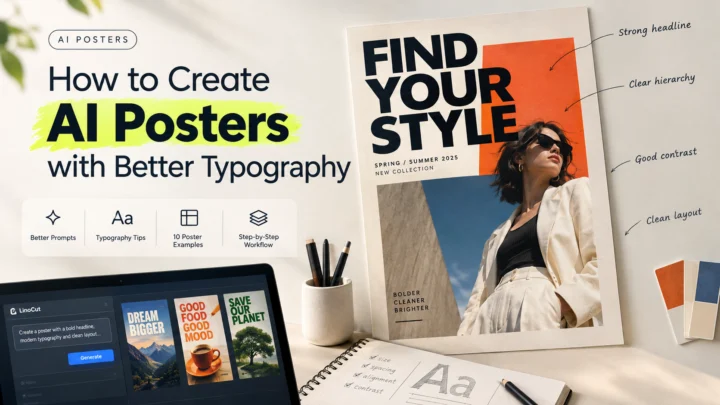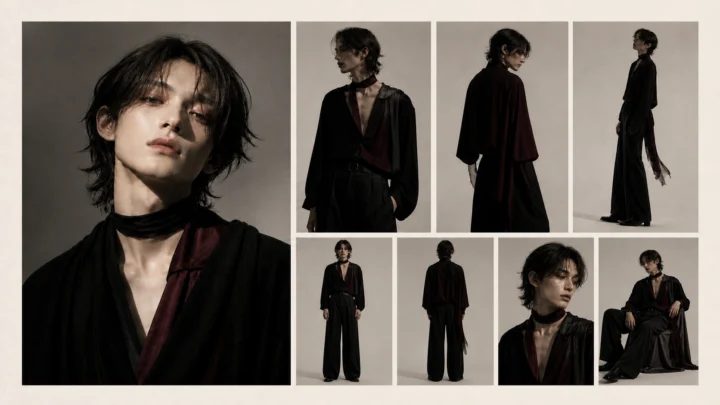
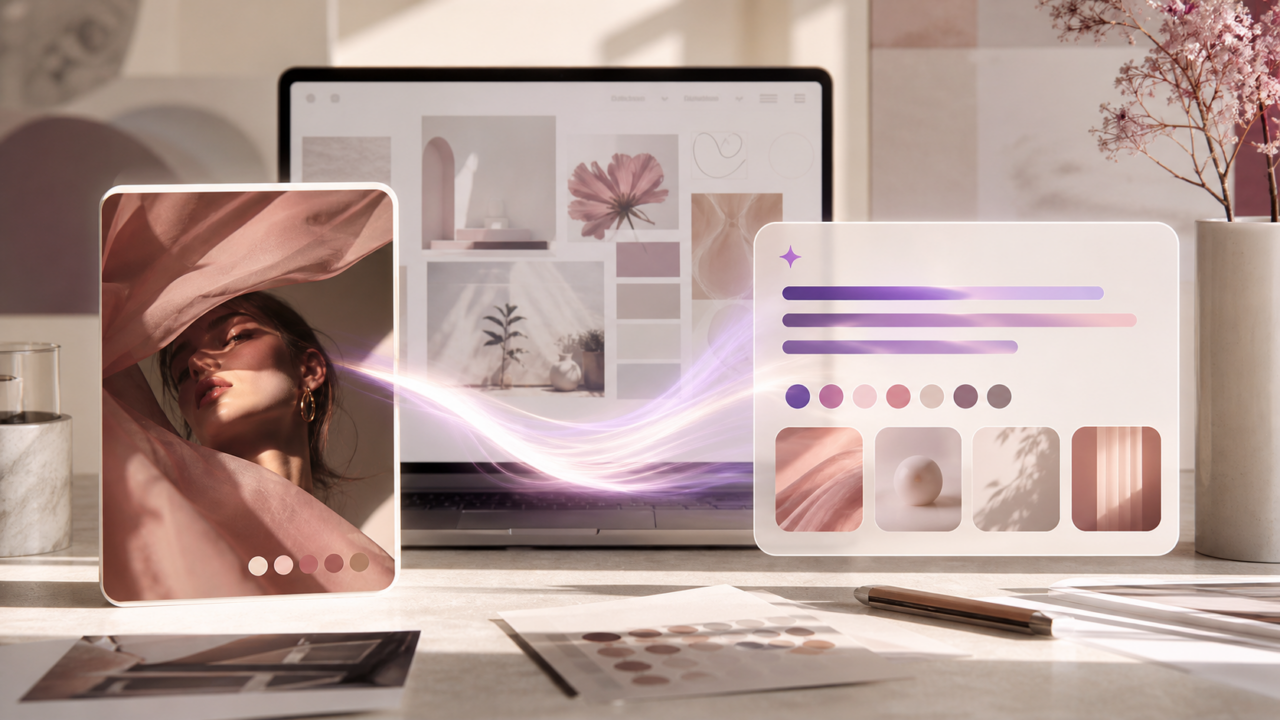
An existing image often explains a creative direction faster than a blank prompt box. It already contains subject, framing, lighting, color, texture, mood, and style clues.
The hard part is turning those visual clues into prompt language that another AI tool can actually reuse. That is where an image to prompt generator becomes useful: it translates what the reference image shows into structured photo prompt text.
Quick Answer
To turn a reference image into a better AI prompt, describe the visible subject, scene, lighting, camera angle, composition, material details, mood, and constraints. A good image to prompt generator gives you the first structured draft; your job is to edit it for product visuals, social posts, image generation, or prompt-based image edits.
Why This Workflow Matters in 2026
AI image tools are moving toward faster iteration, stronger prompt control, and more image-to-image workflows. That makes reference images more valuable because they can become structured prompt briefs instead of one-off inspiration.
| 2026 Creative Shift | Why It Matters | How This Article Helps |
| Faster image generation | Teams can test more variations, but weak prompts create more noise | Turn one reference into a clearer reusable prompt |
| Product-photo prompting | Ecommerce teams need prompts that preserve product shape and materials | Add product-specific constraints before reuse |
| Prompt templates | Creators want repeatable prompt structures, not one-off guesses | Use the template and examples below |
| Prompt-based editing | A prompt can guide edits, inpainting, and background changes | Separate what should stay from what should change |
Why Reference Images Make Better Visual Directions
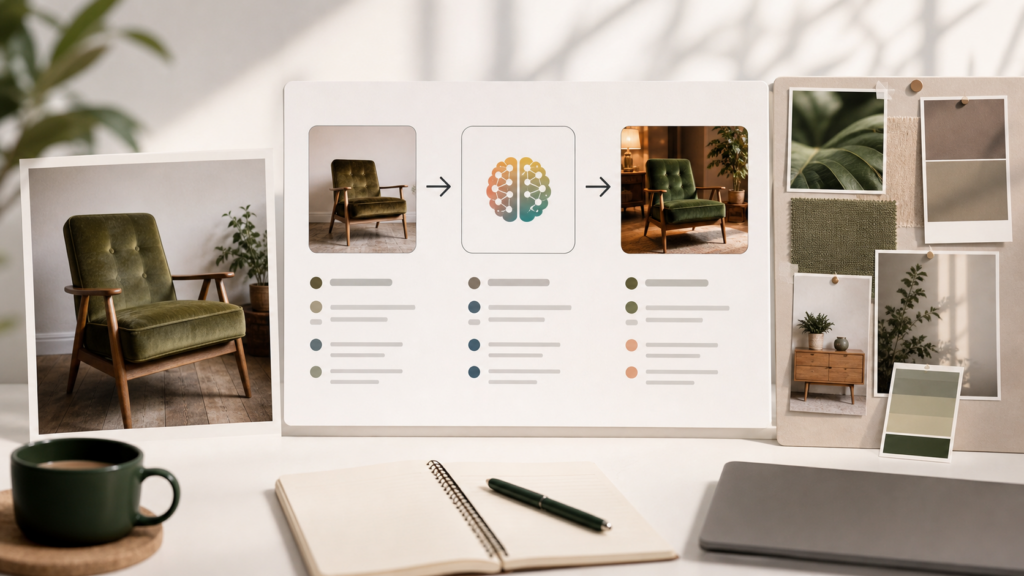
A reference image gives the prompt a concrete visual starting point. Instead of writing "make it cinematic" or "make it premium," you can anchor the prompt in details the image already shows.
That helps in three ways:
- Less guesswork: the prompt starts from visible details rather than vague style words.
- More consistency: teams can reuse the same visual language across campaign assets.
- Better handoff: the prompt can move into image generation, editing, captions, titles, or templates.
In Linocut, this fits the broader idea of an AI creative workspace: one visual input can become prompt text, generated visuals, edits, copy, or campaign notes without rebuilding the brief from scratch. The image to prompt generator is the translation step between the visual reference and the next production task.
What a Good Image Prompt Should Capture
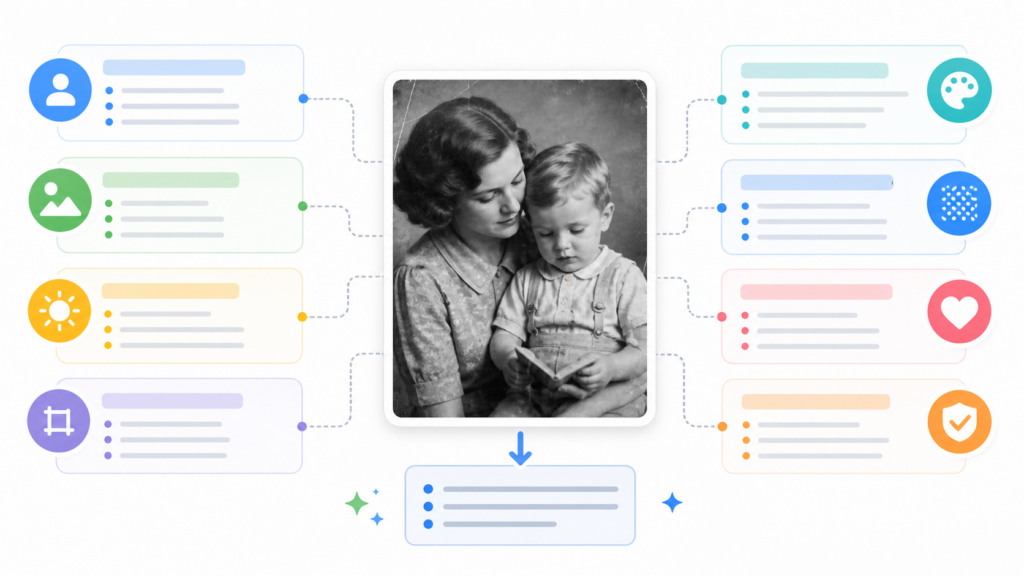
Use this table as a quality checklist before reusing a generated prompt.
| Prompt Element | What to Capture | Example Direction |
| Subject | Main person, object, product, scene, or environment | "a glass skincare bottle on a stone surface" |
| Composition | Framing, crop, camera angle, depth, and layout | "centered product, shallow depth of field" |
| Lighting | Natural light, studio light, shadows, contrast | "soft window light from the left" |
| Color | Palette, saturation, contrast, warmth, brand mood | "muted green and warm beige palette" |
| Texture | Materials, surfaces, fabric, skin, paper, packaging | "matte label, frosted glass, smooth stone" |
| Mood | Editorial, playful, cinematic, minimal, nostalgic | "quiet premium editorial mood" |
| Constraints | What to avoid or preserve | "no text, no logos, keep product shape intact" |
The best AI prompt from image output is not just a caption. It should work like a reusable creative brief that keeps a reference image to prompt workflow consistent.
Step-by-Step Workflow
Pick the right reference image
Start with an image that has a clear visual direction. The best inputs are not always the most polished images; they are the ones with useful details.
Good reference images include:
- Product photos with visible packaging, surface, and lighting
- Lifestyle shots with a clear mood
- Moodboard frames for campaign style
- Social media thumbnails with strong composition
- Interior, fashion, food, or portrait references
Avoid images that are too blurry, heavily cropped, watermarked, or visually confusing. If the source image is unclear, the generated prompt may inherit that confusion.
Generate the first prompt
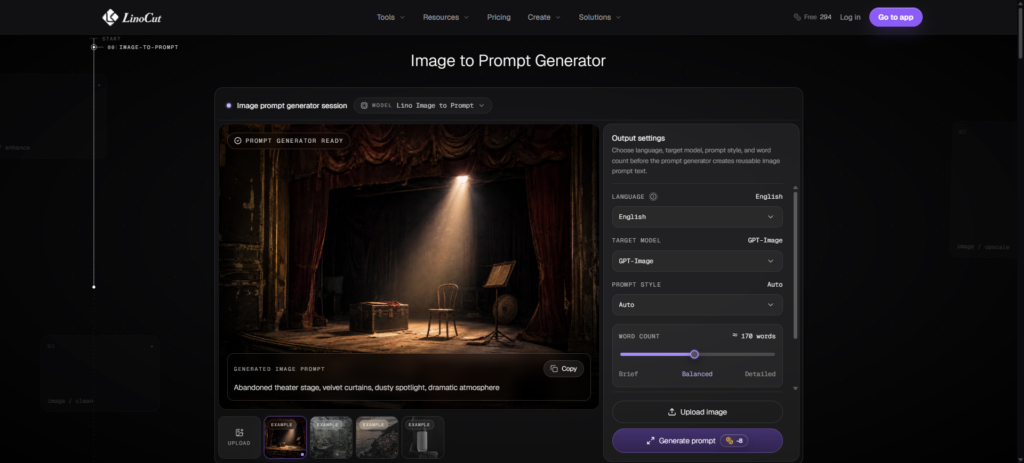
Upload the image and choose settings that match the task. Linocut's Image to Prompt tool supports choices such as language, target model, prompt style, and word count, so the output can be brief, balanced, or detailed. At this stage, the image to prompt generator should capture what is visible before you add campaign-specific instructions.
Use this decision table:
| Goal | Best Prompt Style | Best Length |
| Fast creative exploration | Concise or balanced | Brief to balanced |
| Product image generation | Product or descriptive | Balanced to detailed |
| Cinematic concept art | Cinematic | Detailed |
| Social visual variants | Social or descriptive | Balanced |
| Team prompt library | Descriptive | Detailed |
Edit the prompt before reuse
Do not treat the first prompt as final. A prompt generator can extract visual details, but you still decide what matters for the next task.
Keep:
- The subject
- Useful lighting details
- Strong composition notes
- Material and texture cues
- Mood and color palette
Remove or revise:
- Accidental background clutter
- Brand names you cannot use
- Unwanted text or logos
- Ambiguous style words
- Details that conflict with your output goal
Add the output goal
A reference image to prompt workflow gets stronger when the prompt says what should happen next.
| Next Task | Add This Instruction |
| Generate a new image | "Create a new image inspired by this composition, not a direct copy." |
| Make product visuals | "Preserve packaging shape and material details." |
| Create social variants | "Adapt the mood for a vertical social thumbnail." |
| Guide editing | "Use this as direction for lighting, surface, and background cleanup." |
| Build a prompt library | "Keep the style reusable across future campaign assets." |
This keeps the prompt from becoming a passive description. It becomes production direction.
Use Case 1: Product Visuals
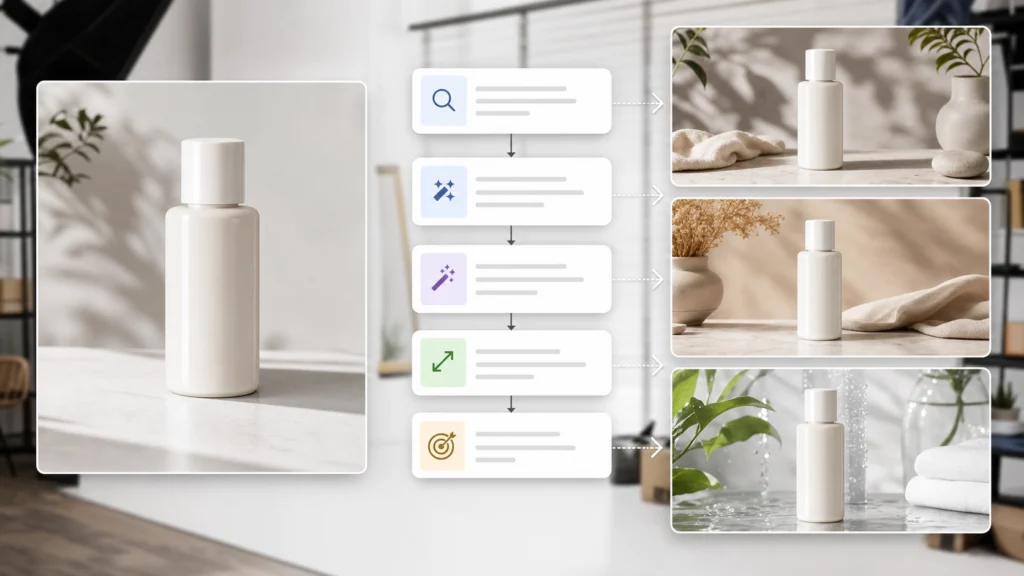
Product teams often need more than one image from the same visual idea: listing image, ad creative, social crop, and landing-page visual. An image to prompt generator helps turn that first reference into structured prompt language.
| Product Need | Prompt Detail to Preserve | Follow-up Tool Idea |
| Ecommerce listing | Product shape, material, label position | Use clean product backgrounds when the subject needs a simpler cutout. |
| Ad creative | Lighting mood, surface, color palette | Generate scene variations from the edited prompt. |
| Hero image | Premium composition and negative space | Expand the prompt with layout and copy-safe areas. |
| Retouching brief | Shadows, reflections, surface texture | Use the prompt notes as editing direction. |
For product images, the prompt should be practical. It should describe what needs to stay recognizable and what can change.
Use Case 2: Social Content
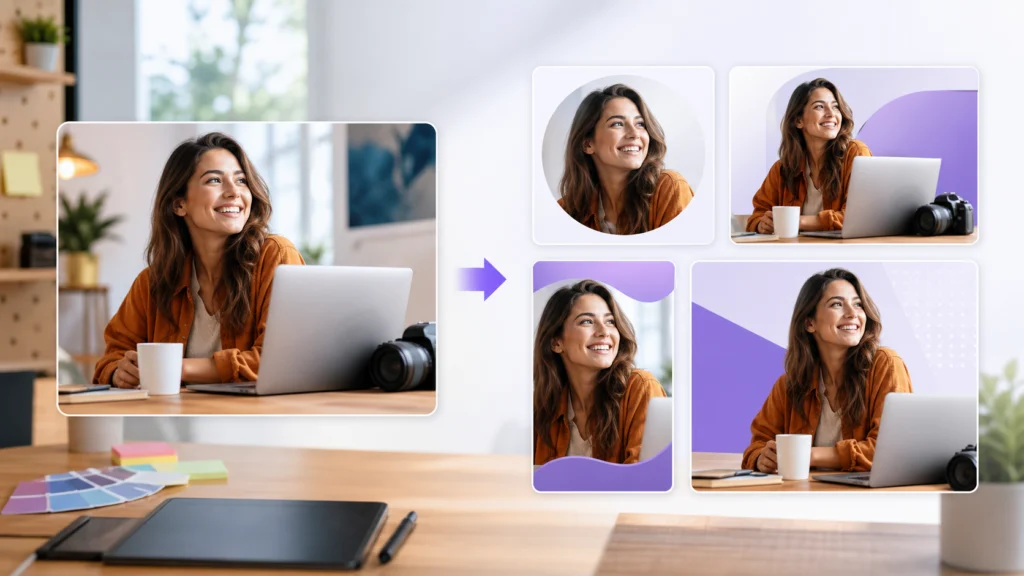
Creators often know the visual mood they want but struggle to write the first prompt. A reference image can solve that, especially when the output needs to become reusable AI prompts for multiple social formats.
Use the generated prompt to capture:
- Pose or subject placement
- Lighting and color mood
- Background style
- Camera distance
- Energy of the scene
- Format needs, such as thumbnail or vertical crop
Then adapt the same visual prompt into several outputs:
| Output | Prompt Adjustment |
| Profile visual | Emphasize face, clean background, simple crop |
| Thumbnail | Add contrast, strong subject separation, readable negative space |
| Short-form cover | Use vertical composition and bold focal point |
| Campaign post | Keep mood consistent with brand colors and scene style |
This is where a visual prompt becomes a reusable creative asset instead of a one-time generation.
Use Case 3: Editing and Inpainting
The same prompt can guide editing, not just generation.
If a reference image has useful lighting, texture, or background direction, the generated prompt can become a short editing brief for prompt-based image edits.
| Editing Need | Prompt Direction |
| Replace an object | Describe the desired material, scale, and lighting match |
| Redraw a section | Preserve camera angle and surface texture |
| Change background | Keep subject lighting consistent with the new scene |
| Improve image quality | Use prompt notes alongside tools that sharpen and enhance images |
The key is to separate what should stay from what should change.
Prompt Template
Use this structure after generating the first draft:
Create [output type] based on a reference image showing [subject].
Preserve [composition, lighting, material, color palette, mood].
Adapt the scene for [product visual / social post / ad creative / editing brief].
Use [camera angle, depth of field, surface, texture, background style].
Avoid [unwanted text, logos, clutter, distorted hands, inaccurate product shape].
Final look: [minimal / cinematic / premium / playful / editorial / realistic].
Example: product visual
Create a premium ecommerce product image based on a reference photo of a skincare bottle on a stone surface. Preserve the centered product composition, soft side lighting, frosted glass texture, muted green and beige color palette, and quiet editorial mood. Adapt the scene for a clean landing-page hero image with enough negative space around the product. Avoid readable text, fake logos, clutter, and distorted packaging shape.
Example: social visual
Create a vertical social media cover inspired by a lifestyle reference image. Preserve the warm indoor light, casual portrait framing, soft background blur, and relaxed creator mood. Adapt the image for a high-contrast thumbnail with clear subject separation and simple negative space. Avoid extra people, visible brand logos, messy backgrounds, and unnatural facial features.
Common Mistakes
| Mistake | Why It Hurts | Better Fix |
| Copying every visual detail | The prompt becomes noisy and hard to control | Keep only details that affect the next output |
| Forgetting the output goal | The result becomes a description, not a production prompt | Add the task: generate, edit, adapt, or document |
| Using vague style words | "Premium" or "cinematic" can mean too many things | Add light, lens, material, color, and composition |
| Ignoring constraints | The model may invent text, logos, or unwanted objects | Add clear avoid rules |
| Reusing without editing | The prompt may preserve irrelevant details | Review and trim before each use |
How Linocut Supports This Workflow
Linocut is useful for this topic because Image to Prompt is not isolated from the rest of the creative process. The prompt can become a handoff object for visuals, edits, copy, titles, social posts, or reusable workflow templates. In that sense, the image to prompt generator is most valuable when it helps the whole workflow move forward.
| Workflow Stage | Linocut Fit | Why It Matters |
| Start from a reference | Image to Prompt turns the image into editable prompt text | Reduces blank-page prompt writing |
| Refine the prompt | Style, language, and word count settings shape the output | Helps match the prompt to the channel |
| Reuse the prompt | Output can guide image generation, editing, text, or templates | Keeps visual direction consistent |
| Continue in workspace | Related image and text tools support follow-up production | Keeps the source idea connected to later assets |
Product-fit takeaway
- Strongest use case: turning product photos, moodboards, and campaign stills into reusable visual prompts.
- Best workflow role: translation between visual reference and production direction.
- Best internal link angle: prompt reuse across image generation, editing, product visuals, and social creative.
FAQ
An image to prompt generator converts a picture into structured prompt language. It describes the subject, scene, lighting, camera angle, texture, mood, composition, and useful constraints so the prompt can guide AI image generation or editing.Upload a clear reference image, generate a descriptive prompt, then edit the result for your target output. Keep important visual details such as subject, lighting, composition, material, color, and mood. Remove irrelevant clutter before reuse.No. OCR extracts written text from an image. Image to prompt describes visual content and turns it into creative direction for image generation, editing, product visuals, social posts, or prompt libraries.Clear product photos, portraits, interiors, fashion references, moodboards, thumbnails, and campaign stills usually work best because they contain visible details the prompt can describe.Yes. A generated visual prompt can brief edits such as background changes, object replacement, inpainting, retouching, or image enhancement. Edit the prompt so it clearly separates what should stay from what should change.