
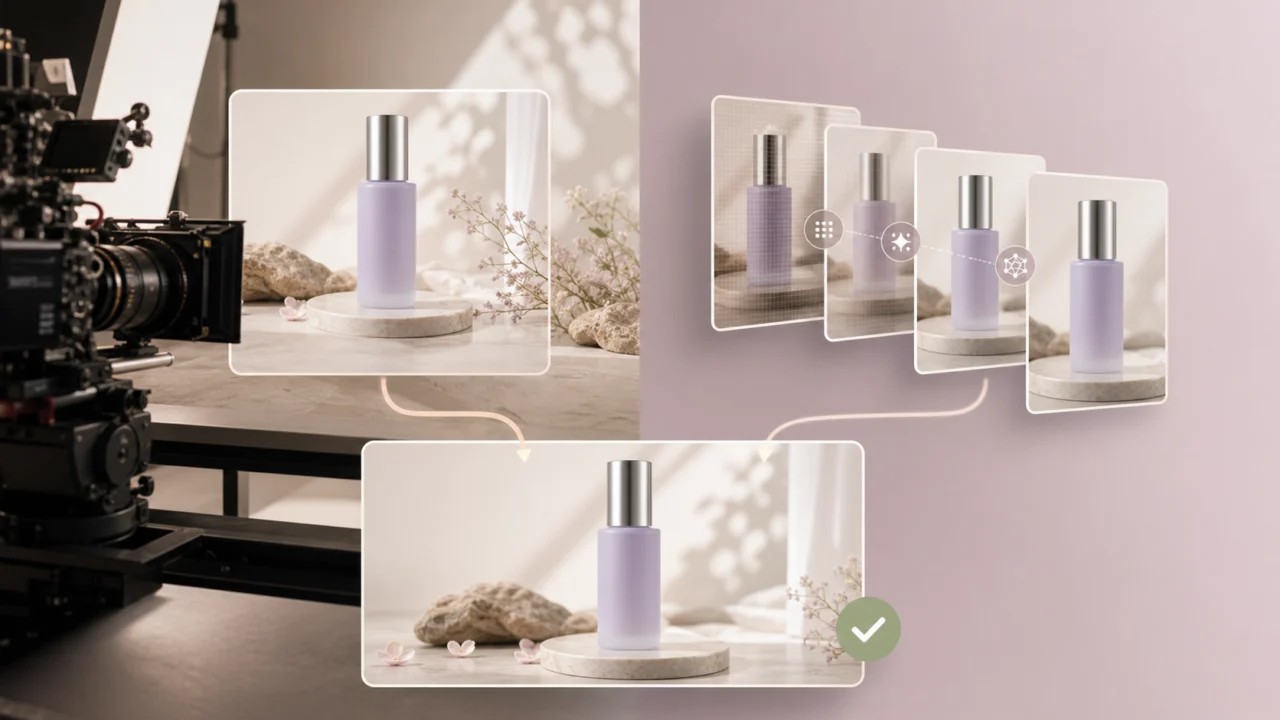
Sharp product video is not just a resolution problem. A bottle label must stay legible, metal edges must remain clean, fabric must look like fabric, and motion cannot make the package change shape. That is why the native 4K vs AI upscaling decision matters more for product content than it does for many ordinary social clips.
Native 4K records more real information at capture. AI upscaling estimates a higher-resolution result from the information already present. Both can produce a 3840 × 2160 file, but they do not create the same kind of image evidence—and they should not be used for the same jobs.
The Short Answer
When choosing native 4K vs AI upscaling, use native capture for hero shots, close-ups, packaging text, reflective materials, heavy crops, and reusable master footage. Use AI upscaling for soft creator clips, compressed archive footage, generated video, and fast channel variants. For most ecommerce teams, the best answer is hybrid: capture critical product truth well, then enhance only the clips that need it.
Native 4K vs AI Upscaling at a Glance
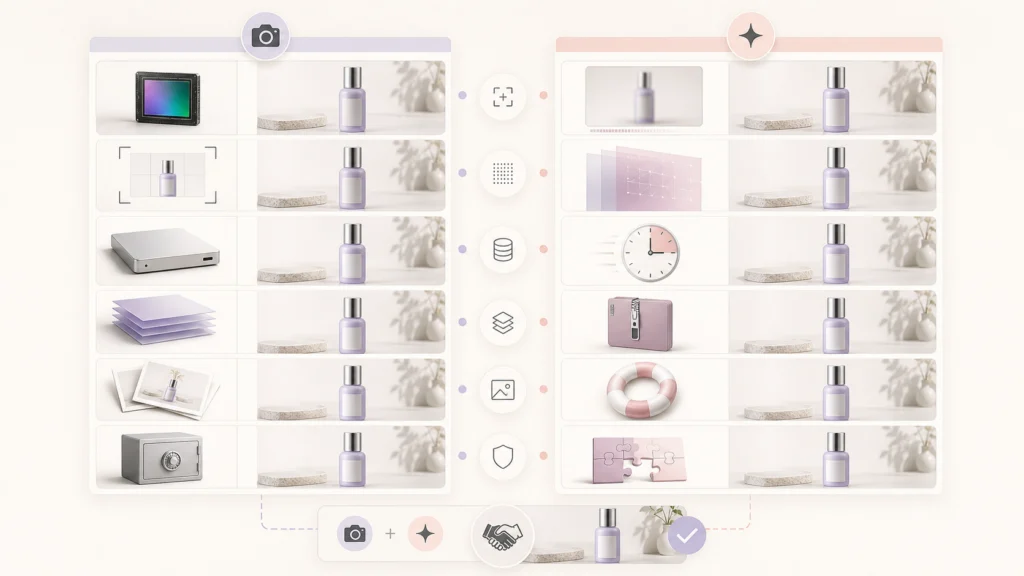
The fastest way to decide is to separate capture quality from delivery resolution. Native 4K gives the editor more genuine source data. AI video upscaling can improve perceived detail and output size, but it cannot guarantee that every reconstructed edge matches the physical product.
| Decision factor | Native 4K capture | AI-upscaled video | Better choice |
|---|---|---|---|
| Fine product detail | Records real texture when focus and lighting are good | Infers sharper-looking texture from the source | Native 4K |
| Packaging text | More reliable when the label is in focus | May sharpen, reshape, or invent letter edges | Native 4K |
| Motion consistency | Depends on camera settings and shutter discipline | Depends on temporal consistency across generated frames | Native 4K for critical motion |
| Low-light noise | Captures more pixels but does not fix poor exposure | May clean noise, amplify it, or smooth texture | Depends on source |
| Crop and reframe room | Strong for 9:16, 1:1, and close crops | Adds output pixels but not guaranteed factual detail | Native 4K |
| Storage and editing load | Larger files and heavier timeline performance | Smaller source files; enhancement adds processing time | AI upscaling for lean teams |
| Rescue value | Cannot improve footage that was never captured | Useful for soft, compressed, older, or generated clips | AI upscaling |
| Long-term master | Better archival source for future formats | Best treated as a derivative, not a new camera master | Native 4K |
The practical winner is not the file with the largest dimensions. It is the workflow that preserves the details a buyer uses to recognize and trust the product.
What Native 4K Actually Gives You
Native 4K normally means the camera records a frame around 3840 × 2160 pixels rather than capturing at a lower resolution and enlarging later. YouTube's official 4K creation guide describes 4K as four times the pixel detail of 1080p and recommends recording and exporting at 3840 × 2160.
That extra captured information creates three useful advantages for product work.
More dependable product truth
When the lens is focused, exposure is controlled, and motion blur is limited, native capture gives packaging, seams, surface grain, and small construction details more real samples. This matters when a viewer may pause the video or compare it with a product-page photo.
More room to crop
A horizontal 4K master can support a close 16:9 detail, a square marketplace edit, and a vertical social crop without immediately falling below common delivery resolutions. This flexibility is valuable when one shoot must feed several channels.
A stronger archive
Campaign styles change faster than products are reshot. A clean 4K master can be recut later, while an upscaled derivative already contains enhancement decisions that may be difficult to reverse.
Native 4K still has limits. Resolution cannot fix missed focus, clipped highlights, poor white balance, motion blur, rolling-shutter distortion, or a dirty lens. YouTube makes the same point about lighting: switching on 4K does not repair footage recorded in poor light.
What AI Upscaling Actually Does
Traditional resizing calculates new pixels from neighboring pixels. Modern AI video upscaling also learns patterns that can make edges, textures, and contours look more detailed. Video models may use information from adjacent frames to stabilize and refine the result.
The key word is look. AI can produce plausible high-frequency detail, but plausible is not the same as verified. If a source label is too small to read, the model does not have a hidden copy of the packaging artwork. It may create clean-looking shapes that are wrong.
Research on real-world video super-resolution documents this tension. The RealBasicVSR paper found a tradeoff between synthesizing detail and suppressing artifacts: information propagated across frames can improve mild degradation, but it can also amplify noise and unwanted patterns. The researchers found that cleaning the source before temporal enhancement helped control this problem.
AI video upscaling is strongest when the source already contains a trustworthy structure and needs a controlled quality pass. Typical gains include:
- Cleaner-looking edges after compression
- Better perceived texture in a slightly soft clip
- Larger output for a modern edit or platform upload
- More consistent presentation across mixed-resolution footage
- A usable finishing step for AI-generated product motion
It is weakest when the source has unreadable text, severe blur, clipped highlights, heavy block artifacts, or inconsistent product geometry.
Which Is Better for Different Product Videos?
The native 4K vs AI upscaling winner changes because product videos have different truth requirements.
| Product-video job | Recommended source | Why |
|---|---|---|
| Homepage hero film | Native 4K | Premium surfaces and crops justify stronger capture |
| Marketplace detail demo | Native 4K | Buyers may inspect packaging, controls, stitching, or finish |
| Creator UGC clip | Good 1080p plus selective AI enhancement | Authenticity and speed may matter more than a heavy camera setup |
| Old campaign reuse | AI upscaling | The shoot cannot be repeated, so controlled rescue adds value |
| AI-generated product concept | AI upscaling after geometry review | Enhancement can polish an approved take but must not validate it |
| Fast social cutdowns | Hybrid | Use real product masters, then enhance only weaker inserts |
| Future-proof campaign archive | Native 4K | Preserve the least-processed, highest-quality source |
Use native 4K when accuracy is part of the sale
Cosmetics, electronics, watches, jewelry, apparel, tools, and packaged goods often depend on small details. If a wrong seam, port, dial, cap, or printed instruction could mislead a buyer, record it properly rather than asking enhancement to reconstruct it.
Use AI upscaling when the alternative is discarding usable footage
A creator may deliver a strong demonstration in 1080p. An older clip may have the only authentic view of a discontinued color. A generated insert may have good composition but soft texture. In these cases, an AI video enhancer can be more economical than rebuilding the entire production.
Use both when the campaign has mixed sources
Most real campaigns combine studio footage, creator clips, product stills, motion graphics, and generated experiments. A hybrid workflow keeps the accurate shots native while giving weaker supporting clips a chance to meet the same delivery standard.
Product Details Most Likely to Break During Upscaling
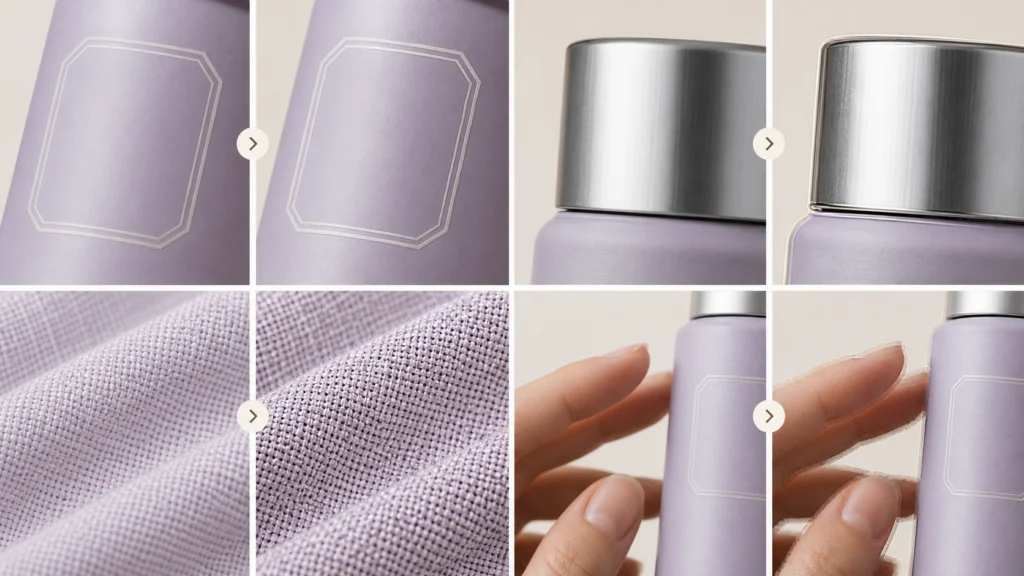
Inspect these areas before approving an upscaled product video:
- Small typography: Ingredients, model numbers, interface labels, and legal copy can turn into confident-looking nonsense.
- Reflective edges: Chrome, glass, gloss varnish, and polished plastic can develop bright halos or double contours.
- Repeated patterns: Knits, speaker grilles, fine mesh, hair, and brushed metal may shimmer or form false patterns.
- Transparent materials: Glass walls, liquid levels, and translucent caps can become too sharp or structurally inconsistent.
- Hands and contact points: Fingers crossing a product create complex motion boundaries that may flicker after enhancement.
- Fast camera movement: Motion blur changes frame by frame, making temporal reconstruction less stable.
- Compression blocks: Upscaling may interpret block boundaries as real edges unless the source is cleaned first.
Do not review only the first frame. Check the same label, highlight, and product edge across several moments. An artifact that looks minor when paused can become distracting flicker during playback.
A Hybrid 4K Product Video Workflow
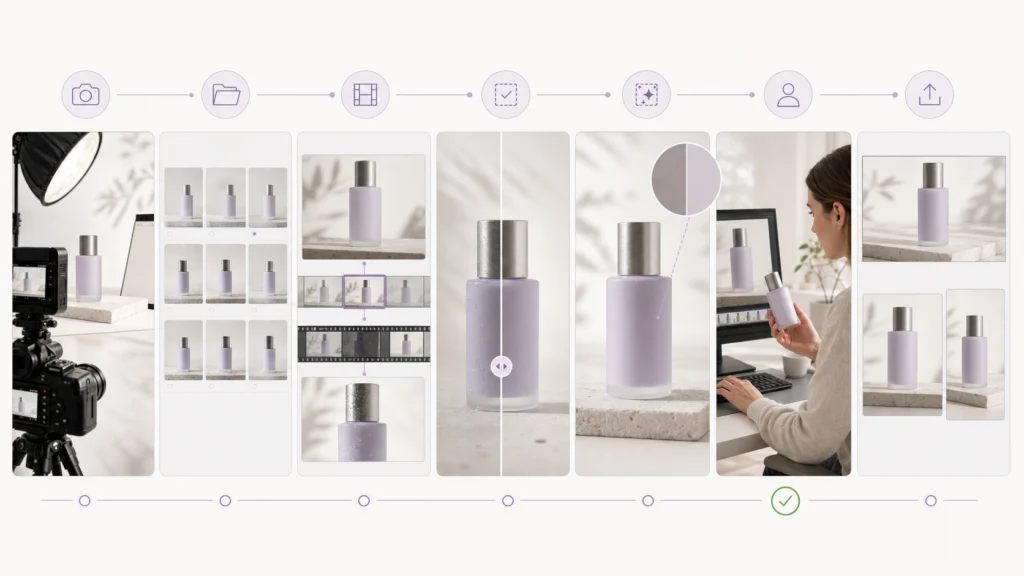
The most reliable system treats enhancement as one controlled production stage, not a universal filter.
- Define the truth-critical shots. List every view where product shape, color, label, control, or material must be exact.
- Capture those shots at the highest practical quality. Use stable focus, enough light, appropriate shutter speed, and a clean lens. Record native 4K when the camera, storage, and editing workflow support it.
- Keep the camera originals. Do not replace source masters with processed exports.
- Sort supporting clips by problem. Separate low resolution, compression, noise, motion blur, and exposure issues. Upscaling is not the correct fix for every category.
- Pre-clean damaged footage. Reduce obvious compression noise or unstable artifacts before asking a model to add perceived detail.
- Upscale only selected takes. Test short representative clips before processing the whole campaign.
- Compare against a product reference. Verify geometry, color, packaging text, reflections, and moving contact points.
- Edit and crop after approval. Build channel variants from the approved native and enhanced clips.
- Export for the actual platform. YouTube recommends keeping the recorded frame rate and lists 35–45 Mbps for standard-frame-rate 4K SDR uploads in its official encoding guidance. Other channels may recompress more aggressively, so test the published result.
How Linocut Fits the Workflow

Linocut is most useful here as a selective finishing path. Its browser-based AI Video Enhancer accepts MP4, MOV, and WEBM on the currently published page and offers 1080P, 2K, and 4K output targets. That makes it practical for testing a short product clip before committing an entire campaign to enhancement.
| Source condition | Sensible target | Review priority | Next step |
|---|---|---|---|
| Soft 720p concept clip | 1080P first | Edge halos and motion | Decide whether the shot is worth keeping |
| Clean 1080p creator clip | 2K or 4K test | Skin, packaging, and contact points | Crop and caption channel variants |
| Compressed product demo | Pre-clean, then test 1080P/2K | Blocks, label shapes, texture | Compare with the original product reference |
| AI-generated short clip | Enhance the approved take only | Geometry drift and invented detail | Add it as a supporting, not evidentiary, shot |
| Native 4K master | Usually keep native | Color and export compression | Enhance only if a specific defect justifies it |
Keep video enhancement separate from the original master so reviewers can compare both versions and reverse the finishing decision if necessary.
The wider Linocut Video AI workflow can keep source clips, enhancement, selection, and channel preparation connected. If a campaign also needs synthetic inserts, use text-to-video for short concept clips before enhancement—not as a substitute for factual product views. For creator footage with distracting room sound, an audio denoise pass can prepare the soundtrack separately from the image-quality decision.
The important discipline is preview, compare, and approve. Run the video enhancer only on selected takes. A 4K export setting is a delivery choice; it is not proof that every visible detail came from a 4K camera.
Product Video Quality-Control Checklist
Before publishing a native or upscaled product video, review the final encoded file—not only the editing preview.
Product accuracy
- Does the product silhouette match the physical item?
- Is every visible word, number, icon, and control correct?
- Do color, transparency, gloss, and material grain remain believable?
- Are reflections consistent with the scene lighting?
Motion and enhancement
- Do edges shimmer, crawl, double, or pulse during movement?
- Does texture appear and disappear between frames?
- Are there halos around the product or fingers?
- Has noise been cleaned without turning materials waxy or flat?
Delivery
- Is the aspect ratio correct for the destination?
- Does the crop preserve the full product and necessary context?
- Does the uploaded version survive platform compression?
- Have you retained the untouched camera master and enhancement settings?
Frequently Asked Questions
Does AI upscaling create true 4K video?
It creates a file with 4K pixel dimensions, but the additional pixels are inferred from the source. The result may look clearer without containing the same verified scene information as native 4K capture. Treat it as an enhanced derivative, not a replacement camera master.
Is 1080p upscaled to 4K as good as native 4K?
Usually not for fine packaging text, heavy crops, or exact surface detail. It can be visually close for clean 1080p footage viewed at normal size, especially after platform compression, but quality depends on the source and enhancement model.
Which is better for ecommerce product videos?
Use native 4K for detail views and evergreen master footage. Use AI upscaling for creator clips, archive rescue, generated inserts, and fast variants. A hybrid edit often delivers the best balance of accuracy, speed, and cost.
Can AI upscaling fix blurry product labels?
It may make label edges look sharper, but it cannot reliably recover characters that were never legible in the source. If exact copy matters, replace the shot, use a verified product close-up, or keep the label outside the enhancement-dependent part of the edit.
When should I choose 4K in Linocut Video Enhancer?
Choose 4K when the source is already reasonably clean and the final edit needs a larger display, more crop flexibility, or consistency with 4K delivery. Test a short clip first and review packaging, texture, edges, and motion against the original.
Should I upscale before or after editing?
First select and trim the clips worth keeping, then enhance those approved takes before final text, graphics, and export. This avoids processing unused footage and prevents captions or interface graphics from being altered by the enhancement pass.
Final Takeaway
The native 4K vs AI upscaling debate has a simple production answer: record truth, enhance selectively, and review the result as motion. Native 4K remains the better foundation for exact product detail and reusable masters. AI upscaling adds real value when it rescues a strong idea, aligns mixed sources, or prepares an approved clip for modern delivery. The best product-video workflow uses each where it is strongest.