Write the scene prompt
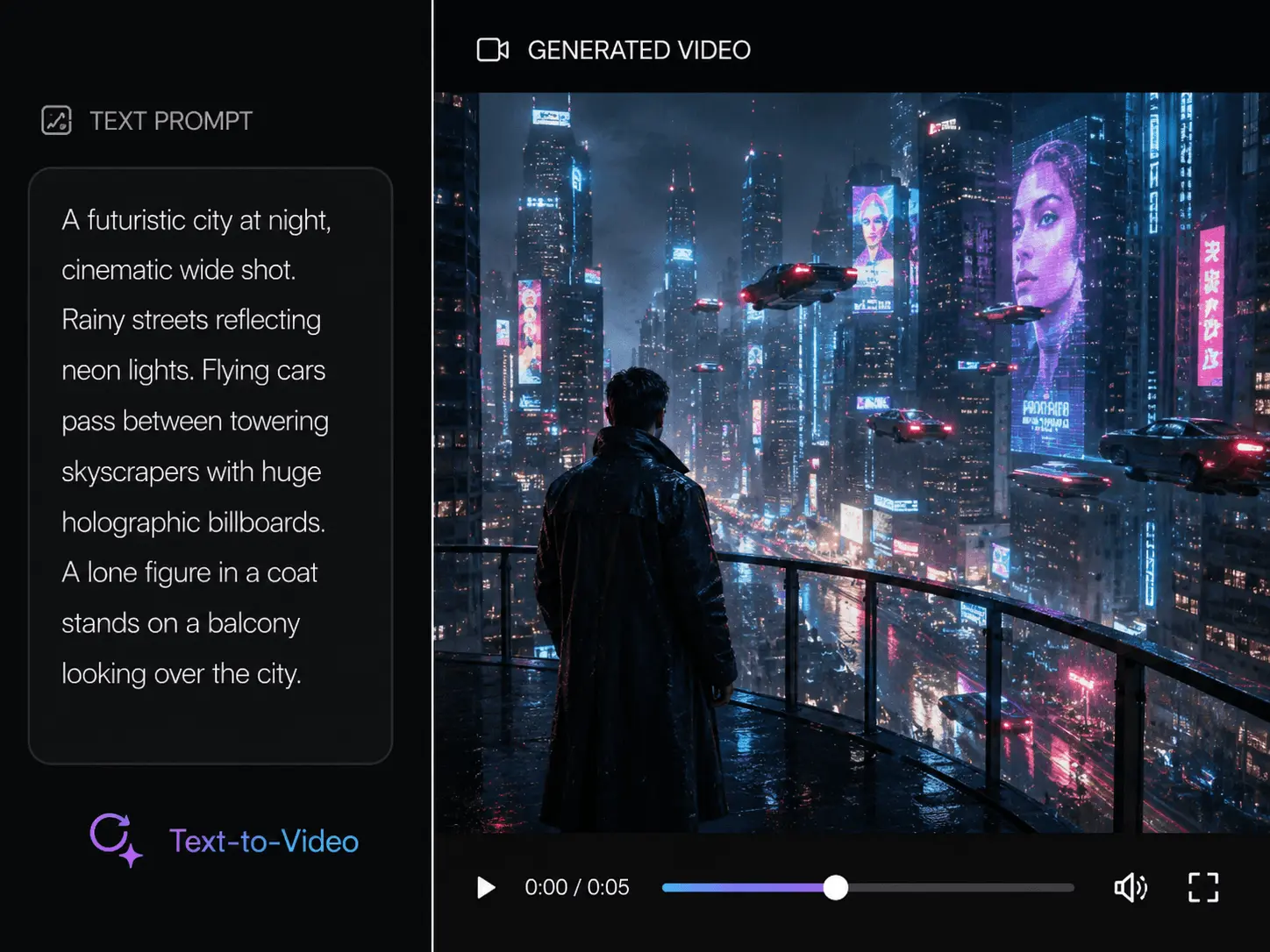
The AI text to video flow opens with a scene prompt where users describe the subject, camera motion, lighting, style, and intended channel.
Turn a scene prompt into a short AI video, then tune duration, resolution, and aspect ratio for product clips, creator intros, and social campaigns.
Enter a scene prompt and choose settings, then generate a video.
Generated videos are kept for 1 day.
The text to video page is designed around a prompt-first generation step: describe the scene, choose duration, resolution, and aspect ratio, then generate a clip that can enter a broader production workflow. This keeps the page focused on AI text to video generation while still connecting the output to enhancement, copy, audio, and export nodes.
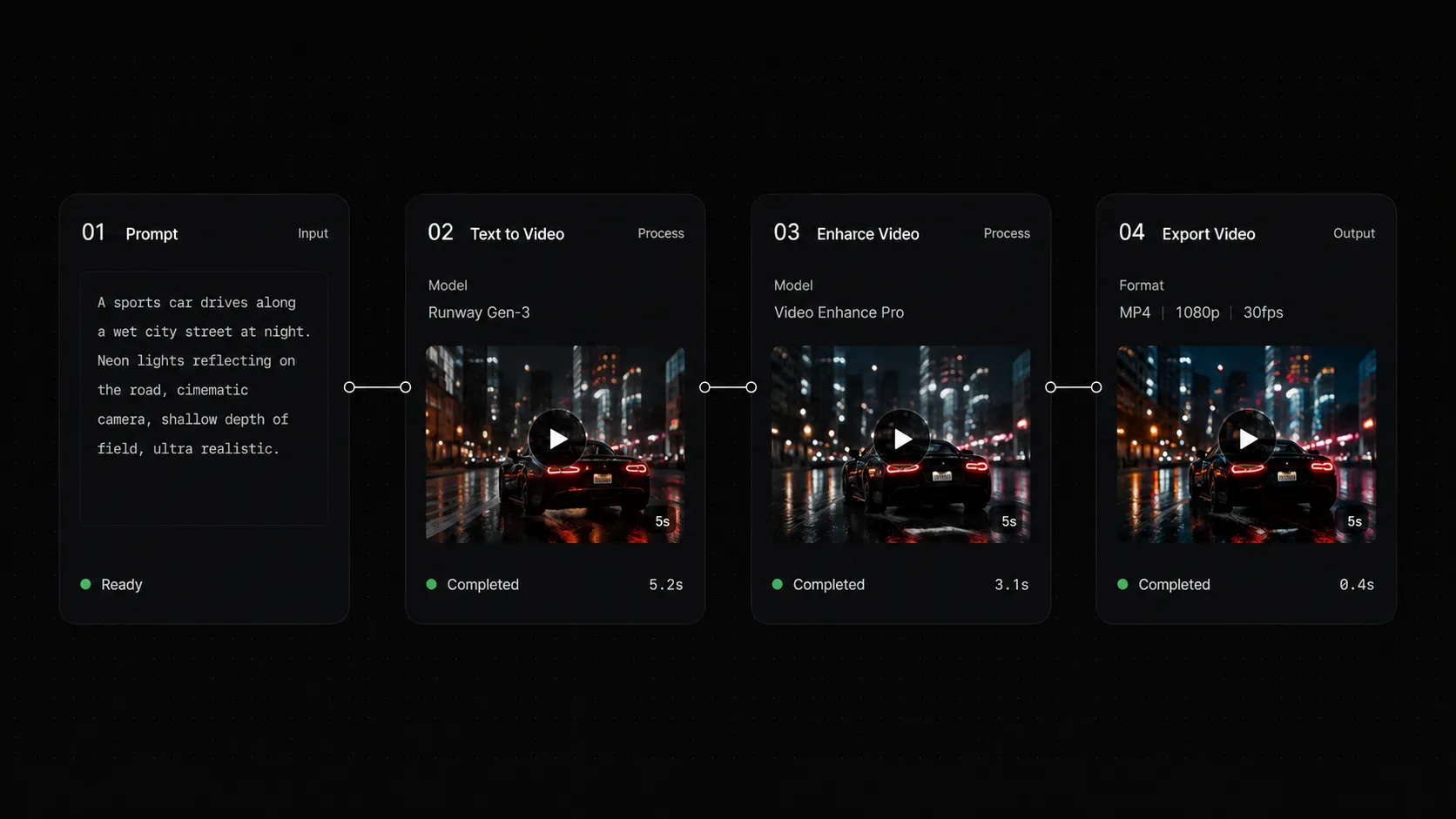
Describe the scene, choose the duration, resolution, and aspect ratio, then generate a clip ready for the next creative step.
The AI text to video flow opens with a scene prompt where users describe the subject, camera motion, lighting, style, and intended channel.
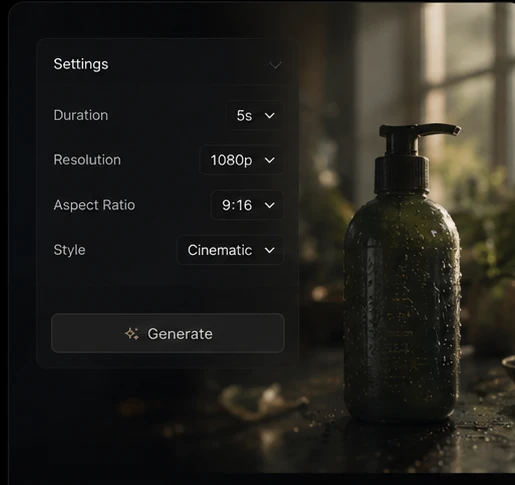
Duration, 480p or 720p resolution, and aspect ratio controls keep the first text to video generator pass simple and production oriented.
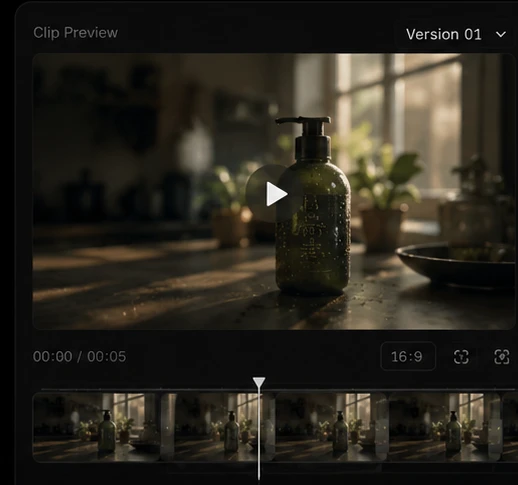
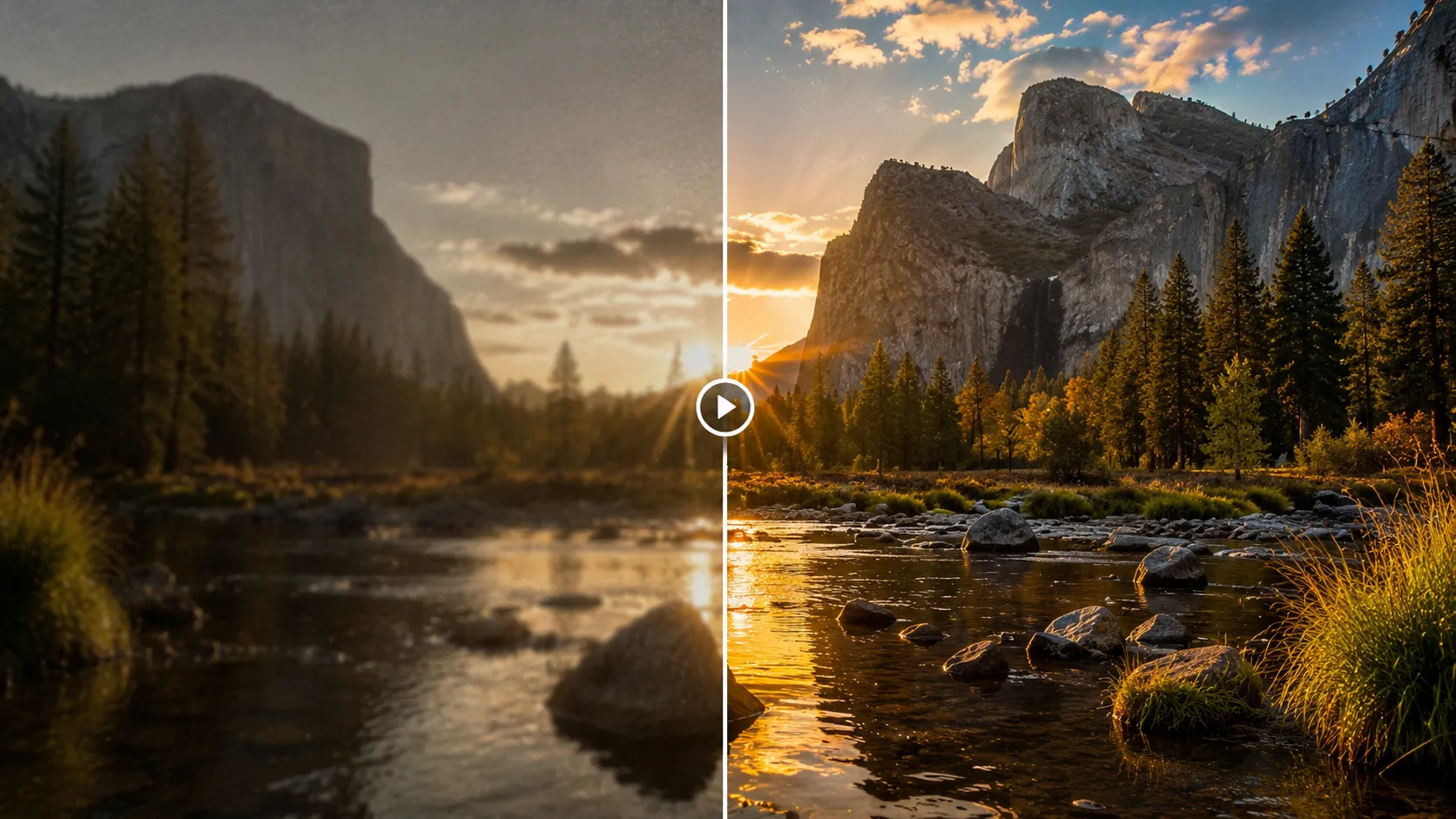
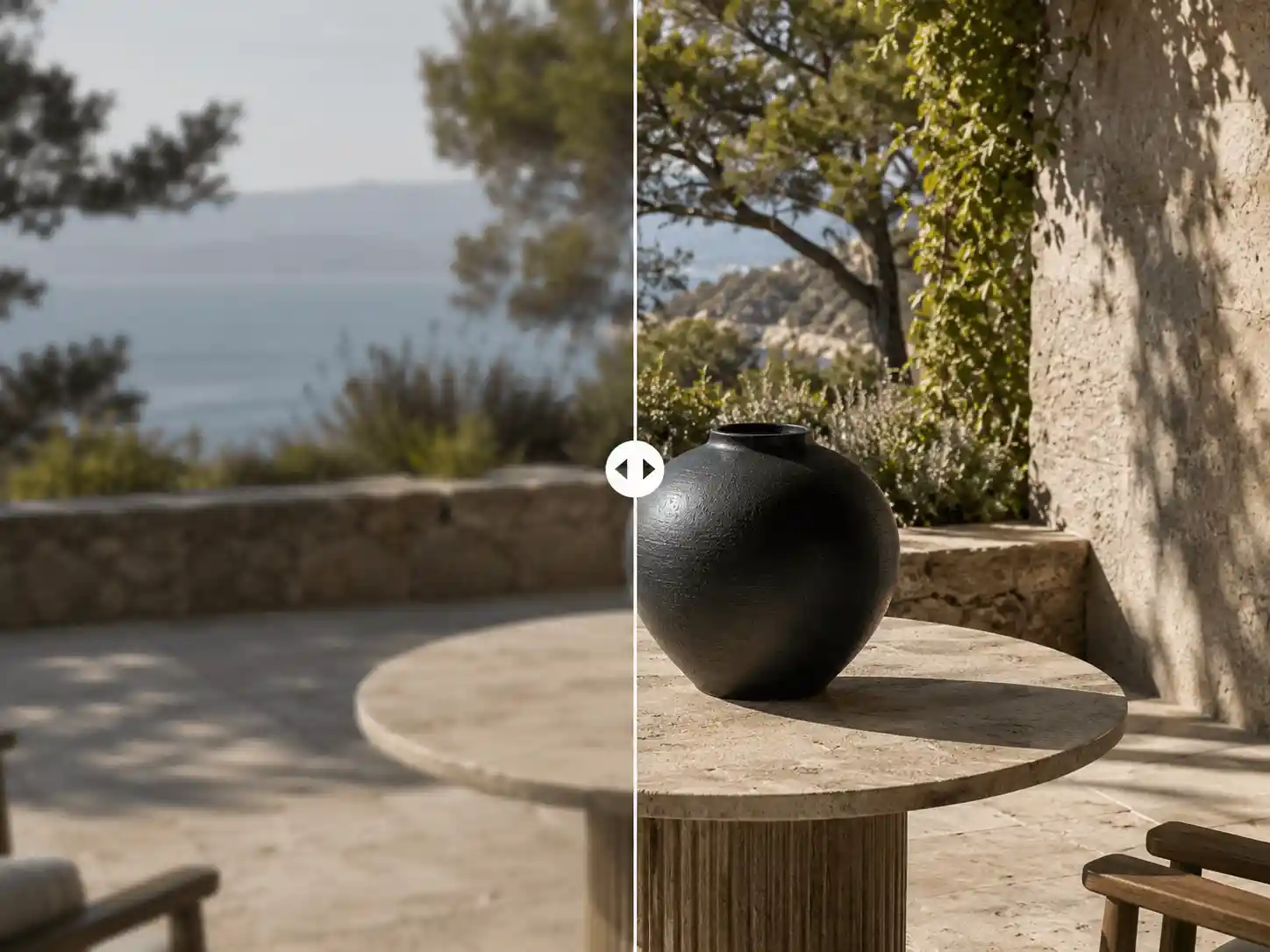
The generated video can become an editable AI video generator node for enhancement, captions, titles, audio, and export variants.
Use a focused prompt to set the visual direction, then use simple controls to shape a clip for the way you plan to publish it.
Set the scene clearly
Describe the subject, camera, lighting, and style so the first generation starts in the right direction.
Keep creating after generation
Move the clip into enhancement, captions, titles, audio, and export steps when it is ready.
Turn a written idea into a first short clip.
Control the duration, resolution, and frame for your intended channel.
Continue with enhancement, copy, audio, and delivery work.
Create editable short video material from a prompt for product reveals, creator openers, campaign launches, and social stories.
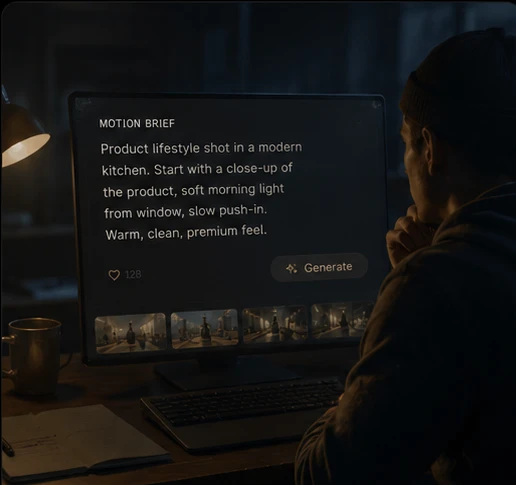
Write a compact product scene prompt and use a product video tool for ads, listings, or launch pages.
Turn a social concept into a vertical opening shot with an AI video generator, then move it into captions, hooks, and trim variants.
Generate campaign motion from a scene brief before enhancing, titling, and preparing channel exports.
Create a short mood-driven clip from words with a short clip maker, then keep it ready for audio, titles, and aspect-ratio variants.
Text to video turns an idea into motion. The generated clip can keep moving through enhancement, captions, titles, and channel-specific exports.
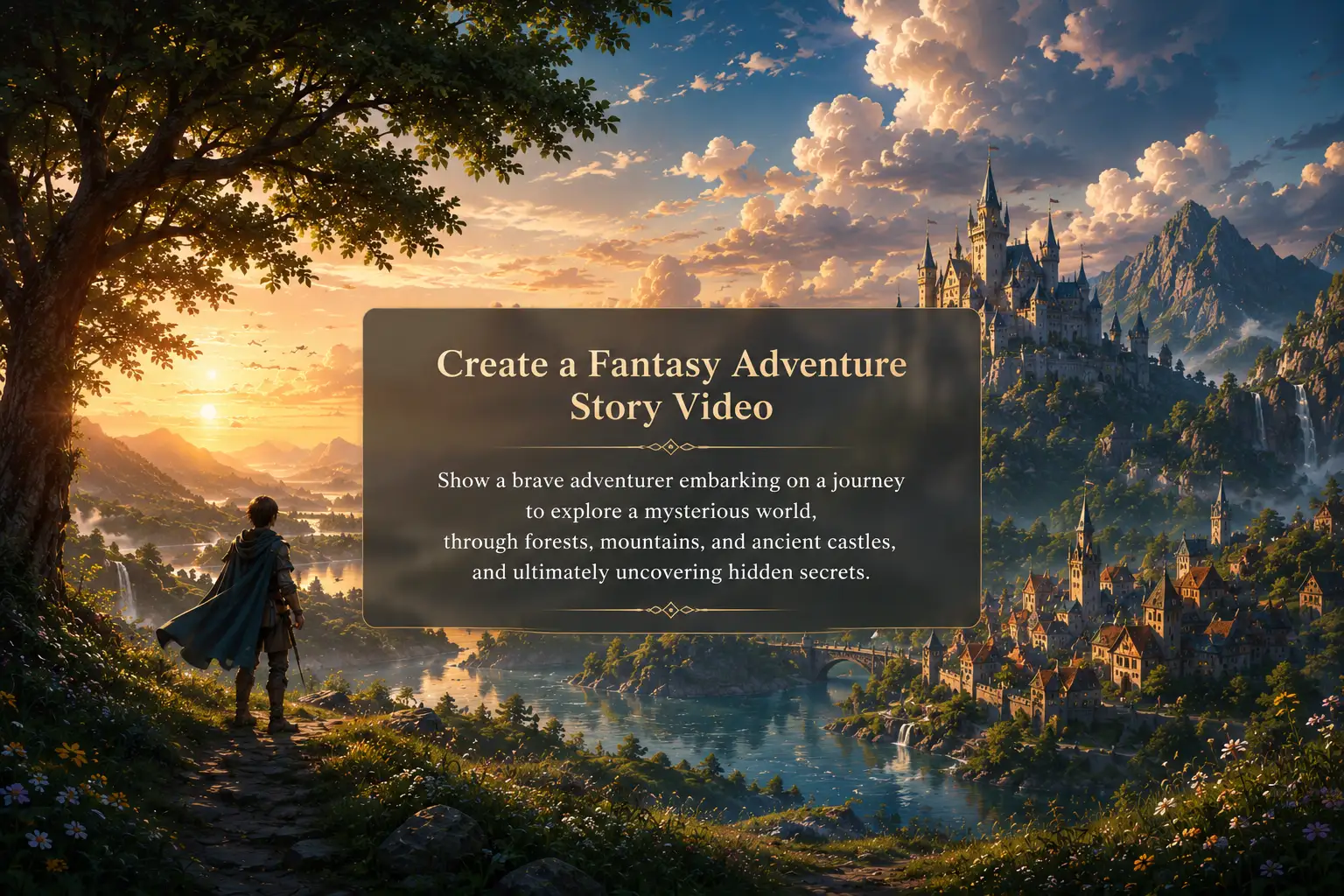
Treat the generated clip as a starting point for the next creative step, not a dead-end export.
Adapt the same source for vertical shorts, square ads, widescreen demos, and product pages.
Bring thumbnails, audio, captions, titles, and publishing copy into one workflow.
Yes. This AI text to video page is designed as a focused prompt-to-video flow: write a scene, choose simple generation settings, generate a clip, and keep the result connected to the broader video workflow.
Describe the subject, setting, camera movement, lighting, mood, style, and intended format. Short production prompts usually work better than vague requests in a text to video generator.
Yes. Text to video is treated as an AI video generator node, so the result can continue into video enhancement, titles, captions, audio, trimming, and export variants.
No. Social clips are a natural fit, but the same workflow can support product reveals, launch teasers, mood films, ad concepts, and creative direction tests.
Pick 4-5 seconds for hooks and product reveals, or a longer duration when the scene needs more motion or a slower camera move.
Use 480p for fast concept checks and 720p for sharper drafts before the result moves into enhancement, titles, audio, or export.
Choose a landscape frame for demos and product pages, a portrait frame for vertical social clips, a square frame for feed assets, or adaptive when the model should choose the frame.
Yes. Product teams can use the product video tool to describe packaging, surfaces, lighting, camera motion, and launch context for testing creative direction.
Yes. The generated clip can move into video enhancer, title generator, audio denoise, captions, trimming, or campaign export steps.
No. AI text to video starts from a written scene brief, so you can explore motion ideas before filming, designing, or gathering source assets.
Be specific about the subject, environment, camera move, lighting, material details, mood, and target channel. Avoid stacking too many unrelated ideas in one prompt.
Use generated clips only when your prompt, references, brand assets, and distribution rights are appropriate for the intended project or license.
Start with one direct task, then keep editing, generating, writing, and shipping from the same Linocut AI canvas.