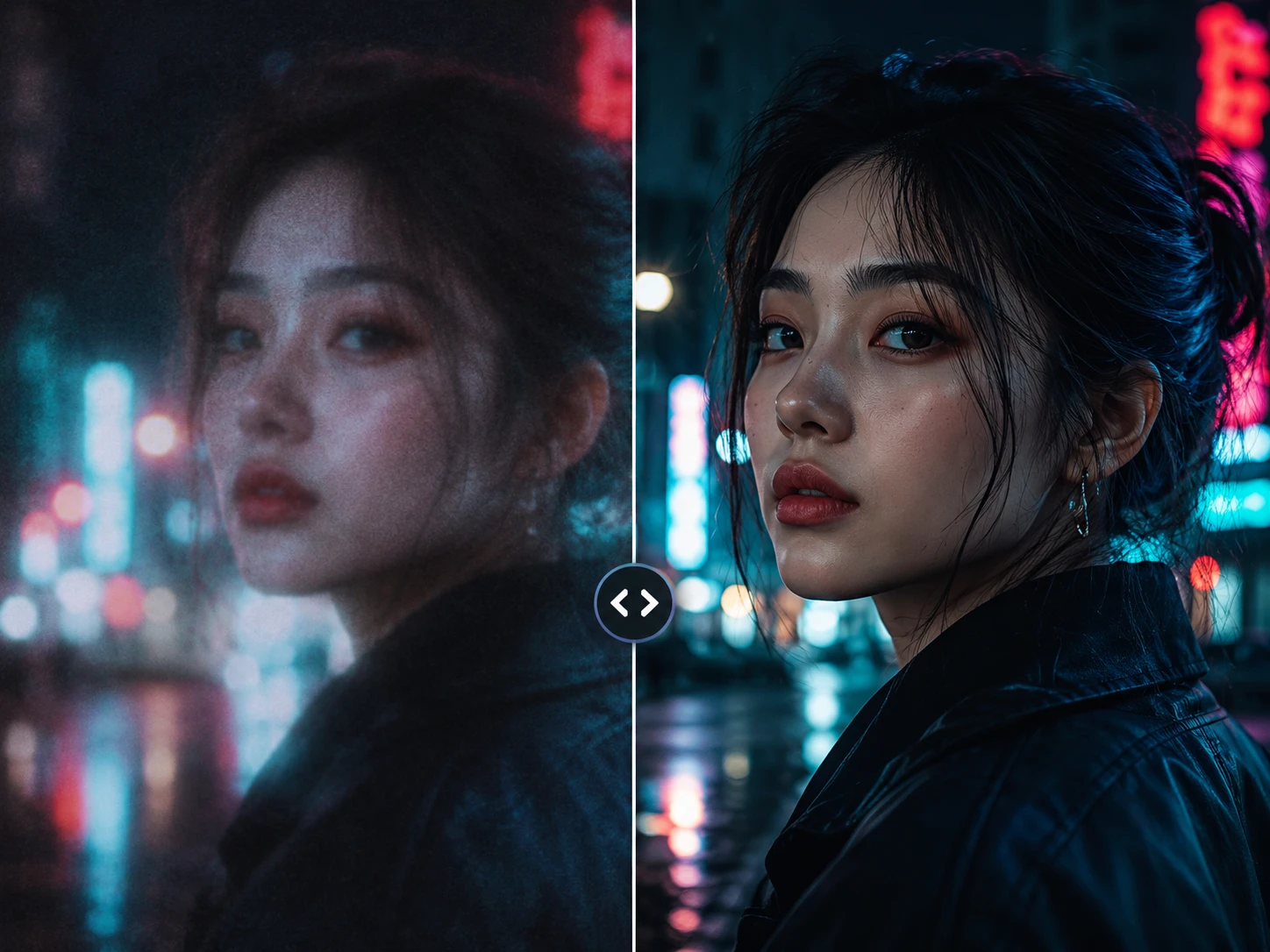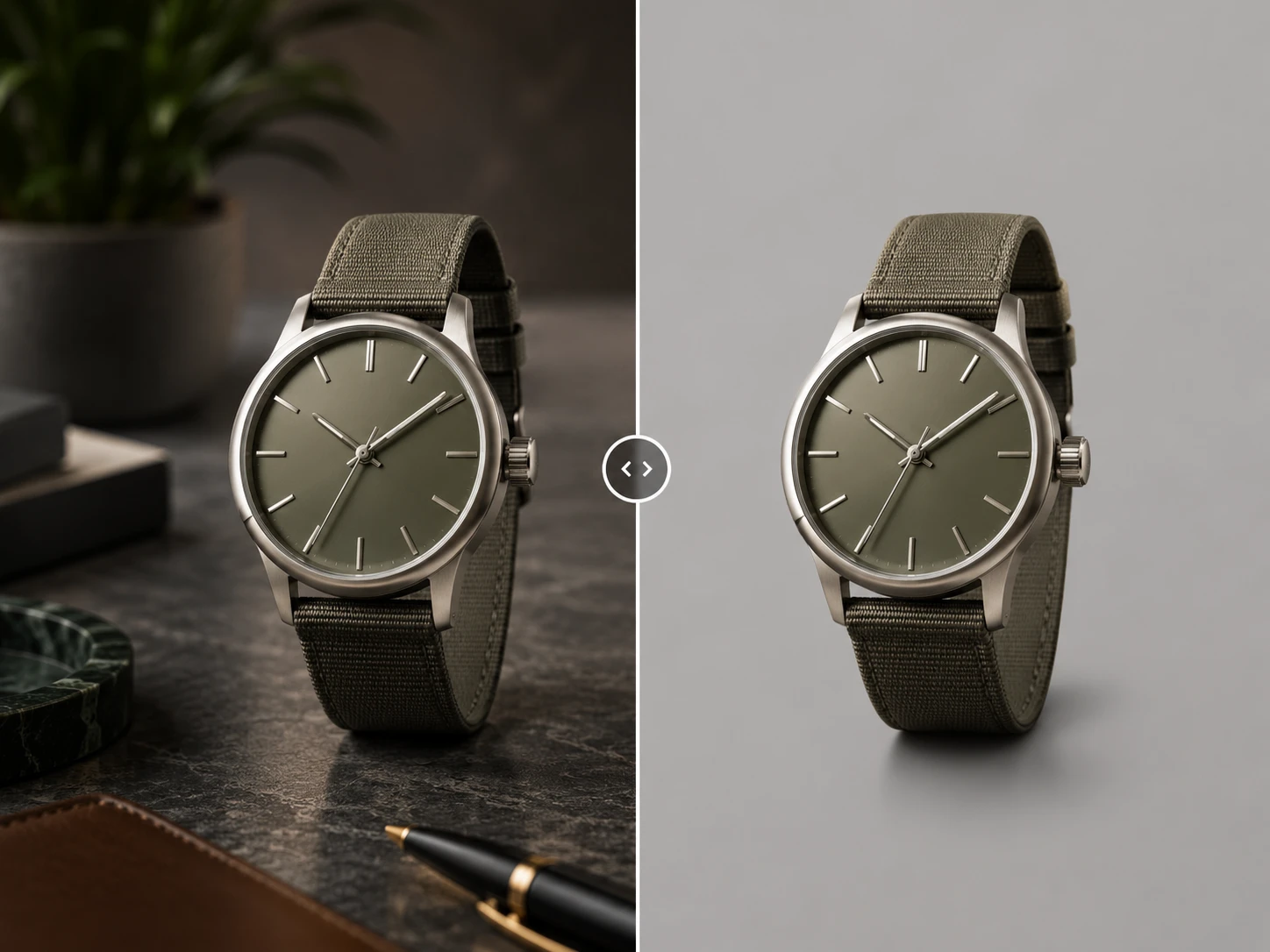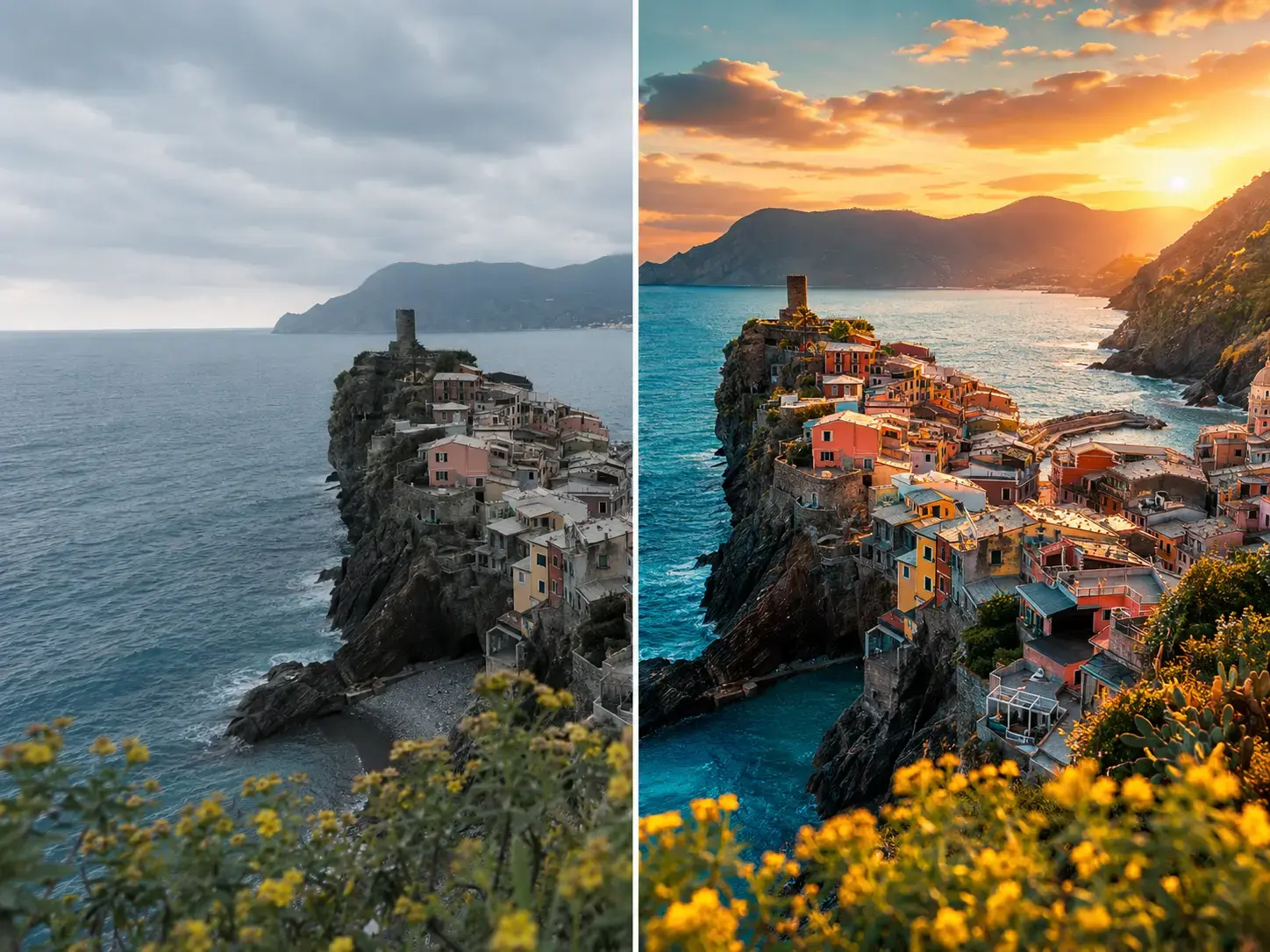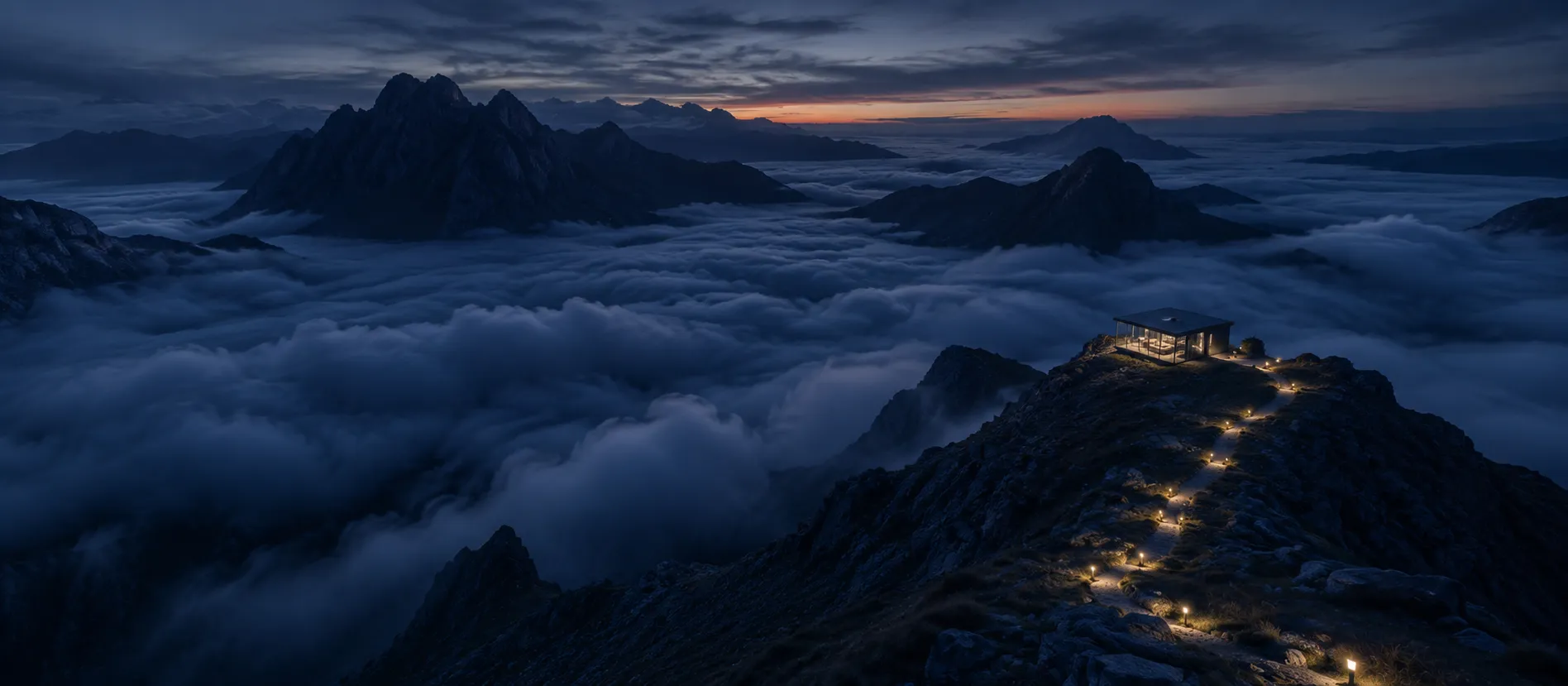
case.01
AI Image Upscaler for Creator Assets
Use an AI image upscaler on thumbnails, profile images, and short-form content stills before they move into social production.
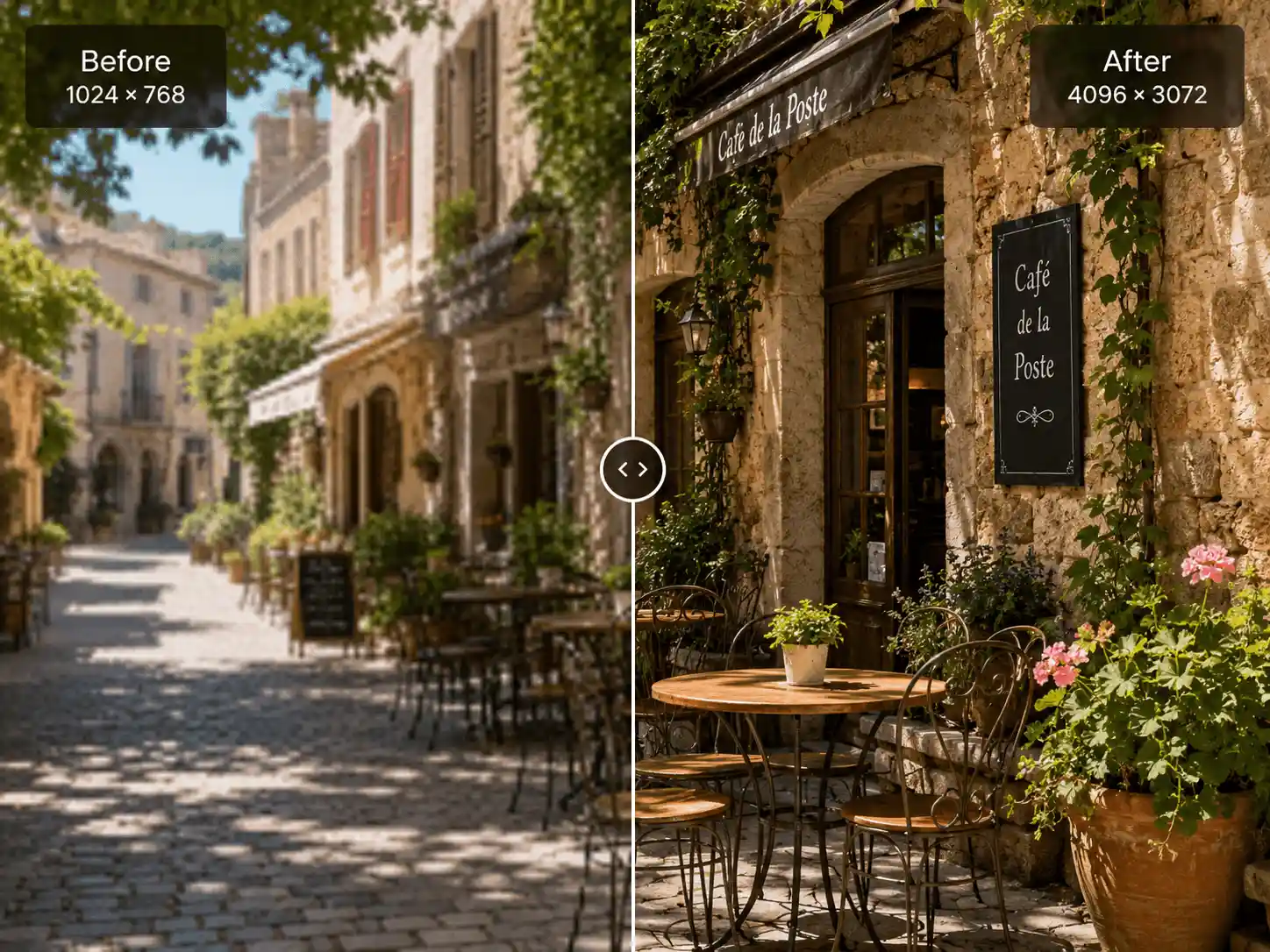
Upload one image, choose the model and output size, then compare the original with the upscaled result in a focused workspace.


Select a 2K, 4K, 8K, or 16K output size for your intended layout, then review the original and result before you download or continue working.
Use an AI image upscaler for low-resolution photos across web, social, ecommerce, and print.
Use an HD photo upscaler to recover usable edge detail without learning a pro editing app.
Keep the online upscaler result inside a larger image, video, audio, and text workflow.
 01
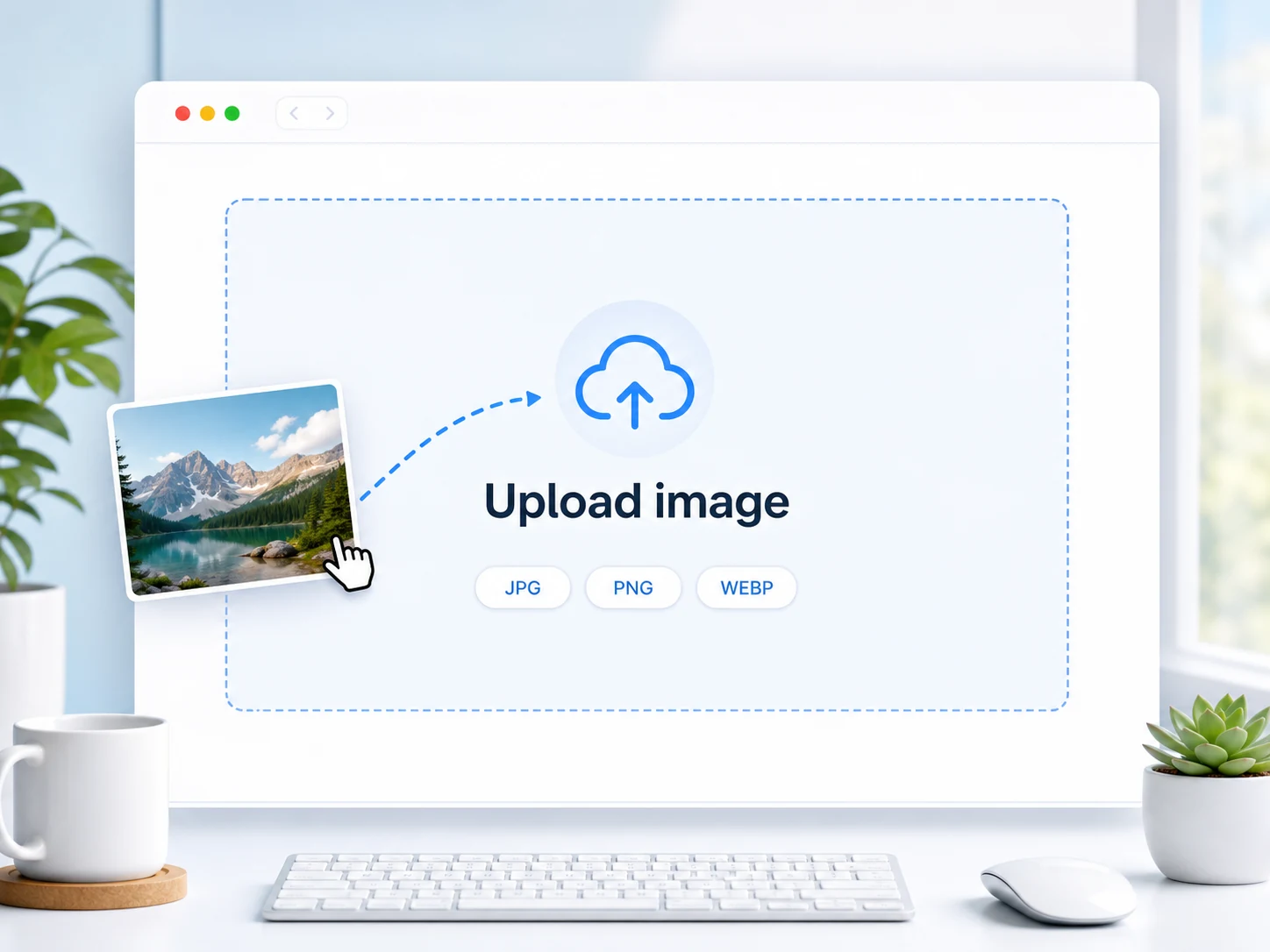
01Drop a small, compressed, or cropped image into the AI image upscaler. JPG, PNG, and WebP files fit the same workspace.
 02
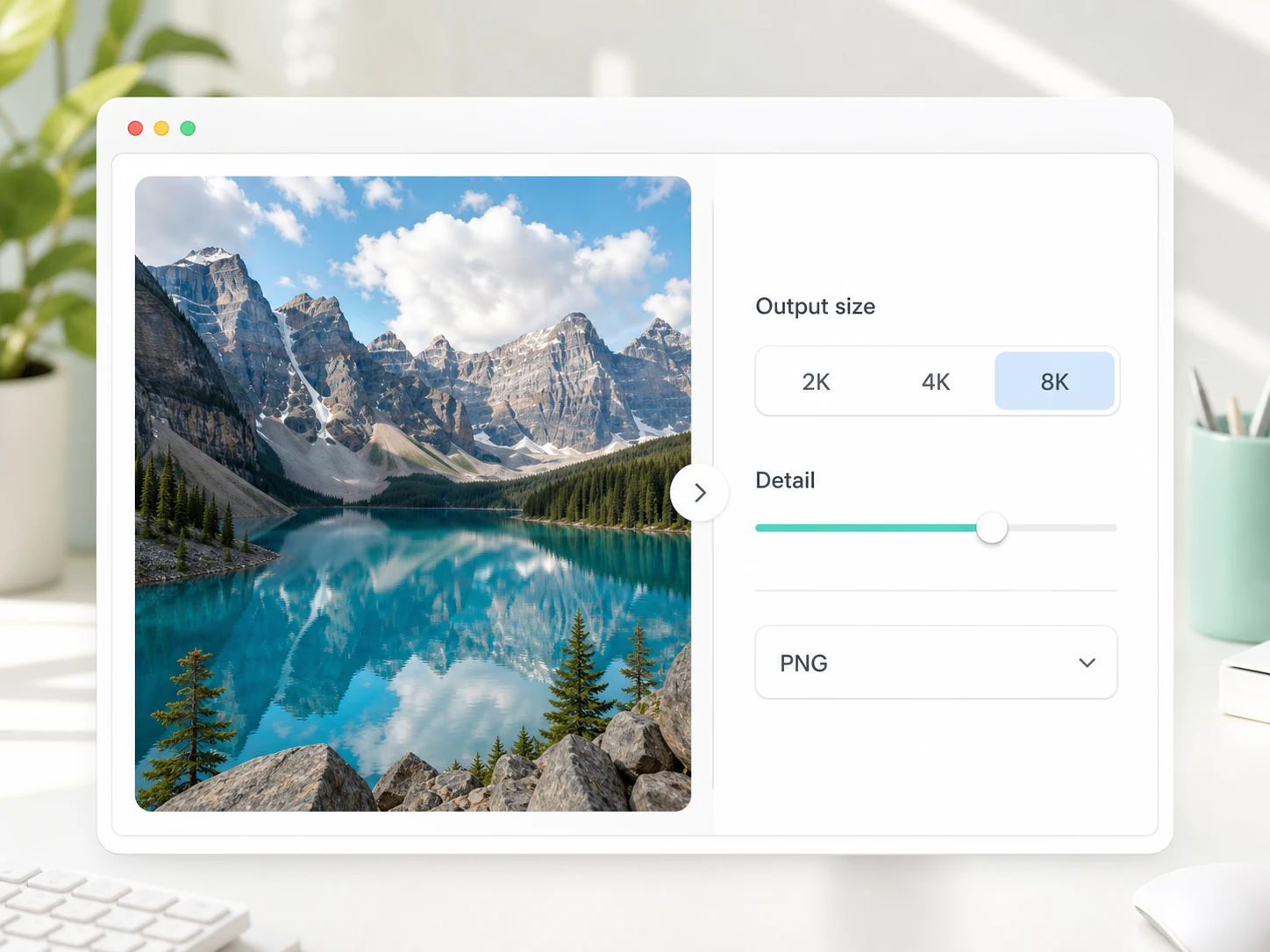
02Choose 2K, 4K, 8K, or 16K output, then tune detail recovery and compression cleanup.
 03
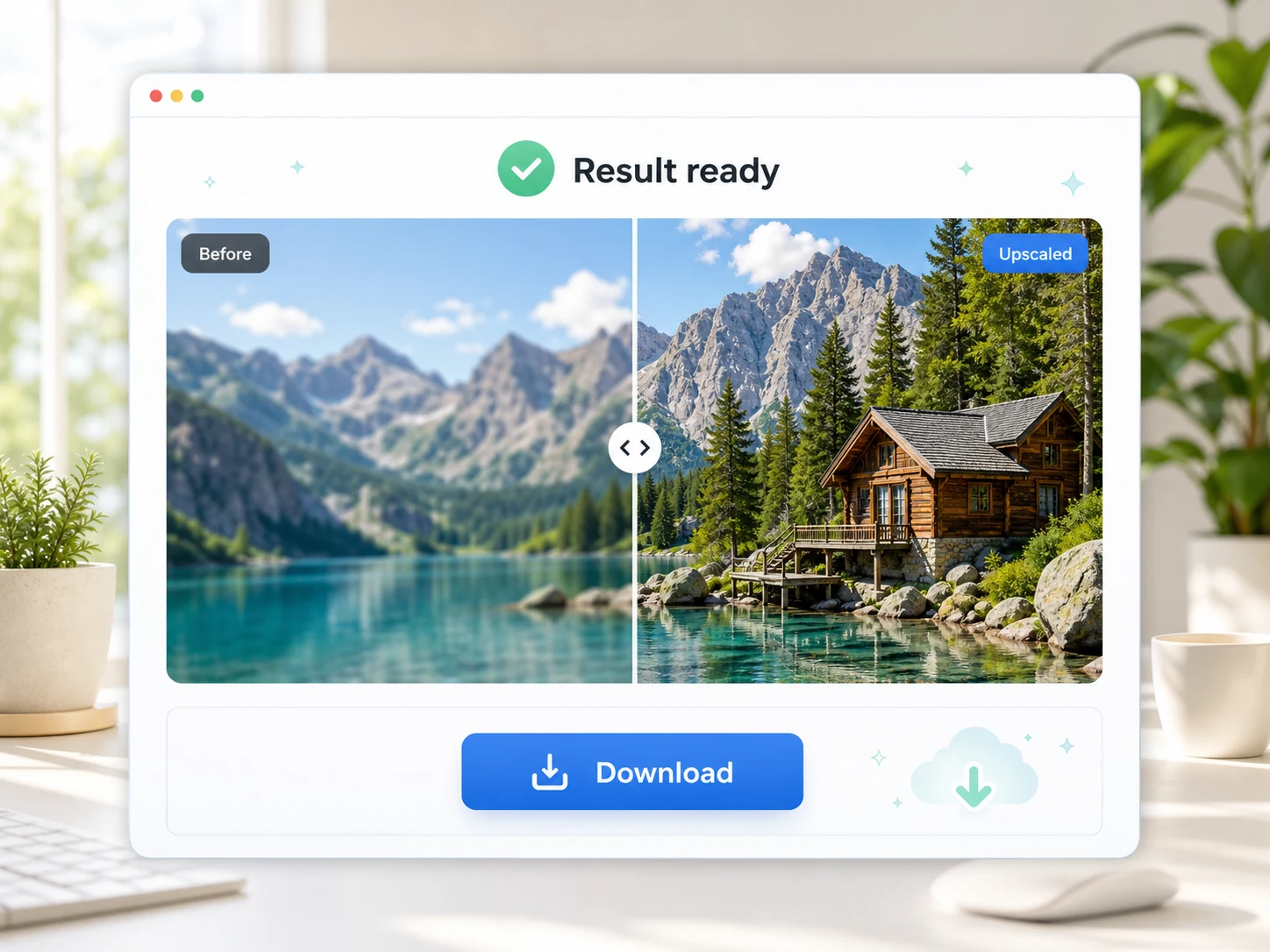
03Compare original and image upscaler output, then keep editing or save the asset to your workflow.

Recover usable visual detail while increasing output size and keeping text, edges, and textures readable.
Start upscaling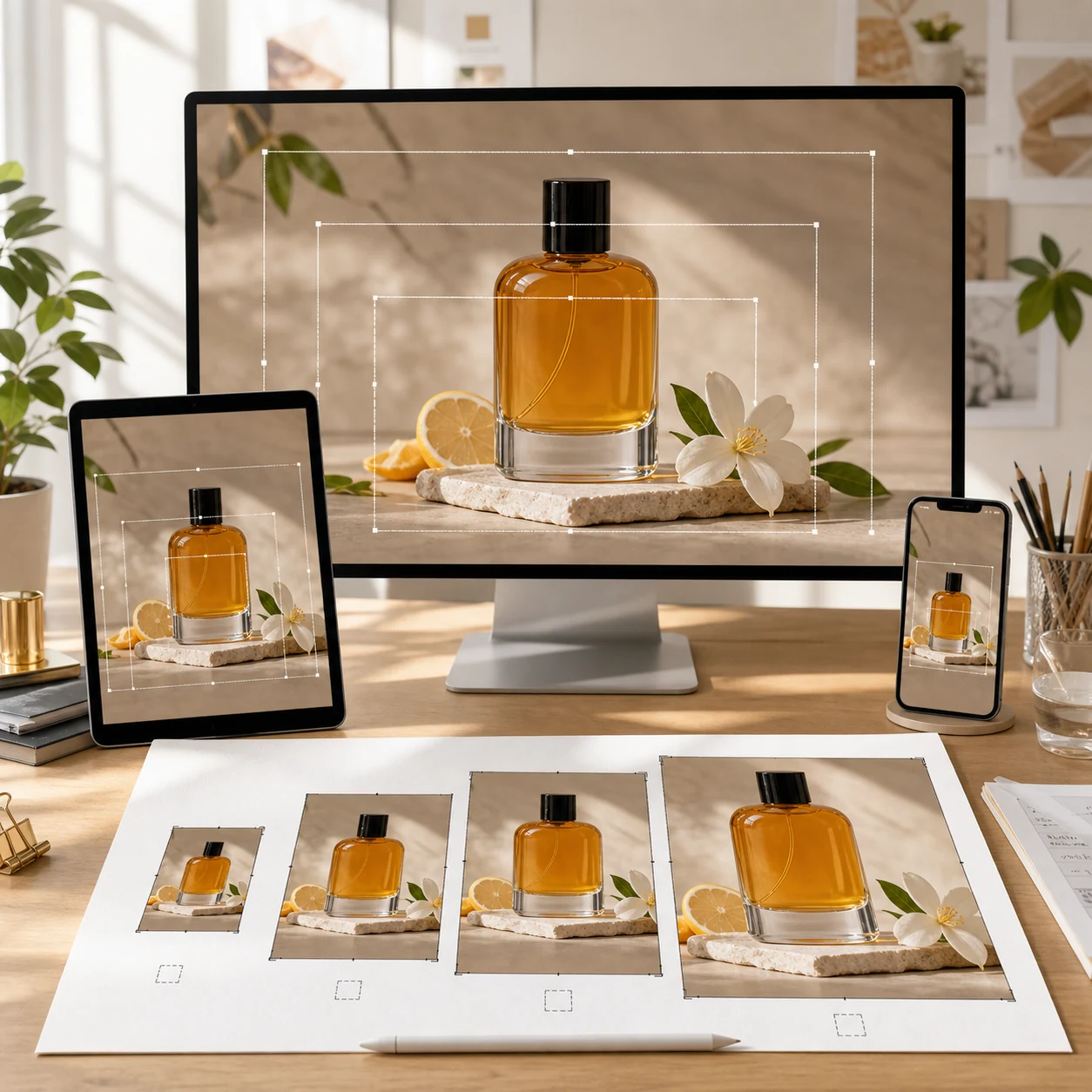
Resize small images with an online upscaler for high-DPI screens, storefront zoom, thumbnails, and larger layouts.
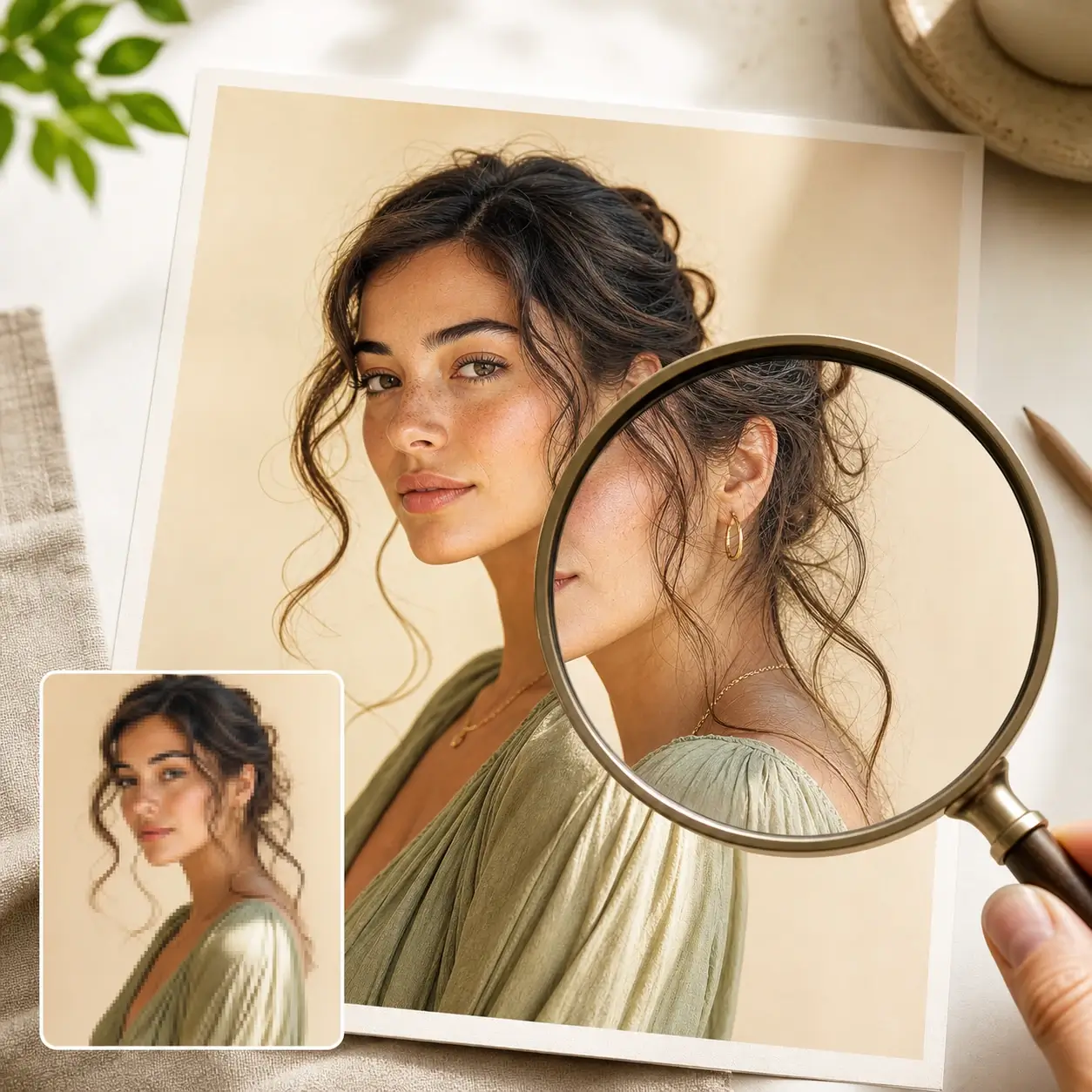
Recover edges and texture so HD photo upscaler output feels usable instead of stretched.
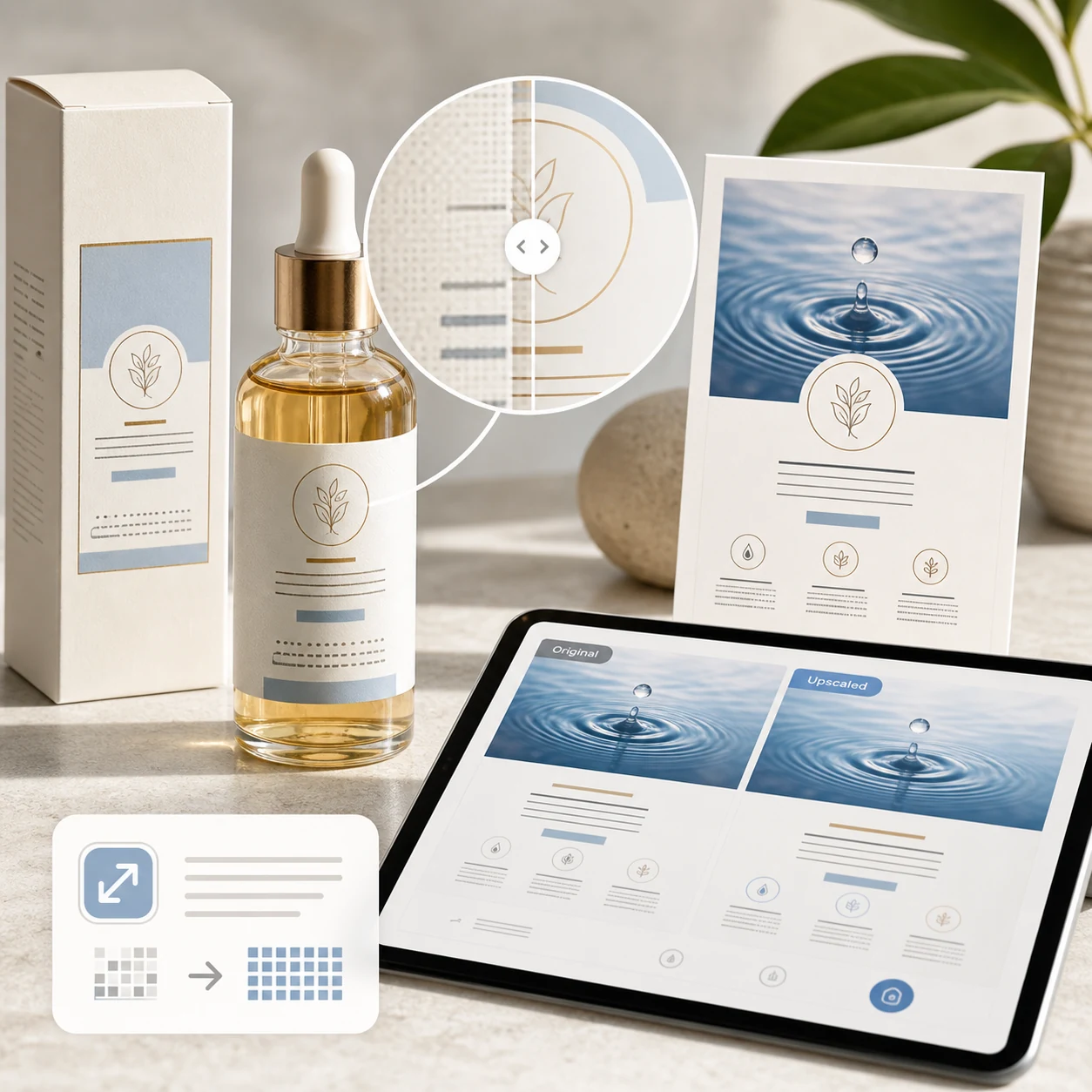
Preserve labels, UI screenshots, packaging, and poster copy during the upscale process.
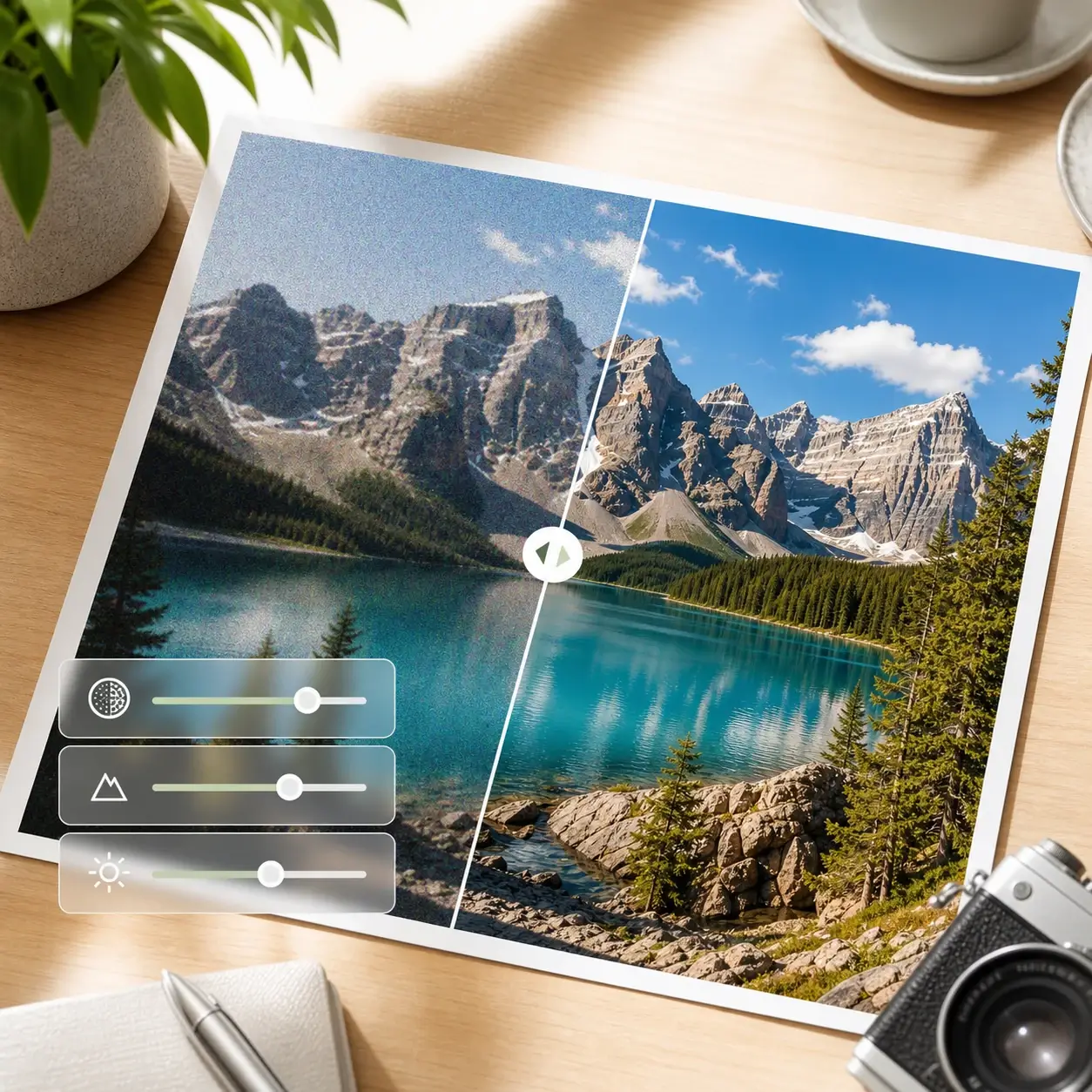
Balance compression removal, texture retention, and sharpness from one compact 4K photo enhancer control panel.
Use an AI image upscaler on thumbnails, profile images, and short-form content stills before they move into social production.
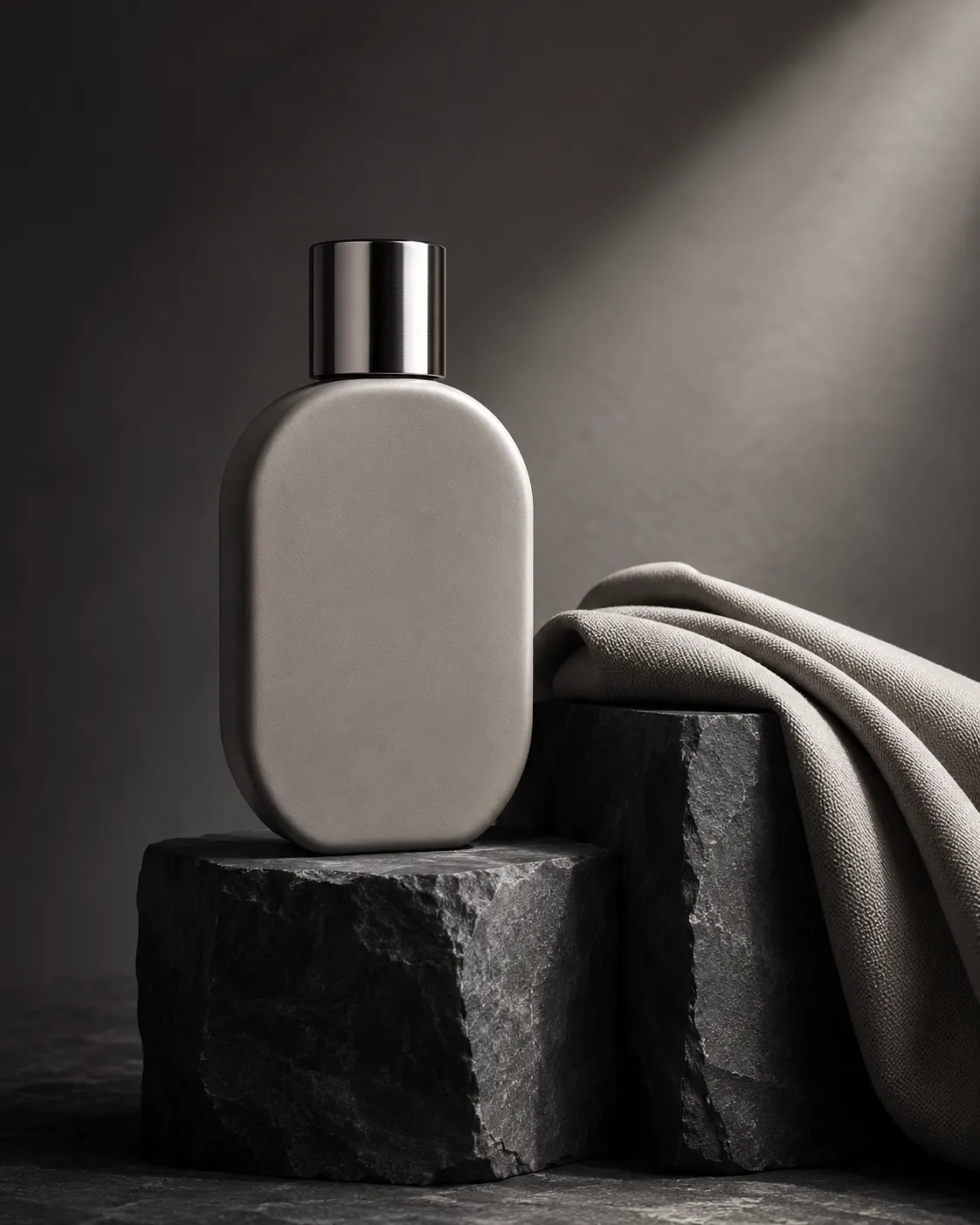
Upscale image files from low-res supplier shots into crisp product images that hold up on high-DPI storefronts.
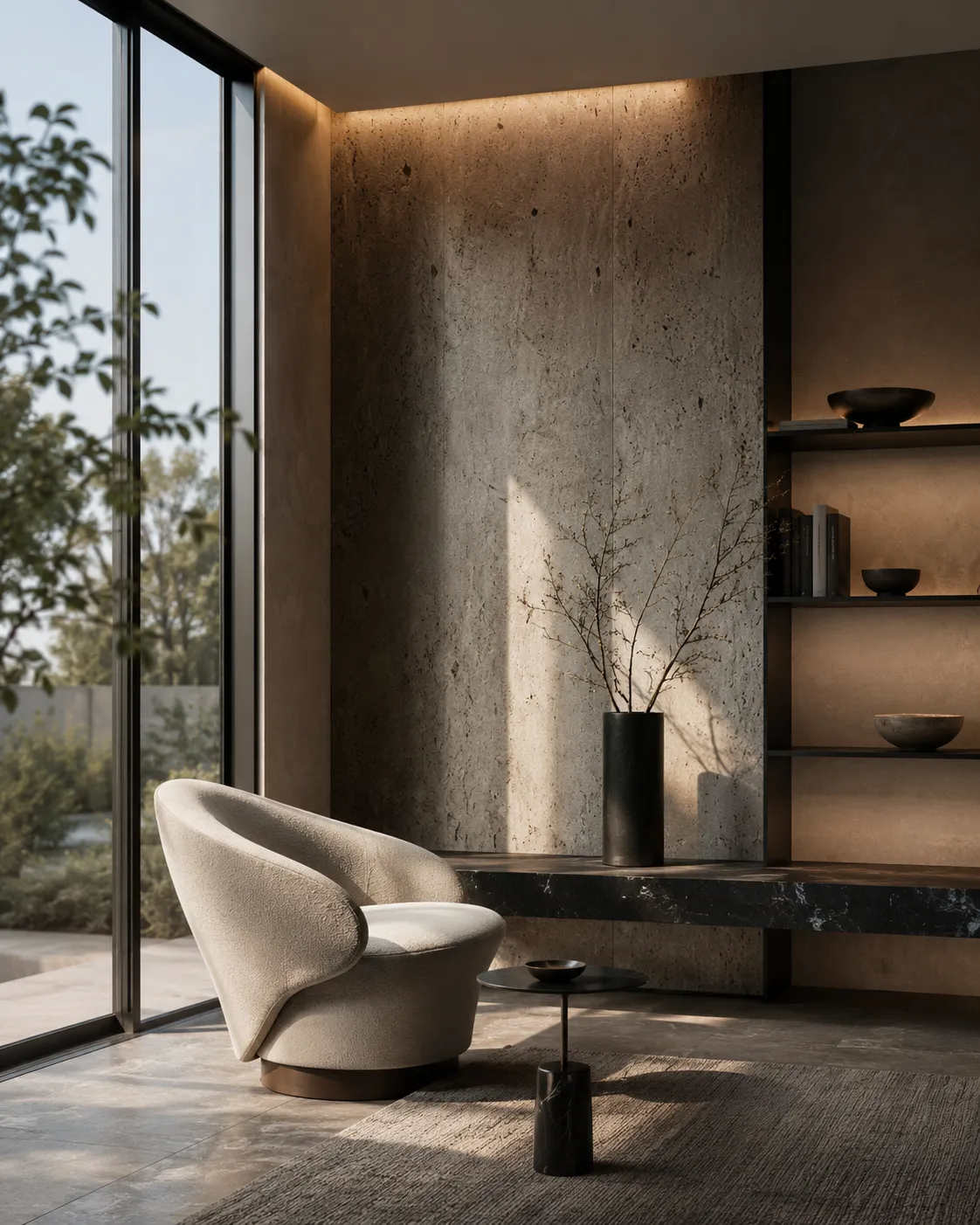
Use the 4K photo enhancer workflow to increase render and interior-photo resolution while preserving lines, materials, and surface detail.
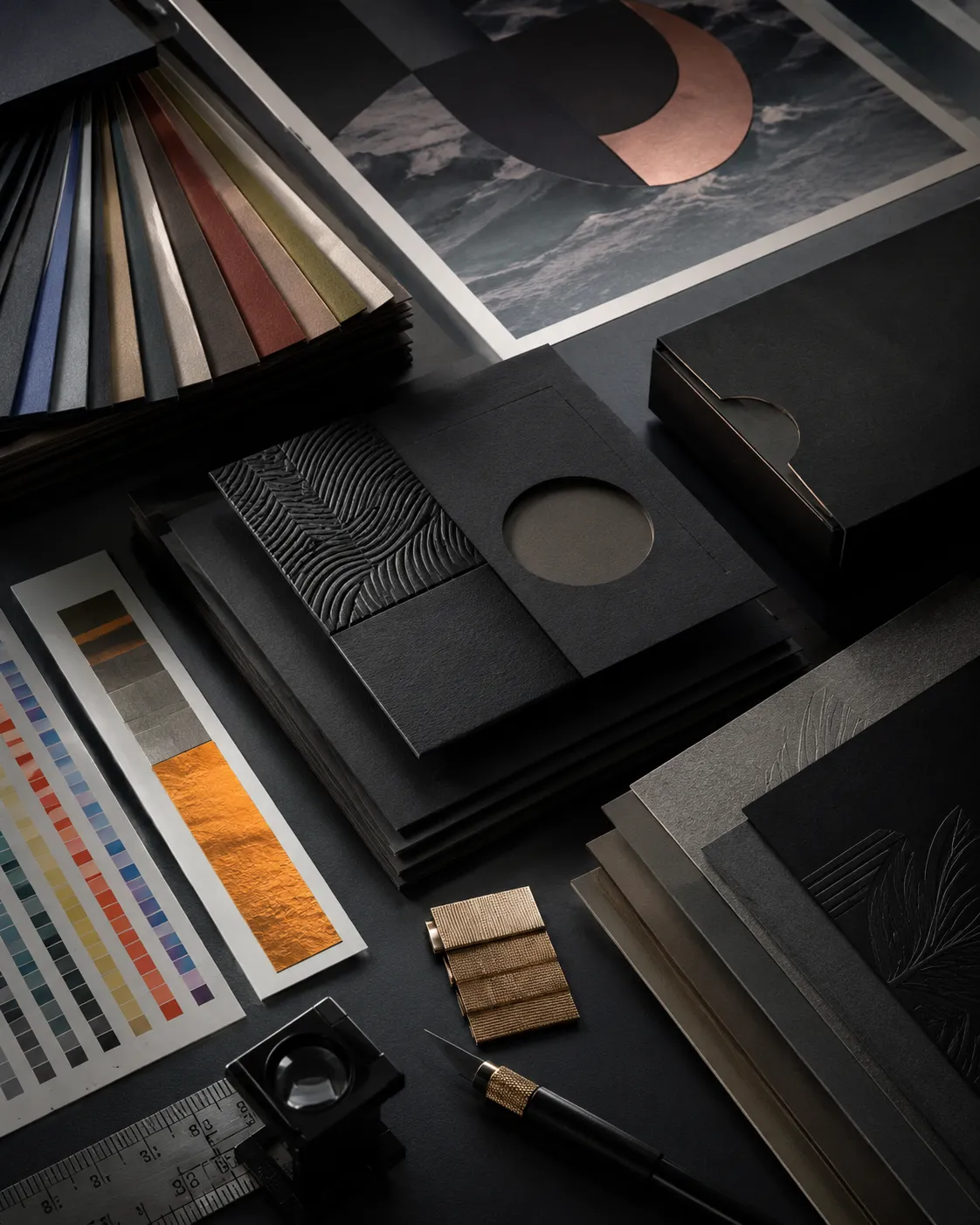
Bring digital art, posters, and campaign graphics closer to print-ready dimensions with an 8K image tool.

Use an HD photo upscaler to recover useful detail in faces, hair, and clothing for creator profiles and editorial layouts.
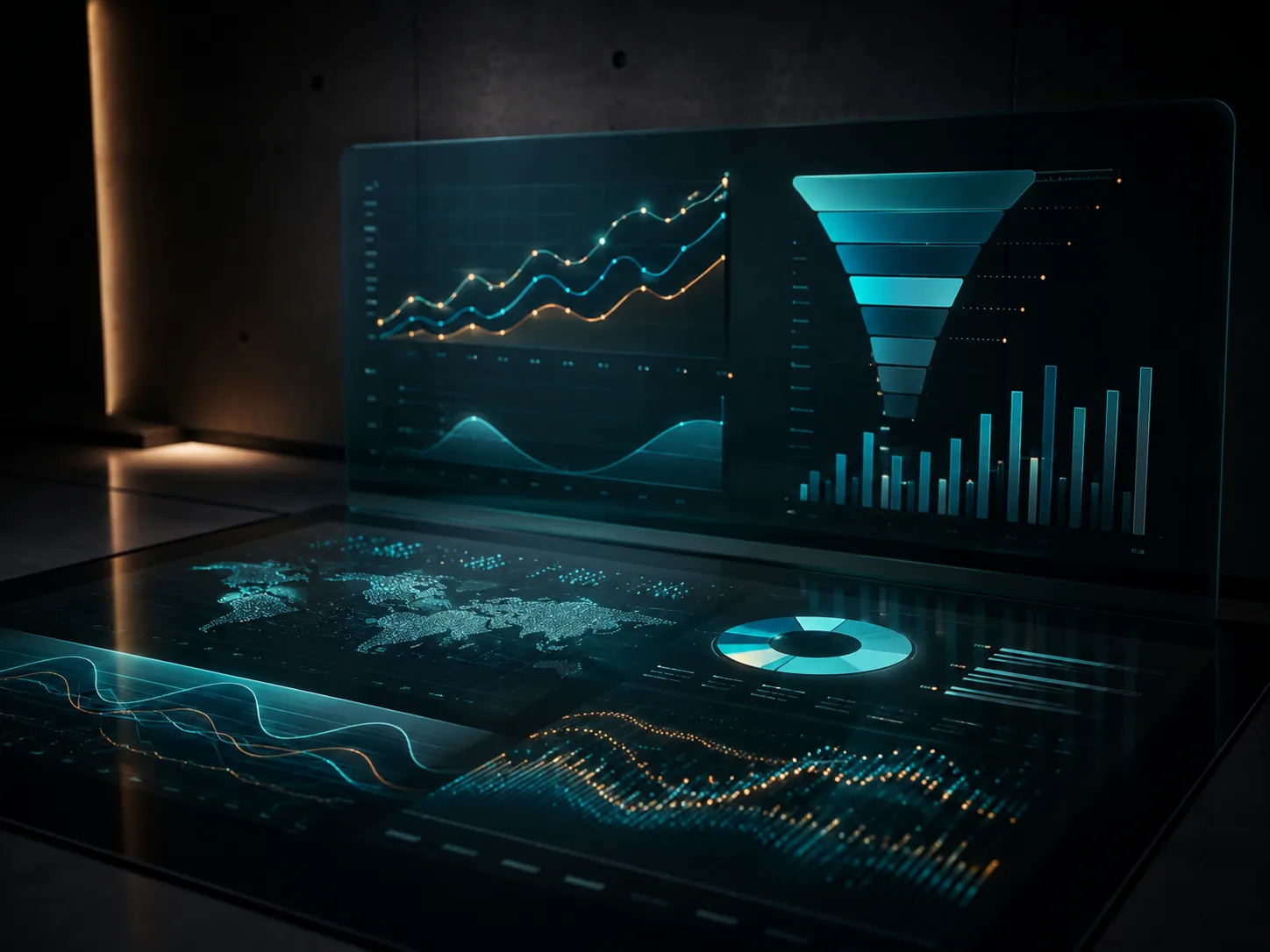
Resize campaign visuals for ads, landing pages, emails, and marketplace placements using an online upscaler workflow.
Upscale image references into clearer inputs for layouts, moodboards, and generated assets.
The image upscaler page focuses on one clear function while still making Linocut AI feel like an all-in-one creative workspace, not a disconnected tool directory.
The first screen solves the AI image upscaler task directly, then routes the result into the wider creative workspace.
Users get clear controls for output size, detail recovery, text preservation, and texture retention inside the 4K photo enhancer workflow.
The same online upscaler structure supports HD photo upscaler, 4K, 8K, and larger production outputs.

An AI image upscaler enlarges an image while rebuilding usable detail, edges, and texture. It is useful when a normal resize would make the file look soft, pixelated, or compressed.
Yes. Linocut is an online upscaler that runs in the browser, so you can upload an image, choose output size, compare the result, and download the upscaled file.
The image upscaler can prepare 2K, 4K, 8K, or 16K output depending on the source file. Use it as a 4K photo enhancer for web and product work, or move to higher output sizes for print tests.
Yes. The 8K image tool option is useful for large layouts, close detail inspection, and print preparation when the source image has enough usable detail.
Yes. The image upscaler includes text preservation and compression cleanup controls so product labels, UI screenshots, packaging, and marketing assets stay readable.
No. Upload an image, choose the output size, adjust a few simple controls, and compare the image upscaler result directly in the browser workspace.
Yes, you can use image upscaler output for ecommerce, social, ads, thumbnails, and other commercial work as long as you have the rights to the source image.
Yes. The HD photo upscaler workflow is designed for portraits, product photos, creator assets, thumbnails, and marketing images that need cleaner detail.
The image upscaler is designed around common image formats such as JPG, PNG, and WebP, with export settings for production-friendly image files.
Yes. An image upscaler can help small supplier photos, compressed product shots, and marketplace images look clearer before listing crops or detail-page layouts.
The image upscaler can improve edge clarity and texture on many soft or compressed images, but it cannot recover details that are completely missing from the source.
Yes. The workspace shows the original image beside the image upscaler output so you can inspect edges, text, texture, and compression cleanup before exporting.
Choose 2K or 4K for most web and ecommerce work, then move to 8K or 16K when the image upscaler output needs larger layouts, print tests, or close detail inspection.
Start with one direct task, then keep editing, generating, writing, and shipping from the same Linocut AI canvas.