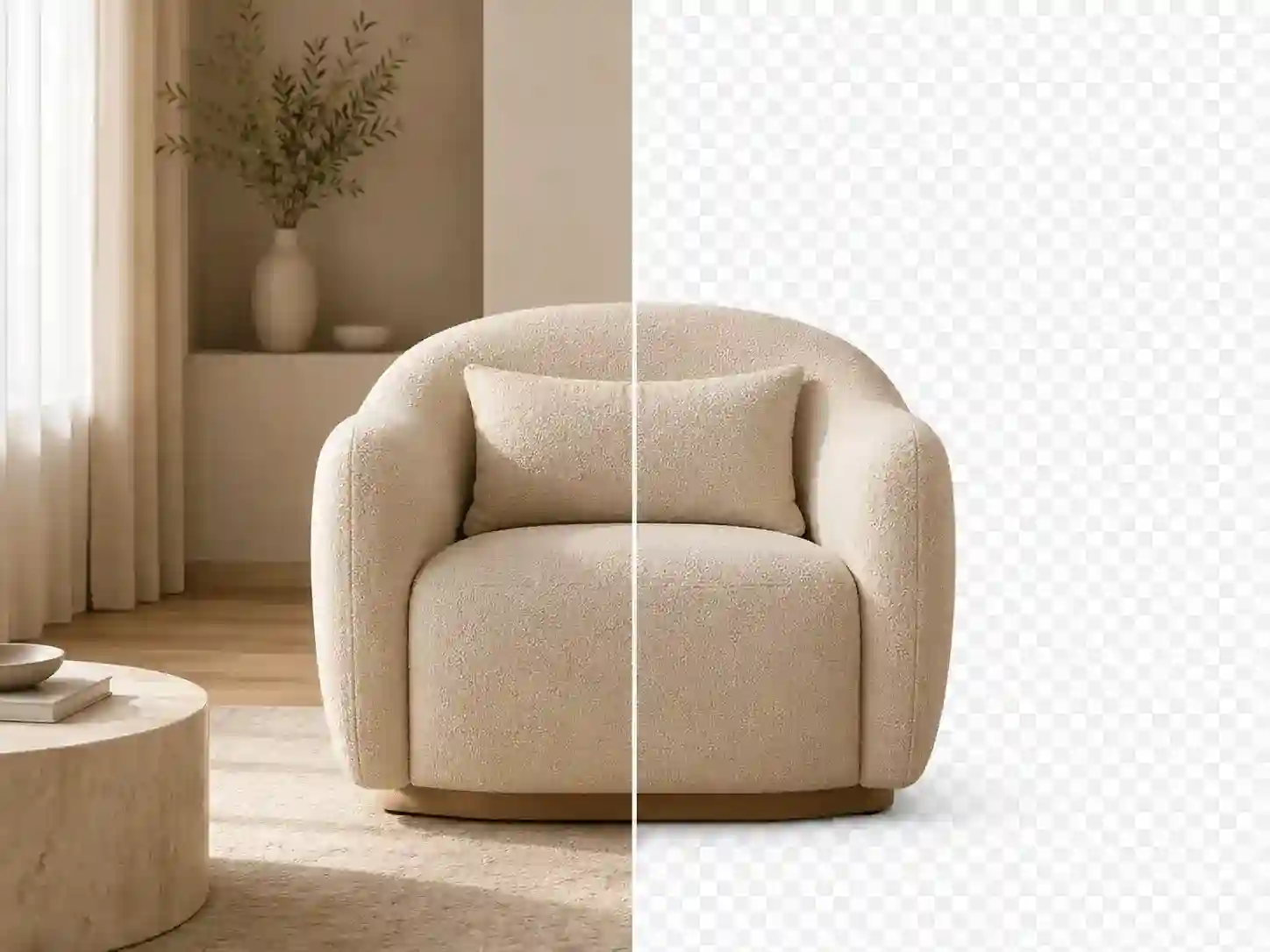
case.01
Listing photos
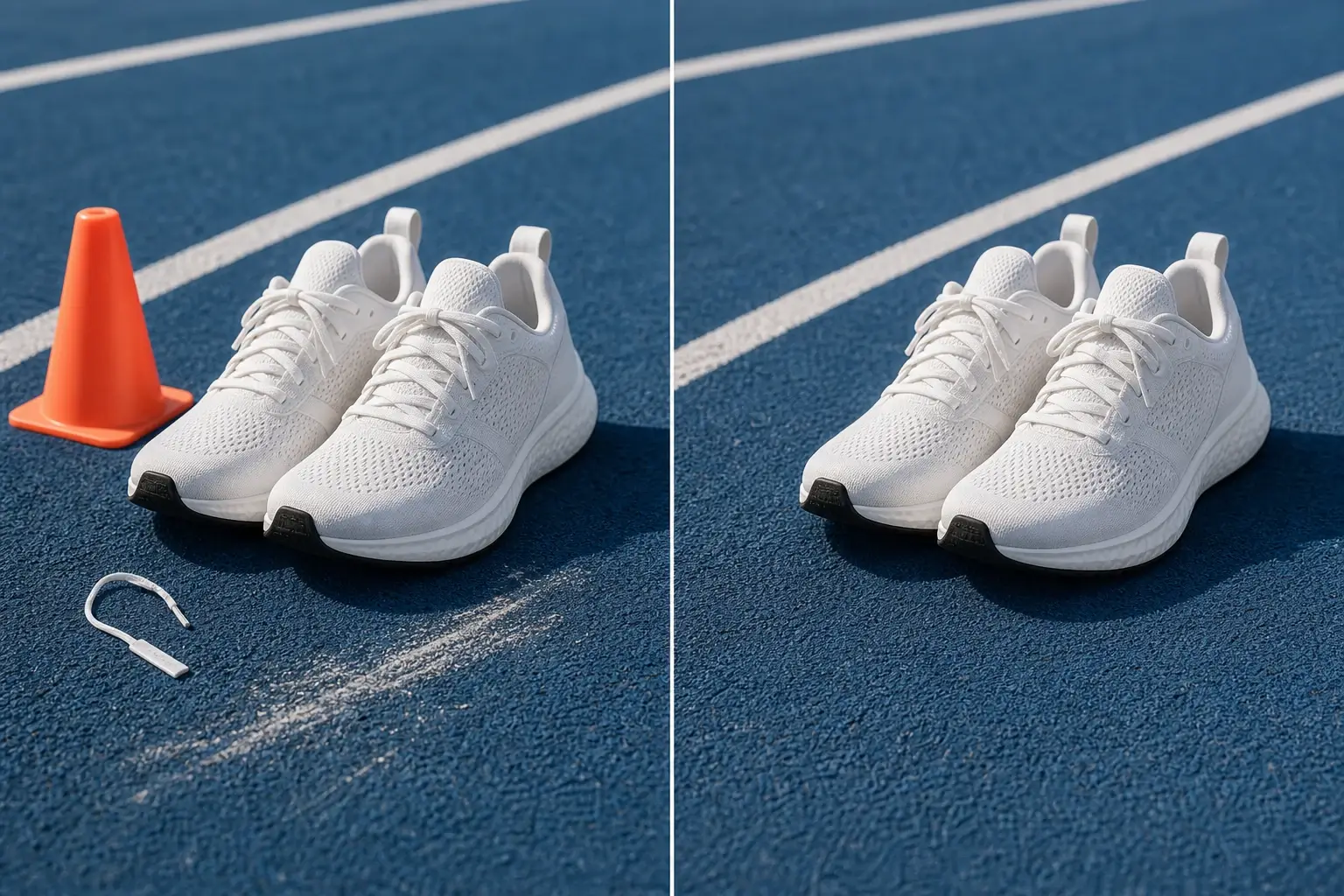
Use the AI object remover to erase props, cables, tags, and clutter from product scenes before enhancement and marketplace export.
Manually paint an unwanted object, or choose an automatic mode for marks, text, or emoji, then review the cleaned image before export.
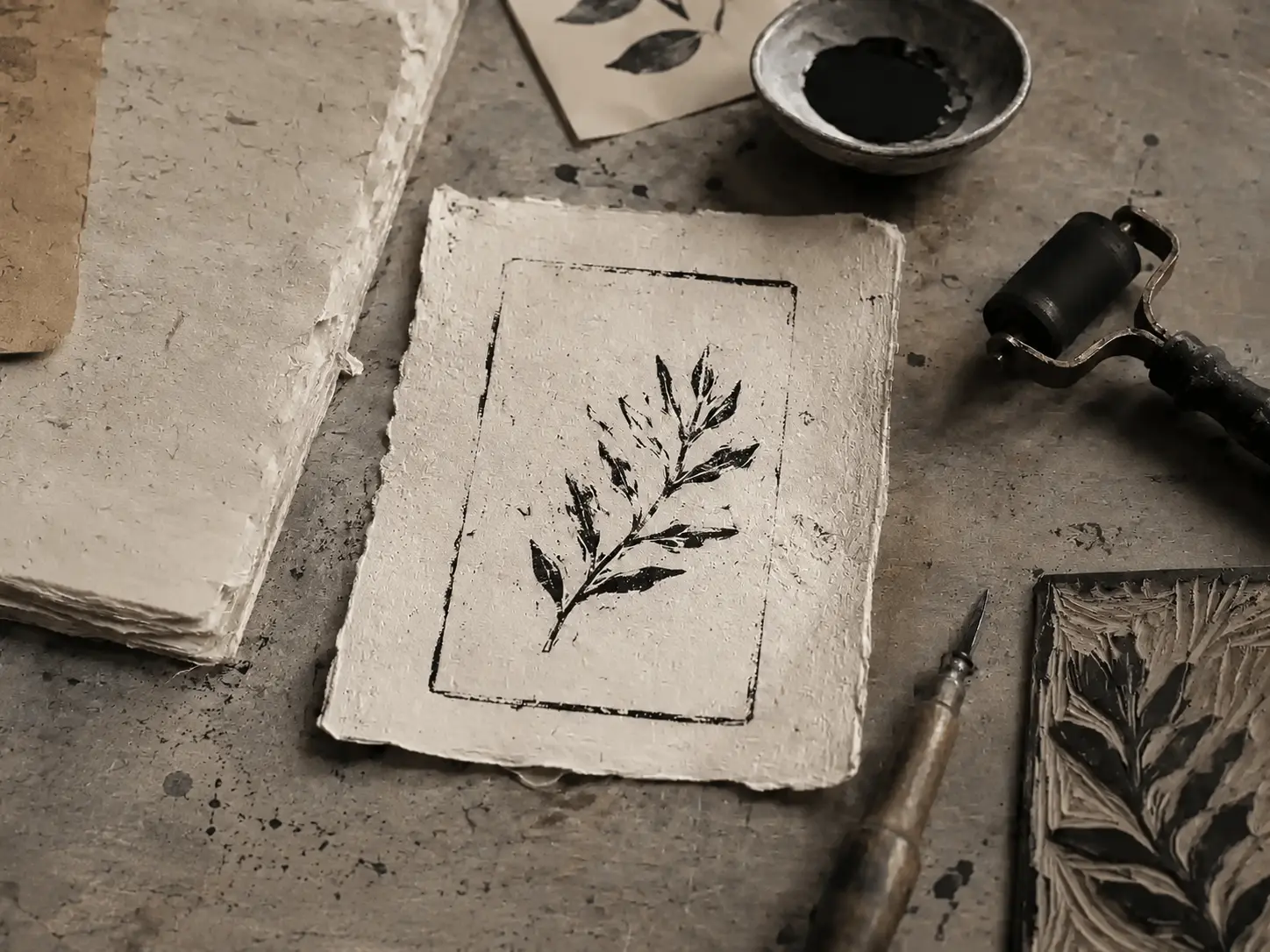
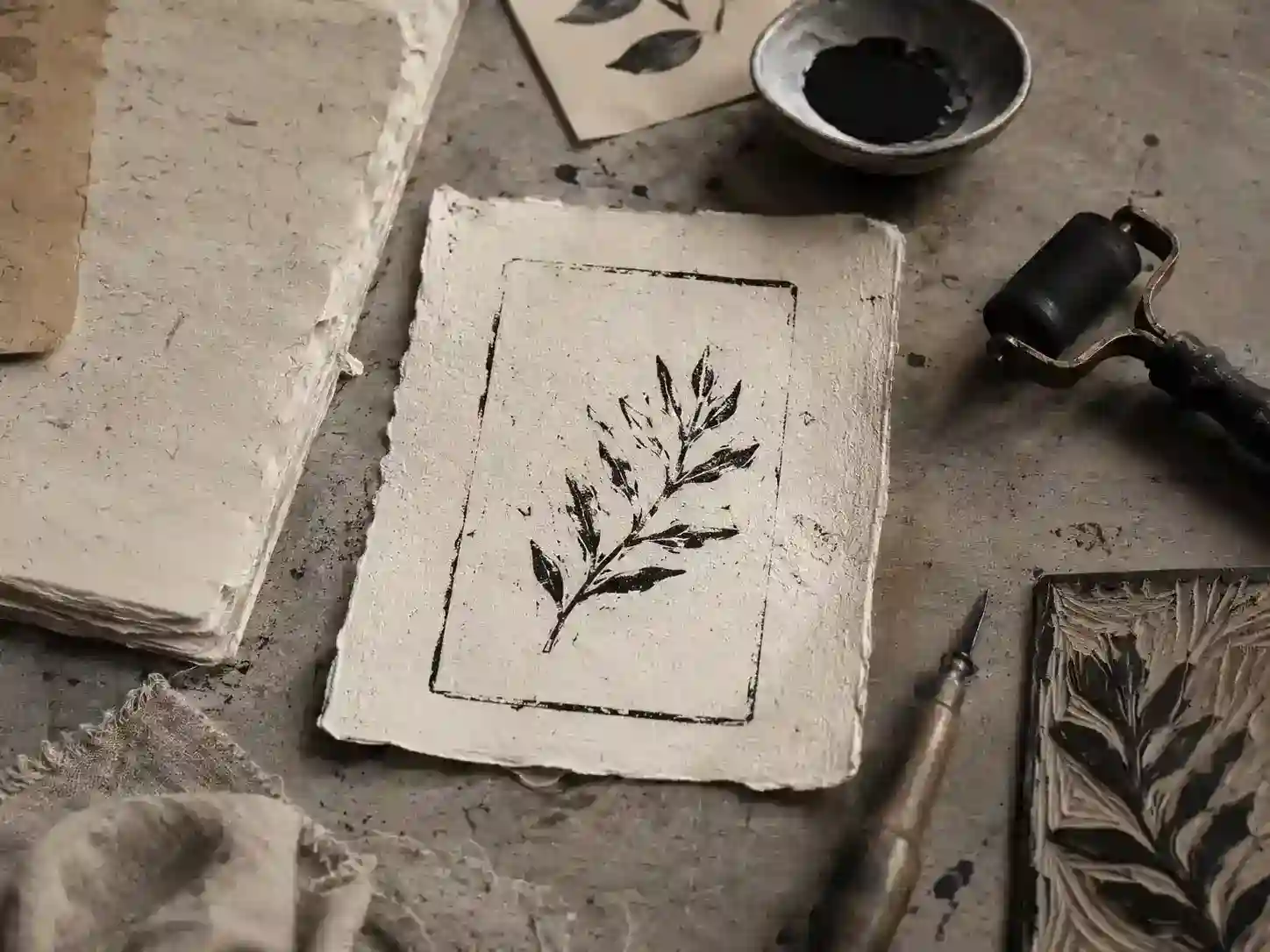
Paint a precise removal area for objects, or select an automatic mode for marks, text, or emoji. Review the cleaned image, then continue with a stronger asset for the next creative step.
The AI object remover helps remove distractions such as a person, prop, reflection, or small clutter that pulls attention away from the useful image.
Treat object remover output as an image inpainting node that reconstructs texture, shadows, and edges for natural photo cleanup.
Move ai object remover result into upscaling, relighting, crop variants, background work, or copy generation after you remove object from photo areas.
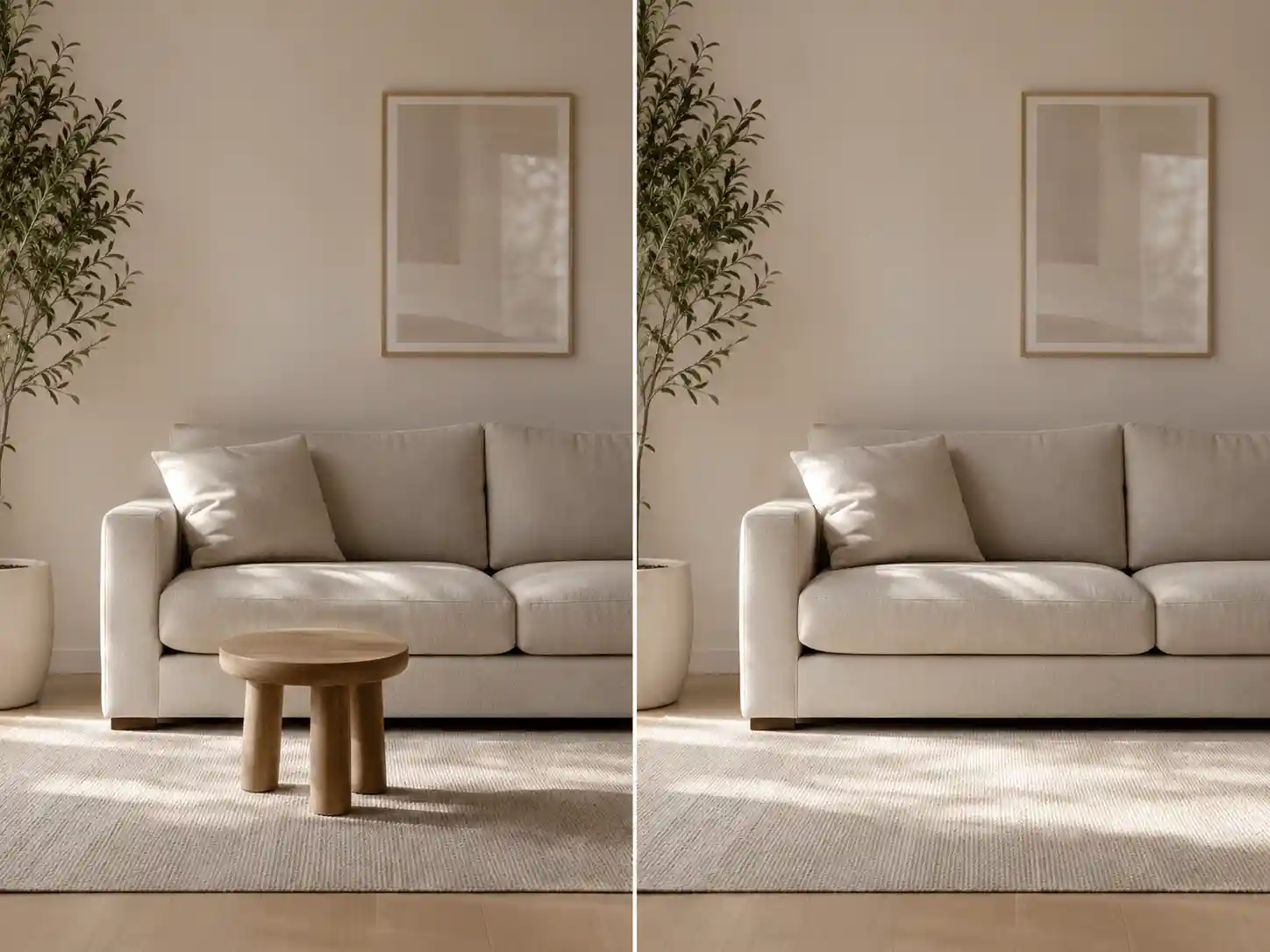
 01
01Add a photo with a distraction, prop, person, unwanted object, mark, text overlay, or emoji to the cleanup workspace.
 02
02For objects, use Brush, Rectangle, Lasso, and Eraser to paint a precise removal area. For marks, text, or emoji, choose the matching automatic removal mode and adjust its settings.
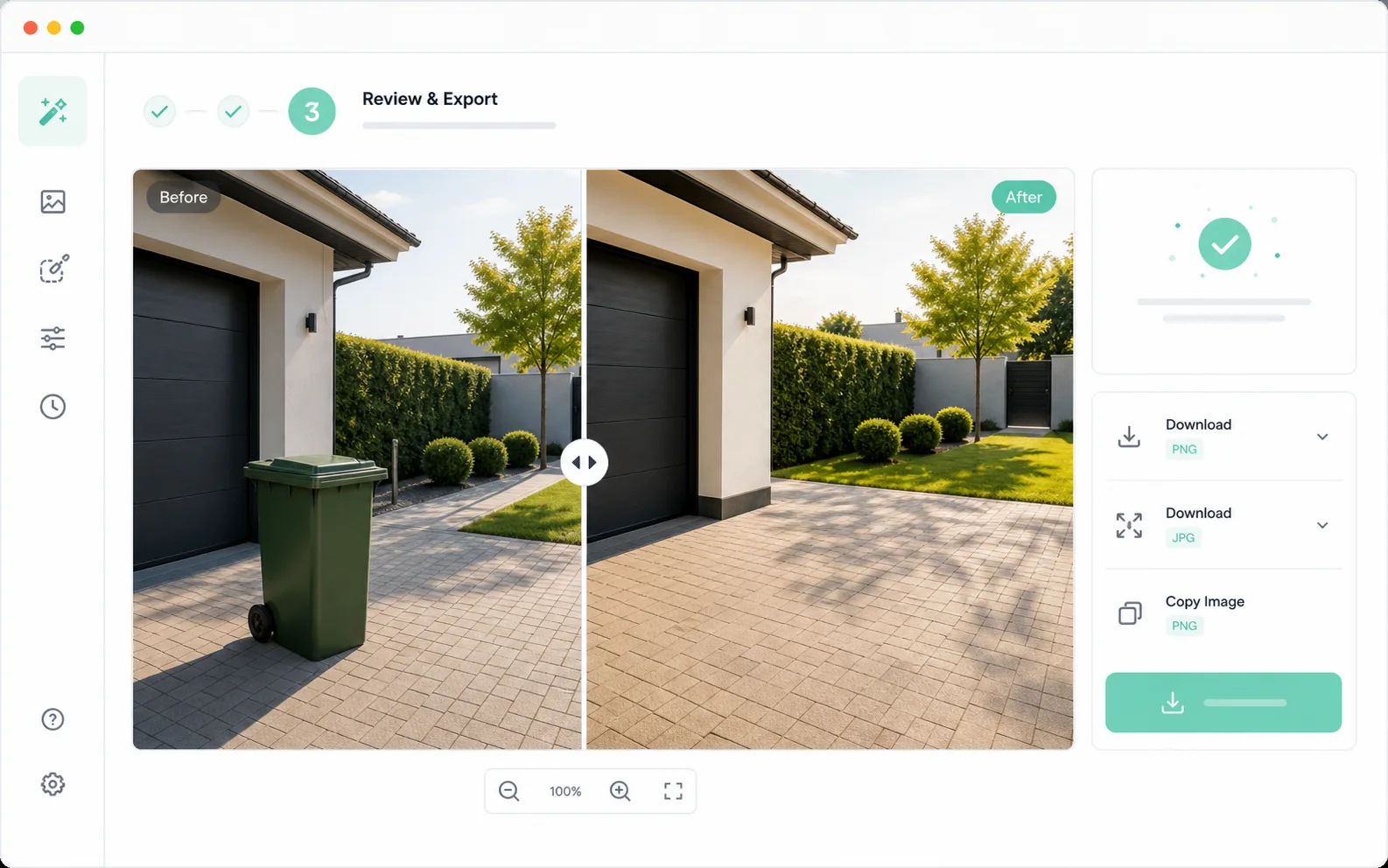 03
03Inspect the photo cleanup result, then continue into image inpainting, enhancement, or export.

Remove distractions and rebuild local image detail so the scene continues to feel natural.
Remove object
Paint over a prop, passerby, cable, trash bin, or visual clutter. For a mark, text overlay, or emoji, select the matching automatic removal mode.

Tighten the object remover mask around edges so image inpainting keeps nearby faces, labels, furniture, background lines, and surrounding text sharp.

Let image inpainting rebuild hidden wall, sand, fabric, street, or tabletop texture from nearby image context.

Repair leftover cast shadows, reflections, and contact marks so object remover output matches the original light.
Use an AI object remover to remove distractions while keeping the original photo believable.
Use the AI object remover to erase props, cables, tags, and clutter from product scenes before enhancement and marketplace export.

Run object removal on lifestyle frames to remove distractions before campaign images move into layouts.
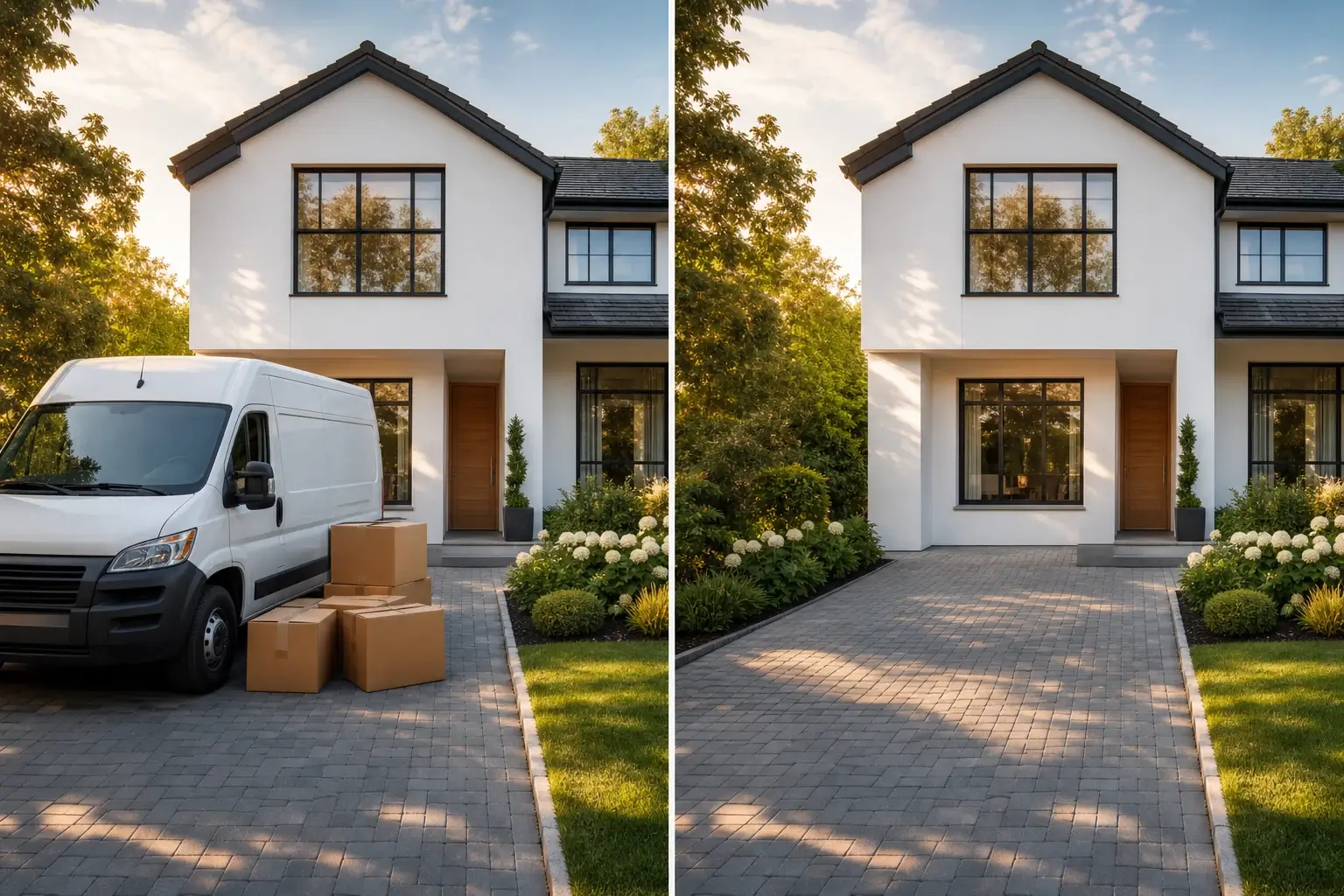
Use image inpainting to clean visual noise from finished photography while preserving depth, edges, and natural lighting.
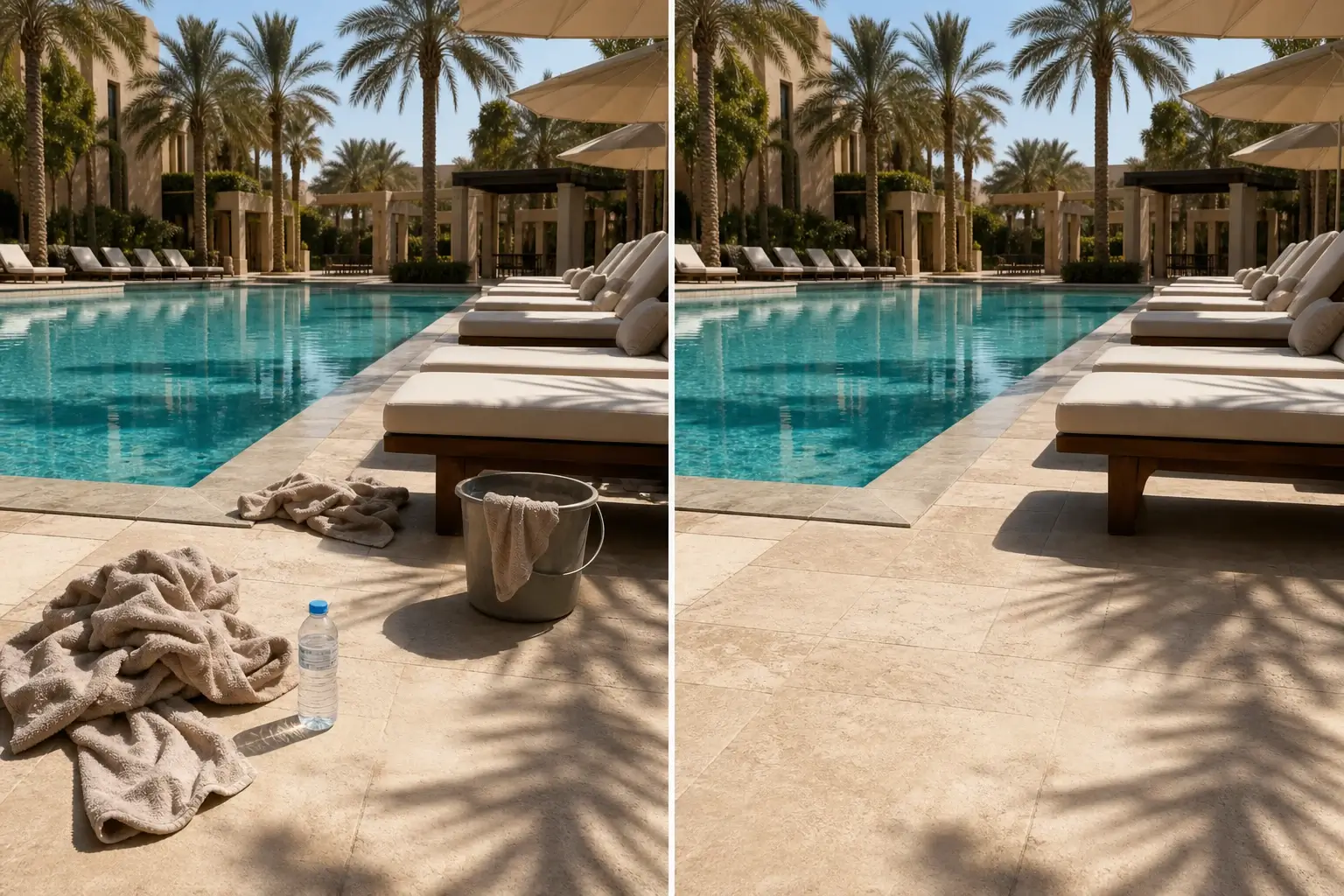
Remove object from photo assets such as small table items, street clutter, and foreground distractions before creating social variants. For a mark, text overlay, or emoji, choose the matching automatic removal mode.
Removing a distraction is useful only when the repaired scene still feels believable. Linocut AI keeps photo cleanup, masking, repair review, and follow-up edits close together.
Paint over props, passersby, reflections, cables, or visual clutter with Brush, Rectangle, or Lasso, then refine the selected area before processing.
Evaluate whether rebuilt texture, shadow, and edge detail match the surrounding image before using the result.
Move the cleaned scene into enhancement, crop sets, background edits, or campaign assets without restarting the workflow.

Yes. This AI object remover is built as a focused image cleanup flow: upload a source, mark the distracting object, preview the repaired scene, and keep it connected to the larger image workflow.
The object remover is positioned for practical photo cleanup on images you own or are allowed to edit, including props, people in the background, signage, dust, clutter, reflections, and product-scene distractions. Use the automatic modes for marks, text overlays, and emoji.
Yes, when you own the image or have permission to edit it. Choose the automatic Mark mode for a watermark, or use Objects mode to paint a precise area with Brush, Rectangle, or Lasso. Review the result before using it.
The object remover workflow is mask-first. Only the selected area should be rebuilt with image inpainting, while surrounding composition, edges, lighting, and texture stay stable.
Yes. Object remover output is treated as an image workflow node, so the photo cleanup result can continue into image enhancement, upscaling, background cleanup, copy generation, or export variants.
Use Brush for organic shapes, Rectangle for simple blocks, Lasso for larger irregular areas, and Eraser to refine the object remover mask before processing.
Yes. Product teams can use the object remover for product photo cleanup, including tags, props, cables, dust, reflections, and table clutter before listing or ad export.
Yes, when you have permission to edit the image. Mask the person carefully to remove object from photo areas while the tool rebuilds the background around the selection.
Yes. The object remover is designed to clean the selected object and repair nearby shadows, contact marks, and texture where possible.
The object remover accepts common image inputs in the workspace and exports a clean WebP result for continued editing or download.
Yes. The workspace shows the original source beside ai object remover result so you can inspect edges, texture, and repaired areas.
Yes. Send the cleaned image into image enhancer, image upscaler, background remover, inpainting, crop variants, or campaign export.
No. Upload an image, paint an object remover mask, run the cleanup, and review the repaired image before continuing.
Start with one direct task, then keep editing, generating, writing, and shipping from the same Linocut AI canvas.