case.01
Listing photos
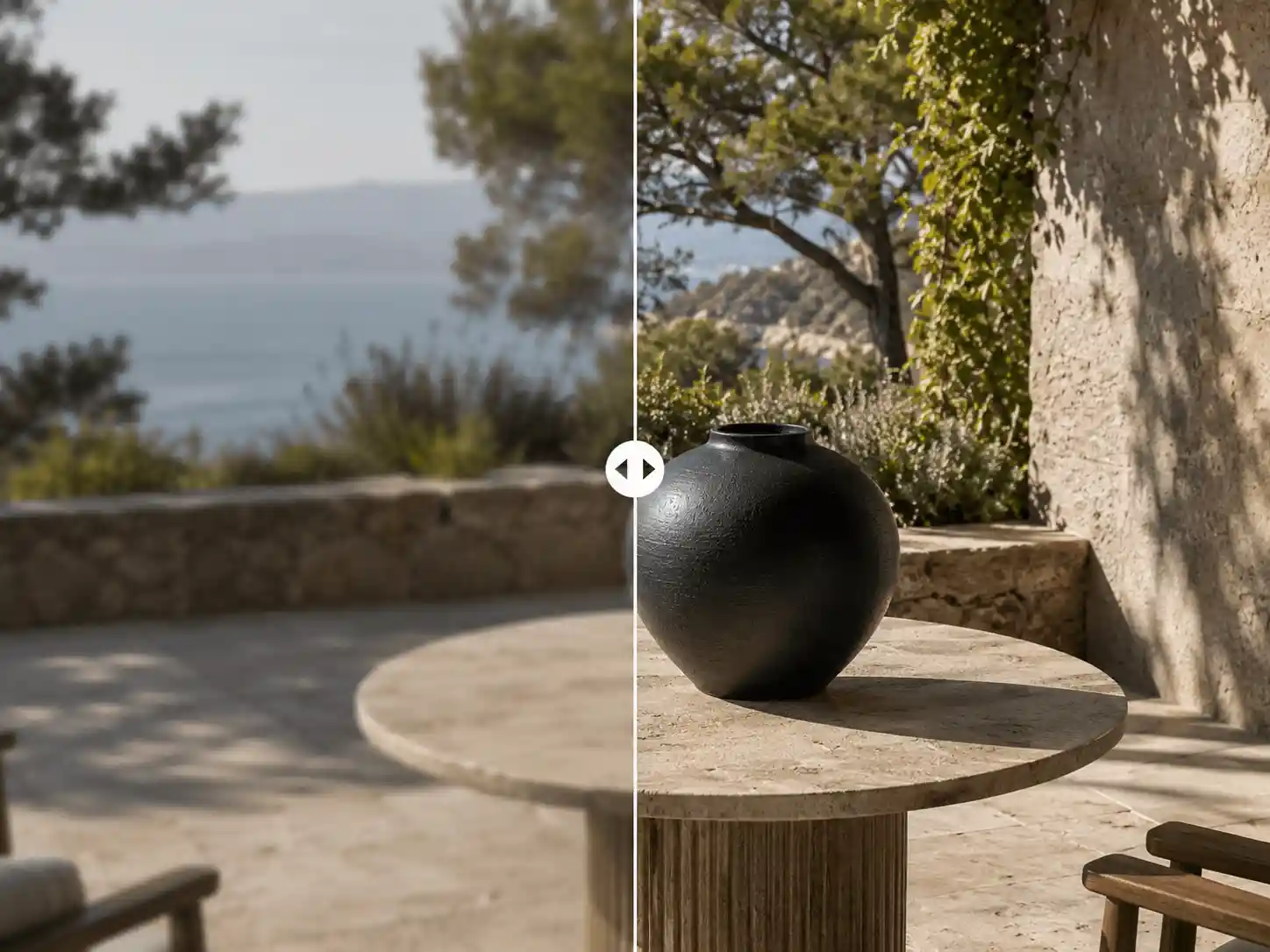
Use a prompt image editor to change a product detail, prop, or surface area without regenerating the entire listing image.
Configure inpainting: paint a mask, set brush size, describe the replacement, and choose WEBP, PNG, or JPG output.
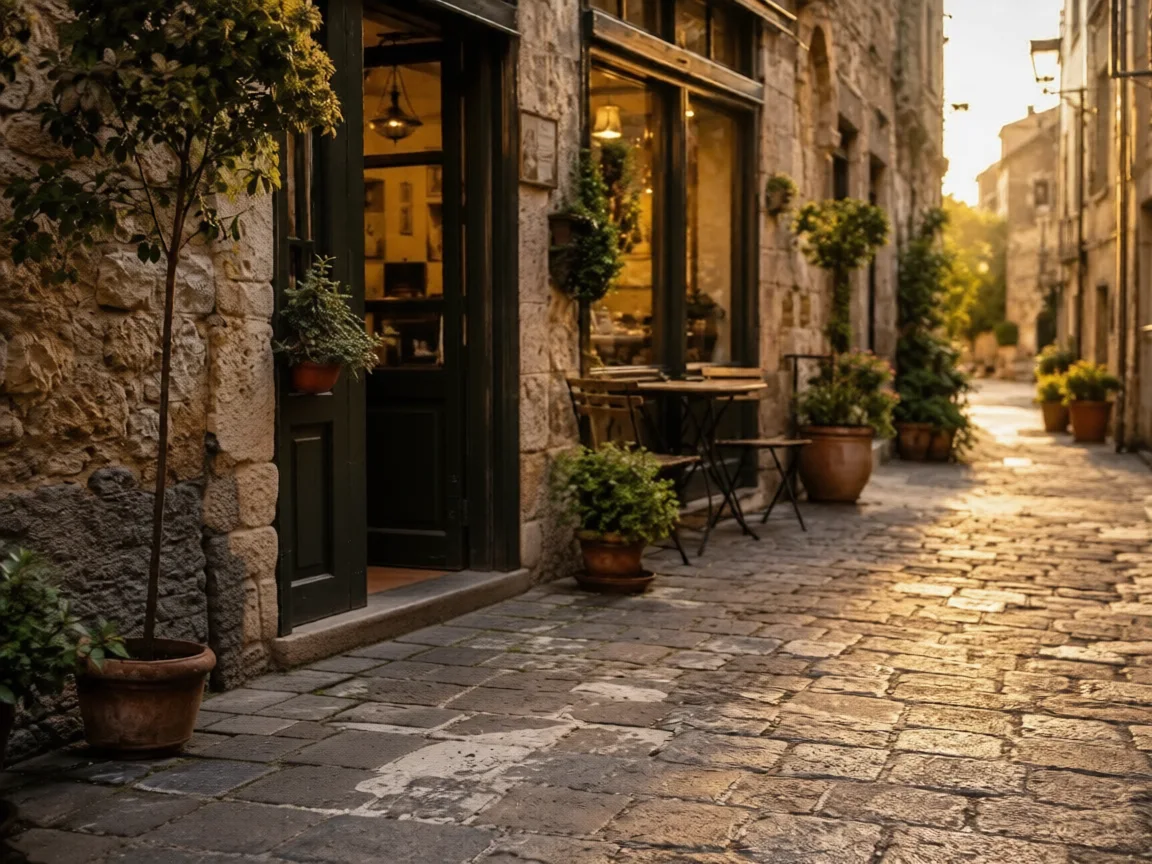
Redraw selected areas with a clear prompt, review the change in context, and keep the updated image connected to your workflow.
Upload an image and use the inpainting brush to mark the exact area for a local AI edit, such as an object, surface, outfit, or background patch.
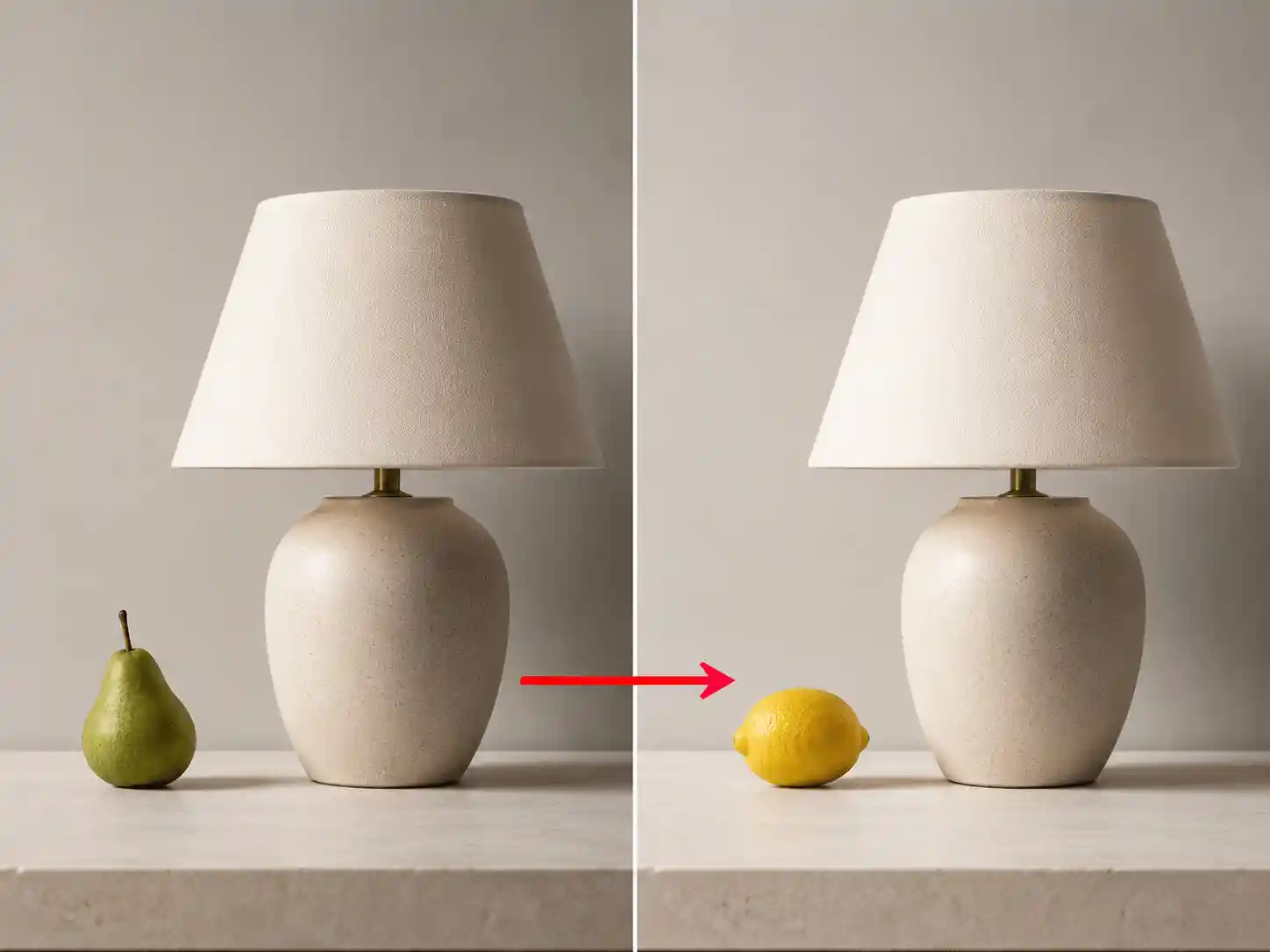
Write what should appear inside the selected area with prompt image editor language, such as replace the masked dog with a cat or change the shirt to denim.
AI fill uses the prompt and surrounding image context to regenerate the marked area while the unmasked image stays stable.
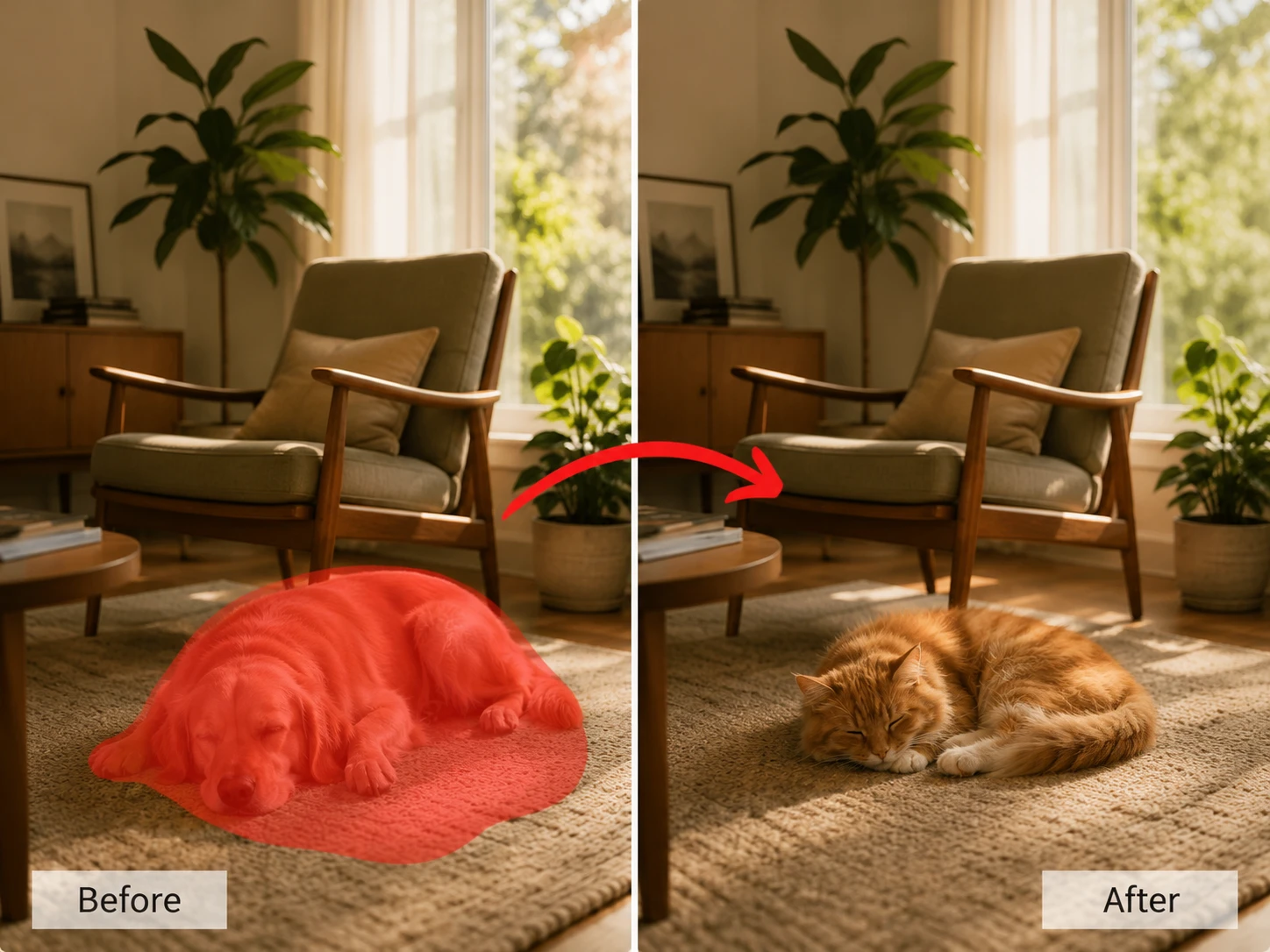
Add the image that contains a region you want to replace, redraw, or improve with masked photo repair.
Use AI image inpainting mask mode and brush size controls to select the exact area while keeping the rest of the image locked.
Describe the new detail, choose the output format, run the AI fill pass, and review the local edit.

Replace a selected area while preserving the surrounding composition, texture, and lighting.
Inpaint imageStart AI image inpainting from a product photo, portrait, concept image, or creator asset that needs one selected region changed.
Turn on mask mode, adjust brush size, paint the target area, and clear the mask when the local AI edit selection needs another pass.
Tell the prompt image editor what should appear inside the mask, from object replacement to texture repair or detail changes.
Generate only the masked region, export WEBP, PNG, or JPG, and keep the AI fill result ready for enhancement or upscaling.
Use AI image inpainting to brush one region, describe the replacement, and generate a local AI edit without rebuilding the whole image.
Use a prompt image editor to change a product detail, prop, or surface area without regenerating the entire listing image.
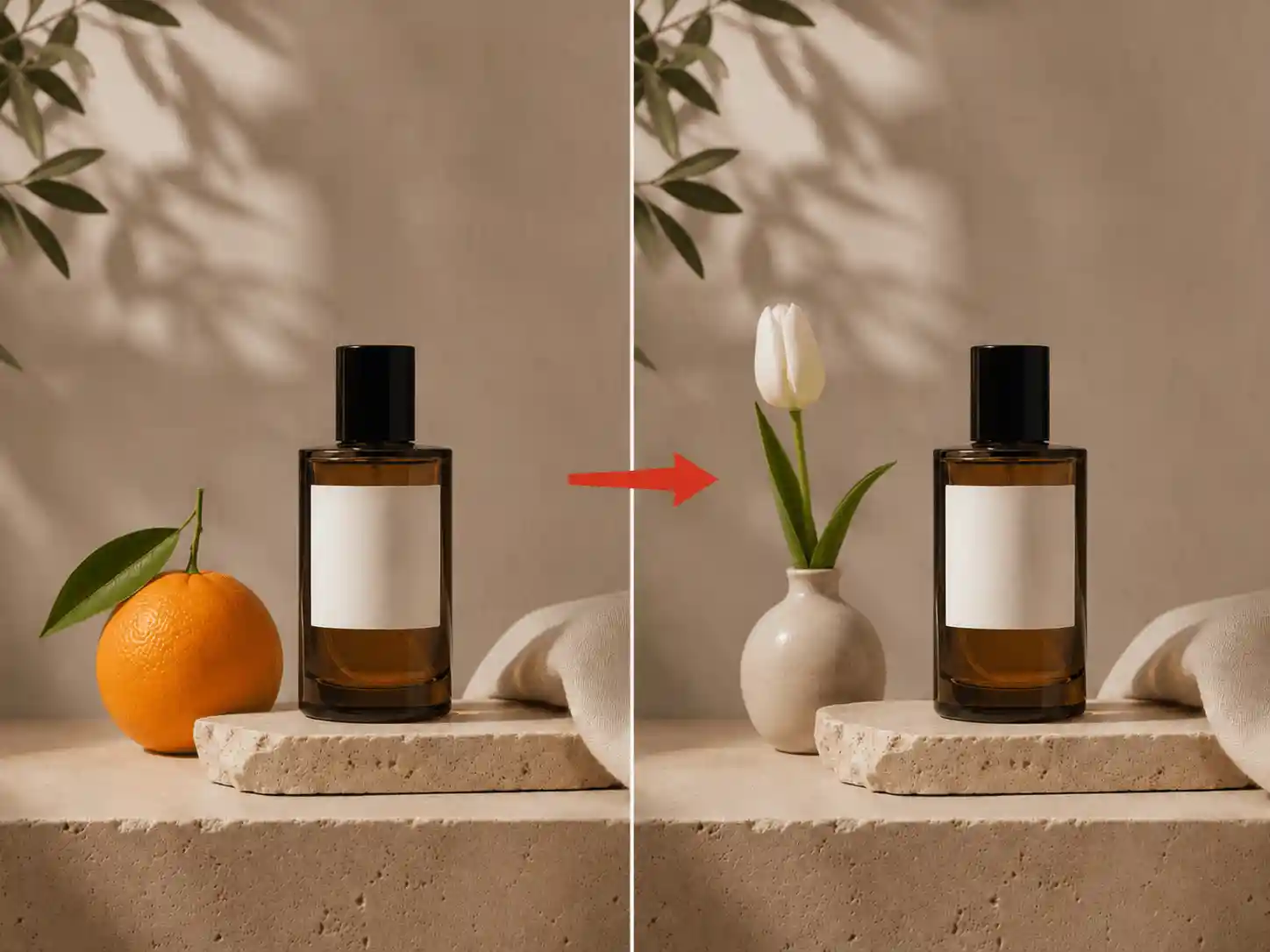
Use AI fill for targeted campaign variations while keeping the wider composition stable for faster creative tests.
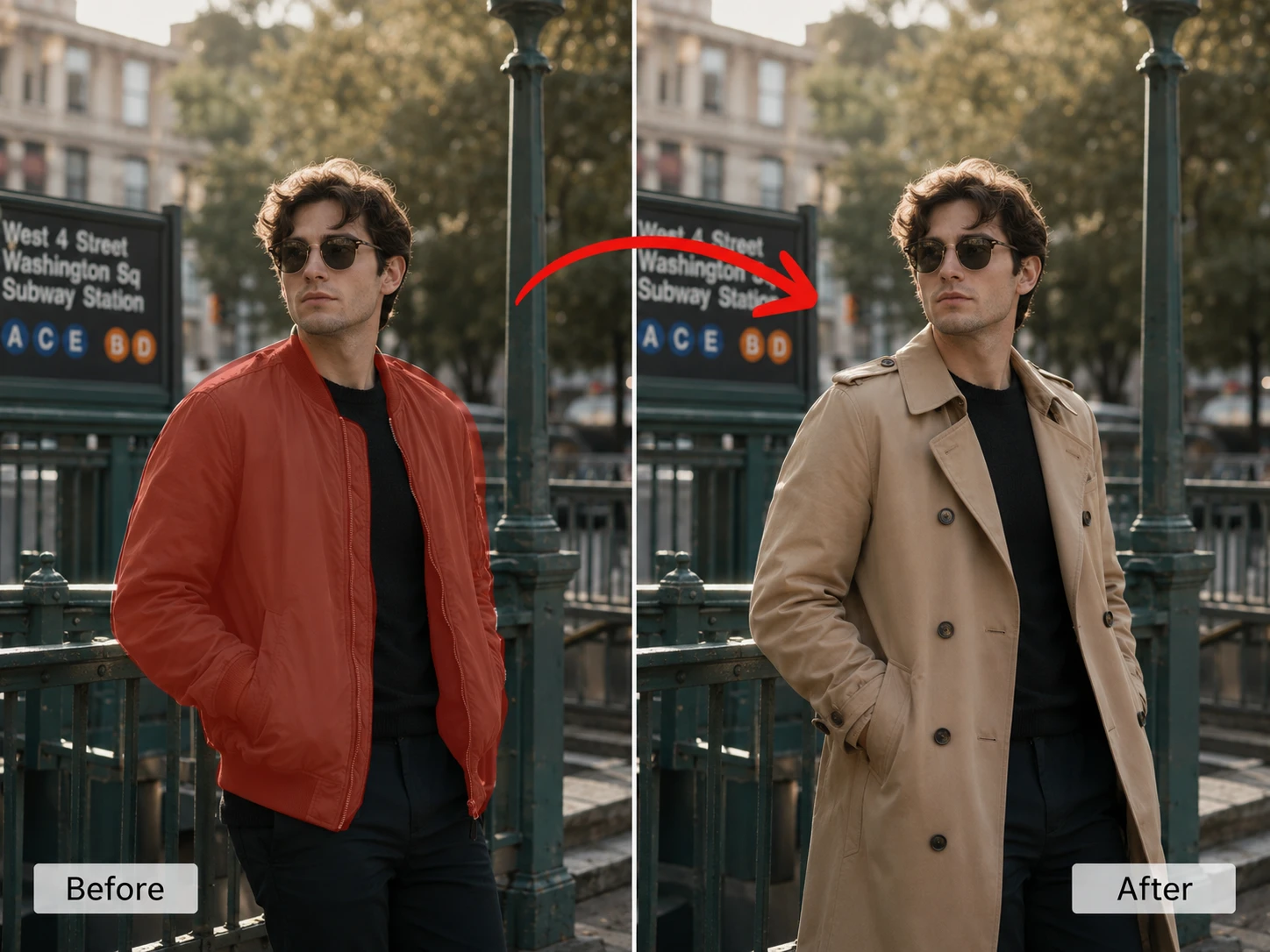
Apply masked photo repair to a selected object, outfit, or background patch inside presentation imagery without rebuilding the scene.
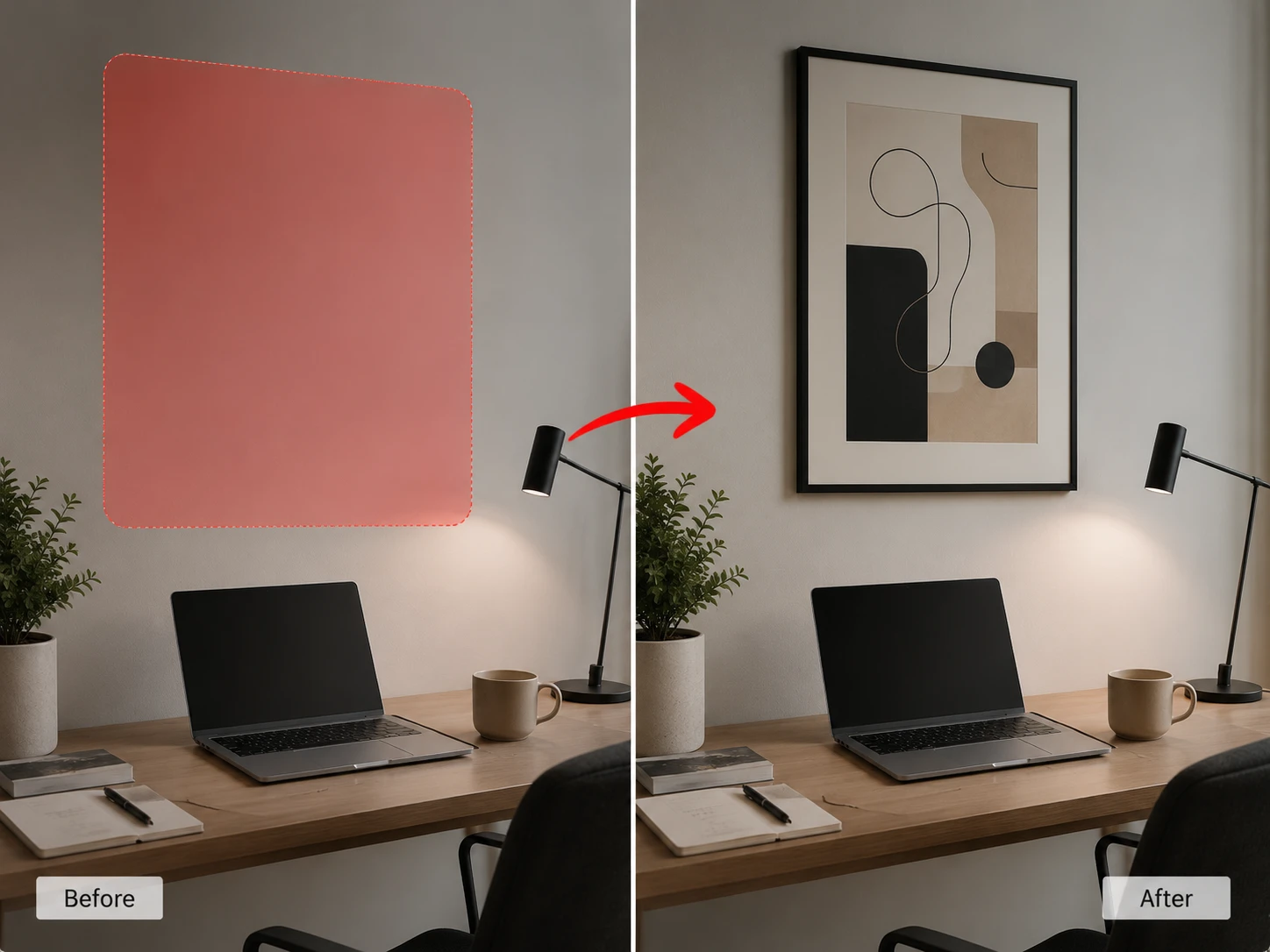
Inpaint image details for faster social variants, adding or replacing small elements while preserving the original frame.
The value of masked photo repair is changing one selected region without losing the rest of the image. Linocut AI keeps the mask, prompt, and review state visible together.
Preserve the unmasked image while an inpaint image pass replaces a product detail, outfit, prop, surface, or background patch.
Describe the new element with enough prompt image editor context to match lighting, material, scale, and surrounding texture.
Use the local AI edit as a stronger source for enhancement, AI filter variations, upscaling, or final export.

Yes. Mask the object you want to change, then describe the replacement in the prompt, such as replacing a dog with a cat. AI fill redraws the selected area from that instruction.
Upload an image, mark the area that should change, enter a prompt for what should appear there, and inpaint image content where only the marked region is rewritten.
The intended workflow is local. The prompt controls the masked region, while the unmasked part of the image should remain stable aside from natural edge blending.
Use the brush control in the right panel, adjust brush size, and paint only the region that needs masked photo repair. Clear the mask if the selection is too broad.
Describe the replacement clearly, including object, material, color, style, and lighting cues. Short prompts work when the prompt image editor can read enough surrounding context.
Yes. Masked photo repair can rebuild a selected patch, cover a gap, repair a surface, or fill missing detail when the mask and prompt describe the intended result.
The interface supports WEBP, PNG, and JPG output settings, so the local AI edit result can fit web previews, transparent workflows, or flattened delivery files.
Yes. Mask the background area, describe the new texture or scene detail, and keep the subject unmasked so the inpaint image change stays controlled.
Use a mask that covers the full area you want changed plus a small edge margin. Very tiny masks can limit blend quality, while overly large masks may change more content.
Yes. The inpainted result can continue into image enhancement, upscaling, background removal, AI filter variations, or export variants inside the image workflow.
Start with one direct task, then keep editing, generating, writing, and shipping from the same Linocut AI canvas.