case.01
Product and space concepts
Use an AI image filter to test a new treatment for an interior, exterior, or product scene while keeping its layout, perspective, and subject relationships clear for review.
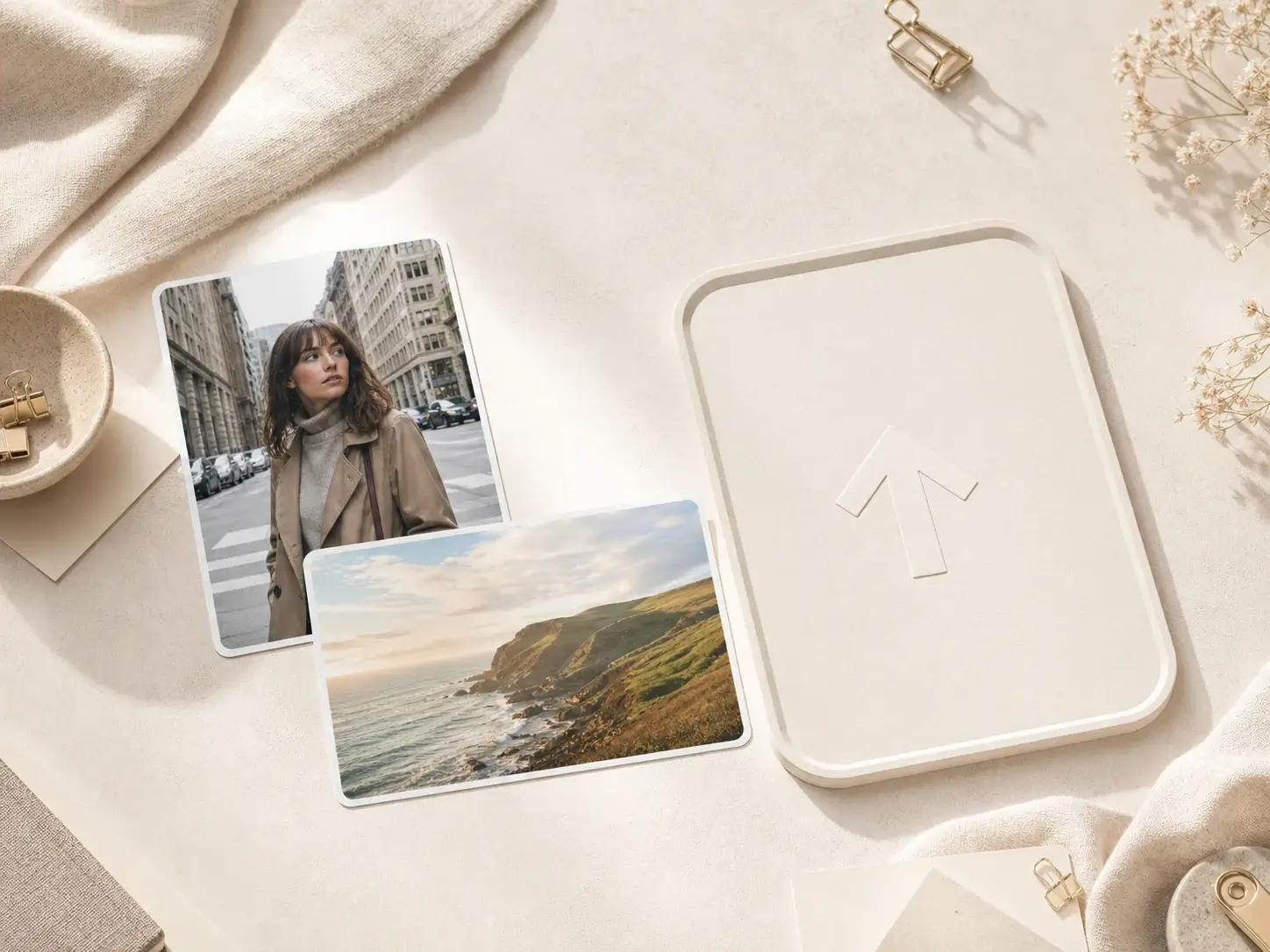
Upload one image, choose a preset or reference look, and create a polished new version without rebuilding the original shot.

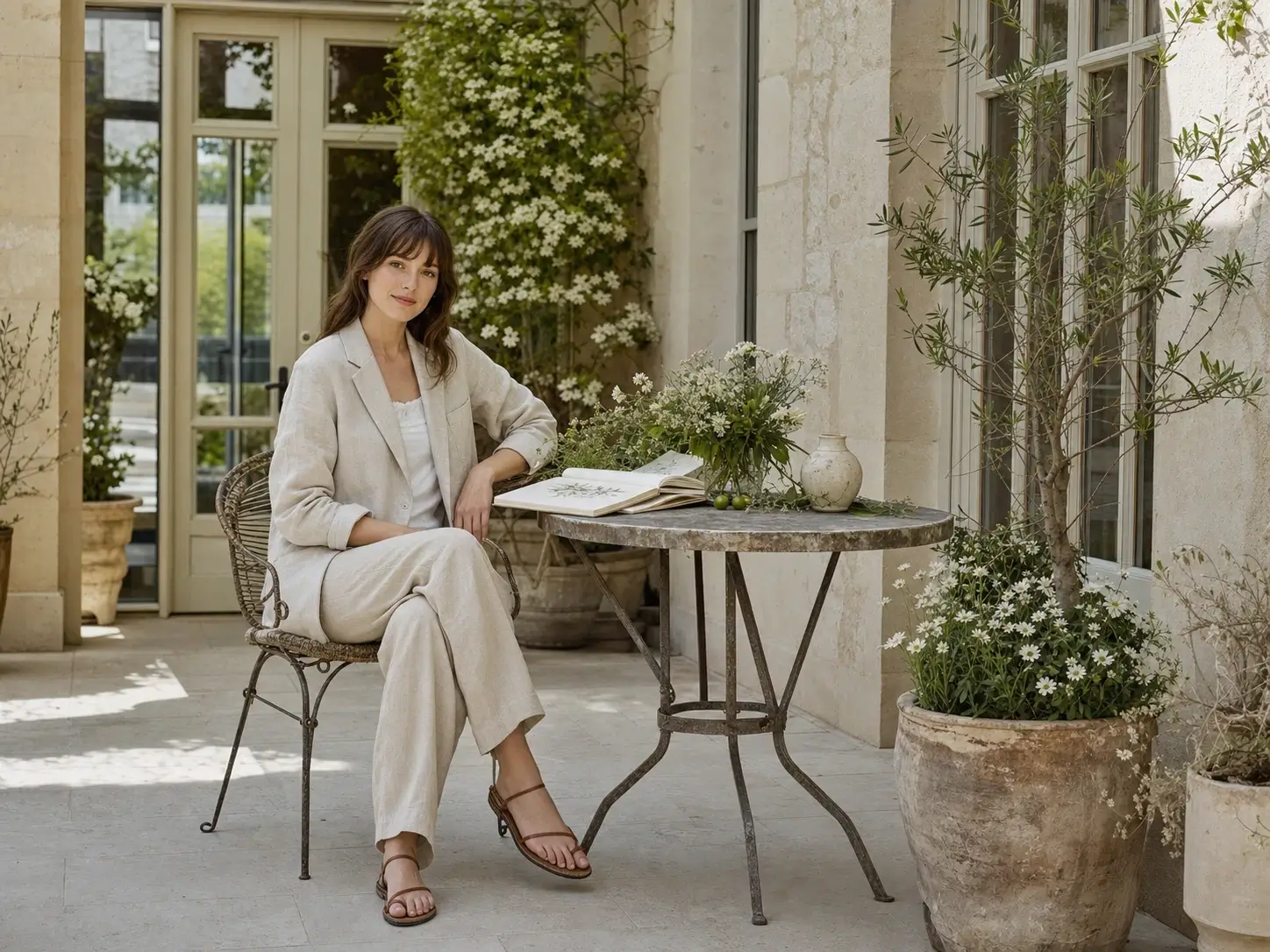
Use AI filters to reshape color, mood, and visual style, then continue refining the result in the same creative workspace.
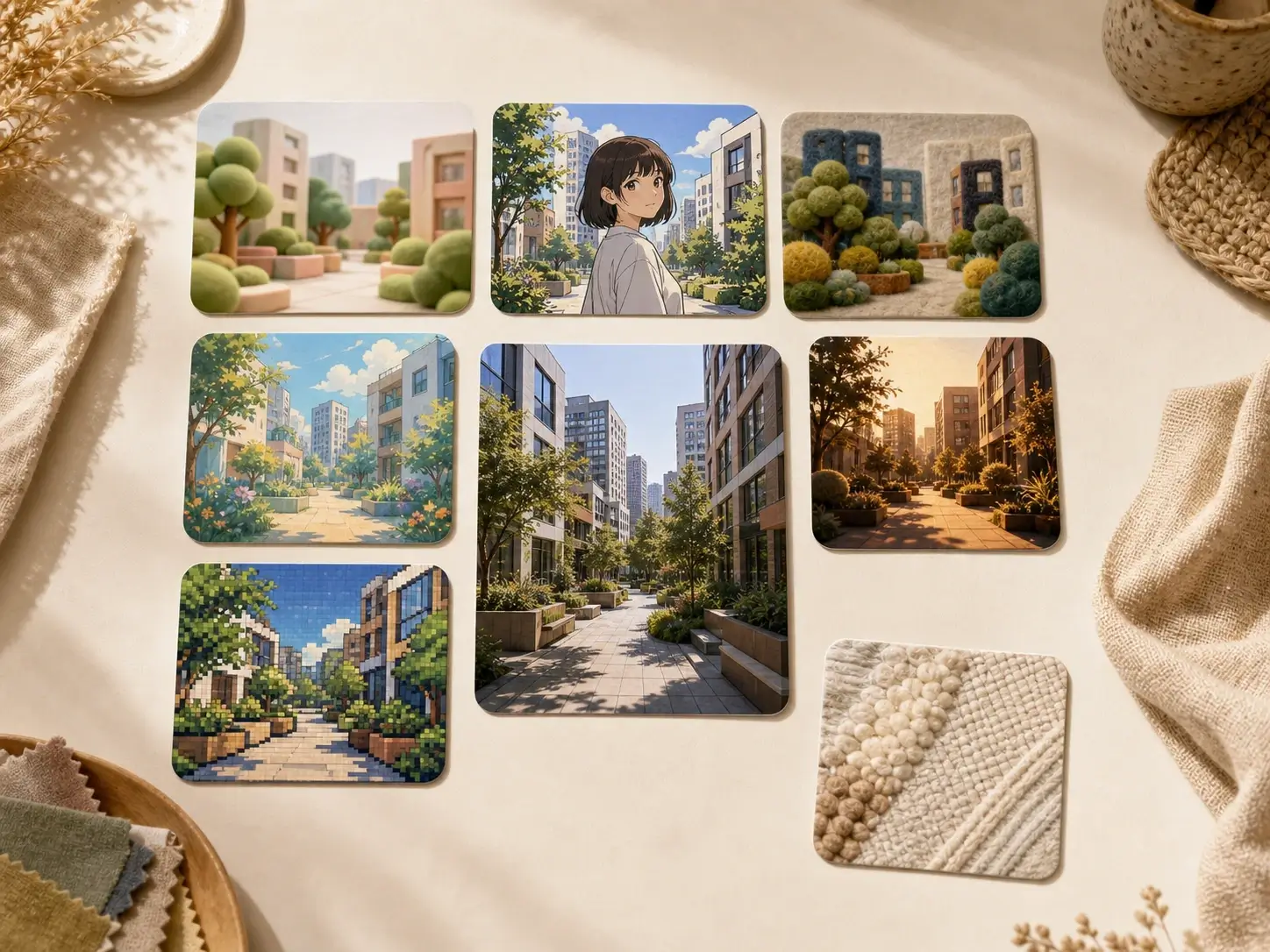
Pick a preset to compare cartoon, sketch, anime, clay 3D, cinematic, pixel, watercolor, and felt-inspired treatments from the same source image. A free AI filter makes it practical to review several directions before choosing one.
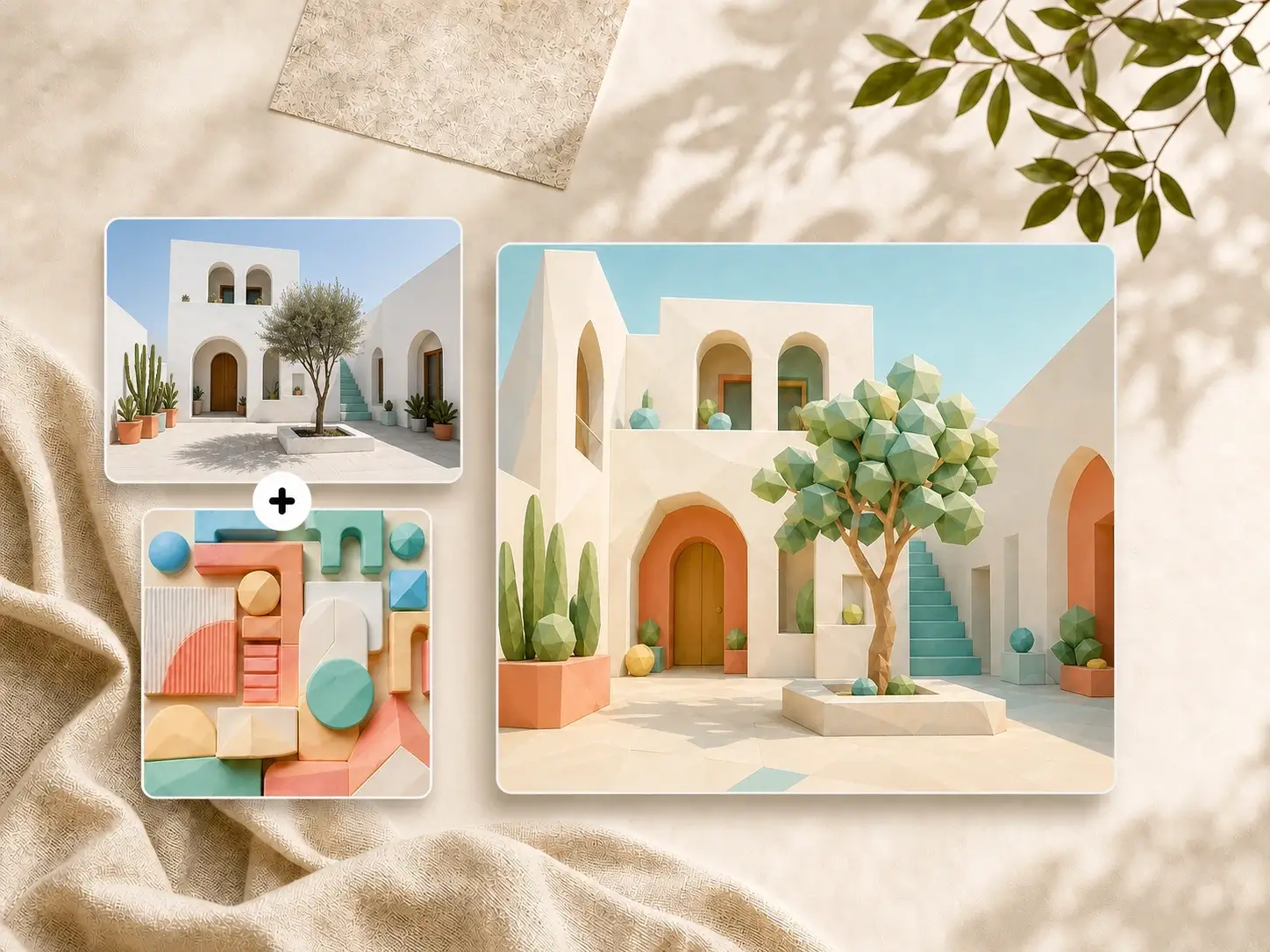
Upload a reference image when presets feel too broad and you need the result to follow a particular palette, texture, medium, or lighting mood.
Create free online variations, download the file, then enhance, edit, or make more options for a campaign review.
 01
01Add the photo or graphic you want to keep as the base. This AI filter for photos applies a new look while preserving the subject, crop, layout, and overall visual structure.
 02
02Select a treatment such as cartoon, sketch, anime, 3D, or cinematic. Upload a reference image when the result needs to follow an existing visual language.
 03
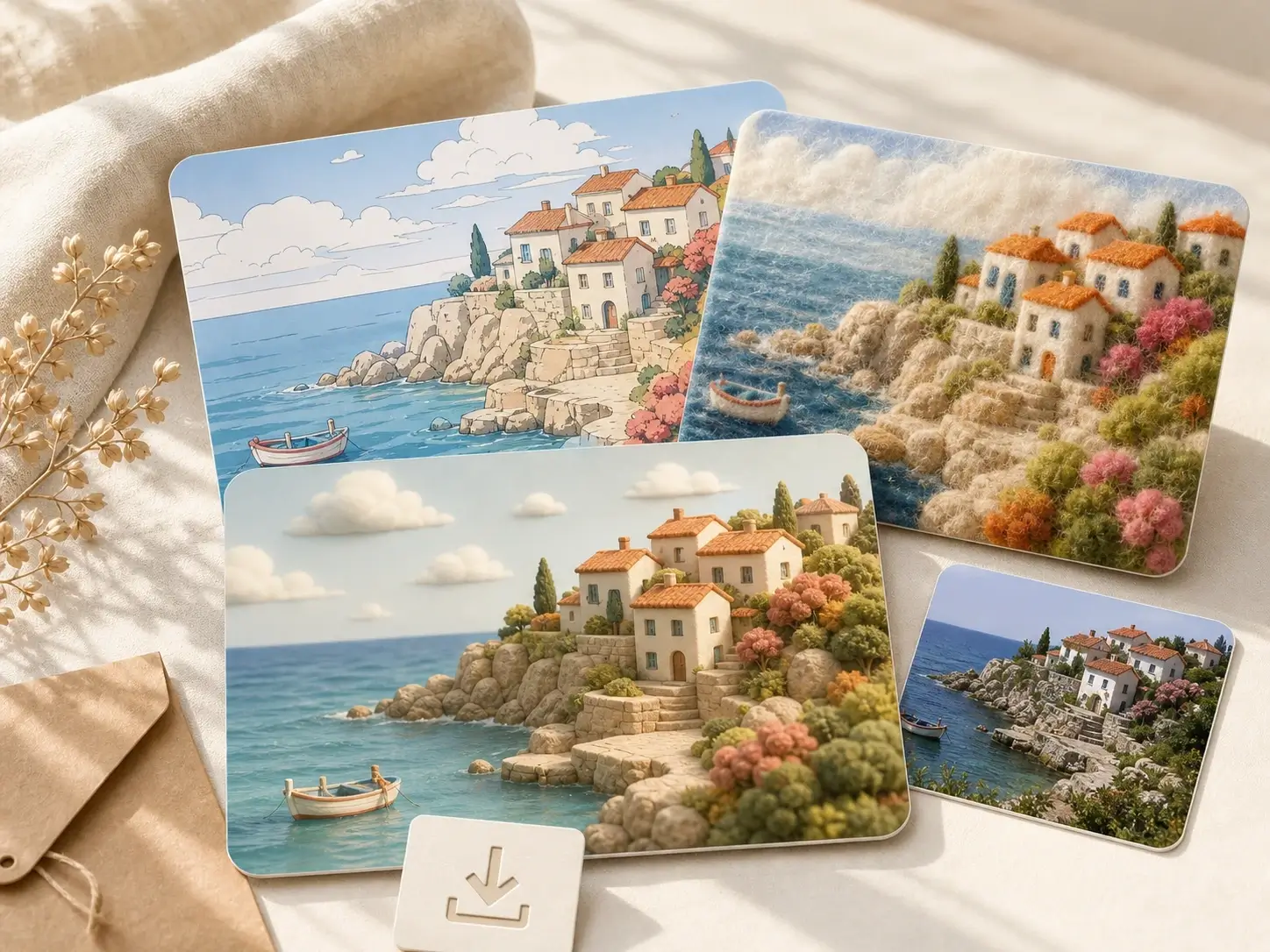
03Generate a result, compare it with the source, download the file, or continue into enhancement and editing when the image needs more work.

Apply a cohesive visual direction while keeping the composition, subject, and core image readable.
Apply AI filter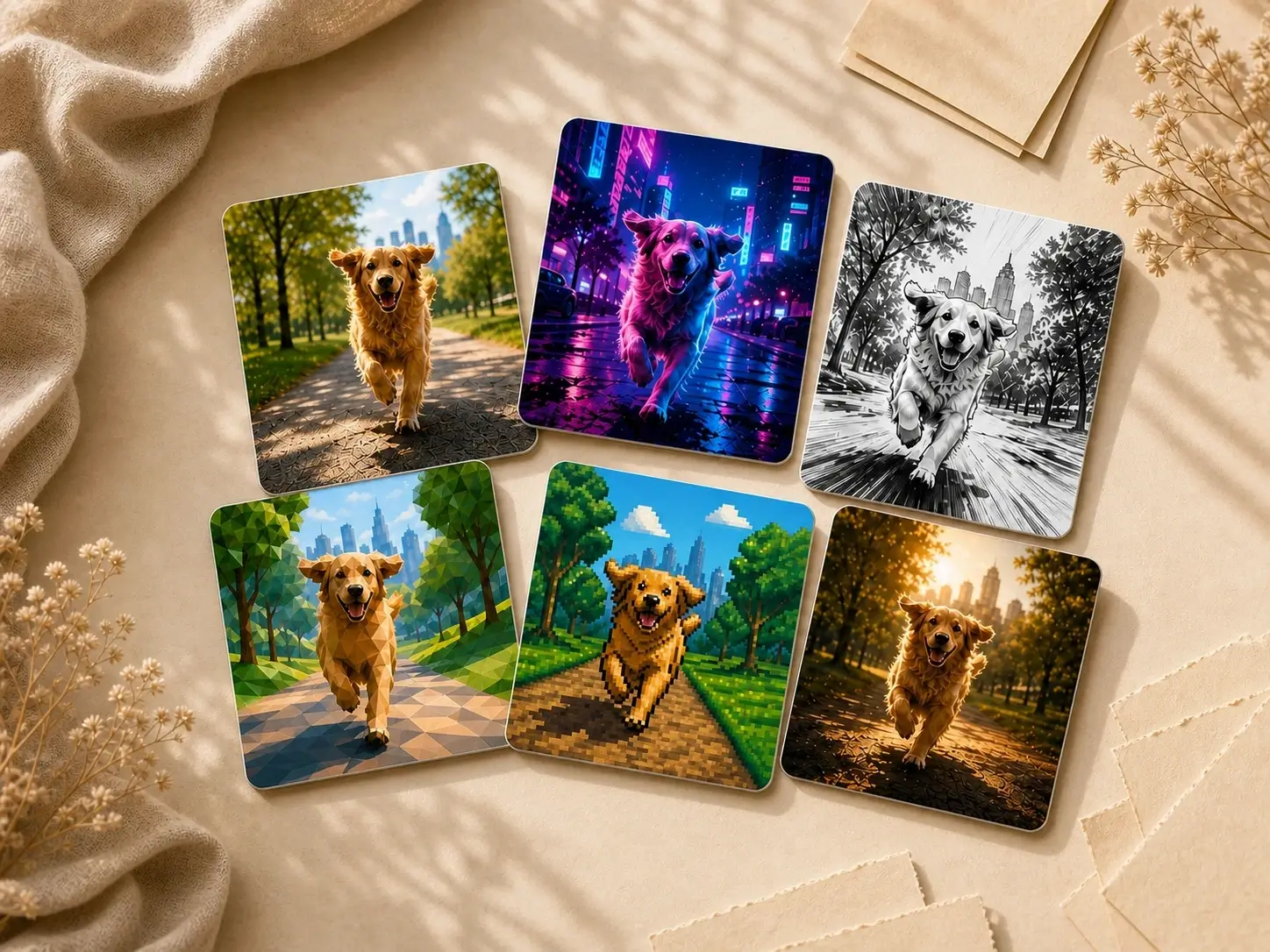
Explore photo to cartoon, photo to sketch, anime, 3D, cinematic, watercolor, pixel, and editorial looks from one source image without writing a new prompt each time.
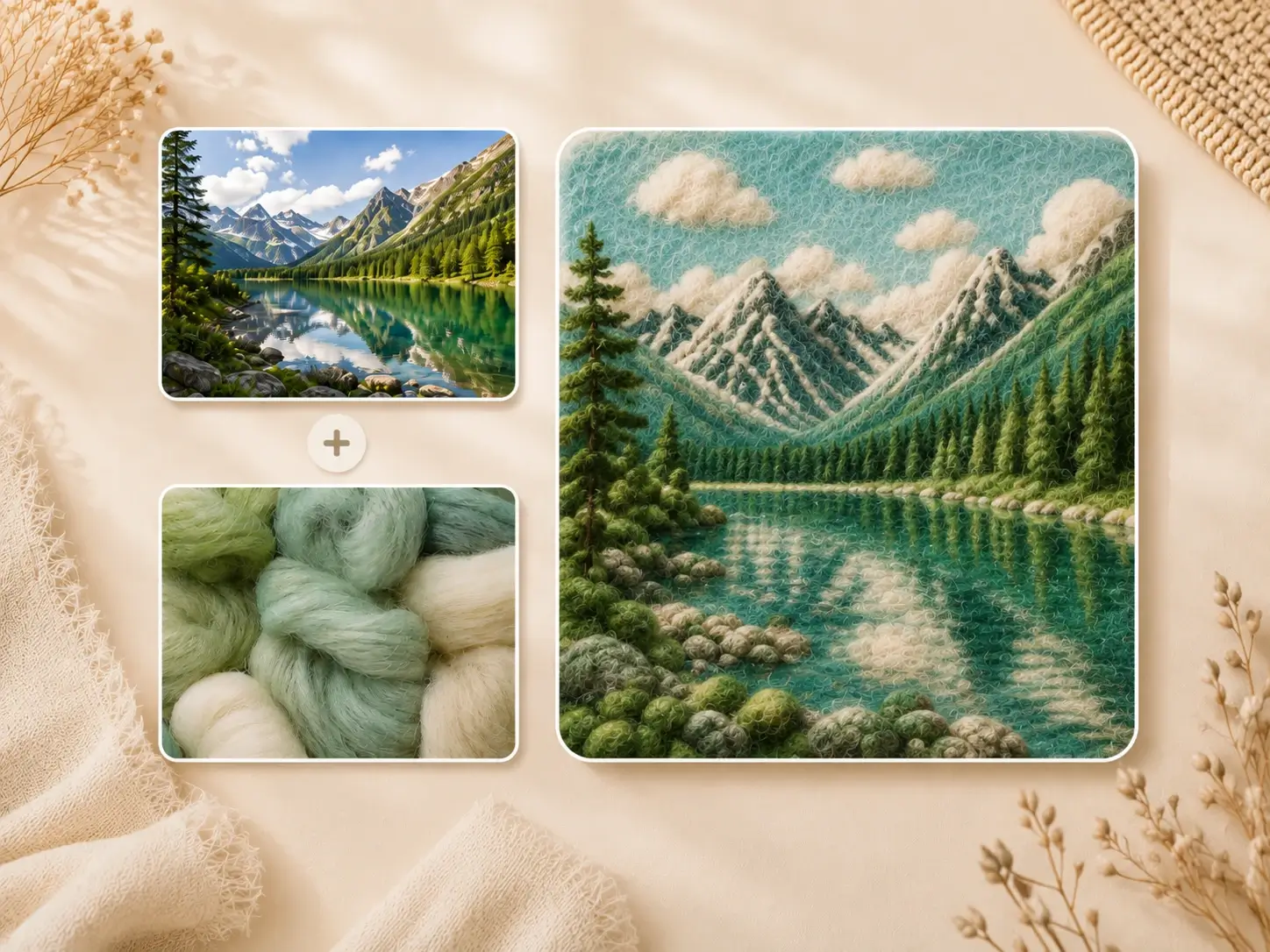
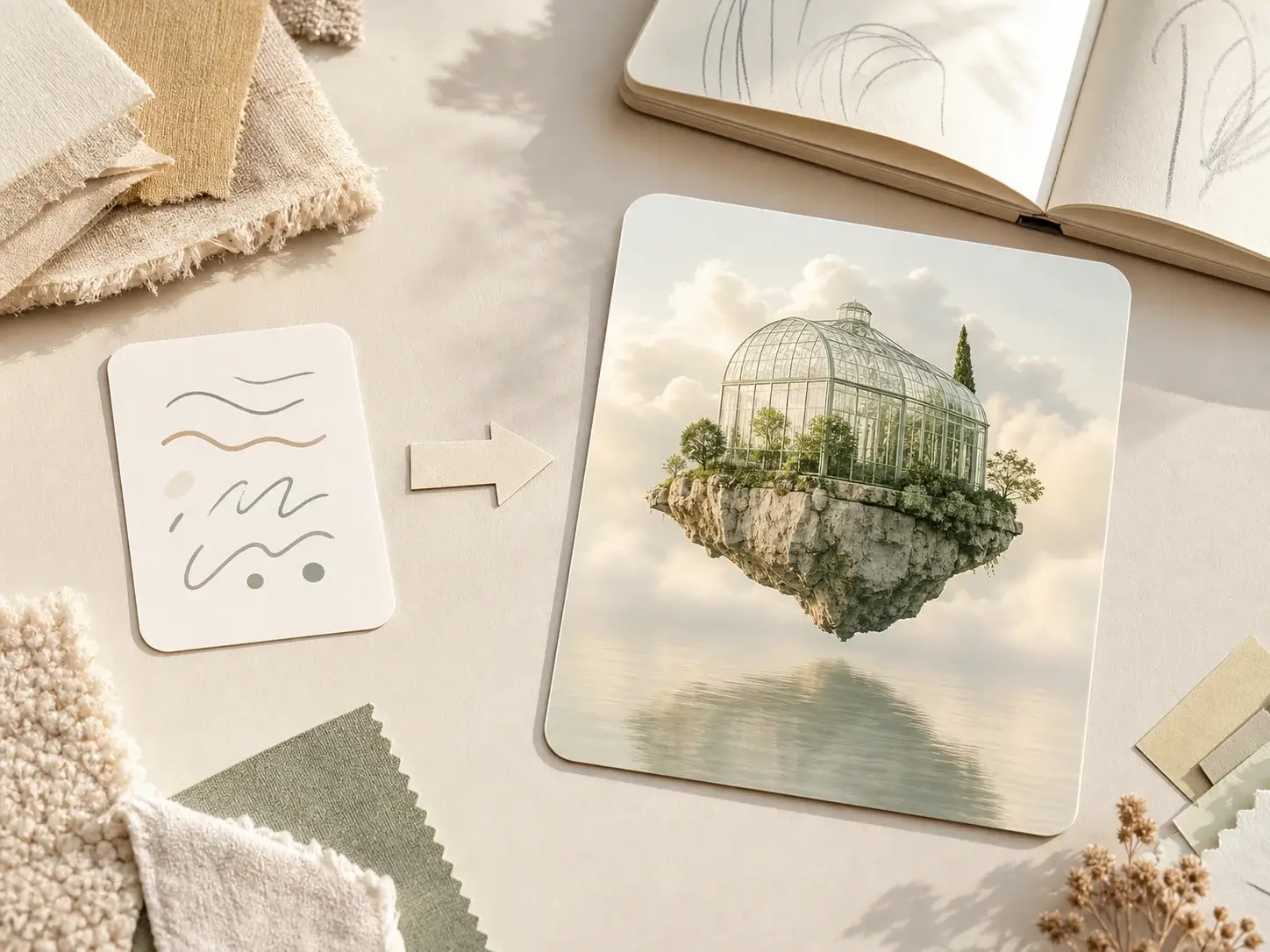
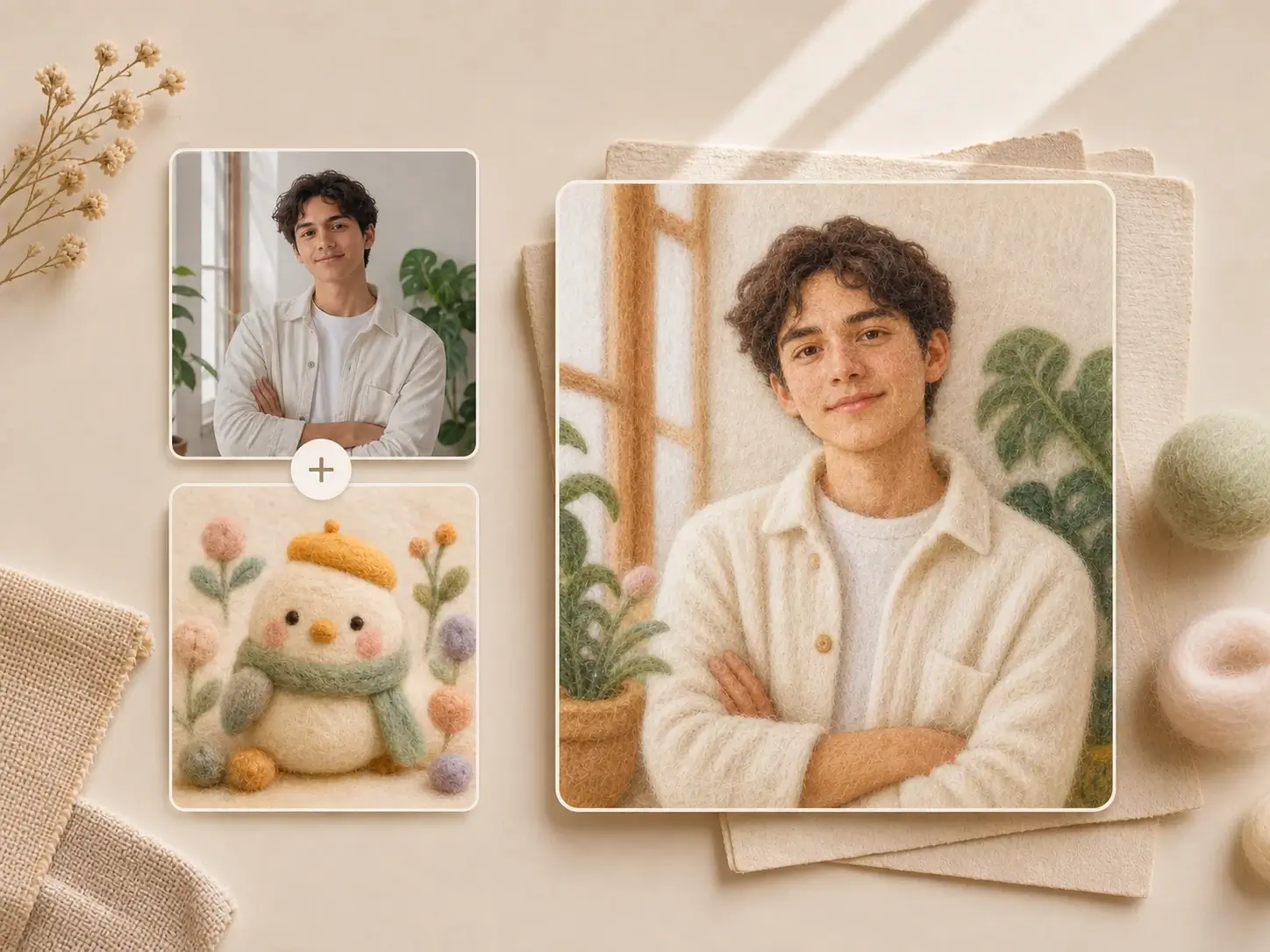
Use AI image style transfer to bring color, texture, medium, and lighting from a reference into a source image. The reference guides the whole output rather than sitting on top as an overlay.
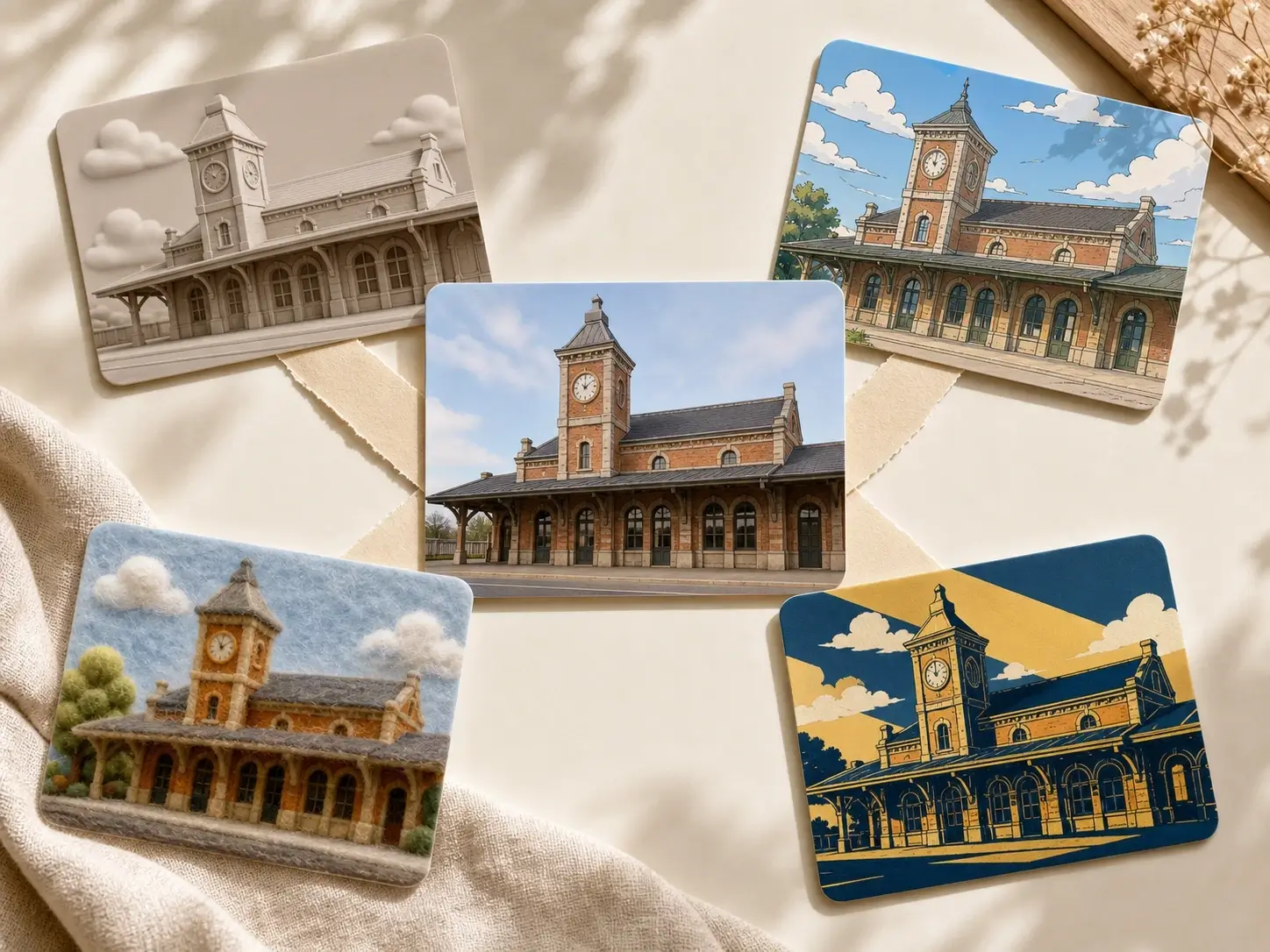
Use an AI image filter to test campaign directions while keeping the subject clear enough for reviews, ads, decks, and posts.
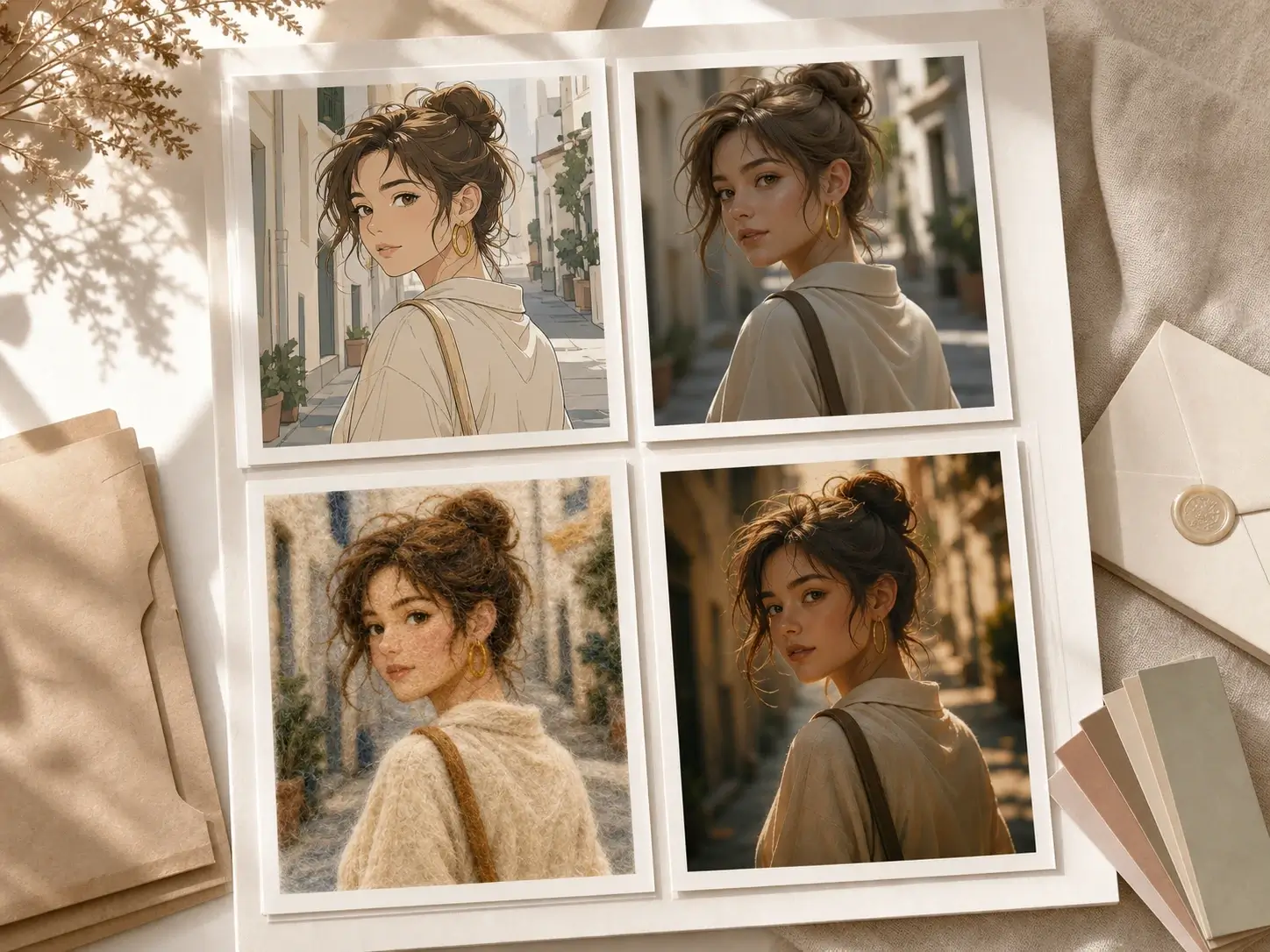
Create free options with an AI filter for campaign mockups, creator thumbnails, portfolio boards, ecommerce refreshes, and presentation visuals without committing to a final edit too early.
Change image style online for portraits, product shots, landscapes, and campaign drafts while keeping the composition you already want to use.
Use an AI image filter to test a new treatment for an interior, exterior, or product scene while keeping its layout, perspective, and subject relationships clear for review.
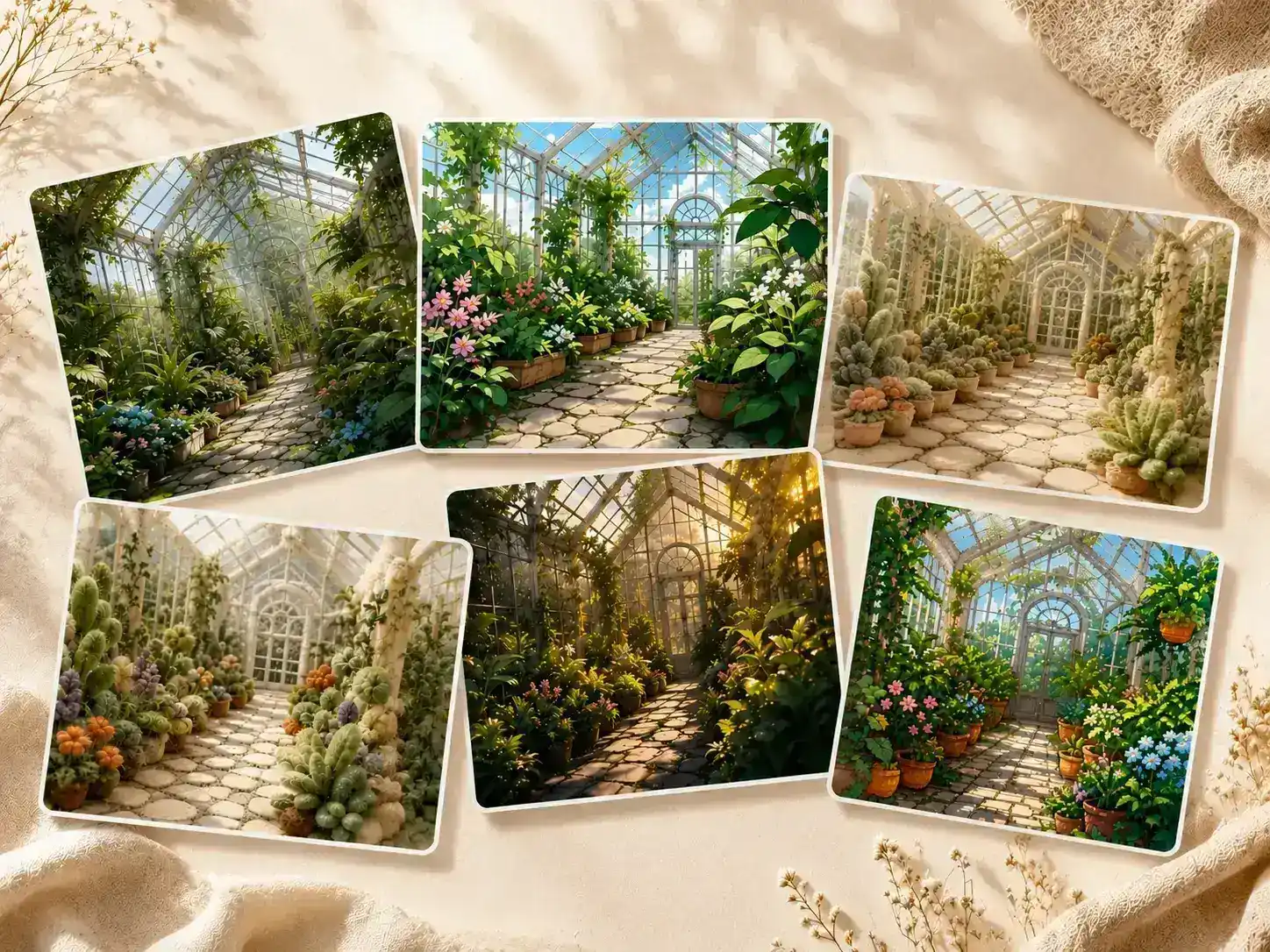
Upload a reference image to guide palette, texture, medium, and light across the source. It shapes the overall look instead of placing a reference object into one area.
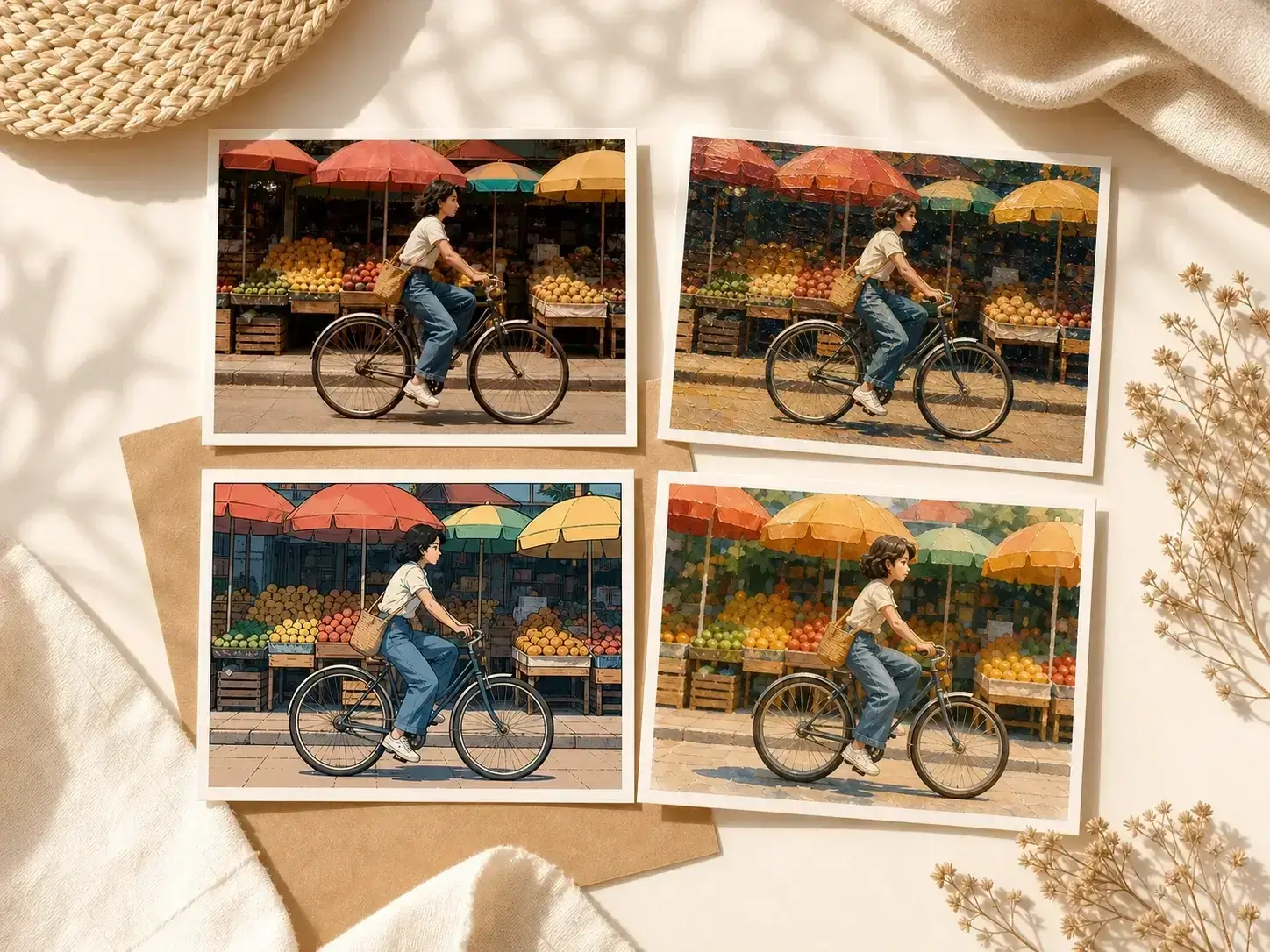
Turn one source image into a cartoon, sketch, anime, soft 3D, or cinematic treatment, then choose the strongest route for a post, pitch, or campaign.
Use an AI photo filter to refresh reusable portraits, travel shots, thumbnails, profile experiments, and seasonal posts without planning another shoot.
LinoCut is a free, online AI filter for photos that gives images a new direction while retaining the structure products, portraits, graphics, and branded assets need.
Built-in AI photo filters help you test creator posts, product moodboards, campaign mockups, and profile refreshes before you spend time on a custom reference.
Bring a reference image when you want to carry paper grain, editorial lighting, botanical texture, or sculpted clay material into the result.
Compare the source and result, export JPG, PNG, or WebP, then enhance, upscale, or edit the image for the next stage of your workflow.

It analyzes a photo and creates a new visual treatment while keeping the source subject and composition usable. Choose a preset or add a reference image to guide palette, texture, light, medium, and mood.
Yes. It reads the source image, applies the selected preset or reference direction, and returns a new version for review and download.
Upload a source image, choose a preset or switch to reference mode, then generate and download the result. Reference mode works best when you need it to follow a specific look rather than a broad preset.
Yes. Reference mode lets you upload a style image so the result can follow its palette, surface texture, medium, lighting, and mood. It guides the image as a whole; it does not copy a reference object into a chosen position.
Yes. Presets are useful when you want quick options such as cartoon, sketch, anime, clay 3D, wool felt, cinematic, pixel art, watercolor, or painterly looks.
Yes. Choose a cartoon, sketch, anime, or similar preset to restyle a photo while keeping its original subject and composition readable.
No. Pick a preset, review the generated look, and download the image. Start with presets, then move into reference mode when a campaign needs a more specific result.
They overlap. The tool gives a photo a new look, while AI style transfer describes the process of carrying color, texture, lighting, and medium cues into a source image.
It changes the visual treatment of a source image. Use presets for quick exploration or add a reference image when you need a more defined direction.
The workflow is designed to keep the source structure readable, but the result depends on the source image and selected look. Strong painterly or abstract references can change details more than subtle editorial references.
Yes. Create new treatments for thumbnails, profile images, creator posts, campaign tests, and seasonal visuals. Clear portraits and product photos usually produce the strongest results.
Yes. Use a free AI filter to create options for posts, thumbnails, launch concepts, campaign tests, and presentation visuals before you commit to a final edit.
Yes. Teams can test campaign moods, product listing refreshes, packaging concepts, and ad concepts without arranging a new shoot for every visual idea.
Yes. Give campaign assets a new visual direction, then use enhancement or photo editing for final cleanup before sharing with a client, team, or channel owner.
The workspace accepts common image formats such as JPG, PNG, and WebP. Output controls let you download a result as JPG, PNG, or WebP for your workflow.
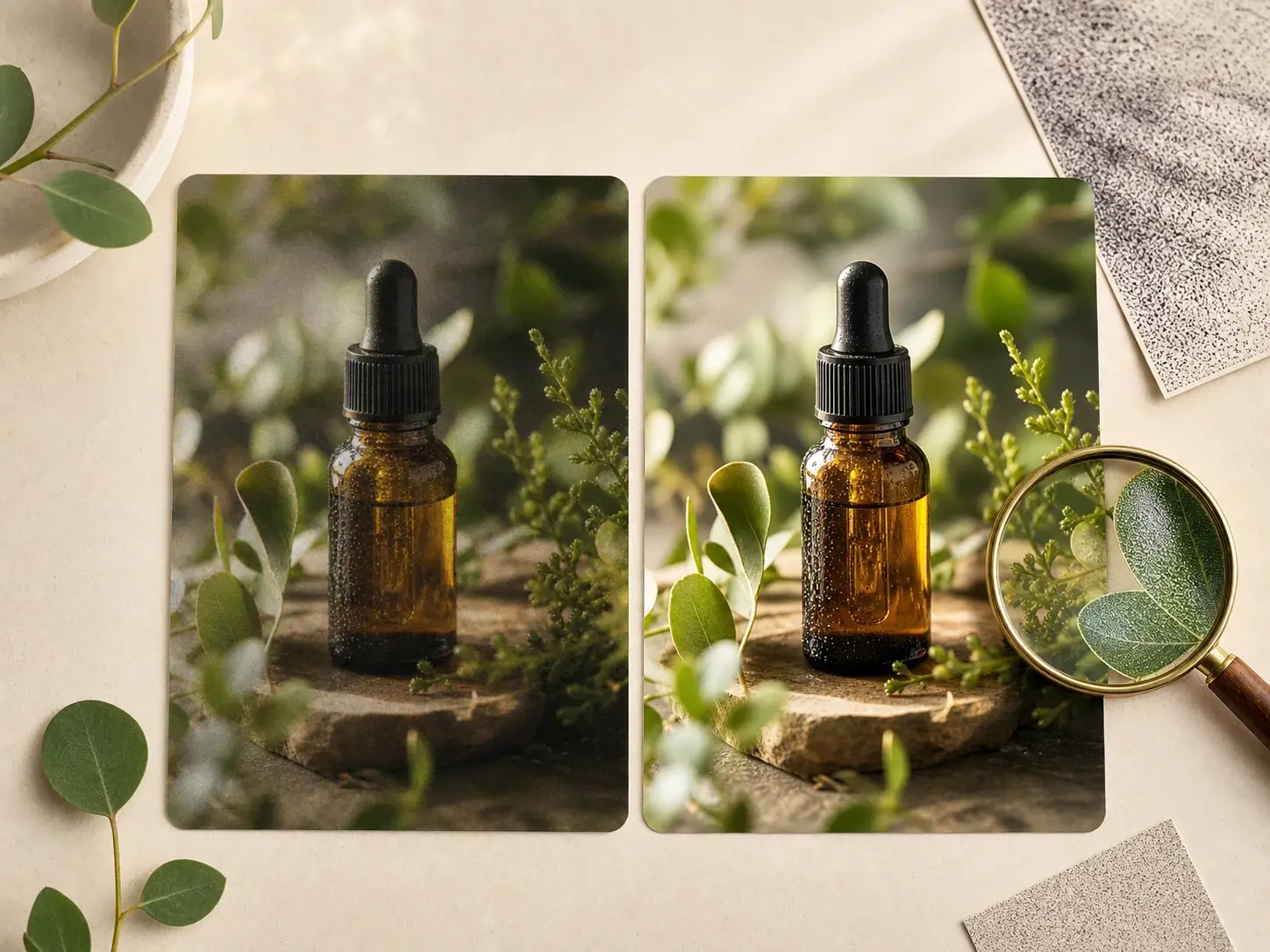
This tool changes creative direction. An image enhancer improves clarity, light, and detail while usually keeping the original look much closer to the source.
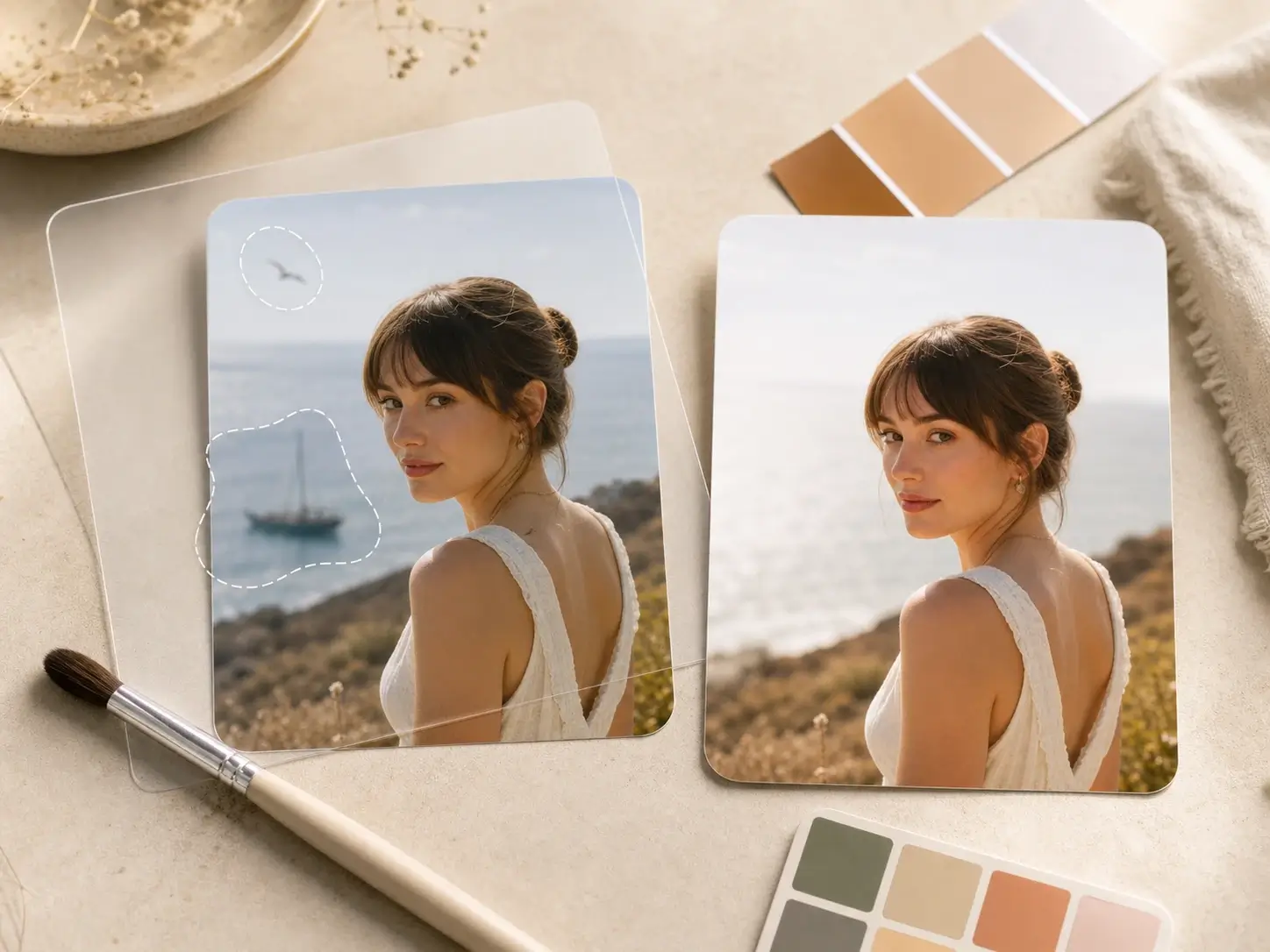
Yes. After generating a result, continue into photo editing, image enhancement, upscaling, inpainting, or prompt-based cleanup when the output needs further work.
Start with one direct task, then keep editing, generating, writing, and shipping from the same Linocut AI canvas.