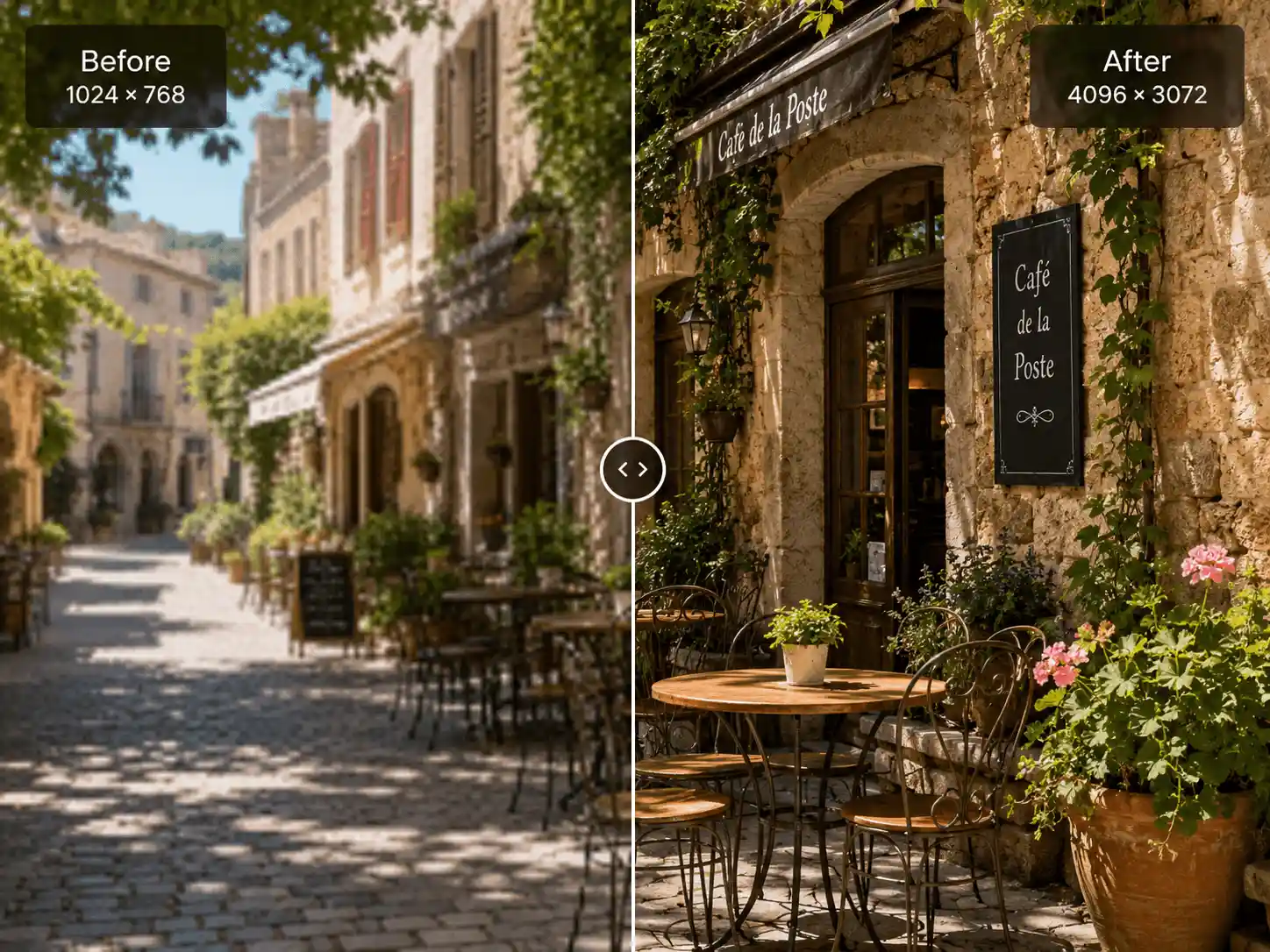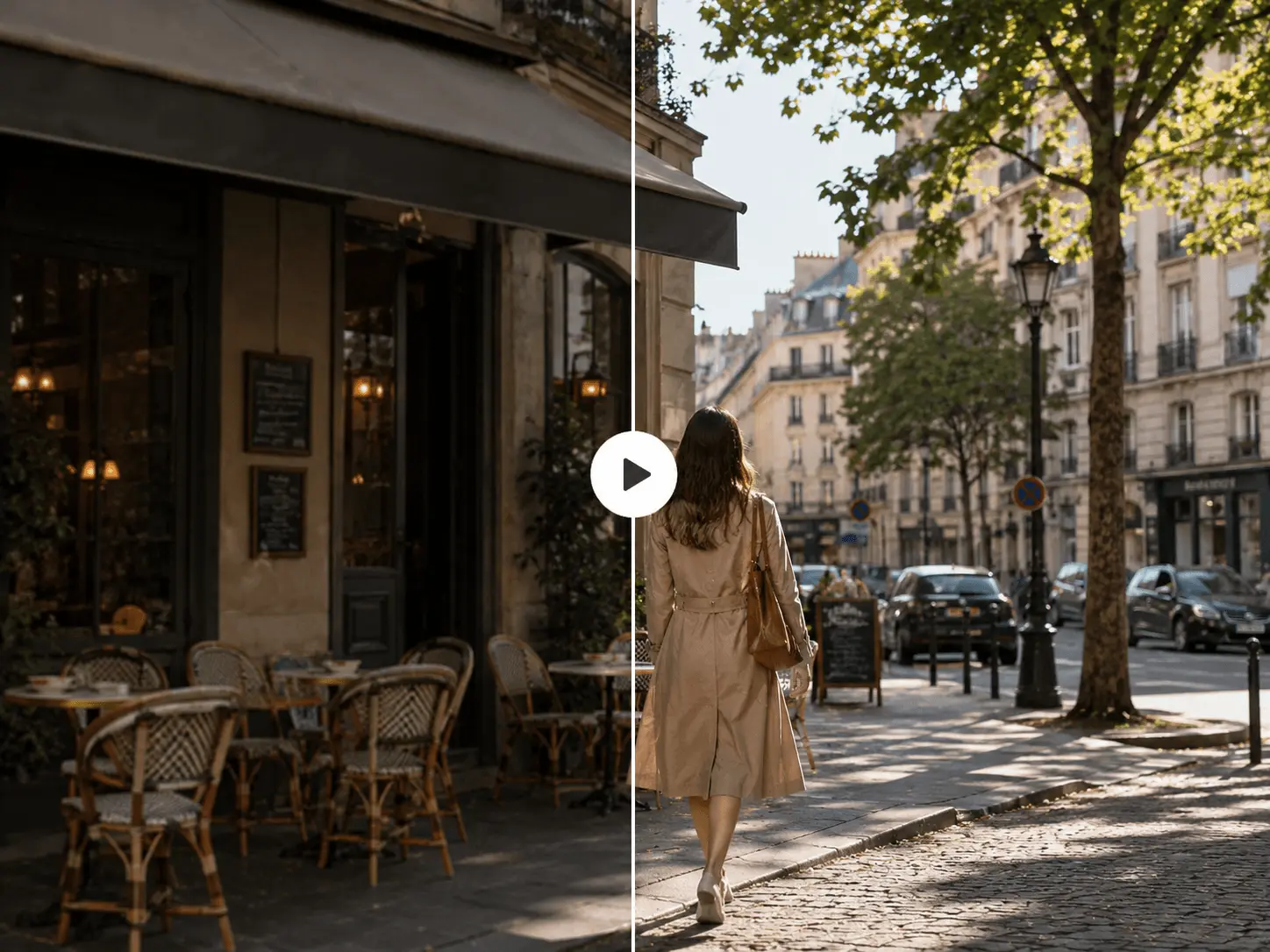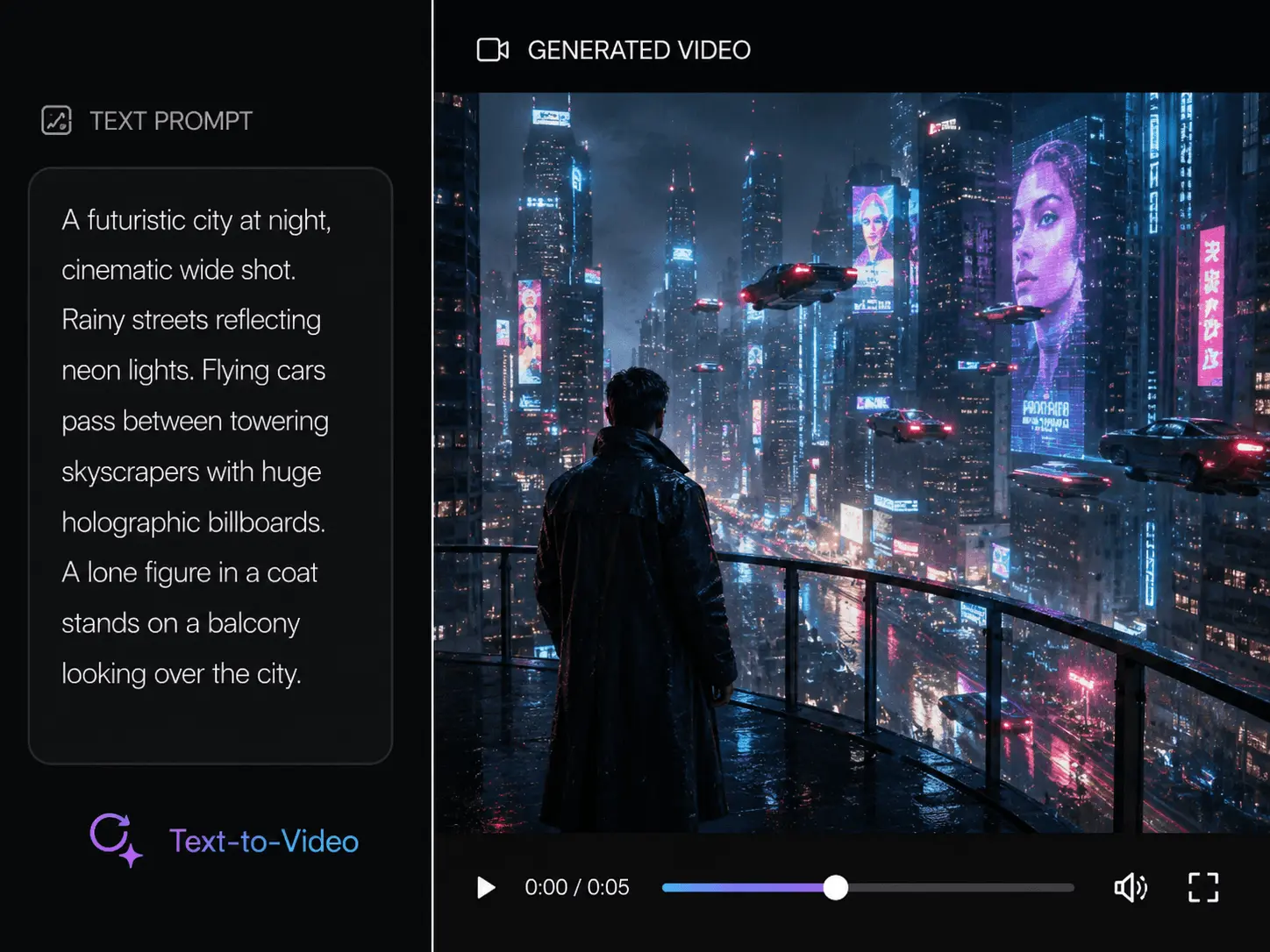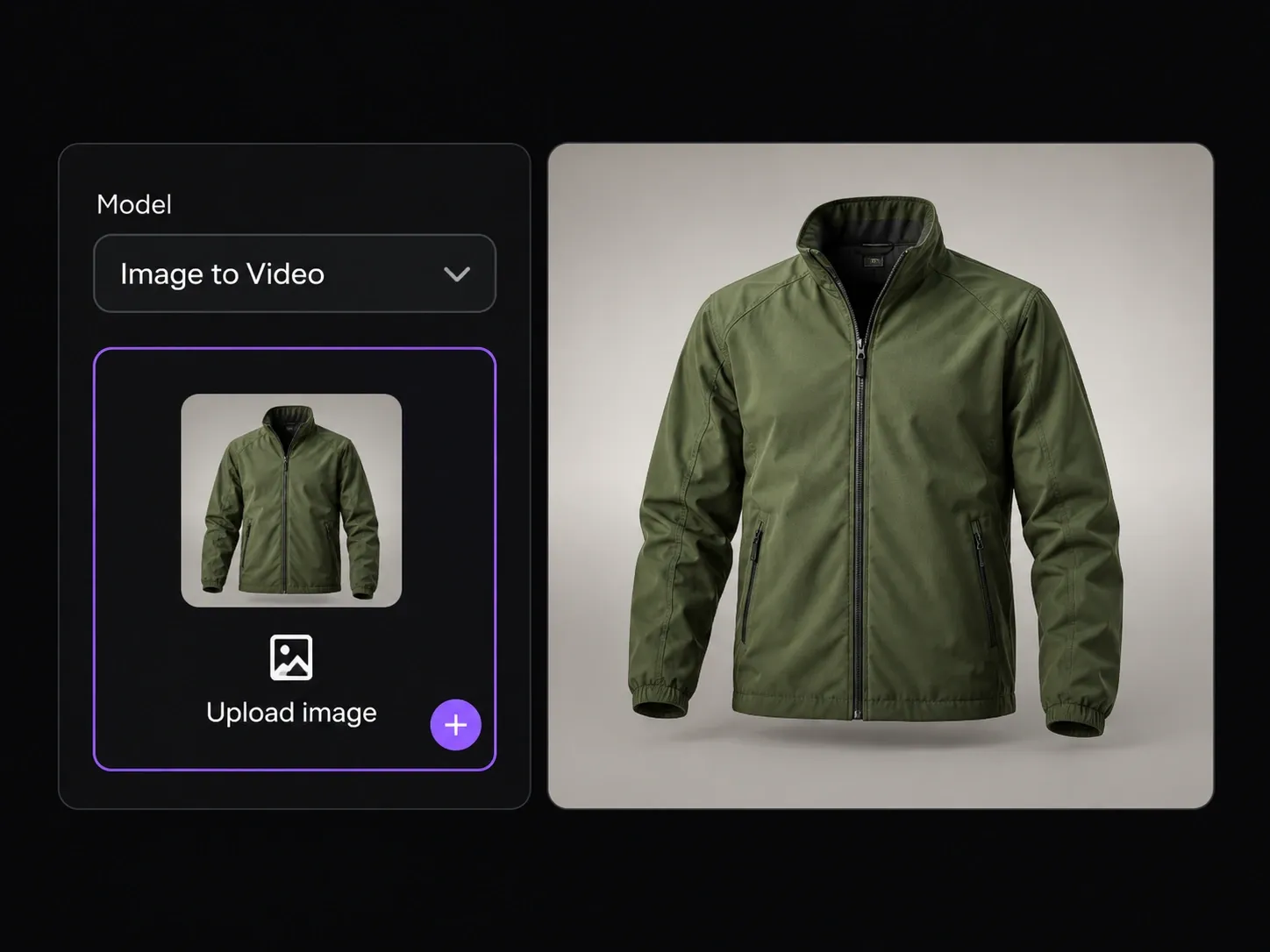
Choose a model and upload your image
Select a model and upload the picture you want to animate. Available image and reference inputs depend on the model you choose.
Use LinoCut's image to video AI to turn a still image into a video with motion and sound. Upload a photo or illustration, describe what happens next, and try it free.
LinoCut's AI image to video generator uses your picture as the visual starting point. Guide a subject's movement, explore a camera move, or add atmosphere with a sound description. Preview each result, then refine your prompt or download the clip.
Upload an image, describe a moving scene, and create a video online.
Select a model and upload the picture you want to animate. Available image and reference inputs depend on the model you choose.
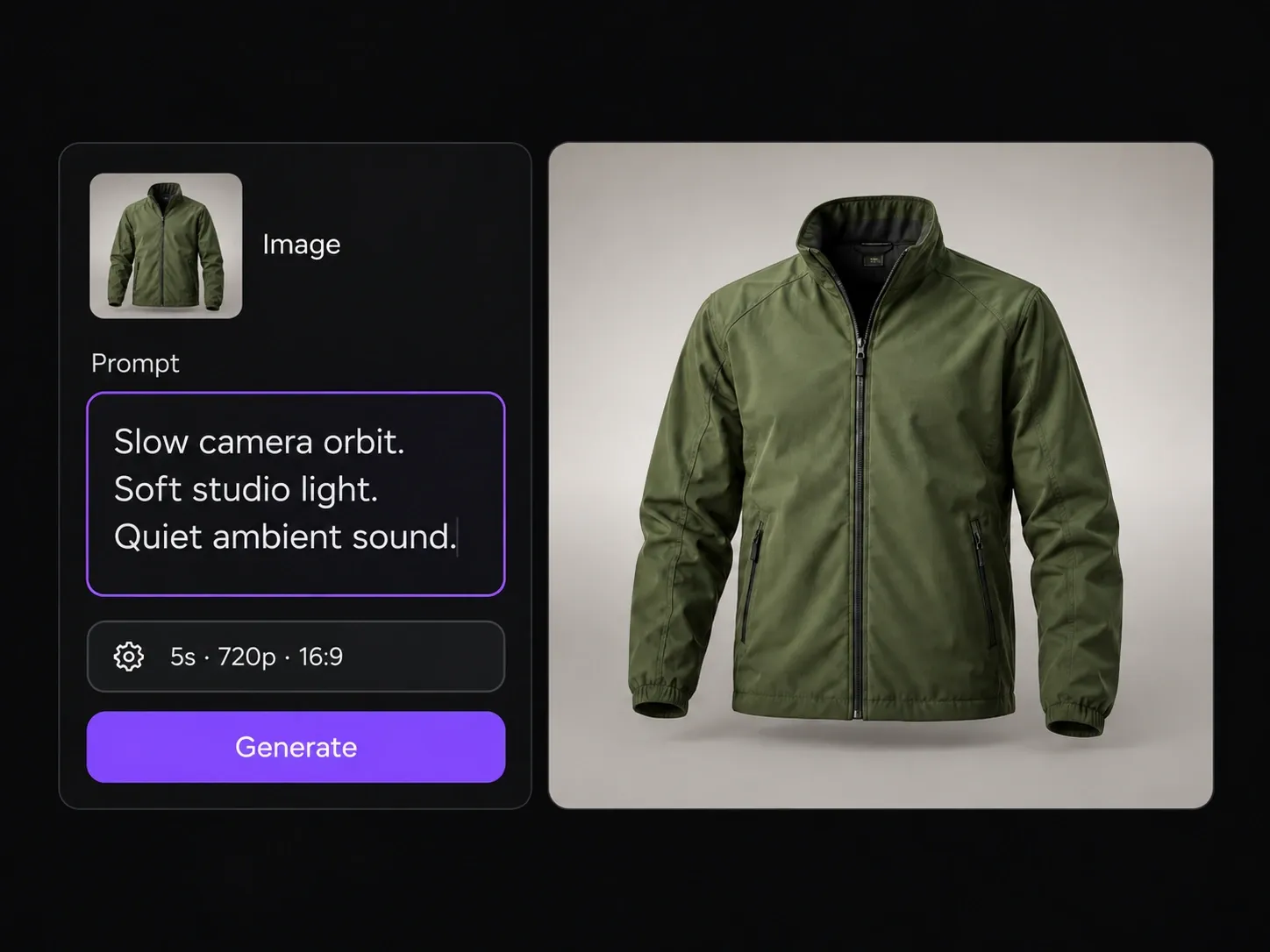
Tell the AI how the subject should move, where the camera should go, and what sounds belong in the scene. Choose from the duration, resolution, and aspect ratio options your model supports.
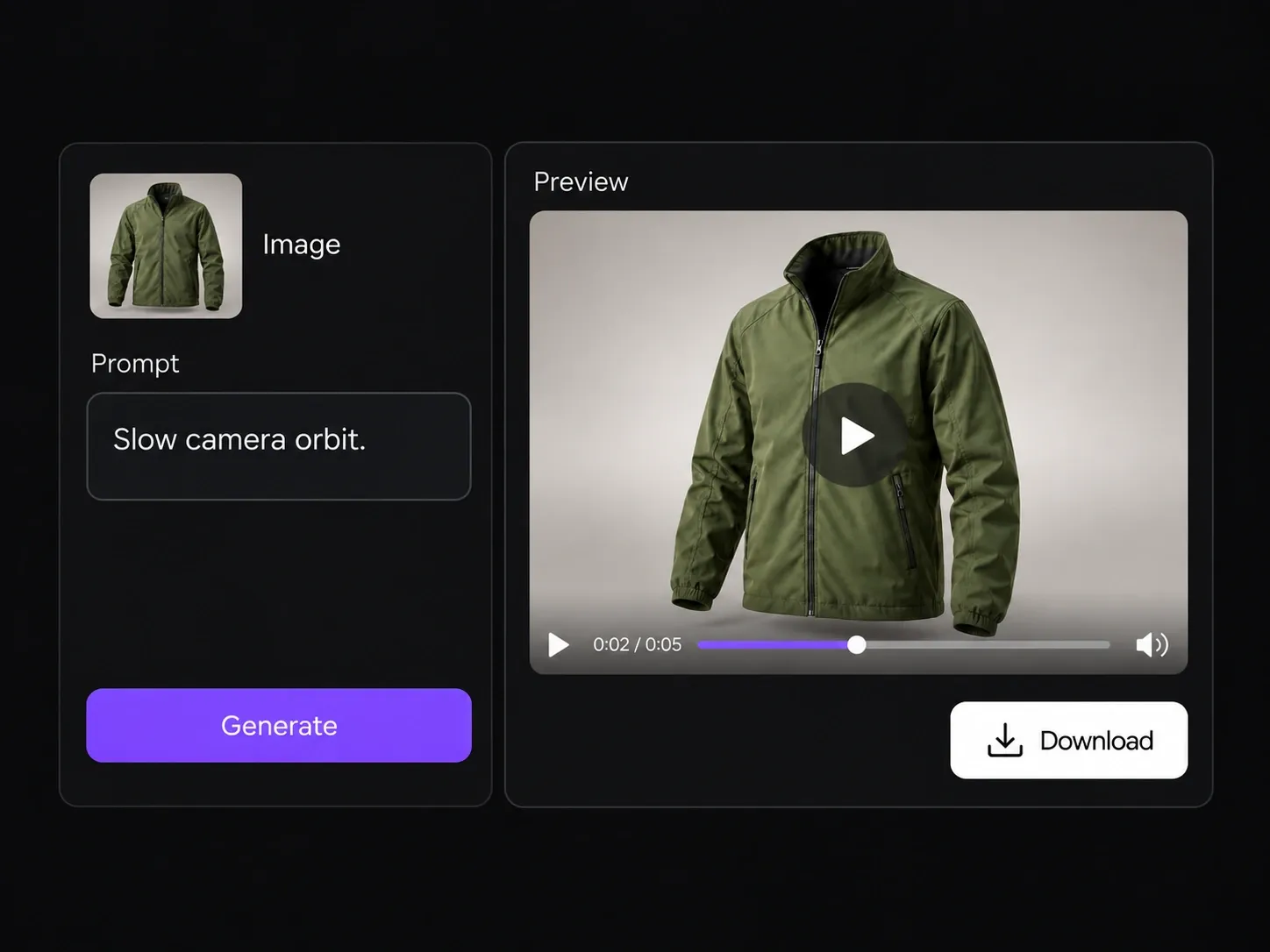
Generate your video and play it back to review the movement and sound. Download a result you like, or adjust your prompt to explore another version.
Your image provides the visual starting point. Use a prompt to guide the action and sound, then choose the available settings for the clip you want to make.
Give the motion a clear direction
Describe a subject action, a camera move, or a change in the scene. Keep the prompt focused so you can review how each choice affects the result.
Image to Video with Audio
Describe sounds alongside the movement in your prompt. Audio is generated with the video, helping you develop the scene’s atmosphere as well as its visuals.
Bring an existing picture into your video idea.
Choose how you want the scene to move and sound.
Watch the result and choose the clip you want to keep.
Turn product shots, family memories, everyday moments, and illustrations into short videos. Choose a scene, then describe the movement and sound you want.
Start with a product photo and describe a camera push, a change in light, or movement around the subject. Explore video ideas for listings, launches, and social posts, then review labels, shapes, and other product details before using the clip.
Give a scanned photograph a moving moment with a gentle head turn, a breeze, or a slow camera approach. Use the prompt to keep the action focused, and review faces and details in the result.
Use photo to video AI to animate travel photos, portraits, and everyday snapshots. Describe a subtle action or movement in the surroundings to create a short clip for sharing, storytelling, or a personal project.
Start with anime artwork, a science-fiction scene, or a fantasy illustration. Describe a character's gesture, drifting mist, or a camera move to explore how your imagined world could unfold.
Play back the movement and sound before choosing a result. You can refine the prompt for another generation or download a clip to use in your next creative step.
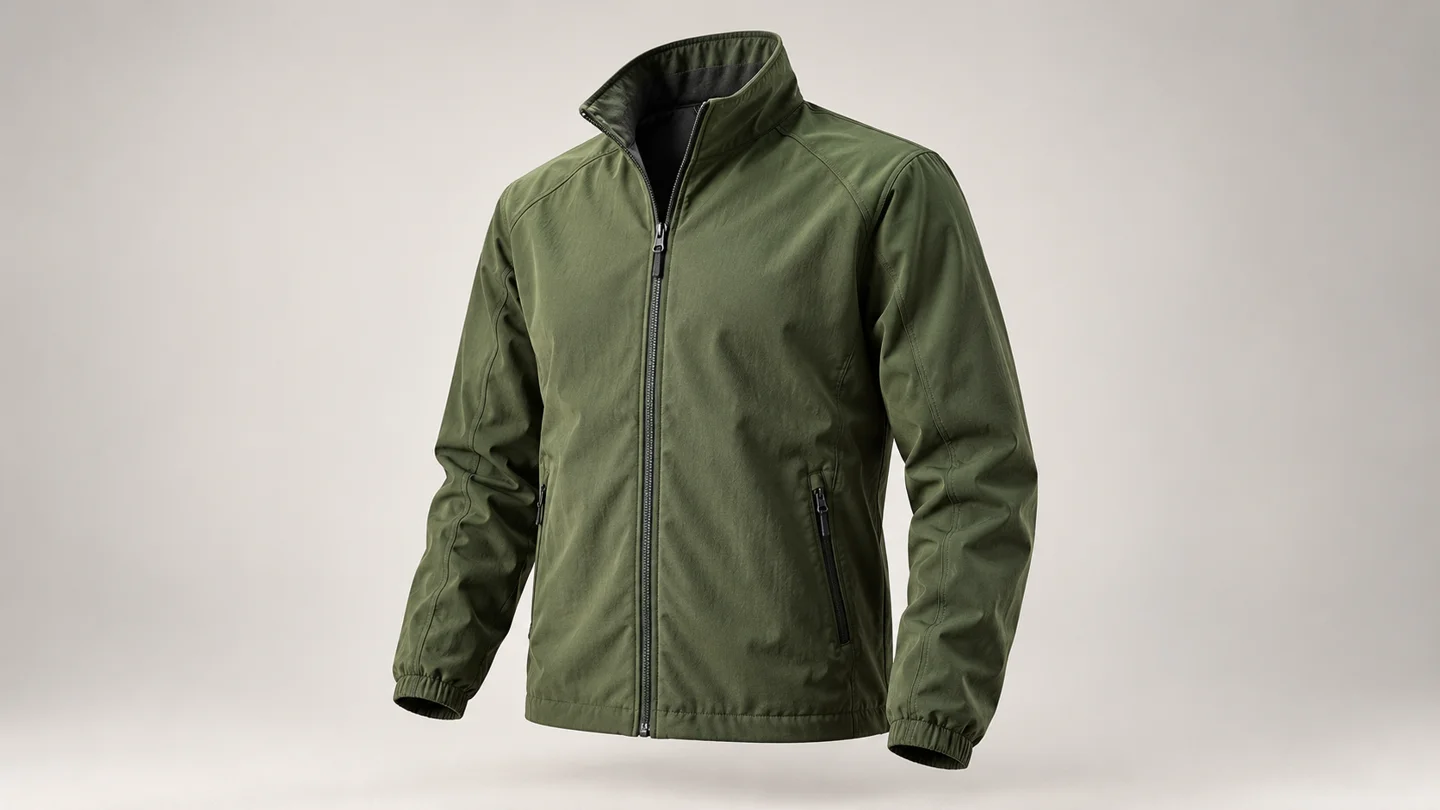

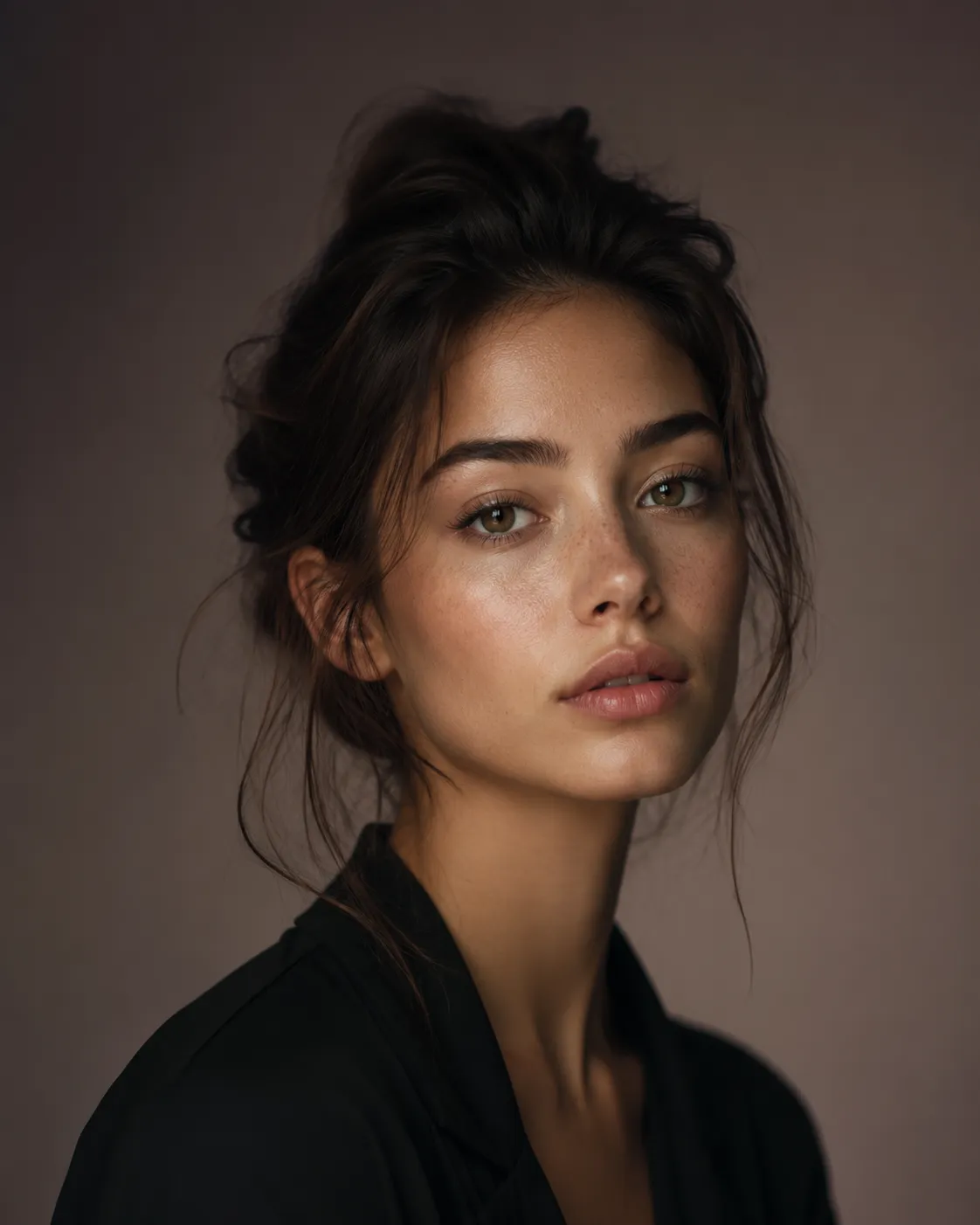
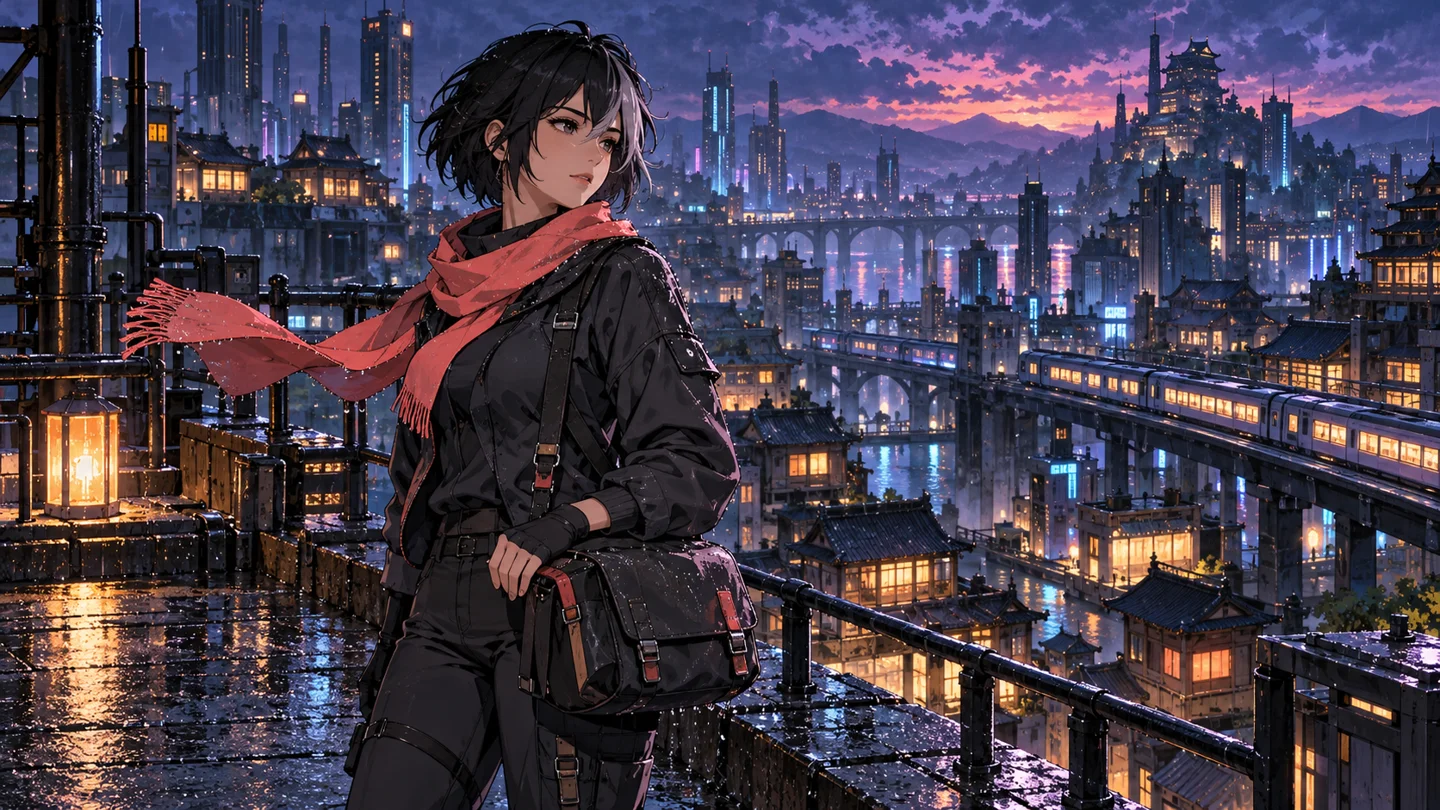
Watch the subject, background, camera movement, and sound together. Look for the details that matter to your idea.
Adjust the prompt or reuse settings from a previous result. Try a more focused action, a different camera move, or a new sound description.
Download the video you want to keep. Use it as source material for your next edit, presentation, or content draft.
The AI generates a moving scene from a still image and a written prompt. Your picture provides the visual starting point, while the prompt guides the action, camera movement, and sound.
Upload your photo, choose a model, and describe the movement you want. Select the available video settings and generate a clip, then preview and download the result.
Yes. You can try LinoCut for free and explore how your images look in motion.
You can start with product shots, portraits, old photographs, or illustrations, including anime and fantasy artwork. Choose a clear image with a recognizable subject.
Yes. LinoCut supports watermark-free video export.
Yes. Generated videos can include sound. Describe the audio you want alongside the movement in your prompt to guide the scene’s sound and atmosphere.
Describe what the subject does, how the camera moves, and the pace of the scene. You can also describe relevant sounds. A focused prompt makes it easier to evaluate the result and decide what to change next.
Some models support multiple images or additional reference media. The available input types and limits depend on the model you select.
The workspace shows the settings supported by your selected model. Available durations, resolutions, and aspect ratios vary between models.
Yes. You can use an old photograph as the source image and describe the movement you want to explore. The result is AI-generated, so review faces and other important details before keeping the clip.
Yes. Upload a product image and describe the action, camera movement, or atmosphere you want. Review product details and text in the generated video before using it in your content.
AI generates new frames from your image and instructions, so movement and details can vary. Try simplifying the action, clarifying the camera direction, or adjusting the available settings before generating another version.
Upload a photo and describe the movement and sound you imagine. Try LinoCut’s AI image to video generator for free.